
Why No-Login AI Video Tools Matter in a Real Production Pipeline
Most people meet AI video generation at an awkward moment. A pitch needs a moving image by tomorrow, a lesson needs a visual metaphor, a product page needs a looping background, and nobody wants to create one more account, verify an email, confirm a phone number, and learn a dashboard before seeing a single frame. That is the real value of a no-login video generator: the distance between an idea and motion collapses to a prompt box.
Frictionless access, though, is not the same as production reliability. Tools that let you generate without signing in are typically tuned for first impressions — short clips, capped resolution, visible watermarks, shared queues, and a modest daily allowance. That does not make them toys. It makes them a specific instrument. They excel at exploration, storyboard previz, filler b-roll, and internal drafts. They struggle as the sole render source for a polished 60-second brand film.
The useful question is never "which free tool wins" in the abstract. It is "which approach fits this shot, this deadline, and this polish level." The rest of this guide explains how these systems work, how to evaluate one in ten minutes, and how to chain short free clips into something that feels intentionally made rather than randomly assembled.
How Free Video Generation Actually Works
Under the interface, most modern video generators are diffusion models that have learned to denoise a noisy latent representation over time. Text-to-video models add a temporal layer so that the denoising process stays consistent between frames; image-to-video models start from a still frame and animate it, which is why they usually produce more controlled results than a pure text prompt.
Everything you experience as a "free tier limit" is a compute decision. Generating one second of coherent 720p motion costs far more processing than generating a single still image, because the model must maintain consistency across dozens of frames. Providers absorb that cost only up to a point. That is the origin of the familiar pattern:
- short clip lengths, often three to eight seconds;
- resolution ceilings around 480p to 720p, sometimes upscaled after the fact;
- visible watermarks on exports;
- a daily generation allowance that resets on a schedule;
- queues that lengthen when the service is busy.
Free access is a marketing surface, not charity. You are receiving a sample of the model's behavior in exchange for attention, feedback, queue participation, and the possibility that you eventually move to a paid plan. Once you understand that trade, the limits stop feeling arbitrary and start feeling like design parameters you can plan around.
Text-to-video versus image-to-video
Text-to-video is best for discovering ideas: moods, color palettes, camera moves you had not considered. Image-to-video is best for executing ideas you have already decided on. If you need a specific character, product, or composition, generate or source a still image first, then animate it. The difference in control is dramatic, and most beginners skip this step, then blame the model.
What the model is genuinely good and bad at
Strong: atmospheric motion, water, smoke, crowds in the distance, slow camera pushes, soft light changes, abstract transitions, environments.
Weak: hands interacting with objects, readable text, precise choreography, multiple people exchanging items, complex physics, rapid cuts inside a single clip, brand-accurate logos.
Plan your shot list around that reality and the output quality jumps immediately.
What You Can Realistically Produce Without an Account
A no-login workflow is not a compromise version of a paid workflow. It is a different production tier with its own best uses:
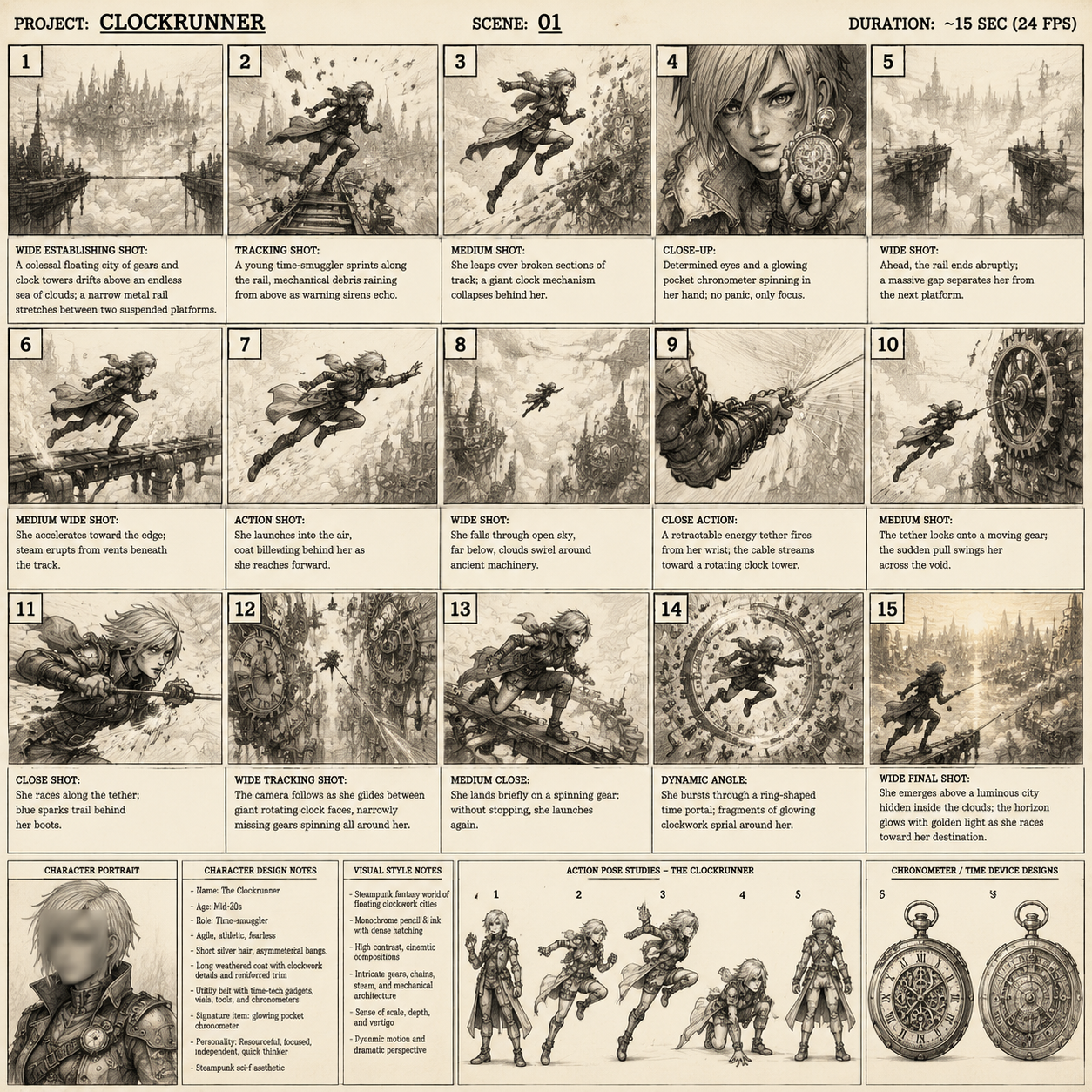
- Storyboard previz. Animate four or five key frames so a client sees motion intent before anyone commits budget.
- Background plates. Looping environmental footage for a talking-head video, podcast intro, or landing page hero.
- Filler b-roll. Cutaway shots that cover audio edits and pacing gaps.
- Concept tests. Compare three visual directions in an afternoon instead of a week.
- Social hooks. A single strong three-second opener that earns the scroll-stop, finished in an editor.
- Educational visuals. Abstract motion that illustrates a process, a trend, or a metaphor.
What it is not good for: long continuous takes, dialogue-driven scenes, precise product demonstrations, broadcast delivery, and anything requiring frame-accurate continuity across a cut.
| Constraint | Typical free behavior | Practical workaround |
|---|---|---|
| Clip length | 3–8 seconds | Cut on motion, stitch in an editor |
| Resolution | 480p–720p | Deliver at 1080p with upscaling and grain |
| Watermark | Visible on export | Crop, cover with graphics, or reserve for internal drafts |
| Queue | Variable wait times | Batch generations, work on other shots meanwhile |
| Allowance | Daily reset | Front-load experiments, save the best prompt for the last run |
| Audio | Usually absent or generic | Replace entirely with licensed music and sound design |
Evaluation Criteria: Score Any Free Generator in Ten Minutes
Do not judge a generator by its landing page demo. Judge it by ten repeatable tests that map to real editing needs.
- Prompt adherence. Does the subject, action, and setting you asked for actually appear? Score from 1 to 5.
- Temporal stability. Watch the edges of the frame and background objects. Does the world stay still while the subject moves?
- Motion plausibility. Do limbs bend correctly? Does water flow downhill? Does a door stay a door?
- Camera control. Can you request a push-in, a pan, a static shot, and get a recognizable version of each?
- Resolution and aspect ratio. Can you generate vertical for social and widescreen for YouTube without a crop that destroys the composition?
- Export cleanliness. Is the watermark optional, corner-placed, or burned across the center?
- Iteration speed. How fast can you re-run a prompt with one word changed? This matters more than raw quality.
- Interface friction. Can you reach the prompt box in two clicks, or are there three modals first?
- Rights and terms. Can you read the usage terms without hunting? What does it say about commercial use and training?
- Result variance. Generate the same prompt three times. Is the quality consistent, or is one run unusable?
A tool that scores 4s across the board beats a tool that produces one spectacular clip out of six attempts, because you can build a schedule around predictability.
A Practical Workflow From Idea to Exported Clip
Step one: write the shot list before opening a browser
List every shot you need in one column, and beside it write the duration, the camera move, and the emotional purpose. A shot that exists only to "look cool" is the first thing to cut. This list becomes your batch queue and your progress tracker.
Step two: lock a visual reference
For each shot, decide the reference: a photo, a frame from another video, a rough sketch, or a generated still. Feeding a still into an image-to-video model gives you composition control that no paragraph of text can match. Free tools often allow this even when they cap clip length.
Step three: generate in short, extendable units
Request the shortest usable length, then generate the continuation separately if you need more time on screen. Cutting between two related clips is often more convincing than one long clip where the model loses track of the scene halfway through.
Step four: treat the generator as a camera, not an editor
The moment your clips exist, move them into an editor. Free browser tools rarely offer reliable trimming, transitions, color matching, or audio. A simple timeline — even a mobile one — will do more for perceived production value than another twenty generations.
Step five: finish with sound and color
Replace any generated audio. Add room tone, foley, and a music bed. Apply a light color pass so clips from different generations feel like they belong to the same world. Match grain and contrast, not just hue. This single step is what separates amateur AI compilations from work that reads as intentional.
Step six: deliver to the right spec
Export at the aspect ratio and bitrate your destination expects. For vertical social, 1080x1920 at a healthy bitrate. For web heroes, a looping 10–20 second file under a few megabytes. For internal review, a watermarked draft is completely acceptable.
Prompt Patterns for Short, Stable, Reusable Shots
The most reliable prompts follow a consistent skeleton:
Subject + action + camera + lens + lighting + environment + style + motion intensity
Example: A ceramic mug on a wooden table, steam rising slowly, static medium shot, 50mm lens, warm window light from the left, minimal kitchen background, soft film grain, gentle motion.
Why this works: every clause answers a question the model would otherwise guess at. When a shot fails, you change one clause instead of rewriting everything, which makes troubleshooting systematic rather than superstitious.
Practical refinements:
- Name one action only. "She turns and smiles while lifting a box" is three actions; the model will pick one badly.
- Describe camera behavior explicitly. "Slow dolly in" and "locked-off shot" produce visibly different results.
- Avoid contradictory style words. "Photorealistic anime" produces mush.
- Use negative guidance if the tool supports it: no text, no logos, no extra limbs, no flicker, no fast cuts.
- Keep motion requests modest. Gentle movement survives compression and looks more professional than frantic motion.
- Save prompts that work. A reusable prompt library is worth more than another tool subscription.
For image-to-video, describe only what should change: "add subtle hair movement, drifting fog, and a slow push forward." Over-describing the scene confuses a model that already has the scene in front of it.
Common Mistakes and How to Fix Them
Chasing length instead of quality. Eight mediocre seconds are worse than three excellent ones. Fix: cut on the strongest moment and let the edit carry the rest.
Judging by a single run. Variance is normal. Fix: generate three versions before forming an opinion, and note which settings produced the best one.
Ignoring aspect ratio until the end. Fix: set vertical or widescreen before generating, because cropping later destroys framing.
Relying on generated audio. Fix: mute everything and rebuild the soundtrack.
Skipping the still-image stage. Fix: for any shot with a specific subject, start with a still and animate it.
Letting watermarks dictate the story. Fix: decide early whether a clip is a draft or a deliverable, and design compositions that tolerate a corner mark.
No naming convention. Fix: name files with shot number, version, and prompt keyword, for example s04_lighthouse_push_v3. You will thank yourself during the edit.
Mixing too many visual styles. Fix: pick one look and one color temperature per project.
Rights, Watermarks, and Safety Checks Before You Publish
Before a clip leaves your machine, run a short checklist:
- Read the usage terms for the specific tool. Some permit commercial use, others restrict it to evaluation, and some shift based on account status.
- Check whether your inputs are retained or used for improvement. Uploading a client's unreleased product photo into a public tool is a business risk, not just a privacy nuance.
- Confirm you have rights to any reference image, voice, or likeness you animate. Animating a real person's photo without consent creates legal exposure that no free tool is worth.
- Inspect the frame for garbled text, distorted logos, and accidental brand marks. Models hallucinate signage constantly.
- Keep a project log linking each exported clip to the prompt, tool, and date. If a client asks how a shot was made, you have an answer.
A simple rule: use no-login tools freely for internal drafts and abstract imagery, be cautious with identifiable people and confidential material, and re-generate final client deliverables in an environment whose terms you have read.
Building a Repeatable No-Login Pipeline
Once you have done this twice, formalize it. Create a project folder with subfolders for references, generations, selects, audio, and exports. Maintain a prompt library organized by shot type — environment, product, portrait, transition. Keep a one-page scorecard of the generators you use, updated whenever one changes its limits.
Batch your work. Because free tools meter daily usage, generate in scheduled blocks rather than whenever inspiration strikes. Test new prompts at the start of a block while quality attention is fresh, then use remaining runs for variations of the best prompt.
Finally, know when to graduate. If a project requires more than a handful of clean clips, frame-consistent characters, clean exports, or commercial certainty, the cost of a paid workflow is almost always lower than the cost of fighting free limits. Use the free tier for what it is genuinely good at — thinking in motion — and pay for reliability when reliability is what the deliverable demands.
FAQ
Are no-login AI video generators safe to use?
They are generally safe for experimentation, but treat them as public services. Do not upload confidential material, unreleased client assets, or personal data. Assume anything you submit may be stored. Read the terms if you plan to publish.
Can I use free AI video clips commercially?
It depends entirely on the tool. Some allow it, some restrict it, and some require a paid plan for commercial rights. Check the specific terms and keep a record of what you generated and when.
Why do my clips look great for two seconds and then fall apart?
Video models drift over time. The longer the generation, the more the scene loses coherence. Generate short clips and stitch them, and prefer image-to-video when you need a stable subject.
How do I remove a watermark legitimately?
You usually cannot, and you should not try to defeat one. Instead, use watermarked output for drafts and internal review, and use a plan or tool whose terms allow clean exports for final delivery. Cropping or covering a mark with your own graphics is acceptable only when the terms permit it.
Is image-to-video really better than text-to-video?
For control, yes. A still frame locks composition, subject, and color before motion begins. Text-to-video remains valuable for discovering ideas you had not visualized yet.
How many clips do I need for a one-minute video?
Plan on twelve to twenty short shots for a paced minute, mixing generated motion with stills, graphics, and screen recordings. Constant AI motion for sixty seconds feels exhausting and repetitive.
What is the fastest way to improve output quality?
Three habits: write a shot list first, generate short clips from a locked reference image, and finish every project with real sound design and a light color pass.
When should I stop using free tools?
When you need consistent characters across shots, clean exports at high resolution, predictable turnaround on a deadline, or documented commercial rights. Those four requirements are the natural boundary of any no-login workflow.
