
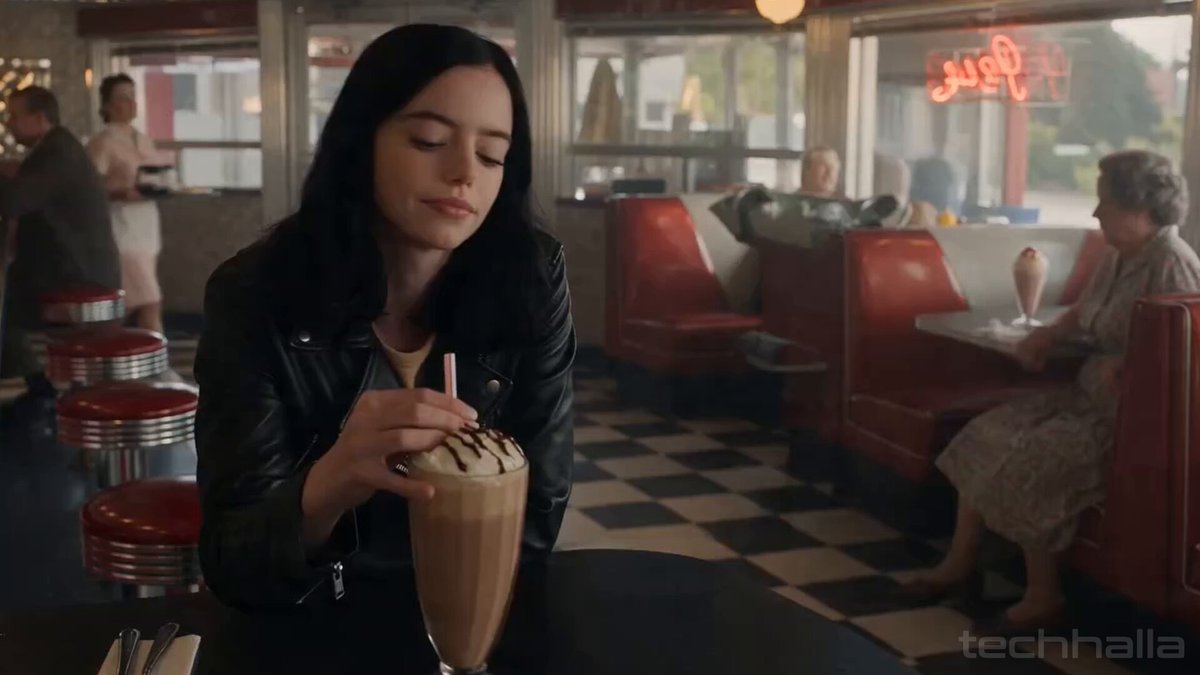
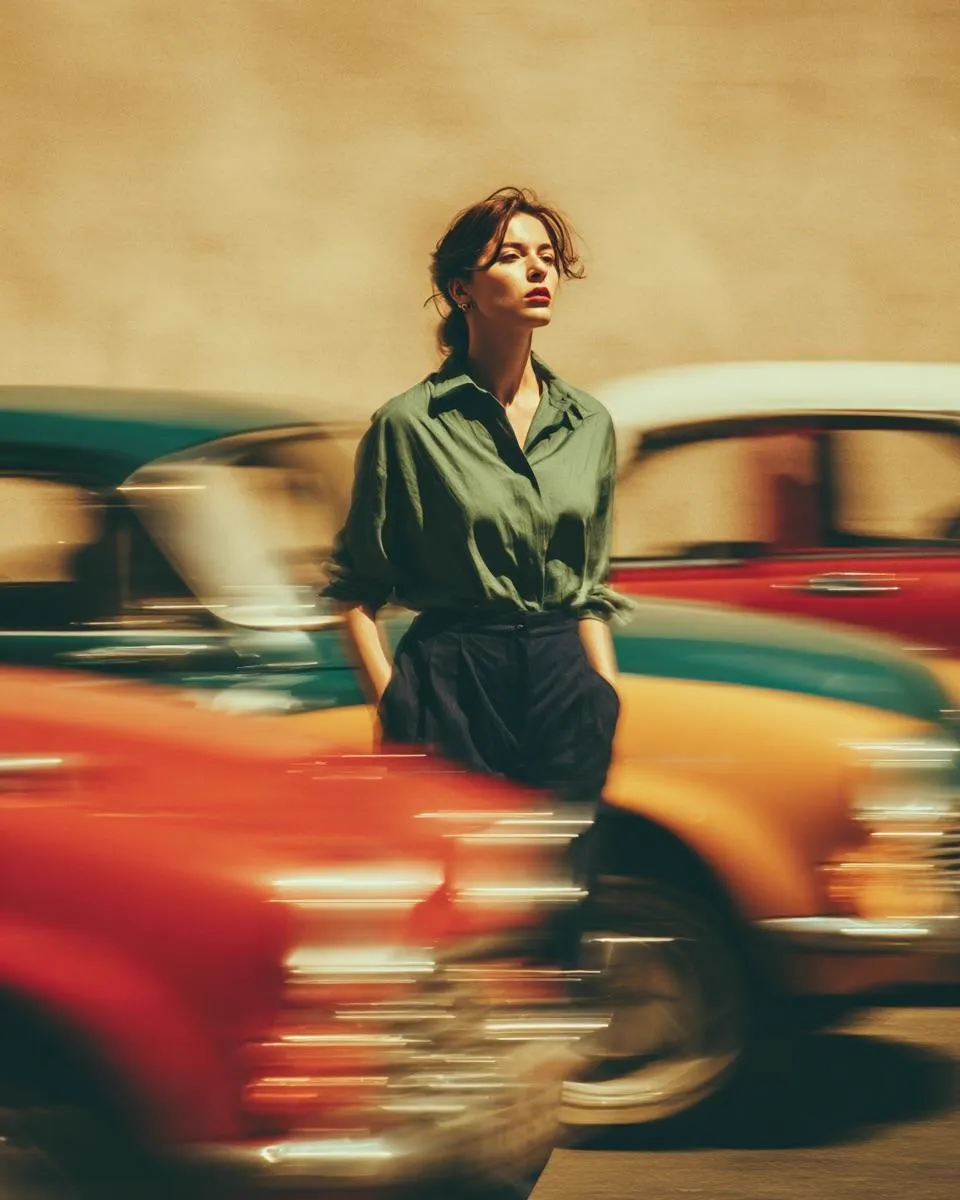
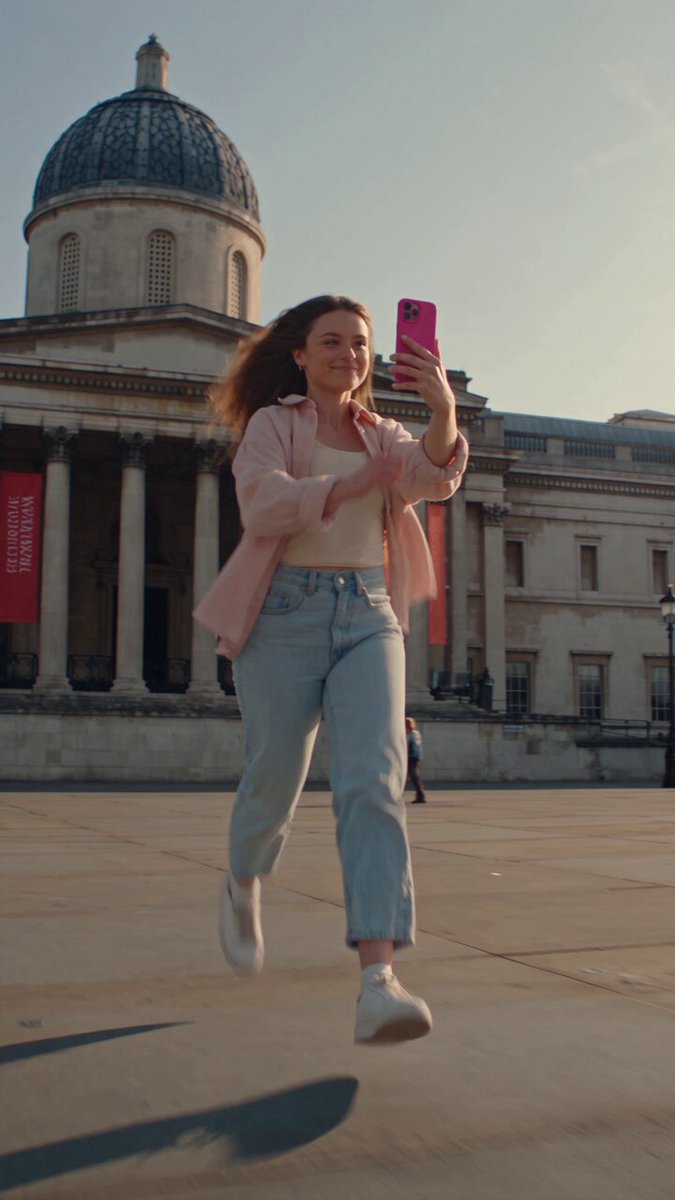
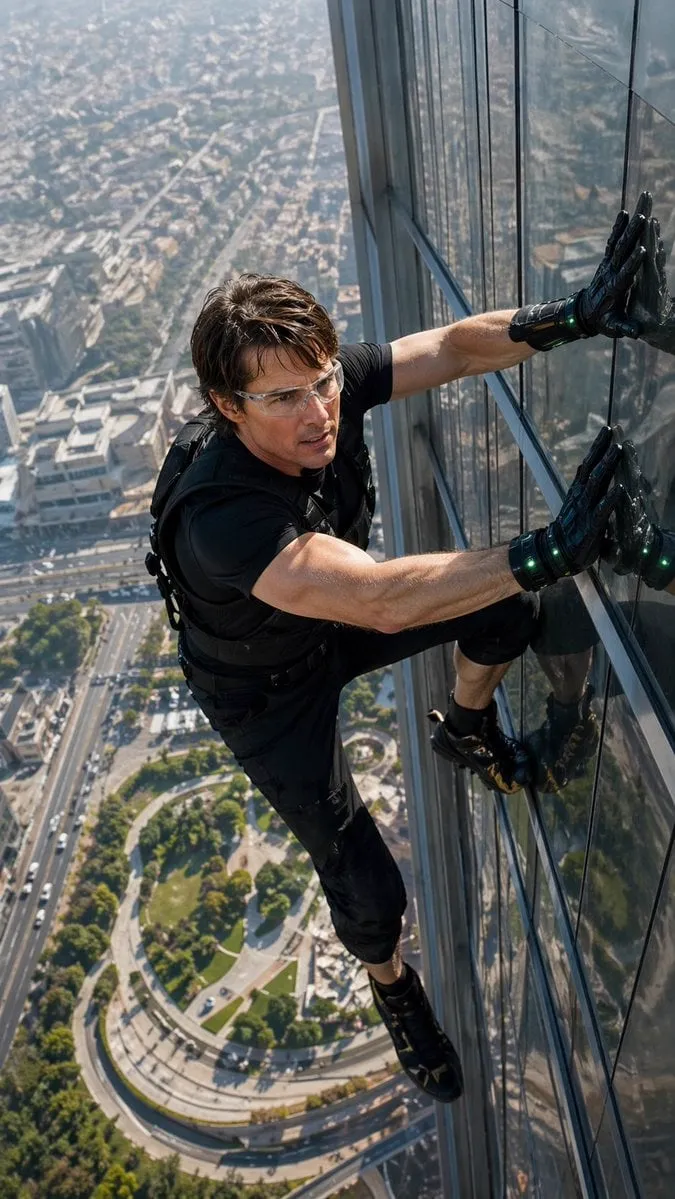
AI video generation has quietly solved the hardest part of production. Getting a usable shot of a neon-lit street at dusk, a slow dolly through a forest, or a stylized character close-up no longer requires a crew, a permit, or a rental house. What it still requires is finishing. A raw generated clip dropped straight into a timeline looks like a raw generated clip: slightly flat, oddly paced, and disconnected from whatever sits on either side of it.
The editors who stand out right now are not the ones with the biggest tool budgets. They are the ones who built a small, reliable stack of free software and learned it deeply enough to move fast. This guide walks through that stack — what each category of tool actually does, which free options are genuinely capable, how to choose between them, and how to wire them together into a repeatable workflow that survives deadlines.
The new baseline: generation is cheap, finishing is the differentiator
A few years ago, the bottleneck in short-form video was footage. You either shot it or licensed it. Today the bottleneck has moved downstream. Source material arrives in minutes; the gap between an amateur result and a professional one is almost entirely in the edit.
That shift changes what a toolkit needs to do. When you generate ten variations of a shot, you do not need more footage — you need fast triage, consistent color, clean transitions, and typography that does not look improvised. Free tools handle all four, but only if you understand what each one is for.
The other change is volume. Short-form platforms reward density: a one-minute video that holds attention typically contains several deliberate cuts, at least one motivated transition, a color shift that signals a scene change, and text that appears exactly when the viewer needs context. Producing that density by hand, clip by clip, does not scale. Producing it with reusable templates, presets, and node graphs does.
So the goal is not "find free software." Free software is abundant. The goal is to assemble a pipeline where each tool has one clear job, hands off cleanly to the next, and can be reused on the next project without rebuilding from scratch.
Your free toolkit at a glance: five jobs, five tool categories
Before naming specific programs, it helps to separate the work into five distinct jobs. Most beginners try to do all five inside one editor and end up with mediocre results in each.
1. Compositing. Combining layers — generated footage, backgrounds, overlays, masks — into a single coherent image. This is where parallax, light wraps, and screen replacements happen.
2. Motion graphics and titling. Animated text, lower thirds, callout arrows, progress bars, animated logos. These need tight typography control and keyframe precision.
3. Color grading. Neutralizing inconsistent footage, matching shots to each other, and building a look. Generated clips from different prompts rarely match on their own.
4. Transitions. The connective tissue between shots. Some are hard cuts, some are animated wipes, and some are entirely invisible.
5. Audio cleanup and mixing. Room tone, noise reduction, level matching, and music ducking. Viewers forgive soft images far more readily than bad sound.
A capable free stack usually combines one NLE (non-linear editor) as the hub, one node-based compositor for complex shots, one vector tool for graphics, and one audio tool. That is four applications, all free, all cross-platform, and all capable of professional output.
Compositing: turning generated clips into a coherent scene
Compositing is the step most AI-first creators skip, and it is the step that most visibly separates polished work from raw output. A generated shot is rarely the whole image you want. You may need to place a generated character against a different background, add atmospheric haze, remove an artifact in one corner, or blend two takes with a soft mask.
Node-based versus layer-based compositing
Most editors use a layer-based model: stacked tracks where the top layer covers the bottom. That is intuitive and fast for simple tasks. Node-based compositing works differently — each operation is a node in a graph, and images flow through connections between them. It looks intimidating for an afternoon and then becomes indispensable.
The advantage is reusability and control. A node graph for "replace background, relight subject, add rim glow, match grain" can be saved and dropped onto a new clip with two or three parameter changes. Layer stacks, by contrast, tend to be rebuilt by hand each time. If you plan to publish regularly, the upfront cost of learning nodes pays back within a handful of projects.
Dedicated free node-based compositors exist and are mature enough for broadcast work. Many editors also use the node environment built into their main editing application, which keeps everything in one project file at the cost of slightly slower performance on heavy graphs.
A practical compositing recipe for AI footage
- Isolate the subject. Use a matte generated by a segmentation pass, or hand-draw a rough mask and refine the edges with a blur-and-contrast trick: blur the matte, then push contrast until the edge firms up.
- Composite onto the new background. Place the subject layer above the background. Do not match exposure yet — matching too early hides problems.
- Match the light direction. Generated backgrounds often have an implied light source. Sample its direction and add a subtle gradient or fill on the subject so both layers agree.
- Add contact shadow or ambient occlusion. Nothing sells a composite faster than a soft shadow where the subject meets the ground or a wall.
- Unify with grain and atmosphere. A shared noise layer plus a faint volumetric haze applied above both layers makes them feel like one camera captured them.
- Check at 25% zoom. If it reads well small, it reads well full-size. Viewers scroll; they rarely scrutinize.
Titles, lower thirds, and motion graphics without a subscription
Typography is where free work most often looks free. Default fonts, default easing, and text that sits on screen for the wrong duration all signal "made in a hurry."
The fix is a template system, not better software. Build three title treatments — a hook title, a section header, and a caption bar — and reuse them for every video. Free vector editors handle logo and shape work; animated titles can be built directly in the NLE using keyframed position, scale, and opacity, or designed as reusable compositions in a motion graphics tool.
Four rules that improve almost any title:
- Animate position or opacity, not both. Two properties moving at once usually looks busy. Pick one and commit.
- Use ease-out, not linear. Linear motion reads as mechanical. A gentle deceleration feels intentional.
- Keep text under seven words per card. If it needs more, split it into two cards and use the cut as a pacing beat.
- Add a subtle backing shape. A slightly darkened rectangle or blurred duplicate behind text makes it legible over any footage without a heavy outline.
For on-screen text that must stay readable over moving footage, a soft drop shadow plus a 15–25% darkened backing panel works better than a hard stroke, which tends to look dated and can flicker against high-frequency detail.
Color grading AI footage: fixing the "AI look"
Generated footage has recognizable color tendencies. Midtones are often slightly desaturated, contrast sits in a narrow band, and black levels drift upward so nothing ever reaches true black. Different prompts produce different white balance, which means a sequence cut from five generations looks like five different cameras.
The free grading application most editors rely on is a full node-based color suite wrapped around an editor, and it is genuinely industry-grade. But the technique matters more than the tool.
Step one: normalize. Bring every clip to a common baseline — set black and white points, correct white balance, and apply a neutral contrast curve. Do this per clip, before any creative look.
Step two: match. Put a reference clip and a target clip side by side. Nudge the target until skin tones, sky tones, and shadow density align. A parade scope or vectorscope makes this objective rather than guesswork.
Step three: build the look. Now apply a shared grade across the whole sequence using an adjustment layer or node applied after individual corrections. Teal-and-orange, bleach bypass, and film emulation all live at this stage.
Step four: protect skin. Whatever look you choose, isolate skin tones and pull them back toward natural. Audiences forgive stylized skies; they notice unnatural faces immediately.
One more tip: generated footage often has slightly crushed highlight detail in bright areas. Pulling highlights down and saturation up in the upper midtones restores a sense of range without introducing banding.
Transitions: what actually works, and when
Transition packs are the most downloaded and least understood asset category in editing. A whip-pan transition looks impressive in a demo reel and awful in a talking-head video. The rule is simple: the transition should serve the cut, not decorate it.
Match cuts and motivated transitions
A match cut connects two shots through a shared visual element — a shape, a motion direction, or a color. If a subject exits frame right, the next shot should have motion entering from the left, or the cut feels like a mistake. Generated footage is unusually well suited to match cuts because you can generate the second shot specifically to match the first: same lens, same motion vector, same palette.
The strongest transitions are often not effects at all. A hard cut on a musical downbeat, a cut hidden inside a fast camera move, or a cut masked by a flash of light all outperform animated wipes because they never draw attention to themselves.
Building a reusable transition library
Rather than collecting hundreds of presets, build a small library you actually use:
- Two hard-cut variants (straight cut, cut on action)
- Two motion-based transitions (whip pan, push)
- Two light-based transitions (flash, bloom wipe)
- Two graphic transitions (shape wipe, text-driven reveal)
- One glitch or texture transition for stylized moments
Nine transitions cover roughly ninety percent of short-form needs. Save each as a preset with matched duration and easing so they drop in identically every time. Consistency reads as style; randomness reads as inexperience.
Sound and pacing: the transition nobody notices
Audio does more for perceived quality than any visual effect, and it is the cheapest category to get right. A free audio editor handles noise reduction, level normalization, and precise trimming — all you need.
Start by cleaning dialogue or voiceover: remove low-frequency rumble below 80 Hz, apply gentle noise reduction, then normalize to a consistent peak. Music should sit 12–18 dB under the voice during narration and rise to fill gaps. That ducking behaviour can be automated with keyframes or a sidechain-style compressor if your editor supports one.
Pacing is the other invisible variable. A common mistake is making every shot the same length. Vary it: a two-second establishing shot, then four half-second cuts, then a three-second beat to breathe. The rhythm itself communicates energy, and transitions land harder when the shot lengths around them differ.
Add at least one sound layer under visual transitions — a whoosh, a riser, a click. Even at low volume, it makes the cut feel physical rather than graphic.
A repeatable workflow, start to finish
Here is how the pieces fit together on a real project.
1. Generate and triage. Produce more clips than you need, then pick the best take for each beat. Rename files by shot number so the timeline assembles quickly.
2. Assemble rough cuts only. Lay clips end to end with hard cuts. No effects, no titles. Watch it twice and fix pacing before anything else.
3. Composite the problem shots. Identify the three or four clips that need background replacement, relighting, or cleanup, and do those in the node compositor. Export as high-bitrate intermediates.
4. Grade the full sequence. Normalize, match, then apply the creative look as a global layer.
5. Add titles and graphics. Apply your saved templates. Adjust durations to the beat, not to a fixed number of frames.
6. Add transitions sparingly. Only where two shots genuinely need connective tissue.
7. Mix audio. Clean, level, duck, and add transition sounds last.
8. Export and review on a phone. Most viewers watch on a small screen with poor speakers. If it works there, it works.
Keeping this order matters. Compositing before pacing is a trap: you will polish shots you later delete.
Common mistakes and how to avoid them
Over-transitioning. If a viewer notices every transition, the video is about transitions, not the story. Aim for no more than one visible transition every fifteen to twenty seconds.
Mismatched color between shots. Always grade before you judge an edit. Half of "bad cuts" are actually color mismatches.
Ignoring frame rate and resolution mismatches. Mixing clips with different frame rates causes stutter. Convert everything to a single timeline format at the start of the project, not the end.
Reusing the same three-second music loop. Even free music libraries offer enough variety to avoid repetition within a single video.
Never saving presets. Every hour spent perfecting a title animation should produce a reusable asset. If you rebuild it next week, you paid twice.
Skipping the export test. Export settings that look fine in the preview can introduce banding in gradients. Test a short section before committing to a full render.
FAQ
Do I really need a separate compositor if my editor can do everything?
Not for every project. If you are cutting talking heads with simple titles, one editor is fine. The moment you replace backgrounds, relight subjects, or build multi-layer scenes, node-based compositing saves significant time.
How long does it take to learn node-based compositing?
Basic competence takes a weekend. Fluency takes a few projects. Start by recreating a single effect you already know how to do in layers, then convert it into a saved node graph.
What is the best free color-grading setup?
Any application with a proper node or layer-based grade, a waveform, and a vectorscope. Scopes matter more than presets — they turn guessing into measurement.
How many transitions should a one-minute video have?
Typically three to five visible transitions, plus many more hard cuts. Density of cuts, not density of effects, is what drives energy.
Is free software actually good enough for client work?
Yes, with one caveat: free tools reward discipline. Because you cannot buy your way out of a problem, you develop better habits — consistent naming, saved templates, and a fixed pipeline order.
What should I learn first?
Pacing. Then color. Then audio. Effects and transitions come last, because they amplify a good edit and cannot rescue a bad one. If your rough cut already holds attention with hard cuts alone, everything you add afterward makes it better.
