
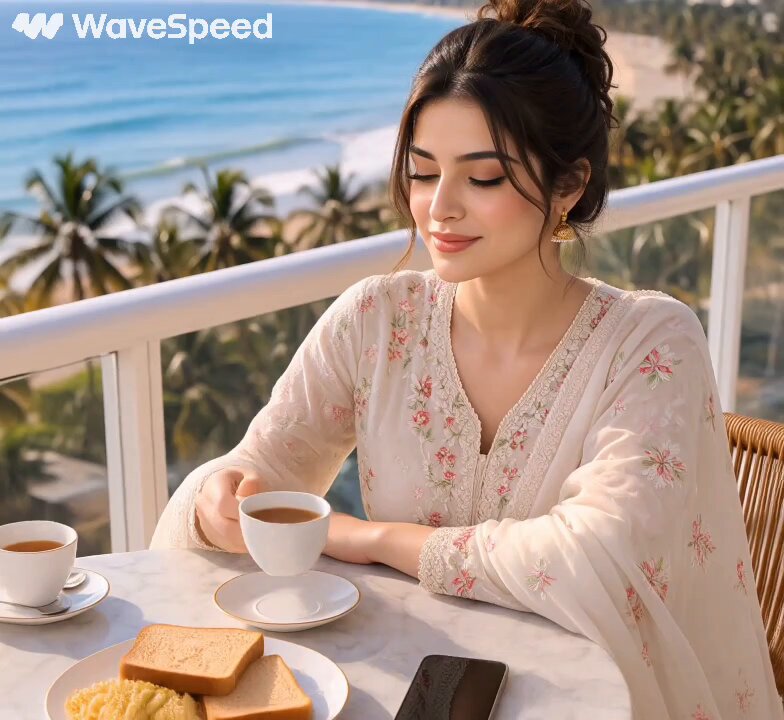
Most generative video tools are marketed as a single prompt away from a finished scene. In practice, the clips that survive a client review, a product page, or a short-form feed almost never start that way. They start with a still image you already trust, plus a clear plan for how that frame should move.
Image-to-video turns a picture into raw material for a shot. That shift changes the craft entirely. You stop hoping the model invents something usable and start directing what already exists: a face, a product, a landscape, a texture, a piece of concept art. The model supplies motion; you supply intent. This guide walks through a complete production workflow for turning stills into cinematic motion, from preparing the source frame to controlling the camera, locking consistency across a sequence, and running the pre-export check that catches problems most people only notice after publishing.
Why Image-to-Video Rewires the Way You Plan a Shot
Text-to-video is a slot machine. You describe something, the model returns an interpretation, and you keep pulling until one result feels close. Image-to-video is closer to operating a camera. You begin with a composition you have already approved, which means the first frame is guaranteed to be usable before any generation happens. Everything after that is about motion quality, not subject accuracy.
That guarantee has real production consequences:
- Identity stays stable. A photographed person, a specific product SKU, or a branded mascot does not drift into a different-looking subject.
- Composition is intentional. You can design framing, negative space, and subject placement in an editing app or a photo shoot instead of arguing with a prompt.
- Iteration gets cheaper. When the still is correct, every failed take is a motion failure, not a subject failure. You can diagnose and fix it faster.
- Existing assets get a second life. Catalog photography, storyboard panels, 3D renders, and illustration all become viable footage sources.
Text-only generation still has a place: abstract transitions, textures, weather, explosions, and any shot where no specific subject needs to be recognizable. But the moment a real subject matters, start with a still.
Preparing Stills That Actually Move Well
A mediocre source frame caps the quality of everything downstream. Before you open a video tool, spend ten minutes preparing the image.
Composition with room to travel
Cameras move, and movement needs space. If your subject fills the frame edge to edge, a dolly or orbit has nowhere to go and the model will either refuse to move or invent ugly filler around the borders. Leave breathing room on at least one side, keep a reasonable amount of headroom, and avoid placing critical detail hard against the frame edge where warping is most visible.
Resolution, sharpness, and aspect ratio
Feed the model more pixels than you need in the final export, then let the upscale step do its job. Over-sharpened stills with visible haloing tend to produce crawling edges in motion. Heavy film grain looks good in a photograph but often reads as flicker once the model tries to animate it. Match the still's aspect ratio to your delivery format before generating, because cropping afterward destroys the framing you designed.
Three source-frame mistakes that ruin results
- Baked-in motion blur. A slow shutter photo of a running person gives the model contradictory information: the subject reads as moving and frozen at once. Pick a crisp frame.
- Cluttered backgrounds. Busy foliage, dense crowds, and complex signage give the model too many independent details to animate consistently. Simplify where you can.
- Tiny faces. At small scale, facial detail is guesswork. Generate a close-up first, then use it as a reference for wider shots later.
Prompting for Motion, Not Mood
The most common image-to-video mistake is writing prompts that describe atmosphere instead of action. "Cinematic, moody, emotional" tells the model nothing about what should happen between the first and last frame. The still already carries mood. Your prompt should carry verbs.
Describe subject action and camera behaviour separately
Write the prompt as two distinct clauses: what the subject does, and what the camera does. "She turns her head slowly toward the window, hair lifting slightly; camera pushes in at a steady walking pace." Two instructions, two systems, one clear shot.
Use specific, physical verbs
Compare "she looks happy" with "she laughs, shoulders rising, head tilting back." The second version gives the model a motion path. Other reliable verbs include turns, steps, lifts, pours, unfolds, scatters, drifts, ripples, and settles.
Keep the prompt ordered and short
Models weight the beginning of a prompt more heavily. A workable order is: subject, action, camera, lighting, style finish. Trim anything that does not change the pixels. If you cannot picture the difference a phrase makes, delete it.
Negative phrasing that earns its place
Do not fill your negative list with generic debris. Focus on the artefacts your specific shot invites: warped hands for close-ups, text or logos for signage, extra limbs for crowds, duplicated faces for groups, and melting geometry for architecture. Rewrite the positive prompt first; use negatives only to suppress what keeps surviving.
Camera Control Is Where Cinematic Clips Are Won
Two clips can share the same subject and the same model and land in completely different leagues of quality. The difference is usually camera language.
Pick one move per shot
A single, clean move reads as deliberate. A compound move — orbit while craning while zooming — reads as noise. Choose from a small vocabulary: slow push in for intimacy, pull out for context, lateral truck for parallax, orbit for product reveal, crane up for scale, and subtle handheld drift for documentary texture.
Depth of field and focus pulls
If your source frame has a shallow depth of field, tell the model which plane should stay sharp. Focus pulls are among the most convincing motions available in image-to-video because they mimic a real operator's hand: start on a foreground object, rack to the subject behind it. Without instruction, models often drift the focal plane unpredictably.
Lens character, used sparingly
Flare, anamorphic streak, and slight chromatic edge can sell a shot as photographed rather than generated. Apply them to one or two shots in a sequence, not all of them, or the whole edit starts to look like a filter.
Motion intensity and duration
Most image-to-video engines expose a motion strength or dynamism setting. Low values hold detail but can look static; high values move beautifully and destroy faces. Start at the low end, then raise it only for shots where the subject's geometry is simple. Keep clips short — three to five seconds is usually enough for a single idea, and short clips hide more imperfections than long ones.
Using Multiple References to Lock Consistency
A sequence only works if the same character, product, or world persists across shots. Multi-reference workflows are the practical solution.
- Character sheets. Prepare three to five stills of the same person: front, three-quarter, profile, and one expression variation. Different camera angles give the model more evidence about structure.
- Product packs. Shoot the item from multiple angles on the same background with consistent lighting. Rotate one item across several generated shots and it will read as a real product film.
- Style boards. When your visuals come from illustration or 3D, keep a style reference alongside the subject reference so the render treatment does not drift between shots.
- Palette anchoring. If a sequence must match existing brand colours, keep a reference frame that shows the palette and lighting direction.
Test consistency early with a cheap, low-resolution pass across three shots before committing to a full sequence. If shot two looks like a different person, no amount of polishing later will fix the edit.
A Step-by-Step Still-to-Clip Workflow
This is the routine that keeps quality predictable on a deadline.
Step 1: Build the shot list first
Write each shot as one line: subject, action, camera move, duration, and purpose in the edit. If a shot has no purpose, cut it before you generate it.
Step 2: Prepare and normalise assets
Correct exposure, remove distracting elements, resize to your working resolution, and name files so you can trace which still produced which clip.
Step 3: Generate low-cost drafts
Work at reduced resolution or shorter duration for the first pass. Drafts are for judging motion, not detail.
Step 4: Review in motion
Do not judge a clip from a single frame. Play it at full speed three times, then scrub slowly. Watch the eyes, hands, hairline, and frame edges — that is where failures live.
Step 5: Iterate one variable at a time
If the motion is wrong, change the action verb. If the framing drifts, change the camera clause. If the subject warps, lower motion strength or simplify the background. Changing three things at once teaches you nothing.
Step 6: Finalise and upscale
Once the motion is right, regenerate at full quality, then upscale and interpolate to your delivery frame rate. Interpolation smooths stutter but can create ghosting on fast action, so check a few frames after applying it.
Step 7: Assemble with sound
Cut on motion, not on stillness. Add ambience, foley, and music last; sound covers small imperfection better than any filter, and it makes short clips feel twice as expensive.
Choosing the Right Engine for the Job
No single model wins every category. Match the tool to the shot:
- Best for photoreal human motion: engines tuned for naturalistic faces and body mechanics, where subtle head turns and eye movement matter more than spectacle.
- Best for stylised or animated looks: tools that respect illustration and 3D references without forcing photoreal skin texture onto them.
- Best for product and macro shots: models with strong detail retention at small motion strengths, where smooth slow rotation beats dramatic action.
- Best for fast social iteration: platforms with quick draft turnaround, vertical output, and predictable queue behaviour.
Evaluate engines on four practical questions rather than benchmark charts. How faithfully does it preserve the source image? How coherent is the motion over the clip length? How much control do you get over camera and motion intensity? And what are the licensing and watermark terms for commercial work? Run the same three test stills through each candidate and compare like for like.
Pre-Export Quality Control
Before a clip leaves your timeline, run this checklist:
- First-frame fidelity. Does frame one still match the original still, or has the model already drifted?
- Face and hand integrity. Check at 100% zoom, not in the preview window.
- Edge behaviour. Look for warping at the frame borders, especially where the subject is cropped.
- Temporal flicker. Textures, thin lines, and fine patterns are the first things to crawl.
- Motion continuity. Confirm the move starts and ends cleanly so it can be cut against the neighbouring shot.
- Colour match. Compare against surrounding shots in the sequence, not in isolation.
- Audio sync. If there is dialogue or a beat-driven edit, verify the timing after any retiming or interpolation.
Batching like a studio
Once a shot type works, templatise it. Save the prompt structure, camera settings, and motion strength for that shot type and reuse it across a series. Batch similar shots together so you are judging comparable results in one sitting. Keep a small library of approved source frames, reference sheets, and prompt templates — it is the single biggest speed gain available in this workflow.
Troubleshooting Common Failures
The face morphs mid-clip
Reduce motion strength, shorten the clip, increase source resolution, and remove competing background detail. If the face is small in frame, generate a close-up version and use it as a reference for the wider shot.
Everything flickers or crawls
This is usually a source problem. Denoise the still gently, avoid heavy grain, and check that the image has not been over-sharpened. Fine repeating patterns such as brickwork, mesh, and stripes are the worst offenders — blur them slightly before generating.
The camera moves when you did not ask it to
Language models read any motion word as a camera instruction if you are not explicit. State the camera move directly, or state explicitly that the camera is locked off.
The result looks plastic and over-smoothed
Modern engines sometimes clean skin and texture too aggressively. Lower motion strength, add a reference frame with natural texture, or apply a light grain pass in post to restore micro-detail.
Dialogue and lip sync drift
Generate the visual first at your target duration, then align audio to the motion rather than the reverse. For talking-head shots, keep the camera static and the motion minimal; every extra movement costs lip accuracy.
Frequently Asked Questions
How long should an image-to-video clip be?
Three to five seconds covers most single ideas and hides more artefacts than longer output. If a shot needs more time, generate two shorter clips and cut them together with a small overlap in the motion.
Can I use the same still for multiple different shots?
Yes, and it is a smart efficiency move. Generate a slow push, a lateral truck, and an orbit from the same frame to create three distinct shots that are guaranteed to share a look, because they came from the same source.
Do I need a high-end GPU to do this?
Not necessarily. Browser-based engines handle generation remotely, so the practical limits are queue time and resolution rather than your local hardware. Local hardware matters more if you plan to run upscaling and interpolation yourself.
What resolution should the source still be?
Aim for roughly two times your delivery resolution where possible. That gives the model enough detail to reconstruct texture while leaving headroom for a crop or a slight push in without softening.
How do I stop the model from changing the background?
Be explicit that the background remains static, reduce motion strength, and simplify the background in the source frame. Busy environments invite the model to interpret vague shapes as things that should move.
Is image-to-video good enough for commercial work?
For product, landscape, texture, and controlled-portrait shots, yes — provided you check licensing terms and review at full resolution. For fast, complex human action, text-to-video and traditional footage still hold an advantage.
Where This Workflow Pays Off
Image-to-video rewards preparation more than any other generative technique. The model is not asked to invent your subject, only to move it, and that narrower job is something current engines do remarkably well. Build a habit of treating the still as the shot and the prompt as the camera direction. Prepare clean frames, write motion instead of mood, choose one camera move per clip, lock consistency with references, and inspect every export at full resolution. Do that consistently and you will produce footage that reads as shot rather than generated — which is ultimately the only benchmark that matters to an audience.
