
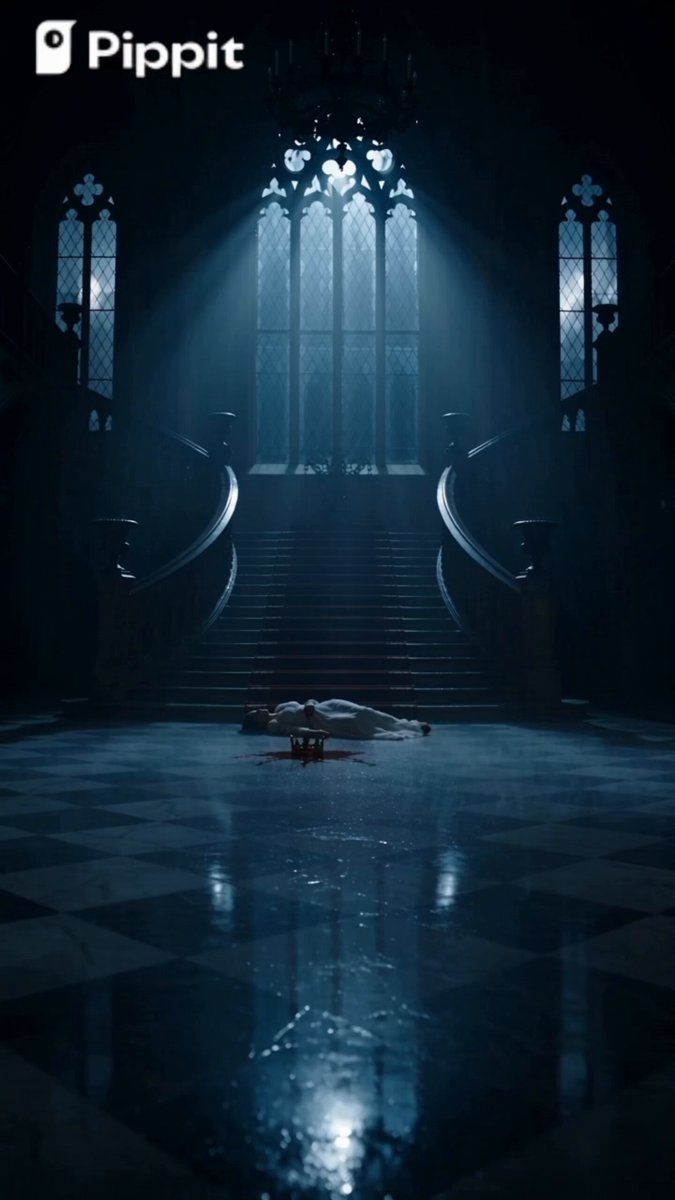
Why stills are now the fastest route into video
Most teams do not start video projects with a blank timeline. They start with something visual that already works: a character design, a product render, a storyboard frame, a photograph from a location scout, a keyframe painted by an illustrator. The question is no longer "can we animate this?" but "how do we animate it fast enough, consistently enough, and cheaply enough to ship?"
Image-to-video generation answers that question better than text-only generation in most real production contexts. A still frame carries an enormous amount of information that a text prompt cannot reliably encode: exact facial proportions, lens compression, color grading, fabric texture, lighting direction, prop placement. When you animate from that frame, the model inherits all of it. You spend your effort on motion, timing, and continuity instead of re-describing a world that already exists.
This guide is a neutral, tool-agnostic workflow. It applies whether you are producing social ads, animated shorts, music videos, explainer content, or previsualization for a larger production. The specific generators change every few months; the pipeline logic does not.
The core image-to-video pipeline
Think of the work as five sequential gates. Each gate has a decision that, if made badly, multiplies cost downstream.
Gate 1 — Source asset quality. A 1024px image with compression artifacts and a soft focus will produce a soft, smeary video. Fix this first, never in post.
Gate 2 — Model selection per shot. Different generators handle different motion types well. A model that excels at subtle facial micro-expression is often poor at large camera moves, and vice versa.
Gate 3 — Motion design. You decide what moves, how far, how fast, and in which direction. This is where most output quality is won or lost.
Gate 4 — Take review and selection. Generate more takes than you need, then judge them against a fixed checklist rather than by vibes.
Gate 5 — Finishing. Upscale, interpolate, stabilize, grade, and cut. The finishing pass is what separates "AI clip" from "shot."
Stage 1: Preparing source frames properly
Before anything else, normalize your input. Crop to the target aspect ratio rather than letting the generator decide — mismatched ratios cause the model to invent edges, and invented edges are where warping begins. Keep the frame clean: if you do not want a background element to move, consider removing it from the still and recompositing later.
Upscale the still to at least the model's native working resolution. A 720p source animated into a 1080p timeline will look soft even if the generator claims to output 1080p. Also write down, in one line, what the shot is supposed to do: "slow push in on the face, hair moves slightly, background stays locked." That single sentence becomes your acceptance test later.
Stage 2: Picking the right generator per shot
Do not commit to one generator for an entire project. Treat models as specialists and route shots accordingly. Reasonable buckets:
- Fast draft models for blocking and timing tests. Low resolution, short duration, high iteration speed. You are only checking whether the motion idea reads.
- Cinematic models for hero shots requiring believable light transport, depth of field, and camera movement.
- Character-focused models for dialogue, close-ups, and anything where the audience will scrutinize a face.
- Stylized and anime-oriented models for flat shading, cel outlines, and non-photoreal motion that realistic models tend to break.
- Physics-heavy models for water, smoke, cloth, and destruction, where other systems produce melting or rubbery artifacts.
Keep a simple routing table in your project notes: shot number, motion type, model used, seed, prompt, and take rating. This takes two minutes per shot and saves hours when a client asks for a variation six weeks later.
Writing motion prompts that actually control the frame
With image-to-video, the image does the describing and the prompt does the directing. Treat every prompt as a set of instructions to a camera operator and an actor, not as a scene description.
A useful structure has four parts:
- Subject action — what physically moves and how. "She turns her head slightly to the left, eyes staying on the lens."
- Camera behavior — "slow dolly in, no handheld shake, focal length constant."
- Environment motion — "curtains drift, dust motes float, no wind on the papers."
- Constraints — "background architecture unchanged, no additional people entering frame, hands remain still."
The constraints line matters more than most people expect. Generators tend to add motion everywhere because motion is what they were trained to produce. Explicitly naming what must stay static is often the difference between a usable take and a take where the building behind the subject slowly melts.
Avoid stacking contradictory instructions. "Fast camera fly-through" plus "static locked-off frame" confuses the model and produces a muddy compromise. If you need a whip pan, let the frame blur — do not ask for a whip pan and perfect sharpness.
Prompt length and specificity
Short prompts are not automatically better. Two or three precise sentences beat one vague sentence. But beyond roughly 60–80 words, additional detail stops influencing the output and starts diluting it, because the model's conditioning has limited attention to distribute. If you need more control, change the input image rather than lengthening the prompt.
Consistency across shots: characters, props, and environments
A single beautiful clip is easy. A sequence where the same character looks identical in twelve shots is the actual engineering problem of AI video.
Anchoring characters
The most reliable technique is to lock the character's identity to a specific reference frame and reuse it aggressively. Build a character sheet: one clean front-facing portrait, one three-quarter view, one profile, plus a full-body shot. When generating a new angle, feed the closest reference as the source image rather than generating from scratch and hoping the model remembers.
Where a generator supports multiple reference images, combine them: an identity reference for the face and a pose or scene reference for the body and lighting. This blend approach dramatically reduces drift compared to single-image conditioning, especially across profile turns where facial geometry changes most.
Locking props and sets
Props move more than faces and are harder to notice until they are wrong. A logo that flips, a necklace that changes length, a chair that migrates across the room — all common. The fix is procedural rather than magical:
- Photograph or render props in isolation at the exact angle needed.
- Composite them into the source frame before generation so they already exist in the correct pixel positions.
- Animate with a locked camera and minimal subject movement when a prop is critical to a plot point.
- If the shot demands parallax, accept a second take where the prop is tracked and composited back in during editing.
Continuity across cuts
Match on action. End shot A mid-gesture and begin shot B a frame later, so the viewer's eye carries across the cut and small inconsistencies get masked by the motion itself. Additionally, keep color temperature and contrast consistent across all generated takes before editing — models drift warmer or cooler between runs, and that drift becomes visible as flicker across cuts.
Camera language: the vocabulary that gets results
Generators respond well to established cinematography terms because those terms appear in their training data attached to real footage.
| Intent | Useful phrasing |
|---|---|
| Scale emphasis | "slow push in," "dolly out to reveal" |
| Tension | "subtle handheld drift," "slight dutch angle" |
| Reveal | "camera trucks right, foreground object passes lens" |
| Energy | "orbiting arc shot at moderate speed" |
| Intimacy | "shallow depth of field, focus holds on eyes" |
| Scale | "wide establishing framing, subject small in frame" |
Avoid describing camera moves purely in meters or degrees unless the tool explicitly takes numeric parameters. "Push in 30 centimeters" is less useful than "slow push in." Conversely, if your tool exposes strength or motion magnitude sliders, those are your precision instruments — reduce them for subtle shots and raise them only when you need visible energy.
For multi-shot scenes, draw a simple plan on paper. Two to six frames of rough stick figures are enough to reveal whether your coverage makes sense before you generate a single clip.
Reviewing takes: a repeatable quality checklist
Judge takes in the same order every time so you stop being seduced by one good moment in an otherwise broken clip.
- Identity — is the character the same person? Check eyes, jawline, hairline.
- Anatomy — hands, fingers, teeth, ears. Zoom in.
- Motion read — does the movement communicate the intended beat in under two seconds with sound off?
- Background integrity — architecture stable, no melting, no spontaneous objects.
- Lighting consistency — shadows remain anchored to their sources across the full duration.
- Temporal stability — no pulsing, flicker, or texture crawl.
- Start and end frames — the first and last frames must cut cleanly against neighbors.
Rate each take on a three-point scale. Anything with an identity or anatomy failure is dead regardless of how beautiful the lighting is. This sounds obvious, but in practice teams keep near-miss takes because they invested effort in them. A fixed checklist prevents that.
Finishing: turning a raw clip into a shot
Raw generation is roughly 60% of the work. The remaining 40% happens in a standard finishing chain:
Stabilization. Even locked-off shots can carry micro-jitter. Apply light stabilization, not aggressive — over-stabilizing creates a floating, artificial feel.
Upscaling. Use a video-specific upscaler rather than a frame-by-frame image upscaler. Processing frames independently reintroduces flicker that the generator had already resolved.
Frame interpolation. If your tool outputs 24fps but you need 60fps for slow-motion, interpolate after upscaling, and check for warping around fast-moving edges. Interpolation is also a useful diagnostic: artifacts around the hands usually mean the underlying motion is physically wrong, not that the interpolator is bad.
Color and grain. Generated clips often have unnaturally clean shadows. Adding a light film grain or a very subtle noise layer across the whole sequence unifies shots generated at different times and makes the material feel like one camera.
Sound design. Audio sells motion more than any visual tweak. Footsteps, cloth movement, room tone, and a low ambient bed make a technically imperfect clip feel intentional.
Common mistakes and how to avoid them
The same failure patterns appear across almost every project.
Overloading the prompt. Asking for a camera move, a costume change, a lighting shift, and a character action in one clip. Split it into two shots; the edit will be better anyway.
Generating at final resolution too early. You will iterate many times. Iterate at draft settings and only render at maximum quality once the motion is approved.
Ignoring aspect ratio conventions. Vertical for feed-based social, square for certain placements, wide for cinematic. Decide before you generate; reframing later crops out the composition you carefully built.
Treating every shot as a hero shot. Some shots exist only to connect two others. Generate those fast, accept the first decent take, and save your iteration budget for the two or three shots the audience will actually remember.
Skipping the continuity pass. Before you export, watch the full sequence at normal speed, then at double speed. Fast playback exposes flicker, timing problems, and identity drift that frame-by-frame review hides.
No version control. Name files with shot number, take, and model. "Clip_final_final2" guarantees you will lose the take the client liked.
A worked example: 30-second product film
Suppose you are making a 30-second spot from four still images: a product on a table, a hand reaching for it, a person using it, and a wide lifestyle shot.
Block the whole sequence with draft-speed generations to confirm timing. Shot 1: locked camera, slow push in, product static, soft light shift across the surface. Shot 2: handheld reach, shallow depth of field, hand enters from frame right. Shot 3: medium close-up, subtle head turn, background bokeh locked. Shot 4: slow arc, subject small in frame, environment movement limited to drifting light.
Review all drafts against the checklist. Likely failures: the hand in shot 2 will have anatomy issues, and shot 4's background will want to invent detail. Fix shot 2 by generating at a tighter framing where the hand occupies less of the frame, then reframing in the edit. Fix shot 4 by using a cleaner source still or by masking the background and compositing a static plate back in.
Once motion is approved, upscale, interpolate to your delivery frame rate, unify the grade, add grain, and cut to music. Total iteration time on a project this size is typically a few hours of active work rather than days, and the biggest time savings come from the draft-first discipline, not from any single model.
FAQ
How long should each generated clip be?
Start at three to five seconds. Most generators hold coherence best in that range. Longer clips are usually better assembled from multiple shorter takes than generated in one pass.
Should I generate from one image or several?
Use one image for simple motion and multiple references when identity or pose matters. Multi-reference conditioning reduces drift but can also flatten motion variety, so blend deliberately.
Why does my character's face change halfway through a clip?
Usually the motion is too large for the conditioning to hold. Reduce movement magnitude, shorten the clip, or choose a model tuned for facial stability.
Do I need a different tool for anime or illustrated styles?
Often yes. Photoreal models tend to add texture and volumetric shading to flat art, breaking the style. Stylized models preserve line work and flat color much better.
How do I make multiple shots look like one scene?
Lock camera height, focal length, and color temperature across shots, match on action at cuts, and apply a single unifying grade and grain layer at the end.
What is the cheapest way to improve output quality?
Better source stills. Sharper input images with clean edges and deliberate composition improve results more than any prompt rewrite, and they cost nothing but preparation time.
When should I stop iterating?
When the shot passes the checklist and reads correctly to someone who has not seen it before. Perfectionism past that point produces diminishing returns and eats the budget for the shots that matter.
Is image-to-video suitable for full-length narratives?
For short-form and sequences, yes. For long-form, it works best as a shot-generation engine inside a conventional edit, with human decisions on pacing, continuity, and sound.
