
Why Reels Thumbnails Decide Whether Anyone Watches
Most creators spend hours on a 30-second clip and roughly four minutes on the still frame that represents it. That ratio is backwards. On Instagram, a Reel does not only live in the feed video slot: it appears on your profile grid, in the Reels tab, in Explore, in search results, and in every place someone might share a screenshot of it. The cover image is often the only element a viewer sees before deciding whether to commit three seconds of attention.
A strong thumbnail does three jobs at once. It communicates the topic instantly, it creates a small curiosity gap, and it signals quality before the first frame plays. A weak one, or no deliberate one at all, leaves the platform to pick a random mid-motion frame that is usually blurred, half-lit, or dominated by an open mouth.
AI image generators have changed how fast you can close that gap. You no longer need a designer, a stock library, or a photo shoot to produce a cover that looks intentional. What you still need is a system: a repeatable way to move from raw footage to a finished cover in a few minutes, without every thumbnail looking like it came from a different account.
This guide walks through that system end to end. It covers what AI generators are genuinely good at, how to write prompts that produce usable results on the first or second attempt, how to keep branding consistent across dozens of posts, and how to test covers so your choices improve over time rather than resetting every week.
What an AI Thumbnail Generator Actually Does Well
It helps to be clear about the division of labor. A generative image tool is excellent at three things and mediocre at two others.
Excellent at:
- Producing a wide range of visual directions from a short text description, so you can explore moods and compositions without sketching anything.
- Filling in believable detail: lighting, texture, background environments, stylized props, abstract gradients, or illustrative scenes that would take a long time to source or build.
- Matching a reference aesthetic, so you can ask for a look consistent with a previous post or a competitor's visual language, then adapt it.
Mediocre at:
- Rendering accurate, legible text. Handled by the model, typography usually arrives misspelled, warped, or inconsistently kerned. Add text afterward in a separate layer.
- Preserving a specific real person's face or a precise product. Unless you are working with a tool that supports reference-image conditioning or trained identity features, expect drift between attempts.
That second list is why the best results come from a hybrid approach. You generate the background, the lighting, and the mood, then composite your own headline text, logo mark, and any brand colors on top. The AI handles the expensive part. You keep control of the parts that must be exact.
One more thing worth knowing: most modern generators accept a reference image alongside a text prompt. That single feature is the difference between a one-off experiment and a production line, because it lets you say 'new scene, same lighting and grade as this one.'
The Fast Workflow: From Raw Clip to Published Thumbnail
The workflow below takes roughly five to eight minutes per cover once you are comfortable with it, and much less when you generate in batches.
Step 1: Pick the Emotional Peak, Not the Prettiest Frame
Scrub through the finished clip and mark the two or three moments where the content peaks: the reveal, the punchline, the surprising result, the strongest visual. Screenshot each one. These become both your fallback covers and, more importantly, your prompt references. Describe what is happening in the frame in plain language, because that description will become the seed of your prompt.
Step 2: Decide What the Cover Must Communicate in One Glance
Write a single sentence: 'This Reel is about ___.' Then choose one subject, one setting, and one emotional tone. Anything more than that will get lost at grid size. Thumbnails are read at roughly the size of a postage stamp on a phone, so restraint is not a style preference, it is a legibility requirement.
Step 3: Write the Prompt in Layers
Use a consistent order so you can debug failures quickly:
- Subject – who or what, including framing (close-up, medium shot, over-the-shoulder).
- Action or pose – static shots usually underperform dynamic ones.
- Environment – location, time of day, background busyness.
- Lighting – rim light, softbox, harsh afternoon sun, neon glow.
- Style and lens – documentary photo, cinematic still, 35mm, shallow depth of field.
- Aspect ratio and framing note – vertical, subject centered or offset, negative space on the upper third.
That last point matters more than people expect. If you plan to add a headline, ask for empty space where the text will go. Requesting 'negative space in the top third, uncluttered background' saves you from having to blur or darken the image later.
Step 4: Generate a Batch, Not a Single Image
Always produce at least six variants. Review them at thumbnail size, not full resolution: shrink the previews to about 150 pixels wide and see which one still reads. Composition mistakes hide at full size and become obvious when they are small. Keep the two strongest and discard the rest without sentimentality.
Step 5: Composite Text and Brand Marks
Open the chosen image in any editor, including a phone app, and add:
- A headline of three to five words maximum, ideally one idea.
- High contrast against the background: white with a subtle shadow, or a solid color block behind the text.
- A consistent corner element, such as a small logo, episode number, or series label.
If the image already contains a busy area where your text needs to sit, apply a gentle gradient overlay rather than a heavy blur. It keeps the image feeling photographic.
Step 6: Export Correctly
Export vertical at 1080 by 1920 pixels. Keep the file size reasonable and the format in JPEG or PNG. Check legibility in both light and dark app themes, and confirm that nothing critical sits within the margins where the platform overlays interface elements. A cover that looks perfect in your editor can lose its bottom third to on-screen buttons.
Step 7: Save the Recipe
Record the prompt, the model style setting, the seed or reference image, and the text layer settings. The next time you make a cover in the same series, you start from a known-good configuration instead of a blank prompt box. This single habit is what turns AI generation from a novelty into a genuine speed advantage.
Prompt Patterns That Consistently Produce Better Thumbnails
Certain structures work far more often than free-form description. These patterns are worth adapting rather than copying.
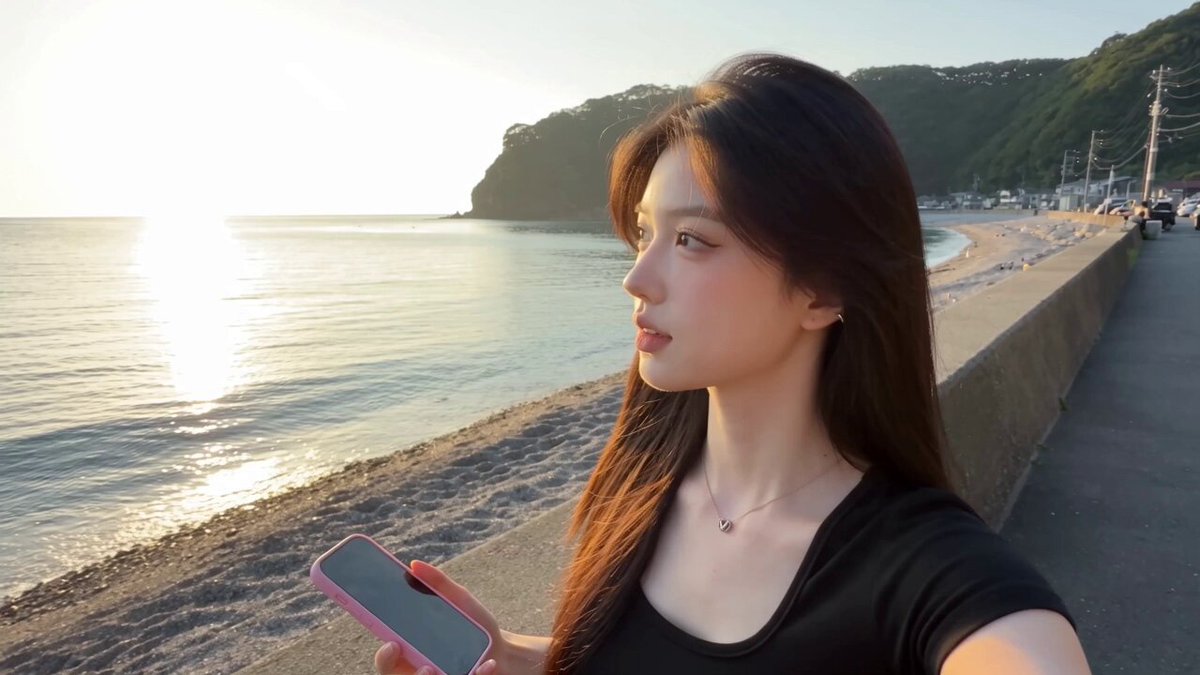
The character-forward pattern. 'Close-up of a person with an exaggerated surprised expression, holding a smartphone toward the camera, indoor kitchen at night, warm practical lighting, documentary photo style, vertical framing, subject on the right, empty space on the left.' This works for talking-head and reaction content, and the empty side gives you a natural text zone.
The object-hero pattern. For product, food, or unboxing content, put the object in the center against a strong single-color background with hard directional light. This reads instantly at small sizes because the silhouette is simple.
The before-and-after pattern. Request a split composition with a clear visual break down the middle. It performs well for transformation content and does not require any text to make sense.
The environment-as-hook pattern. For travel, lifestyle, or aspirational content, lead with a striking location and keep the human figure small but present. The scale contrast creates interest without needing a facial expression.
The stylized-illustration pattern. When you want a consistent series look without shooting anything, request a flat vector or 3D-render aesthetic. It is easier to keep uniform across posts than photorealism, because small rendering variations read as stylistic rather than as mistakes.
A note on negativity: most generators handle positive descriptions better than exclusions. Rather than listing everything you do not want, describe the clean result you do want.
Choosing a Visual Direction: Realism, Cinematic, Illustrated, or Trend-Driven
Not every account should look the same, and not every generator style suits every topic. Use these criteria to choose deliberately.
Photorealistic. Best for personal brands, coaching, fitness, food, and anything where trust matters. The risk is the uncanny middle ground: slightly wrong hands, glassy eyes, or lighting that feels off without you being able to say why. Mitigate this by keeping the subject small in frame or partially cropped, which is also a common editorial technique in real photography.
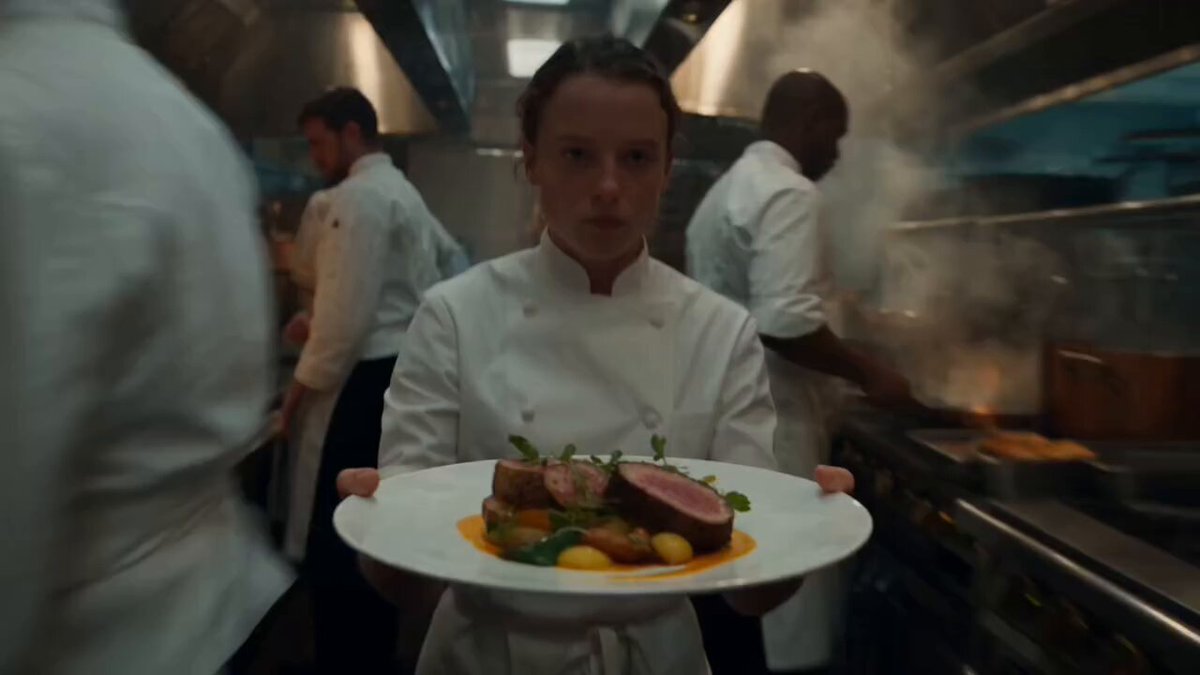
Cinematic still. Best for storytelling, drama, trailers, and narrative series. Ask for specific references: anamorphic flare, teal and orange grade, fog, low-key lighting. These covers tend to have natural dark regions where text sits comfortably.
Illustrated or graphic. Best for explainers, finance, tech commentary, and educational series. Flat shapes and limited palettes reproduce reliably, look sharp at small sizes, and are the easiest to keep consistent week over week.
Trend-driven. Best for fast-moving meme and culture content. Here the goal is not timelessness, it is immediacy: a recognizable visual format with your subject swapped in. Accept that these covers age quickly and plan to replace them if the Reel keeps circulating.
A practical rule: choose the direction that matches how people already expect your topic to look, then differentiate within that expectation rather than fighting it. Viewers scan for category signals first and novelty second.
Building a Repeatable Brand System
Consistency is what makes a profile grid look like a channel rather than a folder of experiments. A lightweight system needs only five decisions.
- Two typefaces. One bold display face for headlines, one clean sans for small labels. Do not exceed two.
- A palette of three to five colors. Include one accent that appears on every cover. That accent becomes your signature at grid scale.
- A fixed text position. If headlines always sit in the lower third, viewers learn where to look and your grid develops rhythm.
- One recurring graphic element. A thin border, a corner tag, a number badge, or a subtle grain overlay. It costs nothing and unifies a series.
- A prompt template. Store it as a text snippet with placeholders for subject, environment, and lighting. Filling in three blanks is much faster than writing from scratch.
When you generate with reference images, feed the system back into itself: use your own past covers as references so the new batch inherits the palette and lighting you already committed to.
Testing Thumbnails: What to Measure and What to Ignore
The temptation is to obsess over click-through rate on the cover image alone. Keep in mind that the cover, the first frame, the caption, the hook text, and the audio all influence whether someone stops. Isolating the thumbnail is difficult, so treat testing as directional rather than scientific.
A workable approach: publish ten Reels in a series with deliberately varied cover styles, log the style used for each, and compare the average reach and profile visits after the set is complete. Look for patterns rather than single winners. If character-forward covers consistently outperform scenery covers across ten posts, that is a signal worth acting on. If one cover wildly outperforms and the rest are flat, you probably captured a lucky algorithmic moment, not a design principle.
Two practical tests are worth running repeatedly. First, the squint test: shrink the cover to about 120 pixels wide and check whether the subject and text still register. Second, the grayscale test: convert to black and white and confirm the composition still holds. If contrast collapses without color, the cover is relying on hue rather than structure, and it will struggle in a busy feed.
Common Mistakes That Kill Thumbnail Performance
Too much text. Six words is a paragraph at thumbnail size. Cut to three, then cut again.
Low contrast between text and background. Thin light text over a bright sky is unreadable on a phone in daylight. Use a solid backing shape or a strong shadow.
Centering everything. A perfectly centered subject with centered text looks static. Off-center compositions with deliberate empty space feel designed rather than generated.
Ignoring the profile grid. Each cover competes with the eight around it. If every cover is a medium shot of a person against a gray wall, the grid turns into wallpaper.
Uncanny AI artifacts. Extra fingers, melted objects, nonsensical background geometry. Zoom in before publishing. If an artifact is unavoidable and the cover is otherwise strong, crop tighter or reframe the composition to exclude it.
Skipping the reference step. Generating from pure text every time is the fastest route to visual drift. Reuse references and saved prompts.
Generating one option and settling. The first image is rarely the best. Batch, shrink, compare, then decide.
Frequently Asked Questions
Can I use AI-generated images as Reels covers commercially?
Check the terms of the specific tool you use and your local rules about AI-generated media. Most major generators grant broad usage rights to outputs, but restrictions on specific kinds of content vary. Also avoid prompting for recognizable real people, trademarked characters, or brand logos.
What resolution should a Reels thumbnail be?
1080 by 1920 pixels, vertical, matching the video. Higher resolution is unnecessary; lower resolution will look soft when the cover is displayed on a larger screen.
Should the thumbnail be a frame from the video or a generated image?
Both work. Editorial or explainer content often benefits from a generated cover with a clear headline. Personal, conversational content usually performs better when the cover is a real frame from the clip, because authenticity signals draw the click. Testing both on your own audience is the only reliable answer.
How do I keep AI covers from looking generic?
Add one specific, non-obvious element: an unusual prop, a distinct color grade, a recurring graphic device, or a tight crop. Generic covers come from generic prompts. The detail is what makes the image feel authored.
How many covers should I make per Reel?
Two or three at minimum, then pick one. It costs almost nothing once your prompt template is set, and the difference in performance between your first and third option is often significant.
Do I need design software?
No. A mobile editor with layered text, shadows, and gradient overlays is enough. Generate the base image, then finish the typography on your phone while you are still in the publishing workflow.
Putting It All Together
The bottleneck in short-form video is rarely production quality. It is the number of decisions between finishing a clip and publishing it. A thumbnail system removes most of those decisions. You keep a saved prompt template, you generate six variants, you shrink them, you pick two, you add a three-word headline in a fixed position, and you export at vertical 1080 by 1920.
The compound effect is what matters. After twenty covers built with the same palette, typeface, and composition rules, your profile grid starts doing promotional work for you: a new visitor can scan it and understand your channel in two seconds. That kind of clarity is difficult to buy with production budget and straightforward to build with a disciplined workflow and a good AI image generator.
Start with one Reel. Generate more options than you think you need, shrink them before deciding, and write the prompt settings down. The second cover will take half the time, and by the fifth you will have a repeatable process that holds up even when you are publishing every day.
