


Why Slideshows Still Win Attention on Instagram
Slideshow-style videos — a sequence of stills or lightly animated frames cut to music — keep outperforming polished single-take footage for a practical reason: they are fast to produce, easy to iterate, and they pack more information into a short runtime. On a platform where the feed is a scroll rather than a destination, each frame becomes a small reveal. The viewer keeps watching because something new arrives every one to two seconds.
The format also matches how people actually edit. You can start with a camera roll, a client's product shots, a set of screenshots, or a batch of AI-generated images, and finish with something that feels deliberate within an hour. What used to be manual — trimming, scale animation, transition timing, beat matching — is now partly automated by tools that detect faces and subjects, generate motion, and align cuts to audio.
That shift is meaningful for solo creators and small teams. It compresses the distance between "I have images" and "I have a post." It also lowers the skill floor without lowering the ceiling: a beginner can ship a clean, rhythmic slideshow, while an experienced editor can use the same tools to build parallax, depth, and camera moves that would previously have required motion design software.
But automation is not a substitute for structure. A slideshow with no narrative spine looks like a folder, not a story. The best results come from pairing AI assistance with a tight creative plan: a hook frame, a clear sequence, a consistent visual style, and a payoff at the end. Everything below is about building that plan and then letting the tools handle the repetitive work.
How AI Changes Each Stage of Slideshow Production
Modern AI touches almost every part of the pipeline, but it helps to separate what each capability is actually good at, because they fail in different ways.
Image-to-video and subtle motion
Image-to-video models take a still frame and generate short motion: drifting clouds, hair moving in wind, a slow push-in on a face, ripples on water. For slideshows, the goal is rarely dramatic transformation. You want a gentle, believable movement that keeps a frame alive for two or three seconds. Over-animating is the most common error — if the motion draws attention to itself, it competes with your message.
The practical settings worth tuning are motion strength, duration, and seed. Low motion strength with a two-second duration gives you a reliable "living photo" effect. Higher strength is useful for hero frames only, where you want a distinct moment of surprise.
Subject detection, reframing, and aspect ratio conversion
Vertical formatting is where AI saves the most tedious time. A model that understands the subject of a frame can keep a face, product, or logo inside the safe zone while cropping a wide image into 9:16. That beats manual keyframing for batch work, especially when you are converting twenty images at once. Still verify the results: algorithms sometimes centre on the wrong element, and text baked into the image can get clipped.
Beat detection and rhythm
Audio analysis that finds beats and transients lets you auto-align cuts to music. This is the single fastest way to make a slideshow feel professional. A cut that lands on a downbeat reads as intentional; a cut that arrives a quarter second late reads as sloppy, even if the viewer cannot explain why.
Upscaling, denoising, and colour consistency
Mixed-source images rarely match. Upscalers and colour-matching passes can bring a phone photo and a stock image into the same visual family — normalising exposure, contrast, and grain. Do this before you animate. Animating first and colour-matching later wastes render time and can introduce shifting artefacts.
Captioning and text layout
Automatic transcription plus kinetic captions handles the accessibility and silent-viewing problem in one pass. Treat it as a first draft: fix names, jargon, and punctuation, then adjust line breaks so captions do not cover the subject's face.
Choosing Your AI Slideshow Stack
There is no single best app. The right choice depends on how much control you want, how many videos you publish, and whether you are editing on a phone or a laptop.
Phone-first editors
Mobile editors win on speed and convenience. They typically combine a template library, beat-synced transitions, caption tools, and export presets tuned for Reels. They are ideal for daily posting and for creators who shoot, edit, and publish entirely from one device. Their limits show up when you need precise keyframes, layered sound design, or consistent brand assets across dozens of videos.
Browser-based AI video tools
Browser tools tend to offer stronger generation features: image-to-video, style transfer, object replacement, and higher-resolution exports. They suit batch production — build a template, swap the assets, render ten variants. Because rendering happens in the cloud, they are also friendlier to older hardware.
Hybrid workflows
Most serious creators end up hybrid: design or generate stills in one place, animate in a second, assemble and mix audio in a third. That sounds cumbersome, but it keeps each step specialised. A typical chain is a design tool for layout and type, an AI video tool for motion, and a conventional editor for trimming, sound, and export.
Decision criteria that actually matter
| Criterion | What to check |
|---|---|
| Output resolution | Can it export 1080x1920 at a high bitrate? |
| Motion control | Are there strength and duration controls, or just presets? |
| Batch capability | Can you apply the same motion to many images? |
| Audio tools | Beat markers, ducking, and a music library? |
| Caption quality | Editable, with style options and safe-zone awareness? |
| Export presets | Native 9:16 and 4:5 without manual cropping? |
| Learning curve | Can a non-editor produce a decent result on day one? |
| Cost structure | Does pricing scale with volume in a way you can predict? |
Score each tool against your own top three criteria rather than against a generic feature list. A tool that is mediocre at everything but excellent at your bottleneck is usually the better pick.
A Repeatable Eight-Step Slideshow Workflow
This sequence works whether you are producing one post or twenty. It front-loads the decisions that are expensive to change later.
Step 1: Define the single idea. Write one sentence describing what the viewer should take away. If you cannot, the slideshow will feel like a random gallery. One idea also keeps the frame count honest — usually six to twelve images.
Step 2: Gather and cull assets. Collect more images than you need, then cut ruthlessly. Remove anything that repeats a previous frame, any image with distracting background clutter, and anything that needs a caption to make sense. Aim for visual variety in shot size: wide, medium, close-up, detail.
Step 3: Lock the aspect ratio and safe zones. Choose 9:16 for Reels and Stories, 4:5 for feed carousels. Keep faces, logos, and key text inside the centre vertical band, and leave the bottom fifth clear for interface elements and captions.
Step 4: Build a story spine. Order frames as a mini-narrative: hook, context, development, twist, payoff. Starting with your best image is tempting, but starting with a question or a striking detail usually keeps more viewers past the first second.
Step 5: Apply motion selectively. Animate the frames that carry the narrative and leave one or two completely still. Stillness creates contrast and gives the eye a rest. Keep most motion under three seconds, with consistent direction — if one frame pushes in, avoid cutting to a frame that pulls out immediately.
Step 6: Cut to the music. Place your track first, mark the beats, then trim frame durations so changes land on strong beats. If a frame feels too long, shorten it by a fraction rather than adding another transition. Transitions are a crutch; timing is the craft.
Step 7: Add text and captions sparingly. One short line per frame, maximum. Use kinetic captions for spoken audio and static type for emphasis. Check contrast against every frame the text appears over, and keep the same typeface, size, and position throughout for a coherent look.
Step 8: Export, review, and archive. Export at the highest practical resolution, then watch it once on a phone with sound off. Fix anything unreadable. Save the project as a template — the second video in a series should take a fraction of the time of the first.
Format Specs and Platform Details That Matter
A perfect edit can still underperform because of formatting. Vertical video is the default; 1080x1920 is the safe export target, with 4:5 as the fallback for feed placements. Keep your total runtime tight — for a slideshow, twenty to thirty seconds is a comfortable range, and anything beyond sixty seconds needs a genuinely strong narrative to hold attention.
The first frame is not a title card; it is a thumbnail and a promise. Design it as a standalone image that communicates the payoff. Avoid opening with a logo, a slow fade, or a blank frame.
Think about where the video will appear. Reels, Stories, and feed placements crop and overlay differently. Test your export in the app before publishing, especially if you have placed text near the edges. If you plan to run it as an ad, keep branding out of the bottom fifth entirely.
Looping deserves attention too. If the last frame visually rhymes with the first, viewers often watch twice without noticing — a small trick with a measurable effect on watch time.
Prompting and Art Direction for Consistent Visuals
If you are generating or restyling images, consistency is the hardest part. The fix is to treat prompting like a style guide rather than a one-off request.
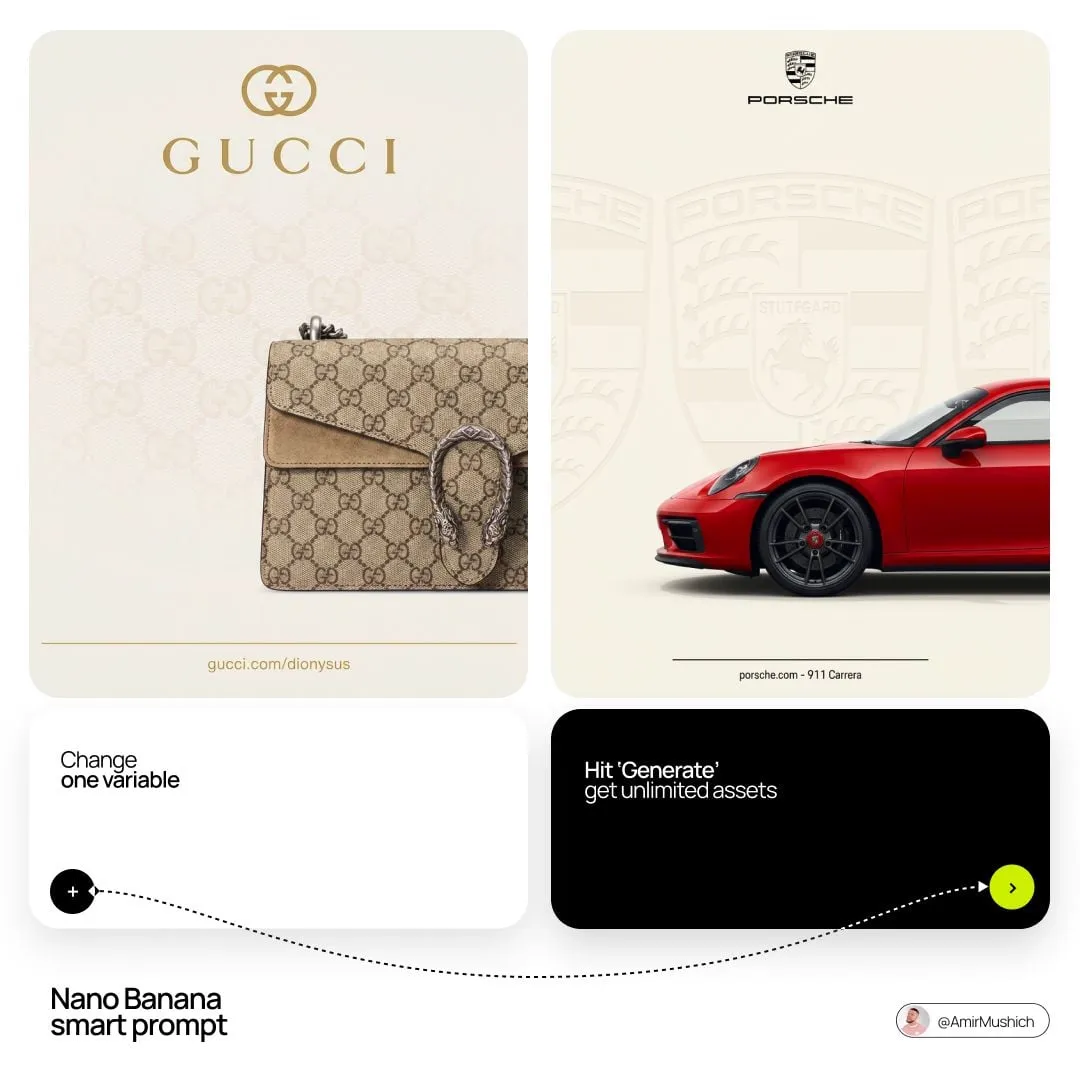
Build a reusable prompt pattern: subject, action, setting, lighting, lens, and finish. For example: a ceramic mug on a linen table, morning side light, 50mm look, shallow depth of field, muted warm palette, subtle film grain. Reuse the same lighting and finish descriptors across every prompt, changing only the subject and setting.
Lock the technical variables. Same aspect ratio, same colour temperature language, same level of detail. Avoid mixing "cinematic" with "flat lay" unless you deliberately want a jarring cut.
For products and characters, consistency is even stricter. Keep reference images handy, reuse seeds where the tool supports them, and describe distinctive features explicitly rather than assuming the model will remember them. Generate in batches of four to six variations and pick the strongest, instead of iterating on one image twenty times.
Finally, resist over-stylisation. Heavy effects age quickly and can hide the actual subject. A clean, well-lit frame with modest motion usually reads as more premium than a heavily processed one.
Sound, Beat, and Rhythm Design
Audio carries more of the perceived quality of a slideshow than any visual choice. Three layers are enough: music, ambience or texture, and an optional accent at a key moment.
Start with music that has a clear structure — an intro, a build, and a drop. Map your frames to that structure. Increases in visual energy should coincide with increases in musical energy. If the track has a drop at eight seconds, that is where your reveal belongs.
Do not let music flatten your edit. If you have voiceover, duck the music under it rather than turning the whole track down. If you have neither, use captions with a rhythmic reveal so the video has a sense of tempo even in silence.
Sound effects should be subtle and sparse. One whoosh, one impact, one transition tick is plenty. Repeated effects become noise, and noise makes viewers leave.
Mistakes That Kill Engagement and How to Fix Them
The first mistake is a slow start. If nothing changes in the first second, viewers are already gone. Open mid-action, on a close-up, or with a question.
The second is motion overload. Every frame pushing in, zooming out, and rotating is exhausting. Animate with restraint and let at least one frame sit still.
The third is inconsistent styling. Mixing filters, fonts, and colour temperatures across frames signals amateur work. Pick a palette and stick to it for the entire series, not just one post.
The fourth is text that cannot be read. Small type, low contrast, and text sitting under the caption bar are the most common offenders. Test on a phone at arm's length, not on a desktop monitor.
The fifth is a missing payoff. A slideshow should resolve — a final frame that lands the idea, reveals the product, or delivers the punchline. Without it, the sequence feels like an unfinished list.
The sixth is publishing without a caption strategy. Write a first line that earns the tap on "more," then keep the body short and specific. Ask one clear question if you want comments.
Measuring, Iterating, and Scaling
Track a small number of numbers: three-second retention, average watch time, completion rate, and saves. Saves are a strong signal for slideshows because the format is often instructional or reference-oriented.
When a video performs well, diagnose why. Was it the hook frame, the audio choice, the pacing, or the topic? Change one variable at a time in the next post so you learn something usable. Most creators change everything and then cannot explain the result.
Scaling means templating. Once a structure works, save the timeline, the caption style, the text positions, and the export settings. Then produce variations: swap the images, keep the rhythm. This is where AI-assisted batching pays off, because the creative decisions are already made.
Budget your effort where it changes outcomes. Asset selection and the first two seconds deserve the most time; export settings and minor transitions deserve very little.
FAQ
Do AI slideshows look generic? They do when you accept templates without editing them. Change the pacing, the type, the palette, and the audio, and the output stops looking like everyone else's.
How many images should a slideshow have? Six to twelve for a twenty-to-thirty-second video. Fewer if the images are dense with detail, more if each frame is a simple visual beat.
Should I animate every frame? No. Animate the frames that advance the story and leave one or two static. Contrast makes motion feel intentional.
What resolution should I export? 1080x1920 at a high bitrate for vertical. Keep a 4:5 version if you plan to cross-post to feed placements.
Is beat-synced editing necessary? Not strictly, but it is the fastest way to make a sequence feel deliberate. If you skip it, keep frame durations consistent so the rhythm is at least predictable.
Can I use the same music repeatedly? You can, but rotating a small library keeps your feed from feeling repetitive. Match the track's energy to the story beat, not to your personal taste alone.
How do I keep a series consistent? Fix the typeface, text position, colour treatment, opening frame style, and audio mood. Vary the content, not the language of the edit.
Where the Craft Is Heading
The slideshow format has quietly become the most flexible storytelling tool on Instagram: cheap enough to test ideas weekly, structured enough to teach, and visually rich enough to hold attention. AI has removed most of the mechanical friction — motion, cropping, beat matching, captions — which means the remaining differentiator is judgement.
That judgement is learnable. Decide what the viewer should feel, choose the fewest frames that produce that feeling, give them motion only where it adds meaning, and let the audio carry the tempo. Do that consistently, and the tools become invisible. The result looks less like an AI-generated slideshow and more like a point of view, which is the only thing that has ever really travelled on a social feed.
