

Why Photo-to-Video Animation Is Now a Normal Production Format
Turning a still photograph into moving footage used to mean rotoscoping, puppet-warp rigs, or weeks of frame-by-frame work in a compositing suite. That barrier is gone. Image-to-video (often shortened to I2V) models now accept a single still and return a short clip with plausible camera movement, subject motion, and environmental drift — in minutes, not weeks.
The practical consequence is that photo animation has moved out of the "experimental curiosity" bucket and into everyday production. Social teams animate product shots for short-form feeds. Small studios build animatics from concept art instead of storyboards. E-commerce sellers turn flat catalog photography into lifestyle-style loops. Teachers animate archival images for lesson videos. Families bring old portraits gently to life for memorials and reunions.
What changed to make this possible?
- Model quality crossed a usability threshold. Early attempts produced melting faces, warped hands, and backgrounds that pulsed like a bad VHS tape. Current models understand depth, foreground/background separation, and how cloth and hair behave under motion far better.
- The cost of experimentation collapsed. Free tiers, trial runs, and low-cost subscription plans mean a beginner can test an idea in an afternoon instead of budgeting a project.
- The supporting toolchain matured. Upscalers, frame interpolators, matting tools, and editors now assume AI-generated footage as an input, not an exception. You no longer have to fight your software to work with a 5-second generated clip.
This guide is a neutral, tool-agnostic workflow. It covers how the underlying models think, how to prepare photos so they survive animation, how to write motion prompts that actually land, how to keep characters consistent across multiple shots, how to decide between free and paid tooling, and how to assemble everything into something you would be willing to publish.
How Image-to-Video Models Turn a Still Into Motion
Understanding the mechanics matters, because almost every frustrating result traces back to a mismatch between what you asked for and what the model is actually capable of predicting.
What the model is really doing
When you upload a photo, the model encodes it into a compressed representation of the scene — objects, depth layering, textures, lighting direction. It then predicts a sequence of future frames conditioned on that encoding plus your text prompt. It is not tracking a rigged skeleton. It is hallucinating plausible motion that stays visually consistent with the source pixels for as long as it can manage.
That has two implications. First, the more ambiguous the source image, the more the model has to invent, and the more likely it invents something wrong. Second, motion that the model has seen a lot of during training — slow push-ins, gentle head turns, drifting clouds, rippling water — will look far better than motion it has rarely seen, like a specific dance move or a complex hand gesture.
The three motion categories
Almost every I2V result is a blend of three things:
- Camera motion — push in, pull out, pan, tilt, orbit, handheld drift. This is the safest category. It adds life with almost no risk of distortion.
- Subject motion — a head turn, a blink, hair shifting, fabric moving, an animal's ears twitching. Moderate risk. Great when the subject is well separated from the background.
- Environmental motion — rain, smoke, leaves, water, crowds in the distance, light flicker. Low risk if the region is small and busy; high risk if it covers a face.
A reliable starting recipe is one strong camera move plus one light subject motion plus one subtle environmental cue. Three simultaneous strong motions almost always produce mush.
The trade-off triangle
You can optimize for duration, resolution, or motion coherence — rarely all three at once. A 10-second clip at high resolution with aggressive motion will drift and warp. A 3-second clip at moderate resolution with a gentle push-in will look clean. Plan your project around short, controllable clips that you extend in the edit rather than long single generations.
Preparing Source Photos: The Step That Decides Half the Result
Most disappointing animations are photo problems, not model problems. Spend more time here than on prompt wording.
Resolution and framing
Aim for at least 1080p on the short edge, ideally higher. Upscale before uploading, not after — if the model only has 600 pixels of a face to work with, it will smear detail as it moves.
Framing rules that consistently help:
- Leave breathing room around the subject. Motion needs somewhere to go. A subject pressed against the frame edge will get clipped or stretched.
- Avoid extreme crops of faces. Full head, or head and shoulders, animates far better than a tight eye-and-nose crop.
- Prefer a clear subject/background separation. A person against a clean wall or blurred street animates cleanly. A person in a dense crowd of similar-looking people invites identity bleed.
Lighting, contrast, and noise
Even, directional lighting gives the model a clear read on three-dimensional form. Flat, front-on flash lighting makes faces look like stickers, and stickers slide. If your only option is flat lighting, add a subtle gradient or dodge-and-burn pass before uploading.
Noise is a hidden killer. Heavy ISO grain gets interpreted as texture and starts crawling across the frame. Denoise moderately — not aggressively, since over-smoothing removes the fine detail that makes motion look real.
A pre-upload cleanup checklist
Run this every time, even when you are in a hurry:
- Crop to the intended aspect ratio rather than letting the model guess.
- Remove distracting watermarks, timestamps, and stray UI elements.
- Fix perspective distortion on architectural shots.
- Straighten horizons — a tilted horizon plus a camera pan reads as a mistake.
- Check hands and hair. If they are already mangled in the still, they will only get worse.
- Save as a high-quality PNG or a lightly compressed JPEG. Do not upload a screenshot of a photo.
Writing Motion Prompts the Model Can Actually Follow
Describe motion, not plot
The single most common mistake is writing a story. Models do not animate narrative. "She realizes her train is leaving and runs, panicked" gives the model nothing actionable. "Slow dolly in, she turns her head slightly to the left, steam drifts in the background" gives it three concrete, well-understood operations.
A prompt structure that works
A reliable formula, in order:
[Camera move] + [primary subject action] + [secondary environmental motion] + [style and pacing notes]
Example: "Slow push in, woman blinks and turns head slightly right, hair moves gently, soft window light, calm pacing, cinematic, no camera shake."
Keep it under about 40 words. Long prompts dilute attention across too many competing instructions.
Constraint and negative language
Most models respond to explicit constraints. Useful phrases:
- "no camera shake" or "locked-off tripod shot"
- "subtle motion only"
- "preserve facial features"
- "no morphing, no warping"
- "keep background static"
If a model ignores constraints, flip the approach and minimize the prompt to a single camera move. A clean slow push often beats a busy, ambitious prompt.
Sample prompts for common cases
Portrait: "Gentle handheld drift, subject blinks and breathes, slight head tilt, soft light, subtle wind in hair, no facial distortion."
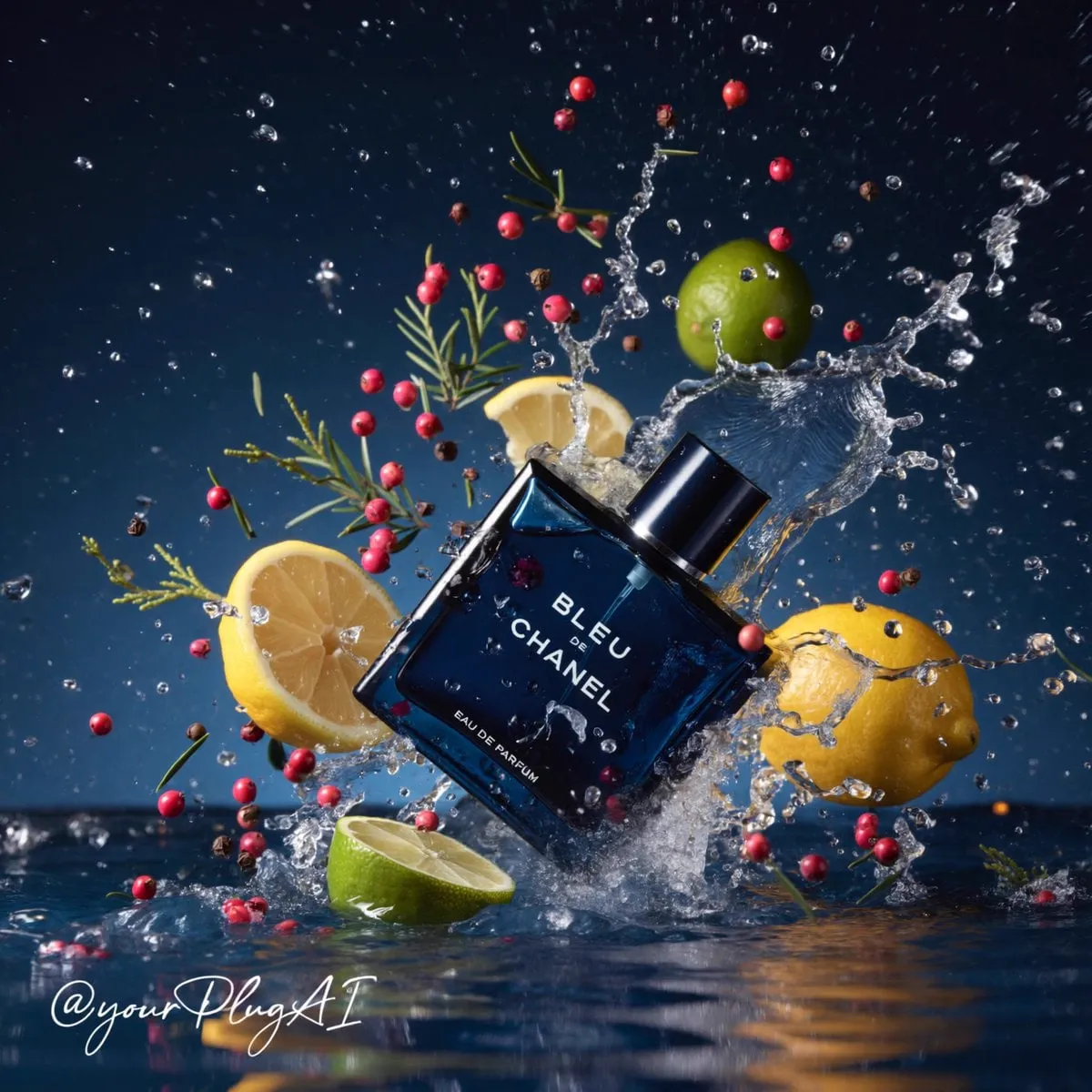
Product shot: "Slow orbit around the product, subtle highlight shifts across the surface, static background, studio lighting, no reflections warping."
Landscape: "Slow pan right, clouds drift across the sky, grass sways, water ripples, locked-off horizon, natural pacing."
Old family photo: "Very subtle push in, minimal motion, subject blinks once, slight breathing, film grain preserved, no distortion."
Archival street scene: "Slow dolly forward, distant figures walk, smoke rises softly, mild camera float, vintage tone preserved."
Keeping Characters and Style Consistent Across Shots
A single animated photo is a clip. A sequence with the same character across ten shots is a project — and consistency is where most projects fall apart.
Build a reference set before generating anything
Collect or generate five to eight clean images of the character from different angles, in consistent lighting, before producing a single animated shot. These become your identity anchor. When you generate a new scene, start from a reference image rather than a fresh text prompt.
Lock style, then vary the shot
Decide on your visual language early and write it down: color temperature, contrast curve, lens feel, grain amount, aspect ratio. Reuse that style description verbatim across every prompt in the project. Small paraphrase variations — "warm golden light" in one prompt, "orange sunset tones" in the next — produce visible drift when the shots are cut together.
Continuity checklist before you generate a batch
- Same character reference used for every shot featuring that character.
- Same style string pasted into every prompt.
- Consistent aspect ratio and resolution.
- Consistent shot length, so the edit does not feel lopsided.
- Wardrobe and hair noted, and checked after generation.
Generate a batch, then immediately review for drift. Fixing drift in a batch of five costs far less time than fixing it in a batch of thirty.
Free Tiers, Trials, and Subscription Plans: A Decision Framework
Rather than arguing that one tool is best, ask what your project actually requires.
What you are really paying for
Paid tooling usually buys four things: higher resolution output, longer clip duration, watermark removal and commercial usage rights, and faster queue times. Everything else — the underlying motion quality — is increasingly similar across tiers for a given generation.
When free tooling is genuinely enough
Free access is a reasonable choice when:
- You are learning and your output is not going public.
- You need two or three short clips for a personal project.
- You are testing whether an idea works before committing.
- You can tolerate watermarks, lower resolution, and queue waits.
Signals that you have outgrown free
The switch point arrives when: you need commercial rights, you are producing more than a handful of clips per week, watermarks would break the deliverable, resolution is too low for your target platform, or queue times are the bottleneck in your day.
A simple cost calculation
Estimate your clip count first. A 30-second finished video built from 3-second animated clips needs roughly ten to fifteen generations — and realistically two to three times that once you account for rejects. Multiply your realistic attempt count, not your ideal one, when comparing plans.
A Repeatable End-to-End Workflow
This is the pipeline that scales from a single clip to a full campaign.
Stage 1 — Brief and shot list
Write the finished video in text before you touch a model. One line per shot: what the camera does, what the subject does, and what the shot must communicate. Keep shots to 2–5 seconds in the plan.
Stage 2 — Image preparation
Prepare every still to the same aspect ratio, resolution, and color treatment. Batch-process denoising and upscaling so the visual baseline is identical across the project.
Stage 3 — Generation passes
Generate two or three variants per shot rather than accepting the first result. Cheap exploratory attempts at lower resolution, then one final high-quality pass on the chosen variant. Label files with shot number and take letter so your edit does not descend into chaos.
Stage 4 — Assembly and edit
Bring clips into your editor, cut on motion rather than on beat alone, and hide generation seams with cuts, wipes, or a slight speed ramp. Frame interpolation smooths jumpy motion but will also amplify warping, so apply it selectively.
Stage 5 — Sound and finish
Sound sells motion more than most people expect. Add ambience, foley for footsteps and fabric, and music that fits the pacing you planned. A gentle grade across all clips unifies shots that came from slightly different generations.
Common Mistakes and How to Fix Them
Melting faces. Usually caused by an aggressive prompt or heavy resolution upscaling after generation. Fix: reduce motion, keep the face small in frame, and upscale the source image instead of the output.
Flickering backgrounds. Often a noise or grain problem in the source. Fix: denoise lightly and add "keep background static" to the prompt.
Warped hands. Models still struggle with fingers. Fix: avoid shots where hands dominate the frame, or keep them out of focus.
Inconsistent characters. Almost always a missing reference set. Fix: build the reference images first, then regenerate the offending shots from them.
Motion sickness from over-movement. Amateur work tends to over-animate. Fix: cut motion intensity by half and let the edit carry the energy.
Mismatched color across shots. Fix: apply one grade as the final step in the timeline rather than correcting each clip individually.
Delivery Formats and Platform Requirements
Deliver in the native aspect ratio of your target platform rather than cropping later. Vertical 9:16 for short-form feeds, 16:9 for standard video, 1:1 or 4:5 for feed posts. Export at a high bitrate — generated footage contains fine motion detail that compresses badly.
For archival or memorial work, higher bitrate and a gentle grain overlay reduce the "digital uncanny" feel that audiences notice even if they cannot name it.
FAQ
How long should an animated photo clip be? Three to five seconds for most purposes. Longer clips drift more and are harder to control.
Can I animate a low-resolution or damaged old photo? Yes, but restore first. Denoise, repair scratches, and upscale before animating. The model amplifies whatever is in the source.
Do I need video editing experience? Basic cuts, audio, and a simple grade are enough. The animation work is done before the edit.
How many attempts does a good shot take? Budget two to three. Professionals rarely accept the first result.
Is animated photo content allowed on major platforms? Generally yes when you own the source image. Check rules for archival and third-party footage, and always have permission for images of other people.
What is the fastest way to improve results? Stop writing story prompts. Write one camera move and one subject action, then generate. Most quality gains come from motion discipline, not from tool choice.
