
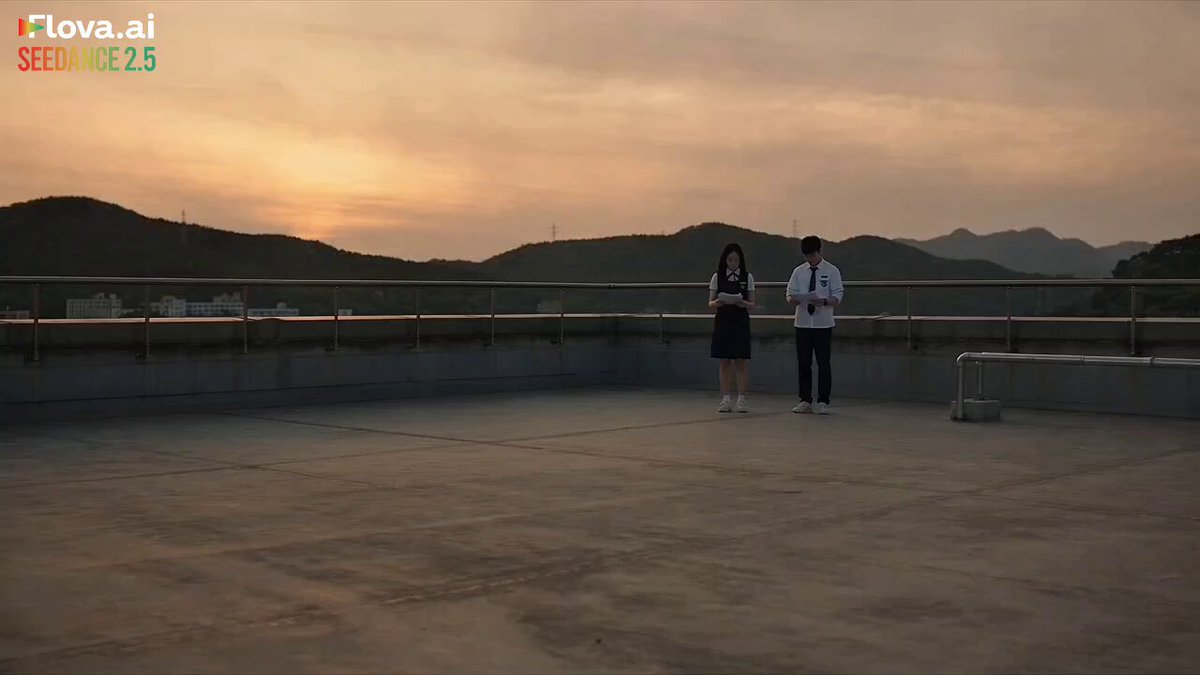
Text-to-video tools collapsed the gap between an idea and a moving image, but they did not collapse the gap between a moving image and a teaser that actually sells something. A teaser is a compressed argument: it has to establish a mood, introduce a subject, promise a payoff, and end before the audience gets comfortable. Most AI video output fails at that job not because the renders are bad, but because the shots were generated without a structure to slot them into.
This guide walks through a repeatable production workflow for teaser-length videos — roughly 15 to 60 seconds — built primarily from generated footage, with editing, sound, and text doing the heavy lifting in post.
Why a Teaser Behaves Differently From a Normal AI Clip
A single generated clip is a curiosity. A teaser is a sequence with intent. The difference shows up in four places:
- Shot economy. A teaser cannot afford filler. Every shot either escalates, reveals, or contrasts. If a shot does none of those, it is a cut.
- Rhythm as content. The acceleration of cuts carries meaning on its own. A slow opening followed by rapid-fire frames communicates "something is about to happen" without a single word of voiceover.
- Sound as glue. Generated footage rarely carries believable audio. Music, impact design, and a single well-placed sound effect hide continuity seams that would otherwise be obvious.
- Text as narrator. Titles, dates, and short captions carry the story logic that a 30-second runtime cannot express visually.
When creators skip this framing, they end up generating dozens of beautiful clips and then trying to force them into a narrative during editing. That reversal — generating first, structuring later — is the single most expensive mistake in AI video production, because it forces regeneration at the exact moment you should be polishing.
The Six-Stage Workflow From Brief to Export
The workflow below assumes one person or a very small team. It scales to larger teams by assigning each stage to a different role, but the sequence stays the same.
Stage 1 — Write the brief and the beat sheet before prompting
A beat sheet for a teaser is short. Five to eight beats is usually enough:
- Cold open image that establishes world or mood
- Introduction of the subject (person, product, place)
- Complication, tension, or novelty
- Escalation — two or three accelerating shots
- Signature moment or hero shot
- Title card, call to action, or logo reveal
Write each beat as one sentence describing what the audience should feel, not what the camera should see. Feelings translate into shot choices more reliably than descriptions do.
Stage 2 — Generate a shot library, not a film
Generate three to five variants per beat instead of one perfect take. Text-to-video output is probabilistic; the same prompt will give you different compositions, lighting, and camera drift on each run. A library of 25 to 40 clips for a 30-second teaser gives an editor real choices.
Name files by beat and variant (beat-03_v2_horizontal.mp4) so that sorting in a timeline does not become a puzzle.
Stage 3 — Cut the audio-first assembly
Build the first assembly against a scratch music track and a rough timing map, not against the visuals. Decide where the title lands, where the escalation begins, and where the cut to black happens. Drop placeholder cards where missing shots belong. Only then start placing generated clips.
Stage 4 — Replace, don't repair
If a clip fights the beat, generate an alternative rather than stretching, slowing, or cropping it into submission. Forced footage reads as forced.
Stage 5 — Sound pass
Replace the scratch track, add two or three impact sounds, and record or generate voiceover only if the teaser genuinely needs it. Many teasers improve when the voiceover is removed.
Stage 6 — Grade, caption, and deliver
Unify color across shots, add captions for sound-off viewing, and export per-platform versions from the same master timeline.
Writing Prompts That Survive the Render
Prompt quality determines how much of your editing time goes to selection versus salvage. A reliable teaser prompt contains six components, in this order:
| Component | Purpose | Example fragment |
|---|---|---|
| Subject | Who or what is on screen | "a ceramicist in a grey apron" |
| Action | The single motion in the shot | "lifting a wet bowl from the wheel" |
| Setting | Environment and depth | "narrow studio, dust in the air" |
| Lighting | Mood and contrast | "low window light, warm falloff" |
| Camera | Framing and movement | "slow push in, shallow focus" |
| Texture | Film-like finish cues | "subtle grain, muted highlights" |
Two rules matter more than the vocabulary:
One action per shot. Models handle a single dominant motion far better than compound actions. "She turns and walks out" produces mush; two separate shots of a turn and a walk produce a cut you can control.
Describe the camera explicitly. If you do not specify movement, you get drift, and drift is the tell that separates AI footage from intentional cinematography. "Locked-off wide" and "slow lateral track" are both fine — ambiguity is not.
Keep a prompt log. When a variant works, you want to know which phrasing produced it, so you can reuse the structure for a different subject next time.
Consistency: Characters, Products, and Brand Look
Continuity is where teasers live or die. If your protagonist's jacket changes color between shot two and shot five, viewers may not articulate the problem, but they will feel it.
Character consistency. Lock a reference image or a short reference clip and reuse it as conditioning input for every shot. Keep wardrobe, hair, and lighting direction identical in the prompt. Change only the action and camera. If your tool supports subject references, use them; if it does not, keep the character's back to camera more often than you think you need to.
Product consistency. Treat the product like a character. A single hero frame, reused across multiple angles, beats five slightly different versions of the same device. In post, stabilize the product's position in frame so it reads as the same object.
Brand look. Define three fixed parameters and never break them: a color palette of two dominant hues plus one accent, a consistent contrast curve, and a recurring framing habit (for example, always slightly low angles). These constraints make unrelated shots feel authored.
Pacing, Aspect Ratios, and Platform Cutdowns
Teaser pacing follows a simple curve: long shots early, short shots late. A workable timing template for 30 seconds:
- 0–6s: two shots of 3 seconds each
- 6–15s: four shots of roughly 2 seconds
- 15–24s: six shots of 1.5 seconds
- 24–30s: eight to ten shots of under a second, then title
Cut on motion, not between static frames. If a shot contains a hand entering frame or a subject turning, cut at the peak of that motion so the transition feels motivated.
Aspect ratios. Shoot and generate in the widest format you need, then crop down. Generating natively in vertical and then trying to build a horizontal master rarely works, because key elements sit near the edges.
Cutdowns. Build one master timeline and derive from it:
- 16:9 horizontal for landing pages and longer-form platforms
- 9:16 vertical for short-form feeds, with subject centered and titles repositioned into the safe middle band
- 1:1 square for embedded placements
Never re-edit from scratch for each ratio. Duplicate the master timeline, reposition text, and adjust the crop. This preserves the rhythm you spent time designing.
Sound, Captions, and the Final Twenty Percent
Audiences forgive imperfect visuals far more readily than broken audio. Three layers do most of the work:
- Music bed. Choose a track with a clear build. You are looking for a moment around two-thirds in where the arrangement opens up — that is your escalation point.
- Impacts. Two to four total across the whole teaser. Place them on the hero shot and on the title reveal. More than that and the piece feels like a trailer parody.
- Ambience. A continuous low-level texture under everything prevents cuts from sounding like silence-to-noise jumps.
Captions are not optional. A large share of viewers watch without sound. Burn in the essential text — the hook line, the title, the call to action — and keep it under seven words per card.
For voiceover, record it last, after the picture lock. Write for breath: short sentences, natural pauses, no paragraph-long sentences that force an unnatural read.
Choosing Tools Without Locking Yourself In
Different text-to-video systems have genuinely different strengths. Rather than chasing a single winner, match the tool to the shot type:
- Photoreal human motion: prioritize tools with strong temporal consistency and subject reference support.
- Stylized or animated looks: prioritize tools with strong art-direction adherence and stable line work.
- Product and macro shots: prioritize sharpness, stable geometry, and controllable camera moves.
- Fast iteration: prioritize generation speed over maximum resolution, then upscale the final selects.
Practical decision criteria when evaluating any pipeline:
- Does it accept reference images or clips for consistency?
- Can you control camera movement explicitly?
- What is the realistic iteration time for a 5-second shot, including failed attempts?
- Does the output hold up after a 20 percent crop and a color pass?
- Can you export at a resolution that survives on a large screen?
Build your pipeline so that the editing stage is tool-agnostic. If your final assembly lives in a standard editor with standard codecs, you can swap generation tools without rebuilding your workflow each time a better model appears.
Mistakes That Make AI Teasers Look Cheap
Overloading shots. Three subjects, two camera moves, and a light change in one clip produces visual noise. Simplify until the shot reads in a single glance.
Uniform shot length. When every clip runs two seconds, the piece feels mechanical. Vary deliberately.
Ignoring the first frame. The opening image is the most-watched frame of the entire video. Generate extra variants for the cold open and choose the one with the clearest silhouette.
Letting the model direct. Default camera drift, default lighting, default framing — the result looks like a demo reel rather than a piece of communication.
Skipping the hard cuts to black. A one-frame black flash or a half-second pause before the title adds perceived production value for almost no effort.
Text baked into generated frames. Never let the model render your title. Generate clean plates and add typography in the editor, where you control kerning, timing, and legibility.
Pre-Delivery Quality Checklist
Before exporting the master, run this list:
- Every shot serves a beat; nothing is present purely because it rendered well
- Character wardrobe, hair, and lighting are consistent across appearances
- Aspect ratios and title safe areas are correct for each delivery format
- Music build lands on the escalation beat
- Captions are legible at small sizes and match the audio
- First frame is strong as a still image
- Last frame resolves — logo, title, or a deliberate cut to black
- Loudness normalized for the target platform
- File naming and version numbers are clear enough for a colleague to pick up
FAQ
How long should a generated teaser be?
Fifteen to forty-five seconds covers most use cases. Under fifteen seconds works for a single hook plus title. Over sixty seconds stops being a teaser and starts being a short film, which demands a different structure entirely.
How many generated clips do I need for a 30-second teaser?
Plan for 25 to 40 clips in the library and use 15 to 20. The surplus is not waste — it is your insurance against a hero shot that does not survive the color pass.
Can I fix a bad shot in editing instead of regenerating?
Sometimes. Speed ramps, tighter crops, and sound replacement can rescue a mediocre shot. They cannot rescue a shot with the wrong subject, wrong wardrobe, or wrong direction of movement.
Do I need voiceover for an AI teaser?
Usually not. Music, captions, and one strong hook line carry a short teaser well. Voiceover helps when the value proposition is genuinely complex and cannot be shown visually in a few seconds.
How do I keep a character consistent across many shots?
Use reference images or clips as conditioning input, keep wardrobe and lighting descriptions identical in every prompt, and shoot more over-the-shoulder and partial-framing shots than you would in live action. Ambiguity hides inconsistency.
What is the biggest time saver in this workflow?
Building the audio-first assembly. Deciding the timing before generating the final selects prevents the loop of generating, cutting, discovering a gap, and generating again.
Should I generate in vertical or horizontal first?
Generate wide. Cropping down is predictable; extending sideways is not. Vertical-only projects are the exception, and even then, keeping subjects centered in a wider frame gives you options later.
How do I make AI footage feel less synthetic?
Three things: reduce motion in each shot, add grain and a subtle contrast curve in post, and cut on motion with sound accents. Perceived realism comes more from editing discipline than from model quality.
Where to Take It Next
Once the workflow is stable, the leverage comes from templating. Save your beat sheet structure, your prompt formula, your timeline layout, and your export presets. The second teaser takes a fraction of the time of the first, and the third is mostly substitution: new subject, same skeleton.
The goal is not to hide that the footage was generated. The goal is for the viewer to remember the promise, not the process. Structure, consistency, rhythm, and sound are what make a generated sequence read as a professional teaser — and all four are decisions you make, not outputs a model hands you.
