
Why Static Photos Still Dominate Social Feeds
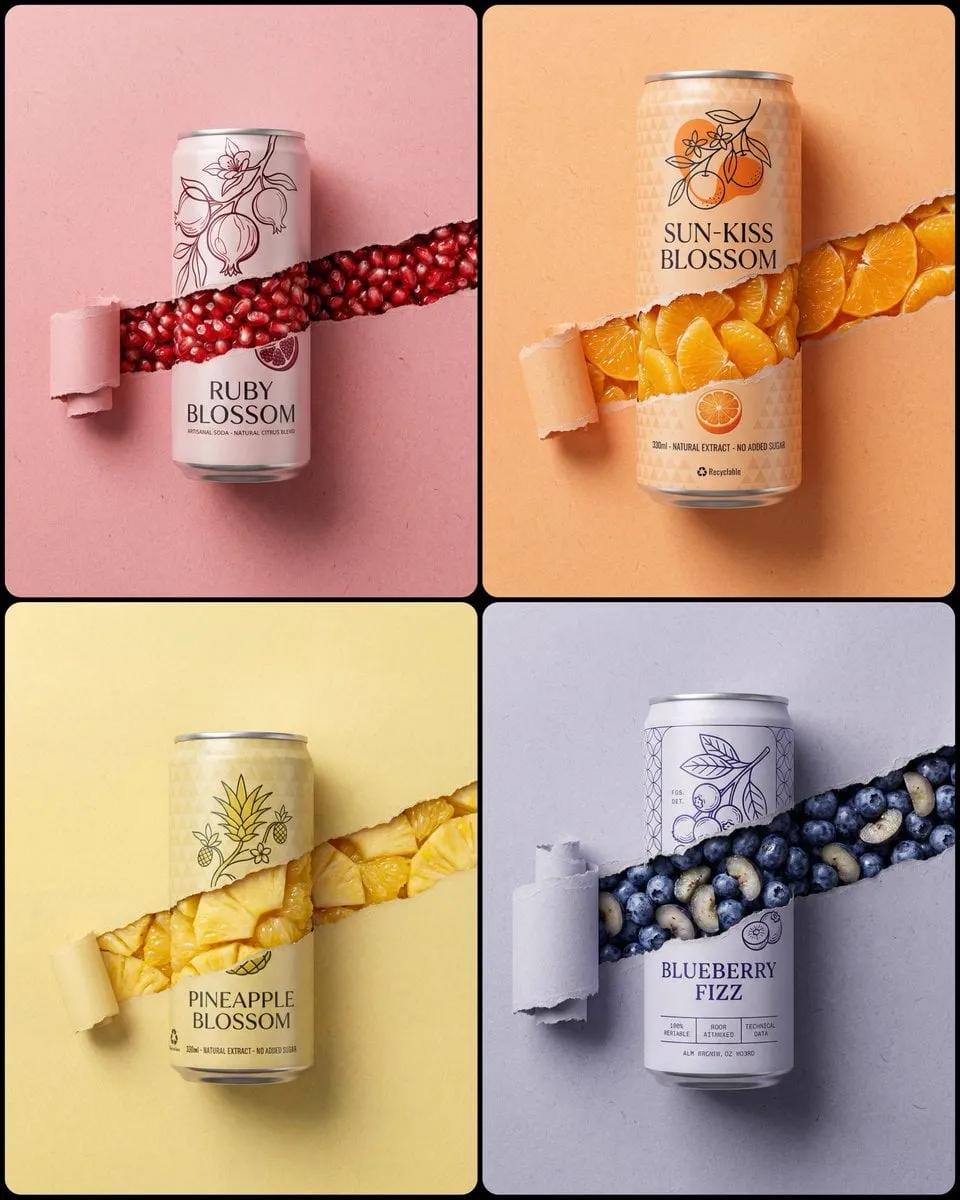
Almost every brand, creator, and small business sits on a library of still images that never gets used to its potential. Product shots from a launch shoot. Event photos with good lighting. Packaging renders. Portraits taken for a website that has been redesigned twice since. Meanwhile, the vertical feed keeps rewarding motion, because movement resets attention in a way a still frame cannot.
That mismatch creates a practical problem. Shooting new vertical video for every campaign is expensive and slow. Reposting the same three clips makes a feed look tired. Animating photos you already own sits in the middle: cheaper than a shoot, fresher than a repost.
This guide walks through a complete, repeatable workflow for turning static photos into animated vertical Stories. It covers what the technology actually does, how to prepare source images, how to write prompts that produce believable movement instead of warping, how to assemble and export for the vertical format, how to batch the process, and how to measure whether the extra motion is worth the effort.
Nothing here depends on a single tool. The workflow is deliberately tool-agnostic, because the model that works best this month may not be the one you use next quarter. What stays constant is preparation, prompt structure, editing decisions, and quality checks. Get those right and you can swap engines without relearning your process.
What AI Photo Animation Actually Does
Two families of approach
Most tools fall into one of two camps. The first takes your still image and predicts the next few seconds of footage, generating new frames while trying to keep the original subject intact. The second keeps the original pixels largely fixed and applies controlled camera movement on top, simulating parallax, dolly, or orbit by treating the image as layered depth.
Predictive models give you more freedom: inventing environmental motion, subtle subject movement, changes in light. They also introduce more risk of drift, where a face, logo, or product shape slowly stops matching the source. Depth-based movement is safer and often looks cleaner for product and architecture shots, but it cannot invent a person turning their head.
In practice, the best results come from mixing both. Use depth-style movement for hero shots where fidelity matters, and predictive generation for atmosphere, textures, and background life.
The three motions that sell the illusion
Believable animation is usually a combination of three separate motions working at different speeds. Camera movement is the slowest and most legible. Subject movement should be small, such as a slight shift in posture, fabric settling, or a hand adjusting. Environmental motion is the fastest and lightest: dust in the air, leaves, reflections sliding across a surface, steam, or gentle light shifts.
Any two of the three done well is normally enough. All three done aggressively is a recipe for a clip that looks synthetic and unstable.
What good motion looks like in a vertical frame
Vertical composition changes what motion reads well. A slow push in feels more intimate on a phone. A wide lateral pan can feel disorienting because the frame is narrow. Keep the subject in the middle third of the frame and let the top and bottom breathe, since interface elements will cover those areas anyway. Short clips, three to five seconds, are easier to keep coherent than long ones.
Preparing Source Photos So the Model Has Something to Work With
Composition and crop planning
Shoot or crop wider than the final vertical frame. A square or landscape original gives you room to animate a camera move and still end up with a 9:16 crop that never shows a hard edge. If you only animate vertical originals, every lateral movement risks revealing missing pixels at the sides.
A reliable approach: animate at the original aspect ratio, then crop to vertical in the editor and reframe after motion is generated. The motion looks natural, and you have full control over the final framing.
Resolution, sharpness, and subject separation
Higher input resolution generally gives cleaner results, but extreme detail with heavy grain or compression artifacts can cause shimmering. Before generating, clean up the image: modest noise reduction, careful sharpening, no aggressive upscaling. A slightly soft but clean image usually animates better than a razor-sharp one full of sensor noise.
Subject separation matters more than most people expect. If the subject sits on a busy background with similar tones, motion tends to smear the boundary. Mask the subject and animate the background layer separately, or choose a frame where the subject stands clearly away from clutter.
Fixing problem photos before generating
A short pre-flight pass solves most failures:
- Remove distracting objects near the edges of the frame before animating, because motion will draw attention to them.
- Straighten horizons. A tilted horizon plus a camera move reads as unstable.
- Balance exposure. Blown highlights become pulsing blobs once light starts to shift.
- Crop out any text you do not want the model to reinterpret, and keep an untouched original copy.
Prompt Patterns That Produce Believable Motion
Describe camera and subject separately
A prompt that lists everything at once gives the model conflicting instructions. Split it into four parts: camera move, subject action, environment, and pace or mood. Written in that order, prompts produce noticeably more consistent results.
Examples that work well:
- Slow push in, subject shifts weight slightly, soft window light, faint dust in the air, calm pace, 35mm feel
- Gradual parallax slide left, product remains still, light sweeps across the surface, gentle shadows, slow and steady
- Slight orbit around the subject, fabric sways, warm late afternoon light, subtle handheld feel, cinematic
Prompts for products, people, and places
Products need restraint. Keep the object stationary, animate light, reflections, and background depth. Never let the model invent label text or packaging details; if a prompt mentions changing text, the output will almost certainly produce unreadable lettering.
People need small motion. A slight head turn, a breath, a blink, hair moving in a breeze. Large gestures or big rotations are where faces deform. If a face matters, generate at lower motion intensity and add atmosphere instead of movement.
Places carry the most camera work. Architectural and landscape shots handle slow pans, drone moves, and push-throughs well because there are no faces or logos to distort. This is where you can be ambitious.
Constraints worth stating explicitly
Add a short list of things you do not want: no text changes, no new objects entering frame, no face morphing, no flicker, no fast cuts, no snap zooms. Constraints are not guarantees, but they reduce the frequency of obvious failures and make review faster.
Iteration discipline
Generate three to four variants of each photo, changing one variable at a time. Change the camera move in one pass, the light in another, the pace in a third. Log the prompt next to the result. Within a couple of weeks you will have a personal library of prompt patterns that reliably work for your style of imagery, and that library is worth more than any single generation.
A Step-by-Step Workflow from Photo to Published Story
Step 1: choose one photo per narrative beat
Treat each photo as one beat, roughly two to four seconds of screen time. A Story sequence of four to six beats is enough to introduce, show, prove, and invite. Decide the beat order before you generate anything; generating first and inventing a narrative afterwards wastes more time than it saves.
Step 2: generate clips in batches
Work through all the photos in one sitting rather than one at a time. Batch generation keeps your prompt style consistent and makes comparison easier. Name files immediately with a convention such as campaign-beat-variant, keep the raw generations even when you reject them, and only move the chosen clips into the editing folder.
Step 3: assemble the vertical timeline
Place clips in order on a vertical timeline. Prefer hard cuts between beats; short dissolves only when two shots share a similar composition. Add half a second of stillness at the start and end of each clip so the motion has room to read. If you are building a single long Story, aim for fifteen to thirty seconds total, with clear visual change every three to four seconds.
Step 4: text, captions, and safe zones
Keep important text and logos roughly 250 pixels away from the top and bottom edges, where interface elements sit. Avoid a single long paragraph over motion; two short lines read better. Add on-screen captions for any spoken audio, since most viewers watch with sound off. Check contrast on every text block against the busiest part of the animated background, not the average.
Step 5: export and publish
Export at 1080 by 1920, 30 frames per second, H.264 at a high bitrate, sRGB color. Upload the file directly rather than screenshotting or re-recording, because double compression destroys the fine motion detail you just generated. Publish natively instead of cross-posting from another platform where possible.
Building a Repeatable Batch Pipeline
Once the workflow works for one campaign, systematize it.
Folder structure: a raw folder for source photos, a generated folder for clips, an edit folder for project files, and an export folder with a strict naming rule. Nothing gets lost, and anyone on the team can find the current version.
Prompt library: keep a document with your proven prompt skeletons, organized by shot type. Product, portrait, landscape, flat lay, interior. New projects start from a template instead of a blank line.
Template project: build one vertical editing project with your safe-zone guides, caption styles, brand fonts, and export preset already configured. Duplicate it for each new campaign. This alone typically removes the fiddliest twenty minutes of every edit.
Weekly cadence: batch generation once or twice a week instead of on demand. Reviewing thirty clips in one sitting is much faster per clip than reviewing three, because you stay in a consistent judgment mode.
Roles: a solo creator handles preparation, generation, edit, and publish in one pass. On a small team, separate generation and edit from review, so the person judging quality is not the person who wrote the prompts. That separation catches oversights the creator is blind to.
Quality checklist before publishing: motion direction consistent across the sequence, no visible seams or warping at frame edges, text inside safe zones, audio normalized, captions present, first frame legible without sound, and a final frame that works as a still on its own.
Common Mistakes and How to Fix Them
Over-animating. The most common failure. If every clip has camera movement, subject movement, and environmental motion, the sequence feels chaotic. Pick two per clip.
Using a low-resolution or heavily compressed source. Motion amplifies artifacts. Start from the largest, cleanest file you have.
Applying identical motion to every clip. It reads as a template rather than as directing. Vary the direction and speed of movement between beats.
Ignoring safe zones. Text placed near the top or bottom gets covered by interface elements, and the message disappears.
Exporting from the generator without editing. Generated clips rarely land at the right duration or pace. Trim, hold, and sequence them.
Mixing aspect ratios with black bars. Letterboxed footage inside a vertical Story looks accidental. Crop or reframe instead.
Loud music with no captions. A large share of viewers watch without sound.
Long clips with no new information. Motion alone stops holding attention after about four seconds. Cut earlier than feels comfortable.
Forgetting rights. You need the rights to the source photo, and to any music or voice you add. Client photos usually require permission for this kind of reuse, and stock licenses often restrict derivative animation. Sort this out before you generate, not after.
Measuring Whether Animated Stories Earn Attention
The quiet advantage of Stories is how much signal you get. Track completion rate, tap-backs (which usually indicate a rewatch), tap-forwards, replies, link taps, and profile visits in the twenty-four hours after posting.
The most useful comparison is a controlled one. Take one offer, publish a still version and an animated version with identical copy and timing, and compare completion rate and link taps. Small samples are noisy, so run the test across several posts before drawing conclusions, and be careful not to attribute differences caused by posting time or audience overlap to the animation itself.
Watch for the pattern where completion rises but link taps stay flat. That usually means the motion is entertaining but the message is buried. Fix it by putting the call to action earlier and keeping it on screen longer. Conversely, if tap-backs rise, the animation is doing something people want to see again. That is a signal to reuse the prompt pattern, not just the clip.
Frequently Asked Questions about Animating Photos for Stories
Can I do this without editing experience?
Yes, if you keep the sequence simple. Two to four clips, a hard cut between them, one text style, one music track. The complexity that requires an editor comes from long sequences and layered sound, not from animating photos.
How long should each animated Story clip be?
Two to five seconds. Long enough to register the motion, short enough that attention does not lapse.
Will the model change my product label or a face?
It can. Keep products still and animate light instead, keep facial movement small, and always review generated frames against the original at full size before publishing.
Do I need paid tools?
Free tiers are useful for testing whether the workflow fits your content. If you publish vertical video regularly, paid access often pays for itself in saved editing time, but make that decision after a real test.
Should I animate every photo in a sequence?
No. Mixing still frames with animated ones creates rhythm, and the contrast makes the animated beats feel deliberate rather than constant.
Can I use client or stock photos?
Only with the rights to do so. Check license terms for derivative works and motion use, and get written permission when a person is identifiable.
How many variants should I generate per photo?
Three to four, changing one variable each time. More than that without changing anything just produces near-duplicates.
Start With One Photo This Week
Pick a single still image you already own, write one four-part prompt, generate three variants, and edit the best one into a five-second vertical clip. That one loop teaches you more than reading another dozen tool comparisons, because you will immediately see where your source photos need work and which prompt phrasing your imagery responds to.
From there, the path is straightforward: formalize the prompt patterns that worked, build a template editing project, and batch your next campaign from a folder of photos that has been sitting unused. The technology is not the hard part. Consistency, preparation, and honest review of the output are, and those are skills you build one campaign at a time.
