

Why Still Images Are the Fastest Route Into AI Video
Most people begin with text-to-video and hit the same wall within an hour: you describe a scene, the model invents everything from scratch, and you have almost no control over composition, lighting, or the way a character looks from one shot to the next. The output is often impressive in isolation and unusable in a sequence.
Image-to-video reverses the relationship. You supply the frame, and the model supplies the motion. That single change gives you director-level control over the two things that actually matter in visual storytelling: what is in the frame and how it moves. You can lock composition, color palette, costume, and facial features before a single frame of video exists. The AI then handles the hard part that cameras and animators have always struggled with — believable, physics-plausible movement.
This workflow matters because it collapses an entire production pipeline into something one person can run. A storyboard panel drawn in a sketch app, a photograph shot on a phone, a 3D render, a matte painting, or a character sheet can all become motion footage. That means illustrators, photographers, game artists, and solo creators can all produce moving images without learning 3D animation, rigging, or compositing from scratch.
The catch is that image-to-video is not a magic button. A great still does not automatically become a great shot. Frames that animate well are built differently from frames that look good on a wall. Motion prompts follow their own grammar. And a sequence made from ten unrelated clips looks like ten unrelated clips — no matter how good each one is.
What follows is a practical, tool-agnostic guide to the whole chain: choosing and preparing source images, writing prompts that direct motion instead of describing it, building a narrative arc from a single frame, checking consistency across shots, troubleshooting the most common failures, and finishing the sequence so it actually feels like a film.
How Image-to-Video Models Read a Frame
Before you can control the output, it helps to understand what the model is reacting to. Image-to-video systems are not simply playing a slideshow with a zoom effect. They are estimating a three-dimensional scene from a flat image and predicting how that scene would look a fraction of a second later.
Depth, Parallax, and Implied Motion
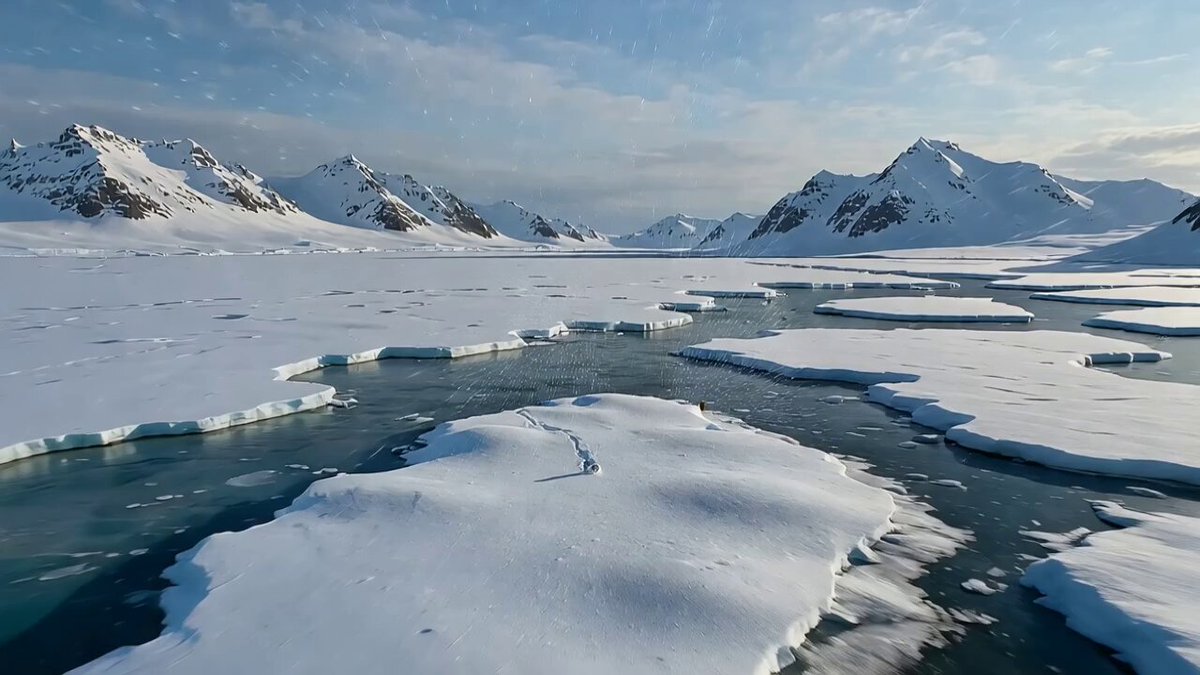
The first thing a model does is guess depth. It looks for cues: overlapping objects, atmospheric haze, converging lines, scale differences, shadows, and focus falloff. When those cues are strong, the model can separate foreground from background and move them at different rates — the parallax effect that makes a shot feel three-dimensional. When the cues are weak or contradictory, the model guesses, and you get warped faces, melting edges, or a background that slides around like a sticker.
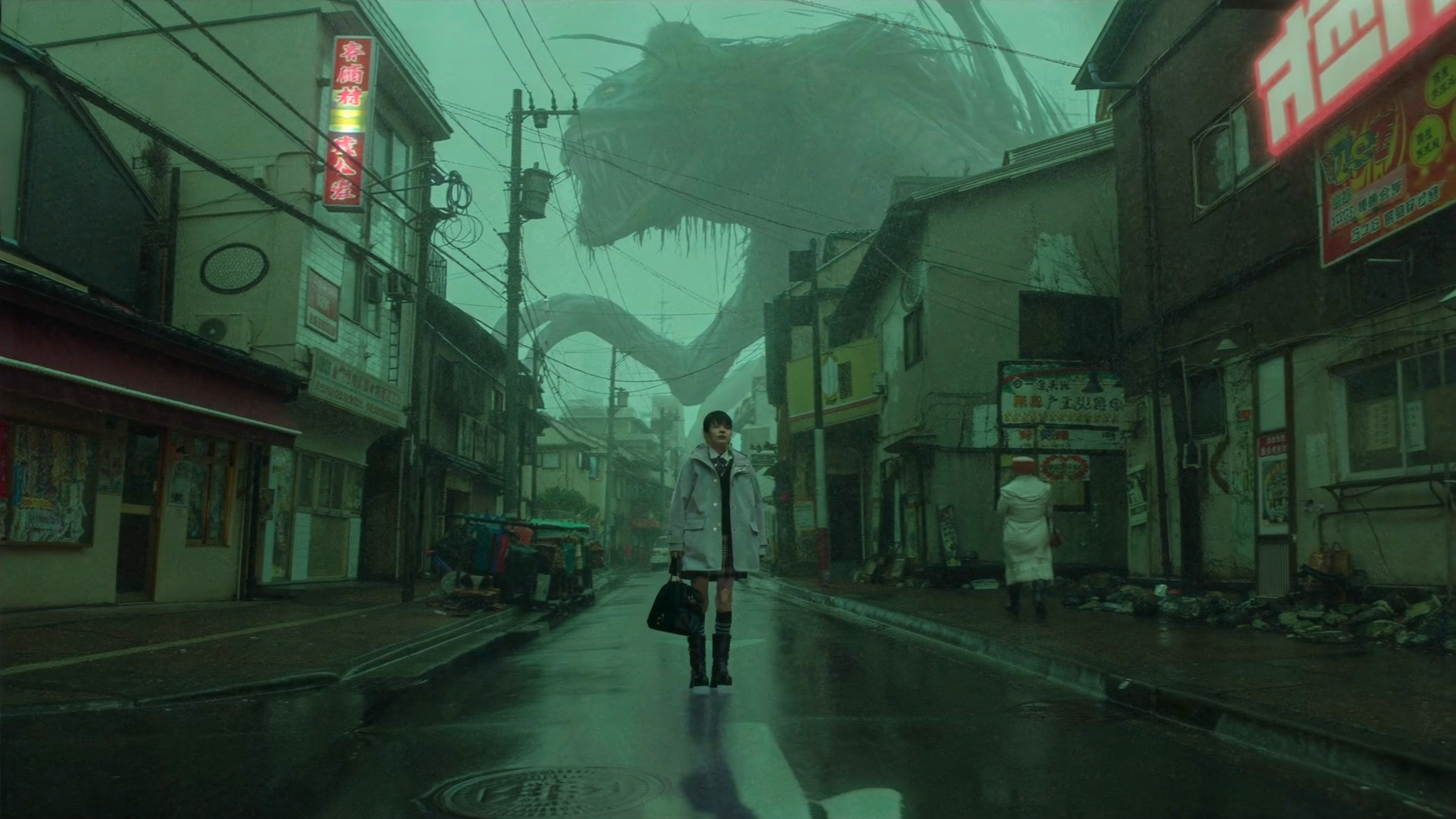
Implied motion matters just as much. A figure leaning forward, hair blowing to one side, a curtain mid-ripple, smoke drifting diagonally — all of these tell the model which direction to push the animation. A perfectly static, symmetrical, dead-center composition gives it nothing to work with.
Interpolation Versus Generation
It is worth knowing which type of system you are using. Interpolation-based tools take two frames and generate the frames between them, which gives you tight control and clean results but limited novelty — you need a beginning and an end. Generative image-to-video tools invent new motion from a single frame, which is far more expressive but less predictable. Many modern pipelines blend both: a generative pass to create motion, then interpolation to slow it down smoothly for slow-motion shots.
Understanding this distinction changes how you work. With generative tools, you write prompts and accept variation. With interpolation tools, you plan keyframes like an animator. Neither is better; they solve different problems, and knowing which you need saves hours.
Preparing Source Images That Animate Well
The single highest-leverage step in the entire process happens before you open a video tool. Garbage frames produce garbage motion, and no amount of prompt engineering fixes a source image with conflicting depth cues or tangled edges.
Resolution, Framing, and Negative Space
Aim for a source image at least 1024 pixels on the short edge, ideally 1920 or higher for landscape work. Upscale low-resolution art before you animate it, not after — models amplify compression artifacts into swirling texture noise.
Framing matters more than most people expect. Leave headroom above subjects and breathing room at the edges, because motion will push elements toward the frame boundary. If a character's shoulder already touches the edge, any lateral movement will clip it. Composition rules from photography apply directly: rule of thirds, leading lines, a clear foreground-midground-background separation.
Negative space is your friend. Empty sky, a blank wall, a dark corridor — these regions give the model somewhere to move things without smearing detail. Crowded frames with fifty small objects tend to shimmer and crawl.
A Pre-Flight Cleanup Checklist
- Remove accidental text, watermarks, and stray logos; models will animate them into unreadable glyph soup.
- Check hands and faces at 200 percent zoom. Repaint anything ambiguous, because those areas attract the most artifacts.
- Simplify busy textures like foliage, chain-link fences, and fine hatching. Reduce them to broader strokes if possible.
- Ensure lighting direction is consistent across the frame. Two conflicting light sources confuse depth estimation.
- Separate overlapping silhouettes with a subtle rim light or contrast edge so the model can tell them apart.
- Crop out any region you never want visible, because the camera move might reveal it.
A five-minute cleanup pass routinely saves twenty minutes of re-rolls.
Motion Prompts That Direct Instead of Describe
New users write prompts that describe the image they already uploaded. That is wasted effort. The model can see the image. What it cannot see is your intent for movement. Motion prompts should describe change over time, not content.
Camera Language the Models Understand
Most video models respond well to conventional cinematography vocabulary. Useful camera terms include: slow push in, pull back, dolly left, tracking shot, crane up, handheld drift, orbit around subject, tilt down, rack focus, and static locked-off frame.
Keep camera instructions to one or two per shot. Combining a push in, an orbit, and a tilt in a five-second clip produces a nauseating, physically impossible move. If you want a complex camera path, build it from separate shots and join them in the edit.
Intensity adverbs work surprisingly well: subtle, gentle, slow, barely perceptible. Models tend to overshoot motion by default, so asking for less usually gets you closer to what you imagined.
Subject and Environment Verbs
Pair the camera move with specific subject motion. Strong verbs are concrete and physical: turns head, lifts hand, exhales, steps forward, shifts weight, blinks, glances left. Weak verbs are abstract and unhelpful: feels sad, is dramatic, looks epic.
Environment motion adds enormous production value for very little effort. Consider: dust motes drifting through a light shaft, steam rising from a cup, rain streaking across glass, leaves trembling, embers floating upward, fabric rippling. These secondary movements sell the reality of a shot more than the primary action does.
A reliable prompt formula is: camera move + subject action + environment motion + atmosphere note. For example: slow push in, the figure turns toward camera, coat fabric rippling in wind, cold blue moonlight, subtle atmospheric haze. That is four clear instructions, and each one is something the model can actually execute.
From One Frame to a Story Arc
A single animated clip is a loop. A sequence is a story. The bridge between them is structure, and structure can be planned cheaply before you generate anything.
The Three-Shot Rule
For any beat in your narrative, plan three shots: a wide to establish place, a medium to show the subject in that place, and a close detail to convey emotion or information. This is the oldest coverage pattern in filmmaking, and it works perfectly with generated footage because each shot type has different requirements.
Wide shots hide AI imperfections because details are small. Medium shots carry the action. Close-ups carry feeling and are the hardest to get right, so budget extra generations for them. If you only produce one shot per beat, your sequence will feel flat and static regardless of how clean the individual clips are.
Continuity Across Shots
Before generating, write a one-line continuity bible: time of day, weather, color temperature, lens character, costume details, and the direction light is coming from. Every prompt inherits from that document. If your first shot has warm afternoon sun from the left, your second shot cannot have cool overcast light from the right unless you are deliberately cutting to a different time.
Also decide your screen direction and stick to it. If a character walks left to right in the establishing shot, they should continue left to right in the follow-up, or the audience will assume they turned around. This is the kind of detail that separates a sequence that reads clearly from one that feels vaguely wrong.
A Step-by-Step Workflow From Sketch to Sequence
Here is a complete pipeline you can run end to end on a single project.
- Write the beat sheet first. Six to ten lines describing what happens, in order, in plain language. No visuals yet. This takes fifteen minutes and prevents hours of aimless generation.
- Sketch or collect one key frame per beat. Rough pencil thumbnails are enough. If you are working from photographs, pick or shoot one image per beat that establishes the composition.
- Clean and upscale every source frame. Crop, retouch, remove text, unify color temperature. Save as high-quality PNG.
- Generate a single test clip per frame. Use the shortest duration your tool offers and a subtle motion prompt. The goal at this stage is not beauty; it is confirming that the frame animates cleanly.
- Discard weak frames, not weak prompts. If a frame warps and shimmers across three different prompts, the source image is the problem. Rebuild the frame instead of fighting it.
- Lock your look, then expand. Once one shot is right, reuse its prompt structure, seed, and style references across the rest of the sequence.
- Generate at final duration and resolution. Now push duration and quality, because you know the frame and prompt work together.
- Assemble in an editor, not in the generator. Cut on motion, not on time. Trim the first and last few frames of every clip, since AI motion usually ramps up and decays awkwardly at the boundaries.
- Color-correct the whole sequence together. Unifying contrast and saturation across clips hides small inconsistencies in lighting.
- Add sound and music. Sound design is the strongest consistency tool available. A continuous ambience bed ties mismatched shots into one believable space.
Run this pipeline once on a three-shot test before committing to a full project. You will learn your tool's quirks in an hour instead of a weekend.
Consistency, Style, and Character Locking Across Shots
Consistency is where most AI sequences fall apart, and it is almost always a preparation problem rather than a model limitation.
The most reliable technique is to treat your first successful frame as a template. Keep the same subject description, the same lighting language, the same color palette, and the same lens character in every prompt. Where your tool supports reference images or style transfer, feed it the approved frame rather than an older draft.
For characters, build a small reference sheet: front, three-quarter, and profile views along with a close-up of the face. Generate new shots from those references rather than from whatever the last clip happened to look like. Drift compounds — a ten percent change per shot becomes an unrecognizable character by shot eight.
Style locking works similarly. Choose one aesthetic descriptor and never vary it: soft graphite shading, cel-shaded anime, grainy 16mm film, matte painting with visible brushwork. Resist the urge to add adjectives per shot.
Finally, reuse seeds when your tool exposes them. Seeds do not guarantee identical results, but they dramatically reduce variance, and combined with identical prompt structure they get you most of the way to a coherent look.
Troubleshooting: Common Failures and Fixes
Warping faces and hands. Usually caused by low resolution in the source frame or ambiguous detail. Repaint the region at higher resolution, then regenerate. Adding a slow push in rather than a lateral move also helps, since lateral motion forces the model to invent structure it cannot see.
The whole image slides like a sticker. This means the model found no depth cues. Add foreground elements, increase atmospheric haze in the distance, or introduce a clear light-to-dark gradient. Stronger foreshortening helps too.
Texture crawling and shimmer. Typically compression artifacts being amplified. Re-export the source at higher quality, reduce fine detail in busy areas, and lower the motion intensity.
Motion is too fast or too dramatic. Ask for subtle, slow, gentle movement and add the word barely. Most models overshoot; undershooting then adding speed in the edit is easier than calming down a frantic clip.
Everything is a slow zoom. Vary your camera vocabulary. If your prompts only contain push in, every shot will look the same. Mix locked-off frames with tracking and handheld drift.
Flickering exposure between frames. Often a color management issue rather than a model issue. Convert all clips to the same color space and normalize brightness in the editor.
Finishing, Sound, and Delivery
The edit is where generated clips become a film. Cut on motion: when an arm sweeps across the frame, cut on the sweep, not on a static beat. Keep most shots between two and five seconds. Long AI clips draw attention to subtle instability; short ones feel intentional and energetic.
Use transitions sparingly. Hard cuts keep momentum. Save dissolves for time passage and use a match cut when two shots share a shape or motion direction — a match cut between two AI clips is one of the most convincing tricks available, because the eye reads the continuity as deliberate craft.
Sound design does more heavy lifting here than in conventional filmmaking, because audio masks visual imperfections. Layer three elements: a continuous ambience bed running under the whole sequence, spot effects tied to visible actions, and music that carries the emotional arc. Even simple footsteps, cloth rustle, and room tone transform a sequence's perceived quality.
For delivery, export at a consistent frame rate — 24 fps for a cinematic feel, 30 fps for web and social. Keep your master at the highest resolution you generated, then produce platform-specific versions from it. Archive your source frames and prompts alongside the project; revisiting a strong frame later is far cheaper than recreating it.
FAQ: Practical Questions Before You Start
How long should each generated clip be? Two to five seconds covers most narrative needs. Generate slightly longer than you need and trim in the edit, since clip beginnings and endings are usually the least stable.
Do I need to be able to draw? No. Rough blocky thumbnails establish composition just as well as finished art. What matters is that the frame has clear depth and a defined focal point.
Should I generate at high resolution immediately? No. Test at low resolution and short duration to validate the frame and prompt, then regenerate at final quality. This saves a great deal of time.
How many attempts should a good shot take? One to three for wide and medium shots, five to ten for close-ups. If you are past ten, the source frame needs rebuilding, not more prompting.
Can I mix animated stills with real footage? Yes, and it often works beautifully. Match grain, color temperature, and motion blur so the cut feels seamless. Slight camera movement in the generated clips helps them sit next to handheld footage.
What is the biggest mistake beginners make? Generating dozens of beautiful clips with no continuity plan, then discovering they cannot be assembled into anything coherent. Plan the beat sheet and the continuity bible first.
Is any of this replacing traditional animation? It is a different tool for a different budget. For previsualization, pitch videos, explainers, and short-form narrative, still-image animation gets you to a watchable result fast. For character performance and precise choreography, hand animation still wins.
The real skill in this workflow is not prompt wording. It is thinking like a director: choosing frames deliberately, planning coverage, protecting continuity, and finishing with sound and editing. Master that, and the tools become interchangeable.
