
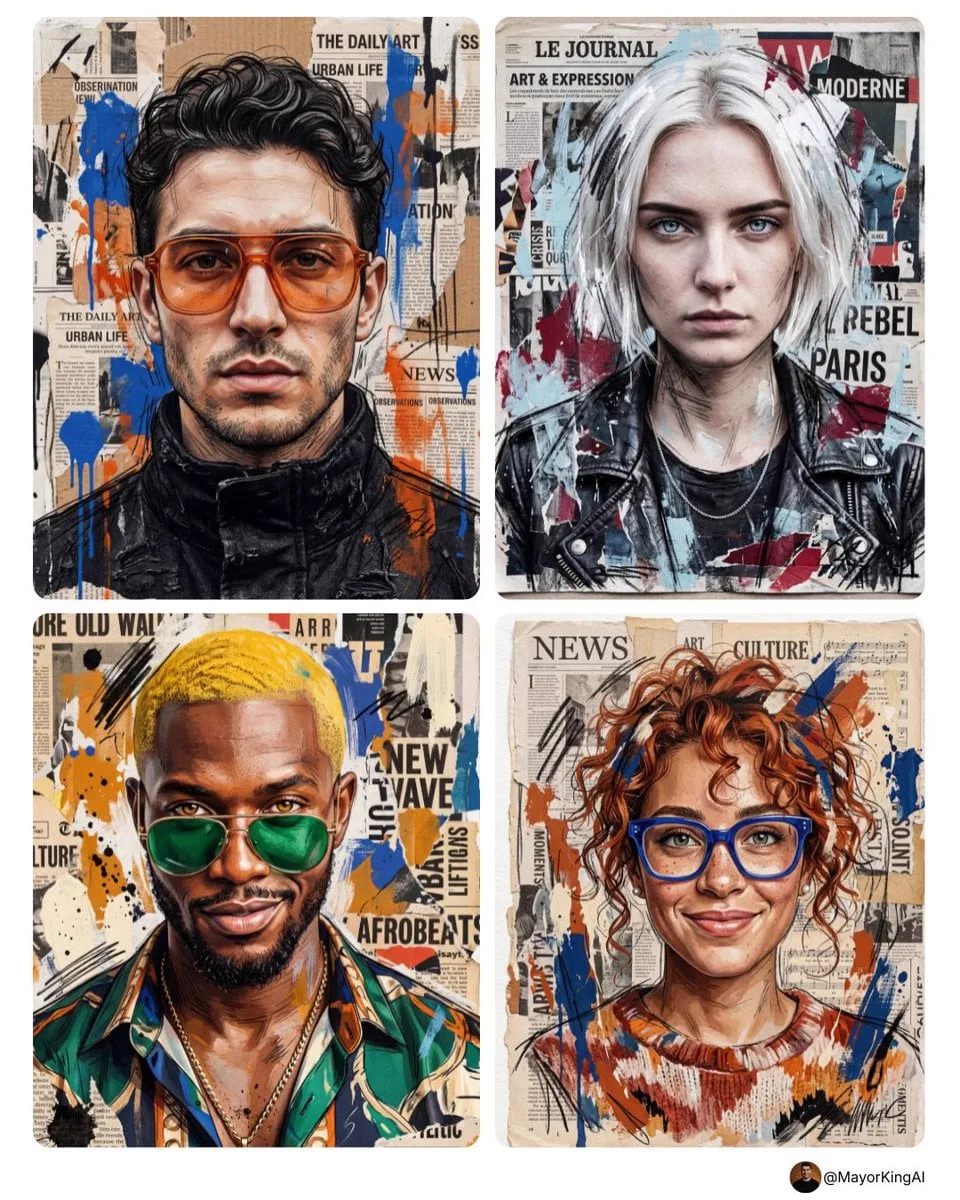
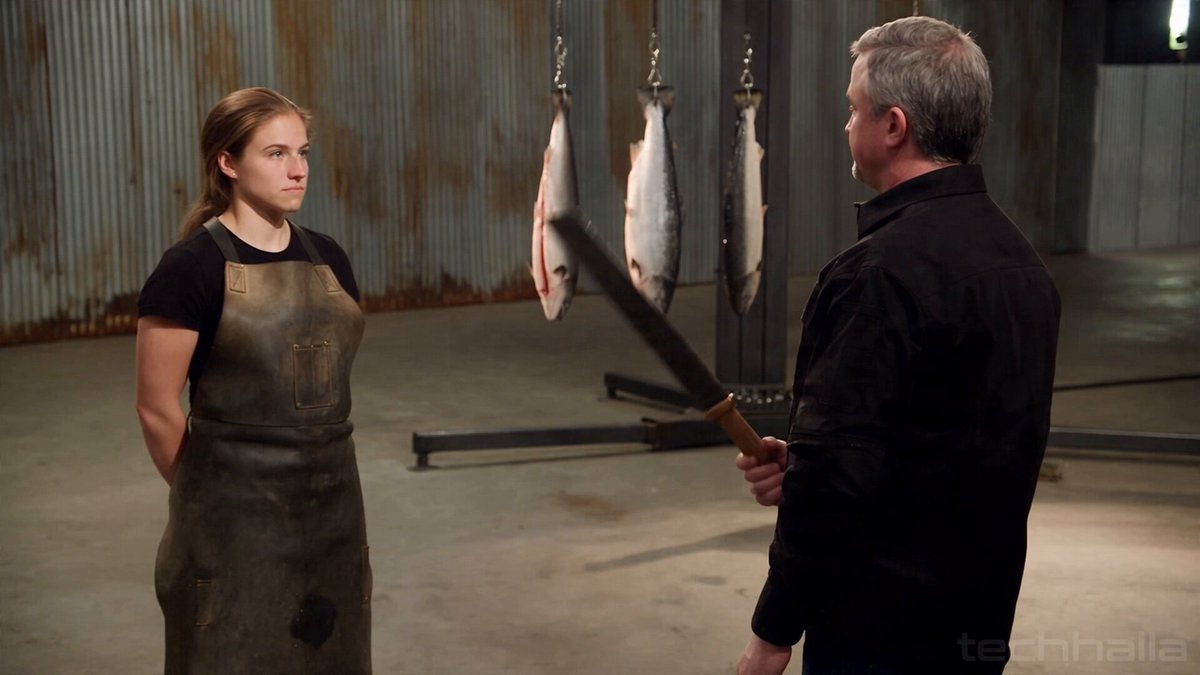
A single well-lit photograph already contains everything a shot needs: composition, palette, lighting direction, and a face or object worth watching. What it lacks is time. Image-to-video generation adds that missing dimension — a few seconds of believable motion that turns a still into a moment rather than a picture. The craft has shifted. The hard part is no longer producing an image; it is deciding how that image should move, and then controlling the model tightly enough to get it.
Why Image-to-Video Became the Default Creative Shortcut
Text-to-video asks a model to invent composition, subject, lighting, and motion simultaneously. Every variable is a chance for the result to drift. Image-to-video removes most of that uncertainty by handing the model a finished frame and asking a narrower question: what happens next?
That narrowing is why the approach has become the workhorse of practical production. Real estate walkthroughs, product spins, archival family photos, book covers, comic panels, character portraits, and storyboard frames all begin as stills. Animating them takes far less iteration than generating the scene from scratch, and the result stays recognizable as the frame you approved.
There is also an editorial advantage. When you animate a still, you keep the frame you signed off on. Art directors, clients, and collaborators can approve a composition before a single second of video is rendered. Approvals become cheap; only motion is left to debate.
How Image-to-Video Models Actually Work
Understanding the machinery is not academic. Most disappointing results come from asking a model to do something its architecture handles poorly, and knowing where the seams are lets you design around them.
From a still to a latent sequence
The source image is encoded into a compressed latent representation. From there, a diffusion process denoises a sequence of latent frames rather than a single one. Temporal layers sit between frames and learn how pixels should relate across time, which is what prevents every frame from looking like an unrelated picture. The model is not tracking objects the way a compositor would. It is learning statistical patterns of how textures, edges, and lighting evolve.
Motion priors and why small moves work best
Because these patterns are learned from footage, models carry built-in assumptions: hair drifts, water ripples, crowds shuffle, fabric folds. Those priors are strong for gentle, continuous movement and weak for abrupt change, fast camera whips, or actions requiring precise contact between objects. A hand that picks up a cup is a hard problem. A hand that rests on a table while light shifts is an easy one.
What the model needs from your frame
Three things matter more than prompt wording. First, resolution and sharpness — soft sources produce soft motion. Second, clear subject separation from the background, so the model does not smear the two together. Third, unambiguous depth cues. A flat image with no shadows gives the model nothing to parallax against, so it defaults to warping the whole rectangle.
The Four Levers of Motion: Camera, Subject, Environment, Timing
Nearly every result can be tuned by adjusting four independent levers. Thinking in these terms keeps prompts short and intentions clear.
Camera
Camera motion is the cheapest way to create energy. A slow push-in adds intimacy; a lateral tracking move reveals scale; a subtle handheld float adds documentary realism. Specify one primary move per clip. Stacking a push, a pan, and a tilt produces the visual equivalent of a shaken camera and a confused viewer.
Subject
Subject motion should be small, specific, and physically plausible. She turns her head slightly toward the window gives the model a clear target. She reacts does not. If a subject must stay still — a portrait, a product hero shot — say so explicitly and let the environment carry the movement.
Environment
Background motion creates depth without disturbing the subject. Drifting steam, falling snow, passing headlights, curtains shifting in a breeze, leaves moving in wind. This is where image-to-video shines, because environment animation rarely triggers anatomical errors.
Timing
Duration and pacing decide whether a clip feels cinematic or mechanical. Most single moves read best in three to five seconds. If a shot needs eight seconds, give it two beats: motion, a brief settle, then a secondary drift. Constant maximum motion over a long duration looks synthetic.
Choosing the Right Model for Your Shot
Model selection is a routing decision, not a loyalty test. Different engines excel in different registers, and the practical question is which one gets you to an approved take fastest.
Cinematic realism
Engines tuned for photorealism handle skin texture, shallow depth of field, and gradual light changes well. They are the right default for portraits, interviews, product beauty shots, and anything meant to pass as camera footage. Watch for over-smoothing in skin and background detail that turns plastic during fast moves.
Stylized, illustrative, and anime
Illustration and animation models preserve line work and flat color regions that realism models tend to reinterpret. If your source is a comic panel, a vector character, or a painterly illustration, choose a model that respects hard edges. Mixing registers — a realistic engine applied to a cel-shaded character — is the single most common cause of uncanny output.
Fast draft tiers for iteration
Every serious pipeline needs a cheap, quick tier. Lower-resolution drafts let you test camera direction, motion strength, and clip length in minutes instead of hours. Lock the motion on the draft, then re-render the approved take at full quality. This ordering saves more time than any prompt trick.
Decision criteria that actually matter
Compare engines on maximum clip length, supported aspect ratios, native resolution, whether motion strength is adjustable, whether multiple reference images can condition one shot, and whether the output includes audio. Match those constraints to your delivery format before you fall in love with a sample clip.
Building a Repeatable Image-to-Video Workflow
A workflow beats a prompt library. The following sequence is boring on purpose — it removes guesswork.
Step 1: Prepare and normalize the source frame
Crop to the target aspect ratio before generation, not after. Recompose so the subject has room to move into. Clean up stray artifacts and remove text you do not want animated. Slightly sharpen, but avoid aggressive denoising — models amplify whatever texture they are given, including compression noise.
Step 2: Lock a cheap first pass
Generate a short clip at draft settings with a single camera move and one environmental motion. Evaluate three things: does the subject deform, does the background crawl, and does the motion direction make spatial sense. If any answer is bad, change the input image rather than the prompt.
Step 3: Refine with controlled motion
Once the geometry is stable, add complexity. Increase motion strength in small increments. Add a secondary environmental element. Introduce a subject action only if it is simple and motivated. Change one variable per render, otherwise you cannot tell what caused the improvement.
Step 4: Finish in the editor
Raw generations are ingredients. Stabilize if needed, then cut on motion rather than on a fixed grid. Add sound design, which does more for perceived realism than resolution. Grade all clips together so skin tones and shadows match. A three-second clip with correct audio and consistent color will outperform a longer, cleaner clip that feels disconnected.
Keeping Characters and Style Consistent Across Shots
Multi-shot pieces live or die on consistency. A character whose jawline changes between cuts breaks the illusion faster than any artifact.
Build a reference set: a neutral front view, a three-quarter view, and one full-body frame in consistent lighting. Feed the same reference into every shot rather than animating separate stills that were generated independently. Reuse the same seed and the same model version across a sequence. Document wardrobe, time of day, and lens choice in a shot list, because drift is usually caused by the creator rather than the engine.
Color grading is the final glue. Even small differences in white balance between clips read as a different scene. A shared look-up table or a simple curve applied to every clip unifies footage generated under different conditions.
Directing With AI: Shot Lists, Keyframes, and Composition Rules
Generation rewards planning. Write a shot list before opening any tool: shot number, subject, camera move, environment motion, duration, and purpose in the edit.
Keyframe thinking
Some engines accept a start frame, an optional middle frame, and sometimes an end frame. Use them to control trajectory rather than look. If a character must finish in a specific pose, supply that pose as the end frame and let the model interpolate. This is far more reliable than describing the pose in words.
Rules that still apply
Screen direction and the 180-degree rule matter in generated footage exactly as they do on set. If a subject moves left to right in one shot, keep that direction until you deliberately reverse it. Match cuts work especially well because you control both frames: end one clip on a shape and begin the next on a similar shape.
Framing for motion
Leave headroom for a push-in and lead room for a pan. Do not crop a subject so tightly that a small drift throws them out of frame. If you plan to add captions in the edit, compose with negative space rather than hoping the model invents it.
Common Artifacts and How to Fix Them
Warping and melting faces
Cause: strong motion applied to a small face, or a low-resolution source. Fix: crop tighter so the face occupies more pixels, reduce motion strength, and prefer camera movement over facial expression changes.
Flicker and texture crawl
Cause: high-frequency detail such as foliage, gravel, or fine fabric that the model cannot track consistently. Fix: soften that region slightly in the source, reduce overall motion, or reframe so the problem area occupies less of the frame.
Floating or sliding motion
Cause: weak depth cues. The model treats the image as a flat plane and simply translates it. Fix: introduce foreground occlusion, add a subtle shadow, or choose a different camera move — a slow push reads depth better than a lateral slide on a flat image.
Over-animation
Cause: maximum motion settings applied to a still that should breathe rather than perform. Fix: halve motion strength, lengthen duration slightly, and let environment motion carry the shot.
Upscale artifacts and edge shimmer
Cause: aggressive upscaling of a low-resolution generation. Fix: generate at native resolution where supported, upscale gently, and avoid sharpening afterward — sharpening amplifies temporal noise.
Quality Control Checklist Before Export
- Watch the clip muted first, then with sound. Motion problems hide behind audio.
- Check the first and last frames. Cut points live there.
- Look for a one-frame pop at the start, where the model transitions away from the still.
- Verify faces at 100 percent zoom, not in a small preview window.
- Confirm aspect ratio and frame rate match your delivery target.
- Grade against neighboring shots, not in isolation.
- Export a short test at final settings before rendering a long sequence.
FAQ
How long should an image-to-video clip be?
Three to five seconds covers most single moves. Longer clips work when you plan two beats, but they require more motion control and increase the chance of drift.
Do I need expensive hardware?
Not necessarily. Cloud generation shifts the load to remote infrastructure, and lightweight local models run on mainstream GPUs at reduced resolution. The real constraint is iteration speed, which is why draft tiers matter more than raw specifications.
Can I animate a group photo?
Yes, but keep it simple. A slow push-in with environment motion and small independent movements — a head turn here, a blink there — reads far better than an attempt to choreograph an entire group.
How do I keep a logo or text readable?
Generate without the text, then composite it in the edit on top of the finished clip. Models distort letterforms badly, and a single warped frame ruins the shot.
What is the ideal prompt length?
Short. One camera move, one subject action, one environmental detail, plus a note on pace. Long descriptive prompts dilute the motion instruction and make results harder to reproduce.
Is image-to-video suitable for talking heads?
It works best for subtle realism: micro-movements, breathing, a slight head shift. Full lip sync requires a dedicated talking-head or performance-transfer approach rather than general motion generation.
Turning Tests Into a Production System
The difference between creators who get consistent results and those who gamble on each render is not access to better tools. It is a documented pipeline: normalized source frames, a draft tier for motion approval, one change per iteration, reference sets for characters, and a shared grade at the end.
Save your winning parameters the way you would save a camera preset. Record the source image, model version, motion strength, duration, and prompt for every approved clip. Within a few projects, patterns emerge — you will know which moves suit your style and which source images are unfixable. That accumulated knowledge is the real asset, and it transfers to whatever engine you use next.
