


Why Watermarks Still Poison Professional Video Output
A watermark is never just a small logo in the corner. It is a statement about ownership, and it changes how an audience reads everything else on screen. The moment a viewer notices a stamp, a translucent wordmark, or a bouncing overlay, the perceived production value drops. The clip stops looking like a finished piece of work and starts looking like a test render that someone uploaded by accident.
That perception problem has concrete consequences. Clients hesitate to approve deliverables that carry third-party branding. Brand teams reject assets that compete visually with their own logos. Editors waste hours cropping, blurring, or reframing footage to hide an overlay, which damages composition and often leaves visible artifacts at the edges. And platforms that reward watch time tend to favour content that looks native and polished rather than borrowed.
The deeper issue is ownership of the final frame. A finished video should be a clean canvas that you control completely: every pixel, every letterbox bar, every frame of motion. Anything that interrupts that control is a defect, not a feature. Treating watermark removal as an afterthought is how creators end up in a loop of patching instead of producing.
The practical goal, then, is not merely avoiding overlays. It is building a workflow where clean, high-fidelity output is the default from the first generation request to the final export. That requires deliberate choices about tools, prompts, model behaviour, and finishing. This guide walks through that entire pipeline.
What “Studio Quality” Actually Means in Practice
Studio quality is a fuzzy phrase, so it helps to break it into measurable properties. When a clip genuinely looks professional, several things tend to be true at once:
- Resolution and detail hold up under scrutiny. Textures, skin, fabric, and foliage survive a full-screen viewing, not just a phone thumbnail.
- Motion is coherent. Limbs move with believable weight, camera moves feel intentional, and objects do not melt between frames.
- Lighting is motivated. Shadows fall in consistent directions, highlights roll off naturally, and colour temperature stays stable across shots.
- Framing follows grammar. Headroom, eyeline, leading lines, and negative space are deliberate rather than accidental.
- Continuity survives the cut. Characters, wardrobe, props, and environments remain recognisable from shot to shot.
- Sound matches the image. Room tone, foley, music, and dialogue sit in a believable space.
The last two points are where most AI-assisted projects fall apart. A single stunning shot is easy. Twenty shots that feel like they belong to the same film is hard. A studio-quality workflow is therefore mostly a continuity workflow, with visual polish layered on top.
It also helps to define your own bar before you generate anything. Are you producing vertical social clips that will be watched on a phone with sound off? Then legibility, subject isolation, and bold motion matter more than fine detail. Are you producing a brand film or a product launch piece? Then colour accuracy, texture realism, and stable camera language matter more. Write the standard down. It makes every later decision faster.
A Watermark-Free AI Video Workflow, Step by Step
The following pipeline assumes you want clean output with no overlays, no third-party branding, and no compromises at export time. It works for short-form vertical, mid-length explainers, and cinematic sequences.
Step 1: Write a shot list before you write prompts
Prompts are cheap to change; a broken story structure is not. Start with a shot list that specifies, for each shot: subject, action, environment, lens feel, camera movement, lighting mood, and duration. This forces you to think in edits rather than in isolated images.
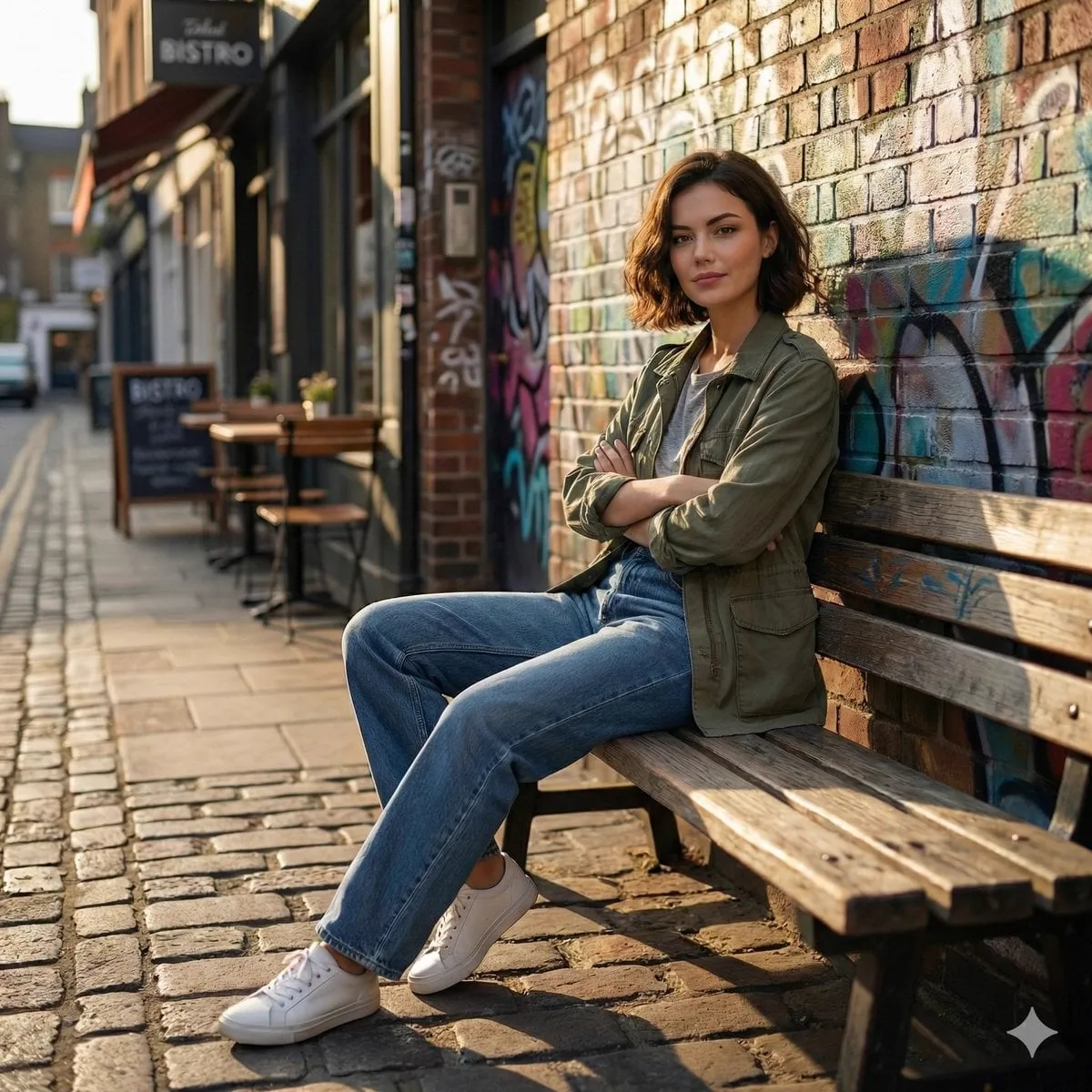
A useful shot list entry looks like this: “Medium close-up, woman in olive jacket, walking through a rain-slicked market alley at dusk, handheld follow, warm practical lights behind her, 4 seconds.” That single line gives you a prompt, a reference need, an aspect ratio, and an editing intention.
Step 2: Lock aspect ratio and delivery specs early
Generating a beautiful 16:9 sequence and then realising you need 9:16 for vertical distribution is an expensive mistake. Decide resolution, aspect ratio, frame rate, and colour space at the start. If you need multiple versions, plan to generate or reframe with that in mind rather than cropping blindly at the end.
Step 3: Choose models per shot, not per project
Different generative models excel at different things. Some favour photoreal skin and fabric; others are stronger at stylised motion, anime aesthetics, or fast camera whips. Assign a model to each shot based on its demands rather than using one engine for everything.
Step 4: Generate in passes, not one-offs
Generate three to five variations per shot with small prompt mutations. Vary one variable at a time — camera movement, lighting, wardrobe colour, action tempo. This is how you learn what the model responds to, and it gives you options for the edit.
Step 5: Select on motion, not on the still frame
A frame that looks gorgeous can hide chaotic movement. Watch each candidate at full speed and at half speed. Reject anything with warping hands, drifting backgrounds, or unnatural acceleration. Motion problems cannot be fixed in post.
Step 6: Assemble a rough cut before polishing anything
Drop selected shots into an editing timeline in story order with placeholder music. Watch it end to end. This reveals continuity gaps and pacing problems while they are still cheap to solve by generating two more shots instead of rebuilding a finished sequence.
Step 7: Finish the frame
Only now do colour grading, stabilisation, grain, letterboxing, and sound design. Because the source is clean, these operations behave predictably. Noise reduction does not have to fight a semi-transparent overlay, and sharpening does not amplify compression artifacts around it.
Choosing the Right Tool: Decision Criteria That Matter
Tool choice is usually framed as a feature checklist, but the criteria that actually affect your output are narrower.
Export cleanliness. The single most important question: does the finished render contain only your content? Check the export settings, not the marketing page. Verify resolution caps, bitrate ceilings, and whether overlays appear at any tier.
Continuity controls. Look for reference-image inputs, character locking, style transfer consistency, and seed control. If a tool cannot hold a face or wardrobe across shots, you will pay for it in editing time.
Camera and motion language. The ability to specify dolly, crane, handheld, orbit, or static framing — and to have the model respect it — separates a toy from a production tool.
Iteration speed. Fast, inexpensive iteration matters more than maximum fidelity on the first try. Most good shots are the fourth or fifth attempt.
Aspect ratio and resolution flexibility. Native vertical and square output saves enormous reframing effort.
Data and rights clarity. Understand how your inputs and outputs are handled, whether you can use generated footage commercially, and what happens to your uploads. This is a business decision, not a technical footnote.
Export formats. ProRes or high-bitrate H.264/H.265 output with clean alpha channels when needed makes downstream compositing far easier.
A tool that scores well on cleanliness and continuity will beat a marginally prettier model that forces you into workarounds.
Keeping Characters and Style Consistent Across Shots
Consistency is the hardest problem in AI video, and it is solved with references rather than with clever wording.
Build a character reference set
Create or gather four to six images of your character from different angles and in different lighting. Front, three-quarter, profile, full body, and a close-up of the face. Feed these as references whenever the character appears. Reuse the same reference set for the entire project so the model sees an identical anchor each time.
Lock wardrobe and props in text
Describe clothing with specific, repeatable language: colour, material, silhouette, and distinctive details. “Olive canvas jacket with brass zipper and rolled cuffs” will hold better across generations than “a jacket.” Repeating the exact phrase across prompts acts as a continuity tether.
Separate style from subject
Style consistency and character consistency are different problems. Use style references — a colour grade, a film stock look, a lighting scheme — consistently, and keep character references separate. Mixing them in one reference pool confuses the model and produces drift.
Accept controlled variation
Perfect frame-to-frame identity is not the goal. Audiences accept cinematic variation in angle, lens, and distance. What they reject is a character who changes face shape, hair length, or jacket colour between cuts. Protect the traits that define recognition and allow everything else to flex.
Build a continuity bible
Keep a simple document listing each character's reference images, wardrobe description, key props, and environment palette. Pass it to anyone else working on the project. Continuity failures are usually communication failures.
Cinematic Control: Camera Language, Lighting, Motion
AI video responds well to the same vocabulary a cinematographer would use, provided you keep instructions unambiguous.
Camera movement. Specify one move per shot: slow push in, lateral tracking shot, handheld follow, static locked-off, crane up, orbit around subject. Combining three moves in one prompt usually produces mush.
Lens feel. Mentioning a wide lens, a normal lens, or a long lens changes perspective and compression in ways viewers feel even if they cannot name them. Add shallow depth of field when you want subject isolation.
Lighting. Name the source and the mood: soft window light, hard midday sun, neon practicals, overcast diffusion, rim light from behind. Motivated lighting is what separates believable footage from a rendered image.
Composition. State framing explicitly — wide establishing, medium, close-up, over-the-shoulder. Add headroom and negative-space instructions when you need room for titles or captions.
Pacing. Short shots feel energetic; long shots feel contemplative. Match shot duration to the emotional beat rather than to what the model generates by default.
Directing a sequence rather than a shot
Think of yourself as a director blocking a scene. Establish the space with a wide, orient the viewer with a medium, then intensify with close-ups. Insert reaction shots. Cut on motion. If a generated shot has a strong movement at its midpoint, cut there and let the next shot continue the energy.
Audio, Captions, and Finishing in Post
Clean visuals create space for sound, and sound carries far more of the perceived quality than most creators expect.
Start with room tone. Even a subtle ambience bed makes cuts feel less abrupt. Layer foley for anything the viewer expects to hear: footsteps, fabric, doors, rain, traffic. Add music last and mix it under the dialogue or narration.
If you are using voiceover, record it in a treated space or use a denoiser afterwards. Slight compression and gentle de-essing will do more for perceived professionalism than any visual tweak.
Captions should be treated as design elements, not as an accessibility afterthought. Choose a font with strong legibility at small sizes, keep lines short, and place text in areas that do not compete with faces. Because the footage has no baked-in overlays, your captions are the only text on screen — which makes them more effective and easier to style consistently.
Finally, do a full-screen pass with sound off. If the story still reads clearly through framing, motion, and captions alone, your sequence is structurally sound.
Export Settings and Platform Delivery
Exporting is where a clean project can still be ruined. Use these starting points:
- Master file: high-bitrate H.264 or ProRes at source resolution and native frame rate. Keep this as your archive.
- Vertical social: 1080x1920, 30 or 60 fps, bitrate at the higher end of the platform's recommendation.
- Wide social and web: 1920x1080 or 2560x1440, with a slightly higher bitrate for scenes with heavy motion or grain.
- Broadcast or client review: ProRes 422 HQ, with audio at 48 kHz and consistent loudness.
Avoid re-encoding more than once. Export each delivery version directly from the timeline rather than from a previously compressed file. Also check the first and last two seconds of every export for black frames, audio pops, or truncated motion.
Common Mistakes and How to Fix Them
Generating before planning. If you cannot describe the edit, you are not ready to generate. Fix: five minutes with a shot list saves an hour of unusable output.
Chasing one perfect shot. Perfectionism on a single clip stalls the whole project. Fix: set a variation budget per shot and move on when you hit it.
Ignoring motion quality. Beautiful stills with broken movement cannot be saved. Fix: screen at half speed before selecting.
Mixed lighting across shots. A sequence that changes colour temperature every cut feels amateurish. Fix: define a palette and a light direction for the whole scene.
Over-stylising. Heavy filters and extreme grades hide weak footage for a moment and then date it. Fix: aim for a restrained, coherent look.
Skipping sound design. Silent sequences with music only feel thin. Fix: add ambience and foley before final mix.
Watermark patching instead of avoiding. Blurring, cropping, or painting over an overlay always leaves traces. Fix: choose tools whose exports are clean and verify before you commit to a long project.
FAQ: Watermark-Free AI Video Explained
Can I remove a watermark in editing software?
Technically sometimes, but the results are rarely good. Blurring, cropping, and content-aware fill leave soft spots, altered composition, or visible motion artifacts. It is far more reliable to generate clean footage from the start than to repair branded output later.
How do I keep a character consistent across many shots?
Use a locked reference set of four to six images, repeat identical wardrobe and prop descriptions word for word, and keep style references separate from character references. Then check continuity at the rough-cut stage, before you invest in finishing work.
Is AI-generated video good enough for client work?
For many categories, yes — particularly product sequences, abstract brand visuals, B-roll, and stylised narrative shorts. The decision usually hinges on detail fidelity and legal clarity rather than raw visual quality. Test with a small paid deliverable before committing to a large campaign.
How many variations should I generate per shot?
Three to five is a practical range. Fewer and you accept the first option too readily; more and you spend your day scrolling instead of editing. Change one variable per variation so you learn something from each.
What resolution should I generate and export at?
Generate at the highest practical resolution for your delivery format, and export at native resolution without upscaling. Upscaling soft footage does not add real detail and can introduce shimmering on fine textures.
Do I need special hardware?
Only if you want to run models locally. Cloud-based tools shift the computational load elsewhere, which is generally faster for iteration-heavy work. Local setups make more sense when data privacy or offline operation is a hard requirement.
How do I avoid continuity drift across a long project?
Keep a written continuity bible, regenerate reference images only when necessary, and review the full sequence in order at least once at the rough-cut stage. Drift is easiest to catch when you watch the project as an audience would.
Building a Repeatable Studio Habit
The difference between an occasional AI experiment and a reliable production pipeline is process. Planning, reference discipline, model-per-shot selection, motion-first screening, sound design, and clean exports form a loop you can run again and again.
Start small: pick a thirty-second piece, run the full pipeline from shot list to export, and note where the friction appeared. Then fix that one step. After three or four cycles, the workflow becomes second nature, and the quality of your output stops depending on luck.
Most importantly, treat clean output as non-negotiable. Every decision — which tool you use, how you structure references, how you export — should protect the integrity of the final frame. When nothing on screen belongs to anyone but you, the work finally looks like what it is: yours.
