


Why live webinars still deserve serious production effort
A webinar is one of the few formats where a business can teach, sell, and listen at the same time. A recorded course can be watched later; a live session carries the pressure of presence, the pull of a Q&A box, and the small social thrill of seeing other people type in real time. That combination keeps webinars effective for product launches, onboarding, certification training, investor updates, and community building.
The problem is that most teams treat a live broadcast as a meeting with a link. Then the first real failure happens — audio drifting out of sync, a presenter's screen share freezing, captions disappearing mid-sentence — and suddenly the event is remembered for the wrong reason. Production quality is not vanity. It is the difference between an audience that stays for forty-five minutes and one that leaves after ninety seconds.
This guide walks through the whole chain: who does what on a live crew, what infrastructure you actually need, how to choose a delivery path, where AI assistance genuinely helps, and how to build a repeatable system so the tenth episode is easier than the first.
Mapping the production chain: roles and responsibilities
Every webinar, from a two-person startup demo to a multi-language corporate summit, runs on the same set of functions. The names change, but the work does not.
The core roles
- Producer or show caller — owns the run of show, times every segment, and makes the call when something must be cut. This person speaks in the crew channel and nowhere else.
- Technical director — switches scenes, manages the encoder, and decides when to cut to a backup source.
- Presenter or host — delivers content and manages the audience conversation.
- Moderator — filters incoming questions, keeps chat civil, and feeds vetted questions to the host.
- Audio operator — rides levels, mutes open microphones, and catches feedback before the audience hears it.
- Graphics and caption operator — drops lower thirds, polls, and live captions on cue.
On a small team, one person often wears three of these hats. That is fine as long as the hats are named out loud before the broadcast. The most common cause of a webinar falling apart is not technology; it is two people assuming the other one is watching the encoder.
When to bring in an outside production partner
Agencies and freelance production teams earn their fee in three situations:
- Scale and simultaneity. You are running multiple concurrent tracks, multiple languages, or a hybrid event with an in-room audience.
- Risk tolerance. The session is revenue-critical, regulator-facing, or attended by people whose time is expensive.
- Capability gaps. You need multi-camera switching, live translation, or broadcast-grade graphics you cannot produce in-house.
As a rule of thumb: if a failed broadcast would cost more than the production partner's quote, hire the partner. If the session is a recurring internal update, build the muscle in-house and keep the outside help for the flagship events.
The infrastructure layer: encoders, bitrates, and bandwidth
Reliability lives below the platform. Before comparing any streaming service, get these fundamentals right.
Hardware and software encoders
Software encoders running on a laptop are perfectly capable of a clean 1080p broadcast if the machine is dedicated to that job. Close your email client, your design tools, and anything that steals GPU cycles. Hardware encoders — dedicated boxes or capture cards with onboard encoding — cost more but survive long sessions and thermal throttling far better.
What matters more than the brand is the setting discipline:
- Encode once, in one place. Chained encoders (laptop to cloud re-encode to platform) add latency and quality loss.
- Match your keyframe interval to your delivery. Two seconds is a safe default for most platforms.
- Keep your bitrate stable rather than maximum. A constant 6 Mbps beats a spiky 12 Mbps average.
Bitrate and resolution ladders
A practical baseline for live business video:
| Quality | Resolution | Video bitrate | Audio |
|---|---|---|---|
| Standard | 1280×720 | 2.5–4 Mbps | 128 kbps stereo |
| High | 1920×1080 | 4.5–6 Mbps | 160 kbps stereo |
| Presentation-heavy | 1920×1080 at 30 fps | 6–8 Mbps | 160 kbps stereo |
If you are sharing a screen full of small text, raise the bitrate before you raise the frame rate. Motion smoothness matters far less than legibility in a slide-driven session. Conversely, if you are streaming a product demo with fast cursor movement, 60 fps at a slightly lower bitrate usually reads better than a blurry 30 fps.
Bandwidth and redundancy
Assume your primary connection will fail. Every serious setup has:
- A wired ethernet primary link, never Wi-Fi for the encoder machine.
- A bonded or secondary connection from a different carrier.
- A local recording of the clean feed as an emergency fallback.
- A phone with a hotspot, configured and tested before doors open.
Test upload stability for at least ten minutes at your target bitrate. Average speed is meaningless; jitter and packet loss are what kill broadcasts.
Platform and delivery decisions
Built-in platform streaming versus custom ingest
Most webinar platforms offer a native browser-based studio. It is fast to set up and forgiving for presenters who are not technical. The trade-off is control: limited scenes, limited graphics, and fewer options when something goes wrong.
Custom ingest over RTMP, RTMPS, or SRT gives you full control from an external encoder. SRT is the better choice on unreliable networks because it handles packet loss and jitter more gracefully; RTMPS remains the most widely supported.
A sensible decision path:
- Recurring internal sessions, small team, no dedicated operator → native studio.
- Marketing webinars with brand graphics and multiple presenters → external encoder into the platform's ingest.
- Multi-track conferences or hybrid events → external encoder plus a dedicated streaming provider and CDN.
CDN behavior and regional latency
A content delivery network distributes your stream from edge servers near each viewer. Two questions decide whether you need to think about it at all:
- Where is the audience? If a meaningful share of viewers sits on another continent, edge distribution stops being optional.
- How interactive is the session? Ultra-low-latency delivery matters for live auctions and real-time Q&A; a thirty-second delay is acceptable for a lecture.
For global audiences, check whether your provider has regional points of presence where your viewers actually are, not just where your headquarters is.
Interactive elements that keep viewers in the room
Interaction is the cheapest retention tool you have.
Polls, chat, and Q&A
Schedule a poll every twelve to fifteen minutes. Each poll resets attention and gives the moderator something concrete to react to. Keep answer options to four or fewer so the results are readable on screen. Route chat through a moderator so the host is never blindsided by an unfiltered question.
Captions and accessibility
Live captions are no longer a nice-to-have. Human-assisted captions deliver the best accuracy for technical vocabulary, while automated captions are adequate for general content and far cheaper to run at scale. Always provide a transcript afterward; it doubles as an SEO asset and a compliance record.
Lower thirds, overlays, and dynamic scenes
Build your scene list once and reuse it: opening holding slide, host full-frame, host plus slides, interview two-up, break screen with countdown, closing call to action. Name scenes identically across episodes so operators build muscle memory. Dynamic overlays — live poll results, a ticker of attendee questions, a countdown timer — add perceived production value at almost no cost.
Where AI fits without breaking trust
AI assistance has moved from novelty to default in several parts of the pipeline. The trick is knowing which parts.
Pre-production
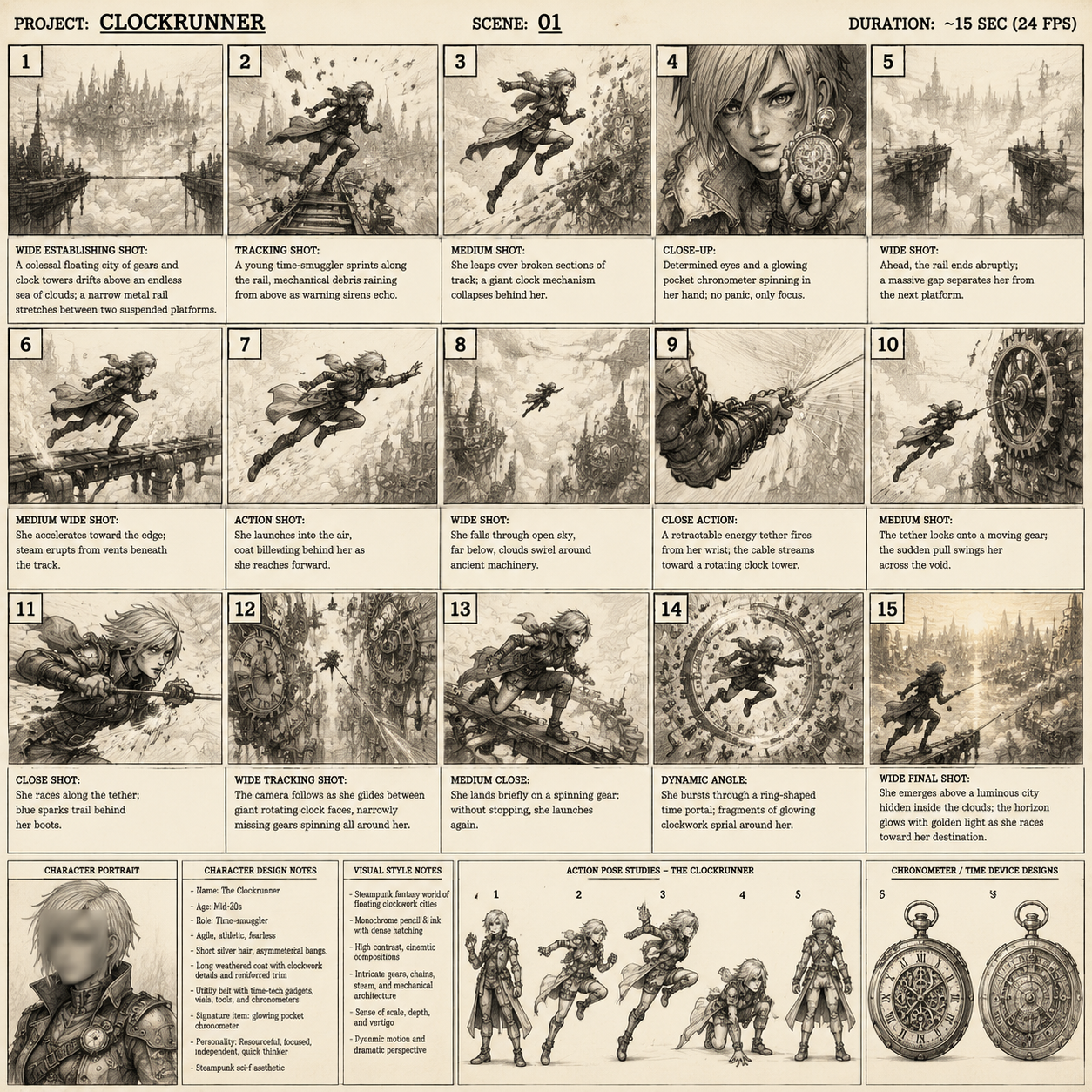
Generative tools are strong at drafting outlines, generating storyboard frames, producing background visuals, and creating placeholder b-roll for rehearsal. Use them to get to a first draft quickly, then replace anything that touches brand or factual claims with human-reviewed work. Never let generated visuals imply a real product capability that does not exist.
Live assistance
Auto-framing keeps a solo presenter centered without an operator. Noise suppression and room-tone cleanup rescue presenters working from imperfect spaces. Real-time captioning, speaker diarization, and live translation extend reach to audiences you could not otherwise serve.
What AI should not do live is make editorial decisions. Do not let a model choose when to cut to a sponsor slide or when to end a segment. Keep a human on the switch.
Post-production and repurposing
This is where the return is largest. After a broadcast, AI-assisted tools can:
- Produce an accurate transcript with speaker labels and timestamps.
- Identify the highest-engagement moments by combining transcript density with chat activity.
- Cut vertical clips with auto-reframing for social distribution.
- Generate chapter markers and summaries for on-demand viewers.
A single sixty-minute webinar can reasonably yield eight to twelve short clips, three quote graphics, one blog post, and one email newsletter. The recording is not the deliverable; the content library is.
A pre-flight checklist you can reuse every week
Run this at T-60 minutes and again at T-10.
- Encoder connected, scene list loaded, correct audio input selected.
- Microphone levels peaking around −12 dB to −6 dB, no clipping.
- Backup internet tested; local recording armed.
- Captions running and verified against a spoken test sentence.
- Slides advanced remotely once to confirm the screen-share path.
- Moderator logged in with a test question submitted.
- Registration link, recording notice, and accessibility statement confirmed.
- Presenter water, timer, and a printed run of show visible off-camera.
- A designated person who can restart the stream if the encoder dies.
The second run matters because things break between the first check and the broadcast. Recently opened apps, a laptop switching to a different Wi-Fi network, a browser updating itself — all of these have ended webinars.
Common failure modes and recovery playbooks
Audio echo during a panel. Almost always two open microphones in the same room, or a presenter with speakers on. Mute everyone except the active speaker and ask the offender to wear headphones.
Video freezes while audio continues. The encoder is starving for bandwidth. Drop your bitrate by 30 percent immediately, then switch to the backup connection during the next break.
Slides unreadable on mobile. Text is too small or the bitrate is too low for fine detail. Zoom the presentation to 125 percent and pre-test on a phone before the event.
Chat flooded with spam. Switch to registered-attendee-only chat and have the moderator mute links and repeated phrases.
Presenter disconnects entirely. Cut to the holding slide with a countdown, keep the host talking, and give the presenter sixty seconds to rejoin. Never leave dead air; the audience interprets silence as failure.
Every one of these playbooks should be written down before the event, not invented during it.
Measuring success and turning one broadcast into many assets
Attendance is the least interesting number. Track instead:
- Average watch time — the share of the session an average viewer sees.
- Interaction rate — poll responses and questions per hundred attendees.
- Conversion path — how many attendees moved to a trial, a demo request, or a completed module.
- Clip performance — which repurposed moments earned engagement after the fact.
- On-demand views in the first two weeks — a proxy for whether the topic has evergreen value.
Feed those numbers back into the next run of show. If interaction spikes at minute eighteen and drops at minute thirty-five, that is a scheduling instruction, not a coincidence.
FAQ
Do I need a production agency to run a good webinar? No. A disciplined two-person team with a wired connection, a decent microphone, and a rehearsed scene list can outperform a large crew that never rehearsed. Bring in outside help when scale, risk, or capability gaps justify it.
What is the minimum viable setup? One presenter, one laptop, one USB microphone, wired ethernet, an external encoder for control, and a second device on a different network for monitoring the stream as an attendee sees it.
Should I stream in 1080p or 720p? Choose 1080p for slide-heavy content and product demos when upload bandwidth is stable. Choose 720p when the network is unpredictable; a stable 720p looks far better than a stuttering 1080p.
How far in advance should presenters rehearse? At least one full technical rehearsal in the actual environment, plus a five-minute audio check on the day. Rehearsing only the content without the technology misses the failures that matter.
How many people should be on the live crew? Three is the practical minimum for a polished session: producer, technical director, and moderator. Audio can be handled by the technical director if the setup is simple and tested.
Can AI-generated visuals be used in a live webinar? Yes, for backgrounds, transitions, and abstract explainer sequences. Avoid using generated imagery to depict real products, real customers, or real results, and always disclose synthetic media where it could be mistaken for documentation.
How do I keep a global audience in sync? Use a CDN with regional edge presence, offer live captions in the primary audience languages, and publish the recording quickly so viewers in inconvenient time zones are not left out.
