
YouTube Shorts is the fastest way to grow an audience today, but it is also one of the most crowded formats on the internet. Viewers scroll past hundreds of clips a day, and your video has about two seconds to earn a tap. The good news: you do not need expensive software or a professional studio to compete. Windows 11 ships with capable free tools, and a growing stack of free and freemium AI services handles the heavy lifting — captions, cutting, voice, thumbnails, effects. This guide walks through the full workflow, from free editors to AI automation, with concrete techniques you can use today.
Why Shorts demand a different editing mindset
Shorts are vertical, short, and judged instantly. The editing rules are different from long-form video. There is no time for slow build-ups; every second must earn its place. The most successful Shorts feel dense: fast cuts, on-screen text, constant motion, and a payoff near the end that makes people watch again or hit subscribe.
The practical consequence for editors: speed matters more than polish. You need a workflow that takes a raw idea to a published Short in under an hour. That means using templates, automating repetitive steps, and letting AI handle the boring parts while you focus on the creative hook.
The free editing stack on Windows 11
Clipchamp: the built-in starter
Windows 11 includes Clipchamp, and it is genuinely useful for Shorts. It handles vertical export, simple cuts, text overlays, and basic transitions out of the box. The template library lets you start from a pre-built structure instead of a blank timeline. For a quick first pass, Clipchamp is enough — no installs, no cost, no learning curve beyond an afternoon.
DaVinci Resolve: the professional free option
When you outgrow Clipchamp, DaVinci Resolve is the free editor that does not feel free. It includes professional color grading, Fusion for visual effects, and Fairlight for audio — the same toolset used in commercial productions. The learning curve is steeper, but the payoff is real: proper color grading alone will make your Shorts look noticeably more premium than the competition.
CapCut: the Shorts-native editor
CapCut is designed around short-form video. Auto captions, trending templates, one-tap effects, and a huge library of music and stickers make it the fastest route from footage to published Short. The free tier covers most creators' needs. Its AI features — auto-captioning, background removal, and even AI avatars in some markets — integrate directly into the editing timeline, which saves enormous time.
Captions: the non-negotiable element
A large share of Shorts viewers watch with the sound off, especially on mobile. If your video has no captions, you are losing a big chunk of your audience before they even understand what is happening. Captions are not optional decoration; they are part of the content.
The fastest approach is AI auto-captioning: record or generate a transcript, let the tool time it to the audio, then restyle the text. Most Shorts creators use the "one or two words per caption block, large font, center screen" style, because it reads fast and feels energetic. If your free editor's captions look generic, export the video and add stylized captions in CapCut, or generate an SRT with a transcription service and import it.
Copyright-safe free resources
The biggest trap in free editing is not software limits — it is licensing. Shorts are designed to go viral, and a copyright strike kills momentum fast. Before you use any asset, check its license: does it allow commercial use? Does it require attribution? Is it safe on YouTube's content ID system?
Safe sources for free assets:
- YouTube Audio Library: music and sound effects cleared for YouTube use.
- Pixabay, Pexels, and Unsplash: stock footage and images with permissive licenses.
- Mixkit: free video, music, and sound effects with simple terms.
- Google Fonts and open font libraries: text styles without licensing headaches.
When in doubt, generate your own assets with AI tools — original content is the safest content.
AI auto-cutting: let the machine find the highlights
Manual cutting is the most time-consuming part of Shorts editing. AI tools now do a credible job of finding the best moments: they analyze the footage for faces, movement, audio energy, and even speech quality, then suggest cut points that maximize engagement.
The workflow: upload your raw footage (a livestream highlight, a long video, a podcast clip), let the AI mark interesting segments, review its suggestions, and export the best ones. You still make the final call, but the tool removes the boring hour of scrubbing through footage. Some editors bake this in; standalone AI video editors offer it as a core feature. Either way, auto-cut beats manual for volume.
AI voice synthesis and audio mastering
Audio quality separates amateurs from pros, and AI makes professional audio achievable for free. Two use cases matter for Shorts:
- Voice-over: if you are camera-shy or your recording environment is noisy, AI voice synthesis turns your script into a clean voice-over in seconds. Pick a natural voice, adjust pace, and drop it on the timeline. Use this for explainer Shorts, listicles, and storytelling formats.
- Audio cleanup: AI denoising removes background hum, and loudness normalization brings your audio to platform standard. If your free editor lacks these, free standalone tools handle one task at a time.
The golden rule: whatever the audio source, match your cuts to the beat. A Short cut on the music's rhythm feels ten times more professional than the same footage cut arbitrarily.
AI thumbnails and promo images
Shorts do not always display a custom thumbnail the way long-form videos do, but the first frame still acts as a thumbnail in feeds and suggestions. A strong first frame is free traffic.
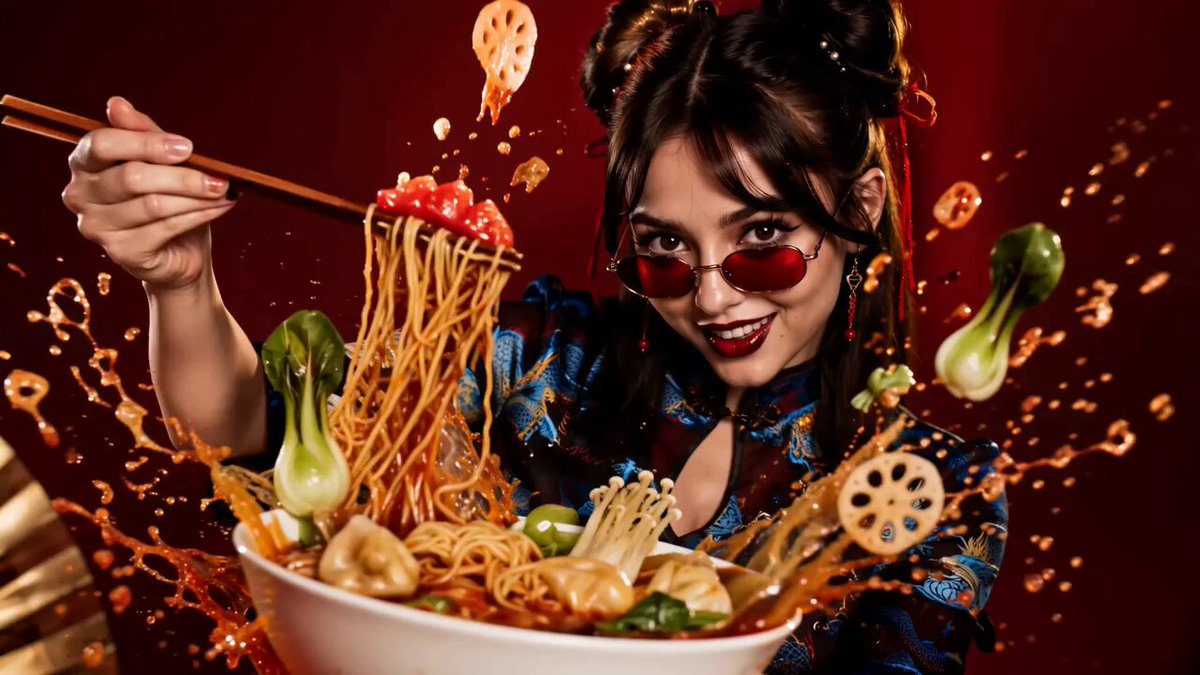
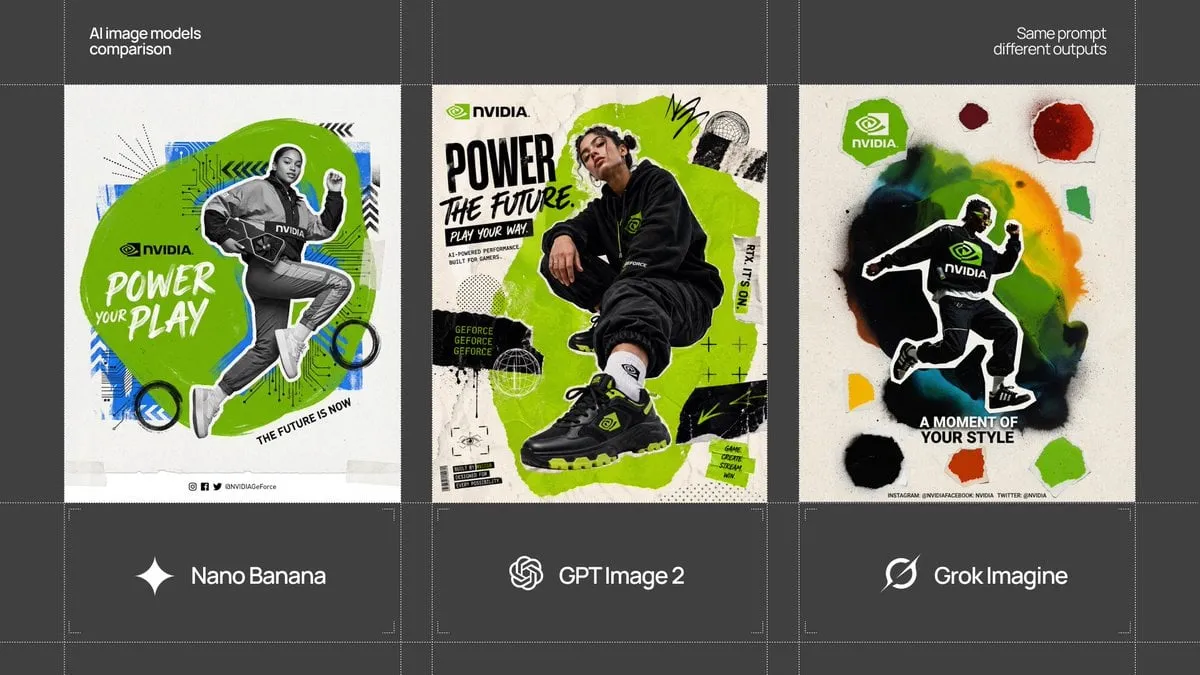
AI image generators excel at creating bold, high-contrast frames: a dramatic close-up, an exaggerated expression, a clear visual hook. Generate a few options, pick the one that reads well at small size, and set it as the first frame or upload a custom thumbnail where YouTube allows. Remember the platform context: bright colors and clear subject separation win at thumbnail size.
AI visual effects and style consistency
Consistency is the invisible ingredient of professional-feeling channels. If every Short looks different, the channel feels chaotic; if they share a style, viewers start to recognize and trust the content. AI helps in two ways:
- Style transfer and grading: apply a consistent color grade across all your clips, or match a reference style, so every Short shares a visual identity.
- Scene consistency: if you generate AI video clips, keep characters and settings consistent with reference images, so series-style content feels continuous.
None of this requires a big budget — the free tiers of these tools cover most individual creators.
Background removal and chroma key
Green screens are great when you plan ahead; AI background removal works when you did not. One-click background removal on a talking-head clip lets you swap in any backdrop: a clean studio look, a branded background, or a generated fantasy scene. Combined with AI-generated backgrounds, this is a cheap way to make every video look produced.
For footage shot on green screen, chroma key tools in free editors handle the classic workflow. Just mind the edges — AI-based removal often produces cleaner results than chroma key on poorly lit footage.
Motion tracking and camera movement simulation
Static talking-head videos lose the scroll battle. AI motion tracking attaches text, stickers, or effects to moving subjects, adding energy without manual keyframing. Even simpler: simulated camera movement — subtle zoom or pan applied to a static shot — makes a clip feel alive. "Ken Burns" style moves on still images are a reliable trick for turning photos into Shorts content.
Use movement deliberately: a slow push-in builds tension, a quick zoom emphasizes a punchline. Too much artificial motion feels dizzy; one clear movement per shot is usually enough.
AI content ideas and scripts
The editing workflow assumes you have something to edit, which means ideas. AI tools that analyze trending topics and search queries can generate Shorts concepts tailored to your niche: question formats, listicle hooks, myth-busting angles, and commentary prompts. Feed your niche into a trending-idea tool, get ten concepts, pick the strongest, and write a tight 30-60 second script with AI assistance.
Keep the script Shorts-shaped: hook in the first line, one core idea, and an ending that rewards watching — a tip, a twist, or a call to subscribe. The AI drafts; you add the voice and the point of view that make it yours.
Building a repeatable weekly workflow
Spontaneous creation is fun, but growth comes from consistency. Build a simple weekly pipeline:
- Ideas: collect ten concepts from trend tools and audience comments.
- Scripts: draft scripts in batches, one sitting per week.
- Capture: batch-record or batch-generate footage for all planned Shorts.
- Edit: auto-cut, add captions, match cuts to music, apply your consistent grade.
- Package: create thumbnails and hooks, schedule uploads at consistent times.
- Review: check analytics weekly; double down on formats that hold retention.
With templates and AI automation, one focused afternoon can produce a week's worth of Shorts.
Speed tricks that save the most time
Beyond the tools, a few habits cut production time dramatically.
Batch everything: record or generate all footage for a week's Shorts in one sitting. Set up once, shoot ten videos, then edit them in a batch. Context switching is the hidden tax on creators; batching removes it.
Build a template library: save your best caption styles, transition setups, and color grades as reusable presets. A new Short then starts from a proven template instead of a blank timeline. This one habit alone can cut editing time in half.
Reuse and recycle: a strong Short can become a thumbnail, a pinned comment, a community post, or the opening of a long-form video. Extract maximum value from every asset you create instead of starting from zero each time.
Keep a swipe file: save Shorts you admire — hooks, pacing, caption styles — and reverse-engineer them in your own voice. Not to copy, but to learn what patterns hold attention in your niche.
Schedule ruthlessly: publish at consistent times and use the platform's scheduling feature. Consistency beats intensity for Shorts growth, and scheduling removes the daily decision of when to post.
Frequently asked questions
Can I really edit Shorts for free on Windows 11?
Yes. Clipchamp is built in, and CapCut and DaVinci Resolve have generous free tiers. Most creators never need to pay for editing software.
Do I need to show my face?
No. Voice-over, screen recordings, stock footage, and AI-generated visuals all work. Many top Shorts channels never show a face.
Will AI-generated captions be accurate?
Mostly, but always review. Mistakes in captions look unprofessional and can hurt credibility. A quick pass fixes 95 percent of errors.
How important is music choice?
Very. Music sets the energy and drives the editing rhythm. Use trending sounds where they fit your content, but make sure the license allows commercial use.
What is the fastest way to improve my Shorts?
Cut faster, caption everything, and match cuts to the beat. Those three changes produce an immediate visible improvement.
Do free AI tools water down my content with watermarks?
Some free tiers add watermarks or limit export resolution. Read the terms before committing; a slightly paid tier is often worth it for a clean export, and some free tools export cleanly for personal channels.
Conclusion
You do not need a studio budget to make YouTube Shorts that compete. Windows 11 gives you a capable free editor out of the box, the free tiers of modern tools cover captions, audio, effects, and thumbnails, and AI automation removes the repetitive work that used to eat entire evenings. The formula is simple: hook fast, caption everything, cut on the beat, stay consistent, and publish on a schedule. Apply those habits consistently and the algorithm will eventually do its part. The tools are free — what you invest is discipline.
