
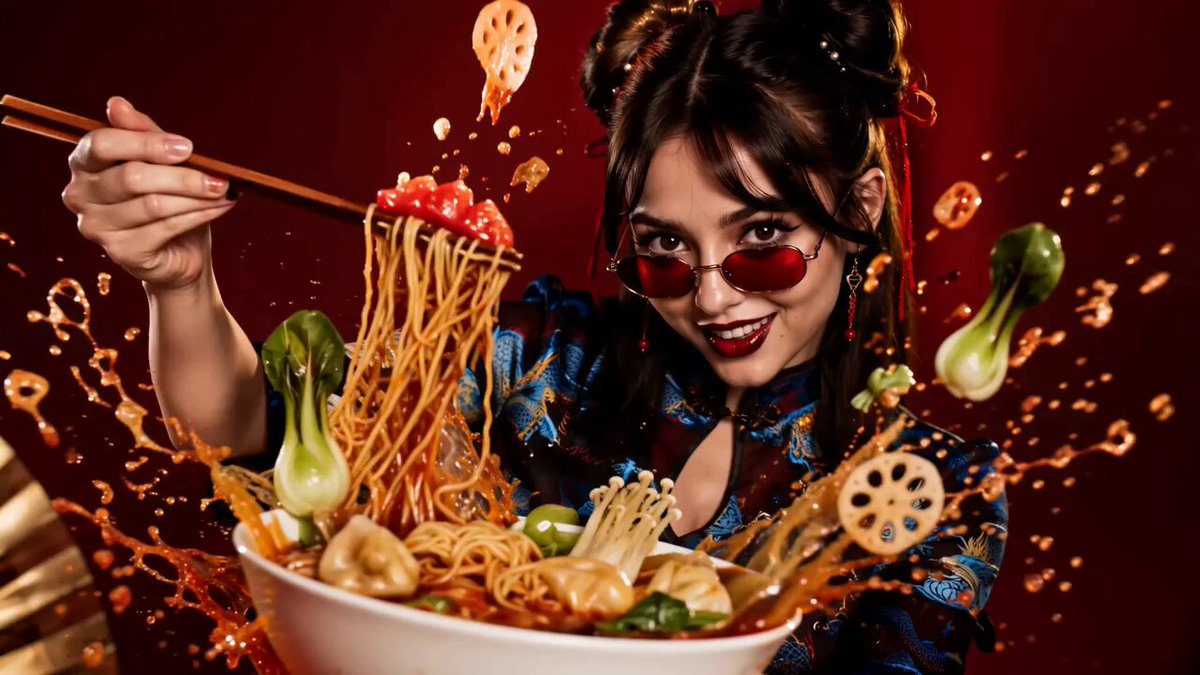
Animated GIFs have become a universal visual language, appearing in everything from social feeds to professional presentations. With AI, the journey from a static photograph to a smooth animated loop is now remarkably short — but short does not mean automatic. The difference between a jittery novelty and a polished, professional animation comes down to a handful of technical details. This article explains the underlying concepts, the practical decisions that matter, and a step-by-step method for turning your photos into high-quality AI animated GIFs.
The technical foundation: what is really happening
When you animate a photo with AI, the system does not simply play with the pixels. It generates entirely new frames that extend the scene in time, guided by its understanding of the world. Three concepts sit at the core of this process: generative models, frame interpolation, and consistency control. Understanding them — even loosely — transforms how you use the tools.
Generative models and image-to-animation
A generative model is the engine that creates new visual content from learned patterns. In image-to-animation, the model takes your input photo and produces additional frames that continue the scene plausibly. Modern models are built on transformer and diffusion architectures, giving them deep knowledge of texture, light, and shape. When you feed it a portrait, it understands what a face is and what natural facial motion looks like — blinking, turning, smiling. When you feed it a landscape, it knows how clouds drift and water flows.
The practical consequence: the model is not a dumb filter. It interprets your image through learned knowledge of the physical world. The better the input communicates the scene, the better the interpretation.
Frame interpolation and motion smoothness
Smoothness is the first quality people notice in an animated GIF, and it is almost entirely a matter of frame interpolation — the generation of intermediate frames between motion states. Strong interpolation produces fluid, natural motion. Weak interpolation produces jerky steps that reveal the animation's seams.
You can influence smoothness before you ever press generate. Inputs with clear subjects and simple backgrounds give the interpolator an easier task. A face on a clean backdrop animates smoothly; a cluttered scene full of moving parts fights the process. Choose inputs that let the motion be the star.
Character consistency and style maintenance
For animations involving people or repeated elements, consistency is the make-or-break factor. The face must remain the same person, the outfit must not change color, and the art style must stay stable through the loop. Reference-based generation solves this: anchor the animation with a clear image of the character or object, and the model maintains those visual features frame by frame. Style consistency works the same way for illustrated or stylized work — the aesthetic holds because the model is locked to the reference.
Choosing the right tool and model tier
Not all AI animation tools are equal, and the biggest practical mistake is using one tier for every job. The choice breaks down into three levels.
Premium models for final output
When the animation matters — client deliverables, brand content, anything seen at scale — use a premium model. These deliver finer detail, more stable faces, and more natural motion. They cost more and take longer, which is exactly why you should reserve them for the renders that count.
Fast models for iteration
For drafts, concept tests, and high-volume social content, fast models are the workhorse. They produce usable results quickly and cheaply, letting you explore ideas without commitment. The professional pattern is universal: iterate on fast models, finalize on premium ones. This discipline keeps quality where it belongs and cost where it belongs.
Comparing alternatives beyond the big names
Beyond the well-known platforms, there is a rich field of specialized and open-source options. Some excel at particular art styles, some at specific cultural aesthetics, some at speed on modest hardware. Evaluating alternatives is simple: generate the same test image on several tools and compare motion, consistency, and style. The tool that wins your specific test is the right tool for you, regardless of its popularity.
Step by step: from still image to animated GIF
Step 1: Prepare and quality-check the input
The input photo is the foundation of everything that follows. Use the highest resolution you have, ensure the subject is well lit and clearly separated from the background, and crop away distractions. If the background is busy, simplify it — a clean background yields smoother motion and smaller files. This preparation takes two minutes and saves ten.
Step 2: Choose the model and write the prompt
Match the model tier to the purpose: fast for drafts, premium for finals. Then write a prompt that describes specific motion rather than a vague wish. "The character turns and waves" outperforms "animate this photo" every time. Add lighting and mood cues when you want a particular feel: golden hour, soft studio light, dramatic shadows.
Step 3: Generate and evaluate
Run the generation and watch the result with a critical eye. Is the motion natural? Does the character hold? Does the loop close cleanly? Evaluate each aspect separately: motion, identity, and loop. A clip can have beautiful motion and a broken face, or a stable face and jerky movement. Fix what failed, keep what worked, and do not regenerate the whole clip when only one element is wrong.
Step 4: Direct the finer details
If your workflow includes a director-style agent, use it to refine composition and pacing: it can suggest the best part of the image to emphasize, propose camera-like motion, and keep the narrative arc tight. The key is to treat its suggestions as a starting point, steering them with your own judgment.
Step 5: Optimize the output
Animated GIFs have a hard technical constraint: the format supports only 256 colors per frame, and file size grows quickly with resolution and frame count. Optimize ruthlessly. Reduce the color palette to what the image actually needs, drop the resolution to the delivery platform's requirement, and trim frames that add nothing. Color palette reduction and lossless compression are your two main levers; most optimization tools handle both automatically while preserving perceived quality.
Step 6: Export and verify
Export for the target platform's limits and verify on the actual platform. A GIF that looks fine in a desktop editor can fail on a mobile feed or a chat app. Test the real deliverable, not the preview.
Advanced optimization: smaller files, sharper results
File size and perceived quality are the two numbers that decide whether your GIF gets used. Optimization is a skill worth mastering.
Color palette reduction done right
The GIF format caps at 256 colors, but most images do not need all of them. The trick is removing colors the eye will not miss. Shadows and gradients are the first to degrade, so keep more color budget for the subject and simplify the background. A well-tuned palette keeps the animation vivid while cutting file size dramatically.
Frame rate and duration trade-offs
More frames mean smoother motion and larger files. For most social uses, 12 to 15 frames per second looks smooth enough while keeping the file light. Shorten the loop to its essential moment — a two-second loop often performs as well as a four-second one and weighs half as much.
Lossless compression and delivery
Modern compressors apply lossless or near-lossless techniques that squeeze redundant data without visible damage. Run the final export through a dedicated GIF optimizer, then check the result on a phone screen, not just a desktop monitor. Mobile feeds are where most GIFs actually live, and they punish heavy files with slow loading.
When to abandon GIF entirely
If the platform supports modern formats, WebM or MP4 often delivers better quality at a fraction of the size. Use GIF where compatibility demands it, and use video formats where the platform allows. The visual result is identical or better, and the loading speed wins viewers.
Building a small animation pipeline
Consistency and speed come from a repeatable pipeline, not from improvising each time.
Define a simple template: where the source images live, which models you use for drafts and finals, how prompts are written, and where finished GIFs are stored. A one-page template turns every future animation into a routine.
Keep a prompt library. When a prompt produces a great result, save it with the image that used it. Over time this library becomes your personal style guide — the fastest path to reproducing a look you already love.
Review each output against three questions: is the motion natural, is the subject consistent, is the file small enough? Anything that fails one of these goes back for a fix. A short checklist keeps quality high without slowing the pipeline down.
Practical applications
Marketing and social media
Animated product shots, logo accents, and campaign visuals draw more attention than static images and load lighter than video. For teams without a motion designer, AI photo animation closes the gap at near-zero cost.
Education and training
Processes that are hard to describe in words become obvious in motion: a machine cycle, a biological mechanism, a step in a workflow. Educators can convert any static diagram into an animated explanation in minutes.
Personal and cultural content
Animating personal photos — portraits, family moments, travel scenes — creates content that travels well across languages and borders. In regions with strong mobile-first audiences, the lightweight GIF format is a natural fit.
Common mistakes and their fixes
- Weak prompts: vague motion requests produce weak results. Describe the exact motion and mood.
- Busy inputs: cluttered scenes animate poorly. Simplify the image first.
- One model for everything: match the model tier to the job. Iterate cheap, finalize premium.
- Skipping optimization: a bloated GIF fails to load or gets rejected. Compress before delivery.
- Ignoring the loop: a GIF is a loop; the end must meet the start smoothly. Watch the seam.
FAQ
What makes an AI-animated GIF look professional?
Three things: smooth motion (good interpolation), stable subjects (good consistency), and a well-optimized file (small size, clean colors). Nail these and the result looks intentional.
Can I animate any photo?
Almost any photo can be animated, but quality varies by input. Clear, well-lit images with simple backgrounds animate best. Very complex or low-quality images may produce artifacts; improving the input usually fixes it.
Is it expensive to create AI GIFs?
It can be very affordable. Drafts on fast models cost little, and free tiers on many platforms cover experimentation. Costs rise only when you render many premium generations — which good planning minimizes.
How small should a GIF be for sharing?
It depends on the platform. Social apps generally prefer files under a few megabytes; websites can tolerate more. Check the target platform's limits and optimize to match. When in doubt, smaller is safer.
Do I need to understand machine learning to use these tools?
No. The concepts in this article are useful for judgment — choosing inputs, writing prompts, evaluating results — but the tools handle the heavy lifting. A little technical understanding makes you dramatically more effective, not more burdened.
How do I know which model is best for my images?
Run the same test image through two or three models and compare. Look for three things: natural motion, stable identity, and acceptable cost. The best model is the one that wins your specific test, not the one with the most marketing.
Final thoughts
AI animated GIF creation sits at a sweet spot: the technology is powerful enough for professional results and simple enough for beginners. The edge comes from the details — clean inputs, specific prompts, smart model selection, and disciplined optimization. Master those, and you turn a one-time novelty into a repeatable production skill. Start with a photo that matters to you, run it through the steps above, and see how far a few seconds of motion can take it.
