
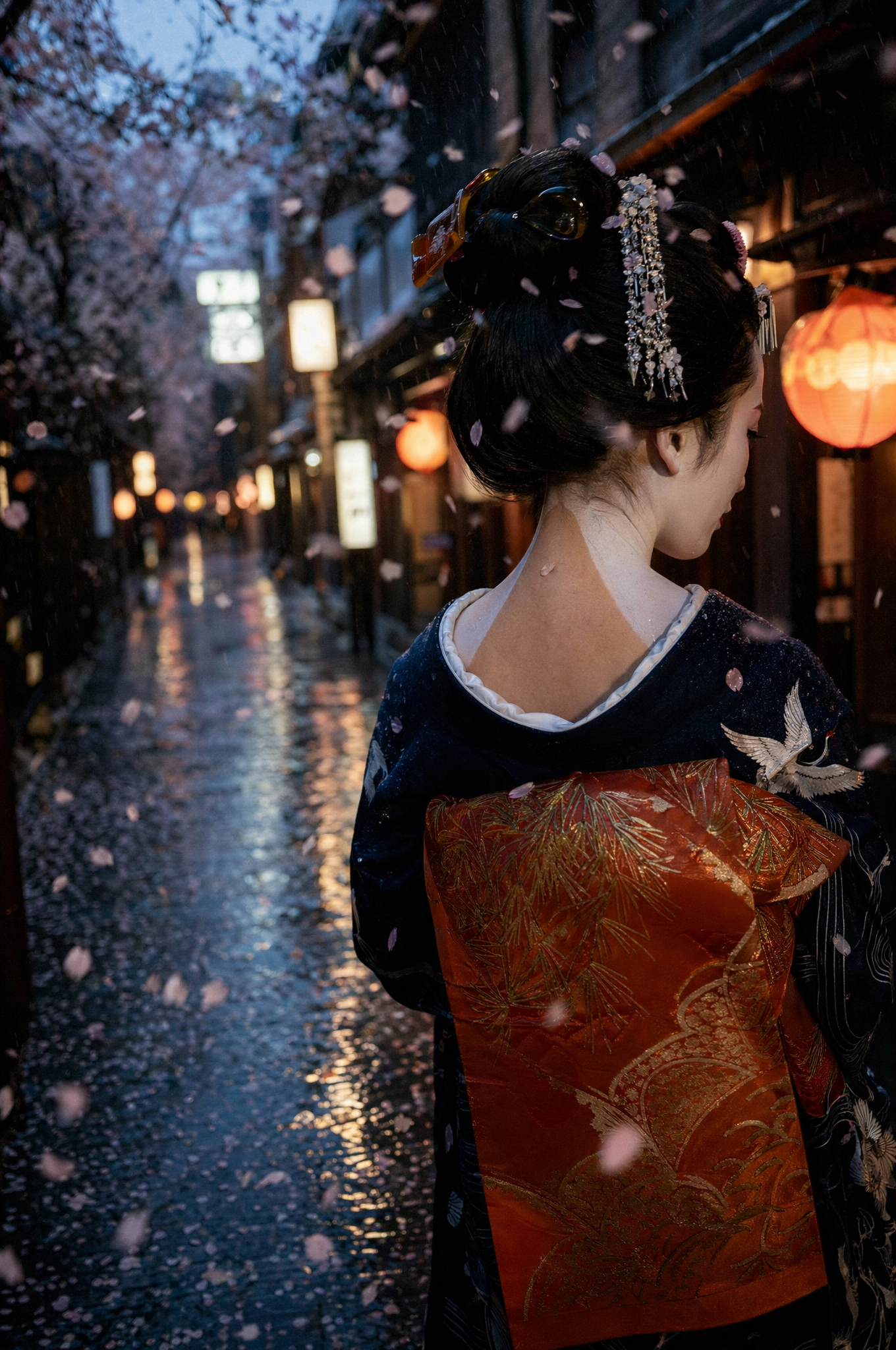
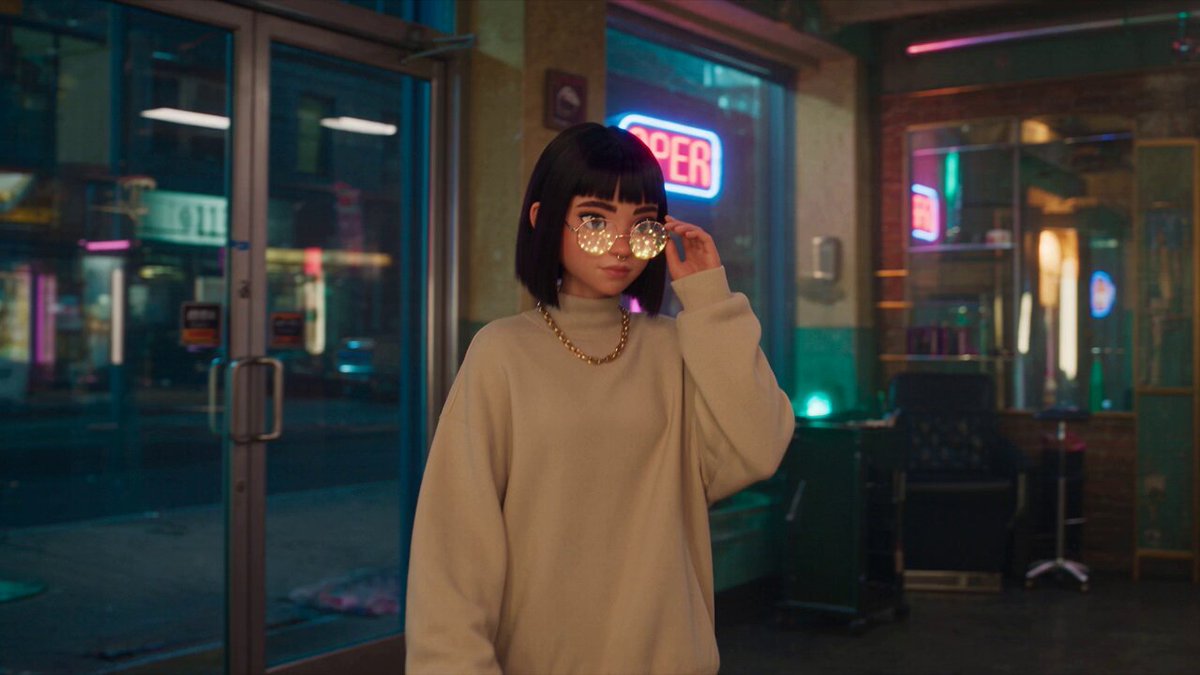
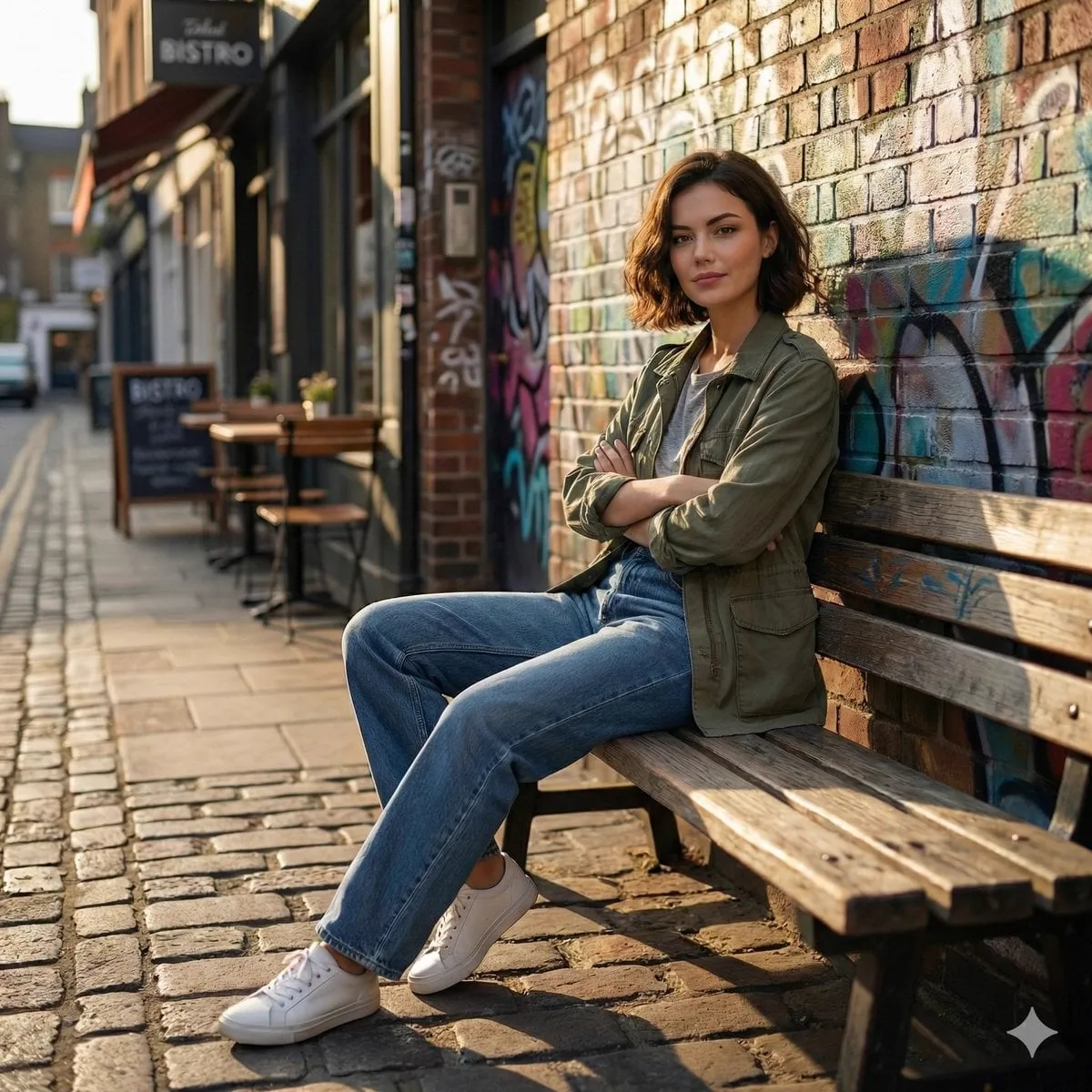

A live wallpaper is one of the small pleasures of owning an iPhone: your lock screen moves, softly, every time you wake the phone. For years this felt exclusive to Apple's own effects, but it turns out you can turn almost any short video into a live wallpaper with a few careful steps. The result is a lock screen that feels personal in a way no static image can match.
This tutorial walks through the whole process: understanding the format, choosing or generating the right clip, converting it, setting it on your phone, and fixing the problems that come up. No jailbreak, no risky apps, just the standard iOS tools plus a free conversion step.
What a Live Wallpaper Actually Is
Technically, a live wallpaper is a Live Photo: a container that bundles a still image together with a short video clip, usually around three seconds. When you press the lock screen, iOS plays the clip; when you release, it returns to the still. The wallpaper system on iPhone is deliberately strict about the format, because Apple wants the experience to stay smooth even on older devices.
The practical constraints follow from that design:
- The clip must be short, a few seconds at most. Anything longer is trimmed or rejected.
- The file must be in the Live Photo container format, not a plain video file.
- The still frame should look good by itself, because that is what you see most of the time.
- The motion should loop cleanly, or at least start and end in a way that does not look broken.
Understanding these constraints up front saves you from picking a beautiful clip that will never work.
Choosing the Right Video
Not every video makes a good wallpaper. The best candidates share a few properties.
First, the composition should survive a lock screen. The clock sits near the top of the screen, and the date and controls occupy the edges. Busy, text-heavy clips fight with the interface; calm, centered subjects work better. Think of the wallpaper as a backdrop, not a screen.
Second, the movement should be subtle. Gentle motion, like flowing water, drifting clouds, swaying plants, or a slowly moving light source, looks premium. Fast action, camera shake, or rapid cuts look chaotic and make the lock screen hard to read.
Third, the loop matters. Because the phone plays the clip on demand and often repeats it, a clip that begins and ends at visually similar points will loop almost invisibly. A clip that starts in daylight and ends at night will look broken every time.
Fourth, the orientation should match. For most people that means vertical, 9:16 or close to it, because the lock screen is vertical. A horizontal clip will be cropped or letterboxed, and the crop usually ruins the composition.
Generating Custom Clips With AI Tools
If you do not have the perfect footage, you can generate it. AI video tools now handle short, stylized clips easily, and wallpapers are an ideal use case because the clip only needs to be a few seconds long and aesthetically pleasing rather than narratively complex.
Good prompts for wallpaper clips share a pattern: a subject or scene, a soft mood, and gentle motion. Examples that tend to work well:
- "calm ocean waves at sunset, slow motion, warm colors, vertical composition";
- "neon lights reflecting on a rainy street at night, slow camera drift, cinematic";
- "leaves swaying in the wind, golden hour light, shallow depth of field";
- "flowing liquid ink swirling slowly, dark background, elegant";
When generating, request a vertical aspect ratio if the tool supports it, keep the motion slow, and generate a few variations so you can pick the one that loops best. The free tier of most tools is enough for a wallpaper project, since you only need one good few-second clip.
If the tool you use does not support vertical output directly, generate in a square format and crop the vertical frame during conversion. The crop usually keeps the center of the composition, so place your subject in the middle of the frame when prompting.
Converting Video to Live Photo Format
iPhone wallpapers expect a specific container: a file that pairs a still image with a short video track. A plain .mp4 will not work directly. The conversion is simple and free.
The steps:
- Export or trim your clip so it is short, ideally two to four seconds. Keep it vertical.
- Choose the frame that will act as the still. Usually the first frame is fine, but if the clip starts with a flash or a fast movement, pick a calmer frame instead.
- Use a converter that creates the paired container. Several free apps and desktop utilities do this; on a Mac, shortcuts and small utilities can do it without extra software. The result should be a file that iOS recognizes as a Live Photo.
- Save the converted file to your Photos library.
If the converter does not produce a file that Photos treats as a Live Photo, check that the original clip is in a compatible format and that the still frame was exported at the same resolution. Most conversion failures come from mismatched frame rates or resolutions between the still and the video track.
Setting the Wallpaper on Your iPhone
Once the Live Photo is in your library, the setup takes seconds.
- Open the Photos app and find the converted Live Photo.
- Tap the Share button and choose Use as Wallpaper. On some iOS versions you select Wallpaper from the share sheet, on others you open the photo and use the wallpaper option from the action menu.
- The wallpaper preview appears. Make sure the Live Photo indicator is on, so the phone knows to play the clip.
- Adjust the position and zoom so the composition sits well under the clock.
- Choose Set Lock Screen, or Set Both if you want it on the home screen too.
- Press and hold the lock screen to verify the motion plays.
A common mistake is choosing a still frame that is not part of the Live Photo container. If the wallpaper does not move, recheck the conversion and confirm the file really is a Live Photo, not just a video saved to your library.
Techniques for an Invisible Loop
The loop is what separates a wallpaper that feels magical from one that feels broken. Aim for a clip where the end connects smoothly to the beginning.
Practical techniques:
- Choose clips with continuous, directionless motion. Flowing water, drifting fog, and pulsing light loop far better than a car driving across the frame.
- Trim the clip so the first and last frames are similar in brightness and composition.
- Use a slow fade to black at both ends if the clip cannot loop cleanly; the fade makes the cut invisible.
- Prefer camera drift over subject motion, because a slow pan can be reversed or cross-faded more easily.
- Test the loop before setting the wallpaper: play the clip on repeat in any player and watch for the jump.
If the clip refuses to loop well, accept a short fade. A clean fade looks deliberate; a hard jump looks like a mistake.
Quality, Sharpness, and File Size
The lock screen is a high-resolution display, and the wallpaper should match it. Generate or export clips at a resolution at least as high as the screen, or upscale before converting. Soft, pixelated wallpapers look especially bad on the lock screen because the clock and date sit on top of them.
Sharpness tips:
- Keep the export resolution at or above 1080 pixels on the short side.
- Avoid heavy compression. If the clip looks blocky in motion, re-export with a higher bitrate.
- Watch for over-bright frames. The lock screen clock needs contrast, so a wall of pure white or pure black makes the UI harder to read.
- Keep the file reasonable in size. Live wallpapers that are enormous can slow the lock screen on older devices, so a few seconds of well-compressed video is better than a giant file.
Creative Ideas for Personal Wallpapers
Once the process works, the fun part begins. Good wallpaper projects include:
- a short clip of a trip, with the ocean or a sunset as the centerpiece;
- a pet moving in slow motion;
- a generative-art clip that matches your phone case or your mood;
- a seasonal theme, updated every few months;
- a subtle brand or aesthetic look for creators who show their lock screen in content.
Keep a folder of candidates and rotate them whenever you feel like a change. Because the conversion takes a minute, refreshing the look is cheap.
Batch-Converting and Managing a Wallpaper Library
Once you have the workflow down, you will want more than one wallpaper. Treat it like a small library: collect candidates, convert them in batches, and organize them by mood or season.
A simple system:
- Keep a folder of raw clips that caught your eye, labeled by theme.
- Convert several at once instead of one at a time, so the setup cost pays off.
- Name the converted files clearly, like "sunset-ocean" or "neon-rain", so you can find them later without previewing every file.
- Delete the versions you rejected, or move them to a separate folder, so your Photos library does not fill with near-duplicates.
- Rotate your wallpaper weekly or monthly to keep the lock screen feeling fresh.
The batch habit turns a five-minute chore into a one-time setup, and the organized library means the next time you want a change, it takes seconds instead of a new conversion session.
Fixing the Most Common Problems
The wallpaper does not move. The file is probably not a real Live Photo. Recheck the conversion and confirm the still and video are paired. Also make sure the Live Photo feature is enabled on the wallpaper preview.
The clip plays too fast or too slow. The frame rate of the source clip affects playback feel. For calm motion, a 24 or 30 frames per second source is fine; extreme slow motion looks best when the tool created it, rather than when the player slows a normal clip.
The wallpaper looks zoomed or cropped. iOS crops to fit the screen. Choose clips with the subject centered and some breathing room around the edges, and adjust the position in the wallpaper preview.
The loop has a visible jump. Add a short fade or choose a clip with directionless motion.
The file will not convert. Update the app or utility, and try exporting the source clip to a standard format like H.264 before converting.
Frequently Asked Questions
Do I need a paid app to make a live wallpaper?
No. Free conversion options exist, and if you are comfortable with a few minutes of setup you can do it without spending anything.
Can I use any video, or does it have to be vertical?
Any video can be converted, but vertical clips fit the lock screen far better. Horizontal clips get cropped heavily.
Will the live wallpaper drain my battery?
The effect only plays briefly when you interact with the lock screen, so the impact is small. Very large or high-frame-rate files use more resources; keeping clips short and well compressed helps.
Why does my wallpaper stop moving after I set it?
On some iOS versions, Low Power Mode disables live wallpaper motion. Check that Low Power Mode is off.
Can I set a live wallpaper on the home screen too?
Yes, with Set Both. Note that the effect behaves slightly differently on the home screen, and some users prefer live only on the lock screen to keep the home screen clean.
Does a live wallpaper work with the always-on display?
On iPhones with an always-on display, the live effect is limited to when the screen is fully awake. The wallpaper still looks good as a still in the dimmed state, so choose a clip with a strong static frame.
Can I use a video from a social app as a wallpaper?
Technically yes, if you can save the clip and convert it. But respect the creator's rights: only use content you made or have permission to use, especially if you plan to share the wallpaper or the process.
Why does my converted wallpaper look less sharp than the original video?
The conversion process recompresses the clip and may downscale it. Export the source at the highest available resolution and avoid converting multiple times; each conversion costs quality.
