
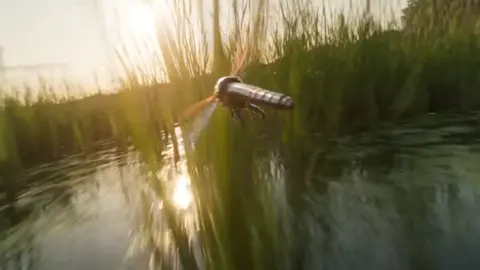
AI Photo Editor 2025 for Simple Changes
Use ai photo editor 2025 to upload a source image, describe the edits you want for your profile or project, review the result, and download the version that.
AI Image Generator
0/20000 characters
0 / 16
or select from
or select from(Optional)
or select from(Optional)
or select from(Optional)
or select from(Optional)
or select from(Optional)
or select from(Optional)
or select from(Optional)
or select from(Optional)
Supports PNG, JPG, WebP
My images
Loading...
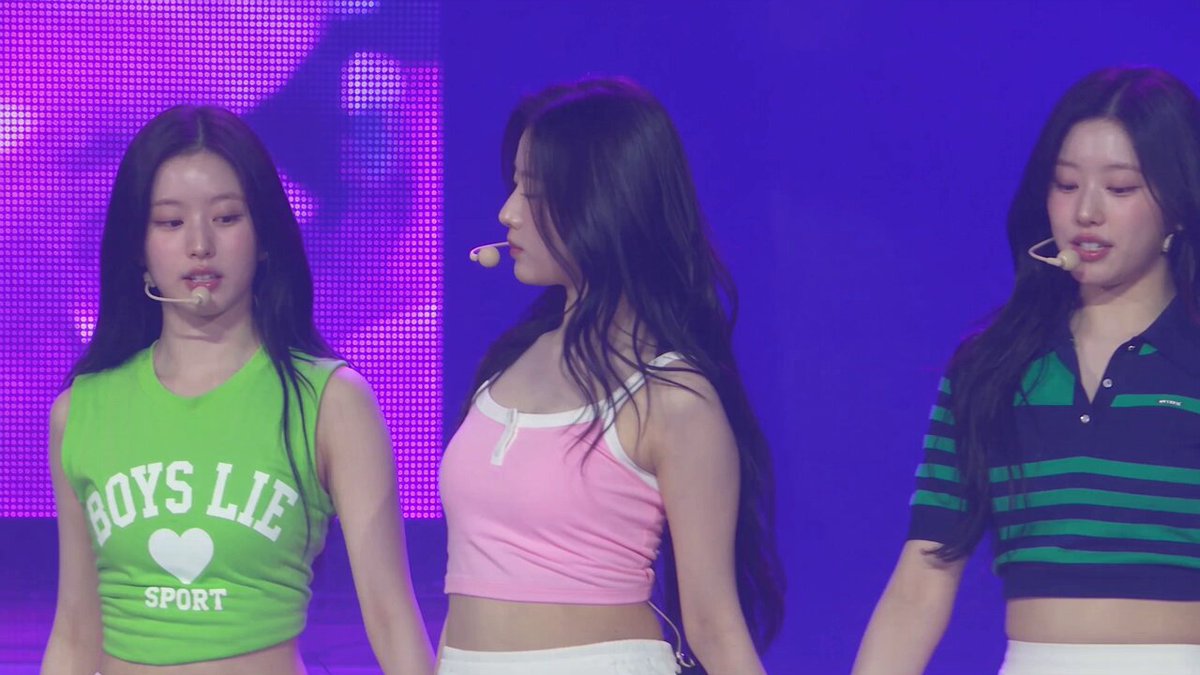
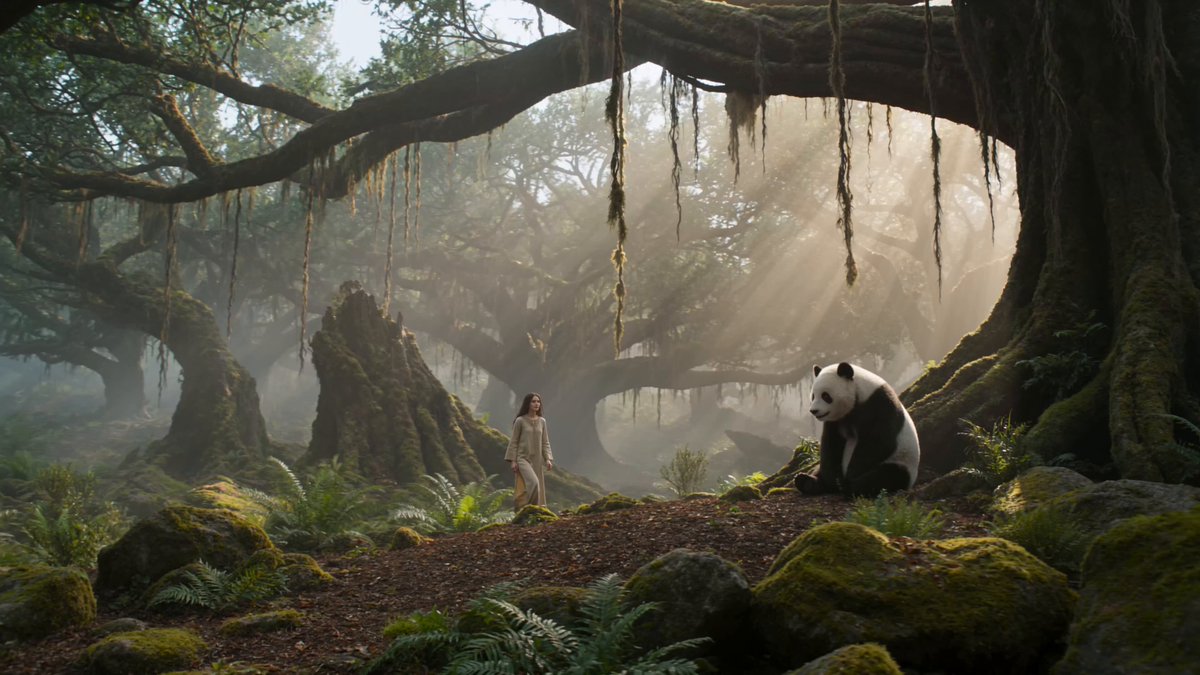
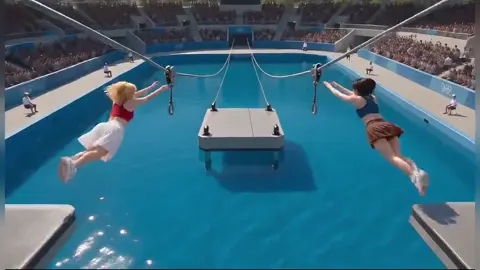
What can an AI photo editor do in 2025?
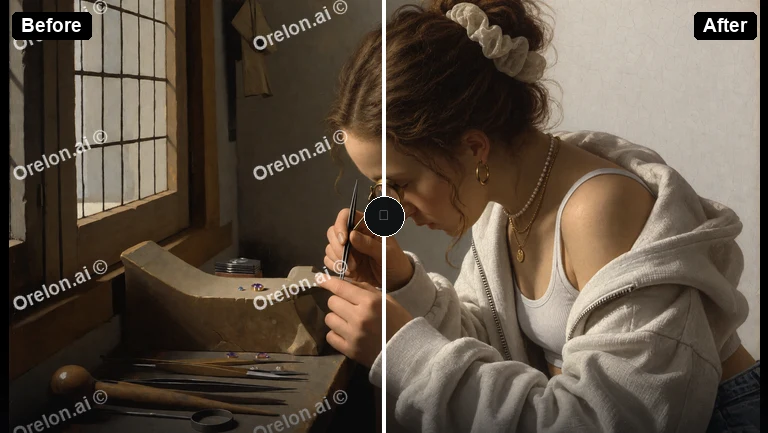
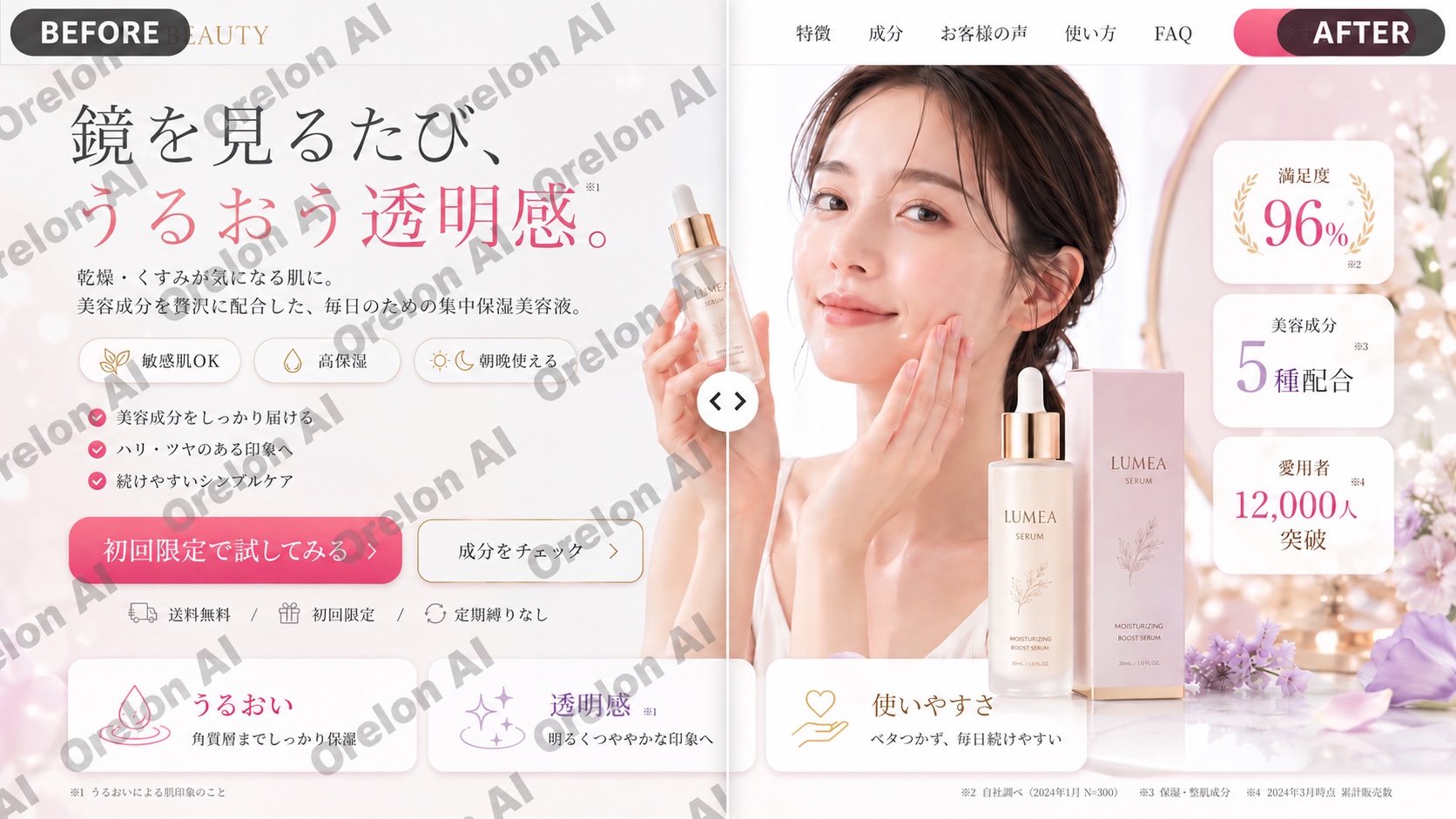
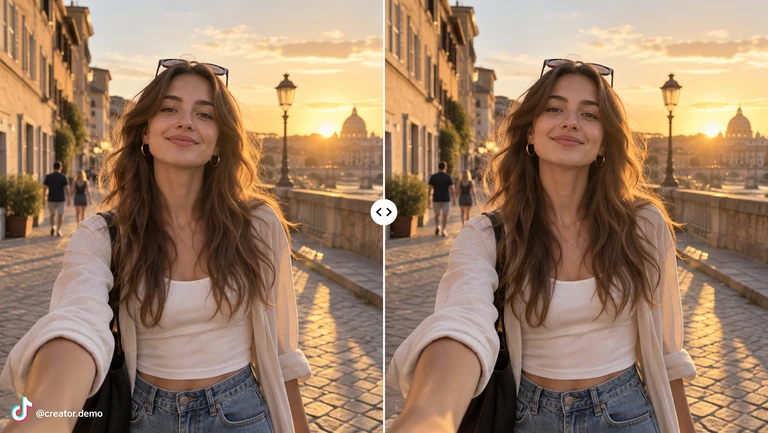
An AI photo editor in 2025 lets you upload a source image, describe edits such as background replacement, lighting adjustments, or style changes, and generate a modified version. You review the result for accuracy before deciding to use it.
AI Photo Editor 2025 for Simple Changes
Clean Up a Busy Background
Input
Upload a portrait taken in a cluttered room, then describe: 'Replace the background with a calm neutral gray gradient with clean edges.'
Expected output
The same person in front of a calm neutral gray background with clean edges. Review the edited result before deciding whether it represents the person accurately.
Give a Photo an Art Look
Input
Upload a city street photo, then describe: 'Convert this scene into a retro poster style with bold colors, graphic shapes, and simplified details.'
Expected output
A retro poster style version of the city scene with bold colors and graphic shapes. Review the edited result to confirm the style matches your intent.
Adjust the Lighting
Input
Upload an indoor photo taken in dim light, then describe: 'Brighten the room with warmer light and soften the shadows.'
Expected output
The same room with brighter, warmer light and softer shadows. Review the edited result to ensure the lighting looks natural.
Upload a source image and describe the edits you want, then review the generated result to decide whether it fits your profile or project needs.
Start with your own image
Use an image you have permission to edit instead of recreating the subject from a text-only description.
Direct the changes
State the framing, background, and style you want, then compare the result with the original image.
Choose before you use it
Review the edited image for likeness, context, and crop before downloading or posting it.
How It Works
1
Upload the image you want to refine
Start with an image you have the right to edit.
2
Describe the profile-picture changes you want
Keep the requested edits specific so the intended profile look is clear.
3
Generate, compare, and download
Review the output for likeness, accuracy, and the final profile crop before using it.
Making a profile-picture edit that stays clear
A clear source image and a focused edit request make it easier to judge the result.
Input Constraints
- Only upload images you have permission to edit and use.
- Keep the requested changes focused on the profile-picture outcome you need.
- Review the final image for likeness and context before sharing it.
Practical Tips
- Use a source image with a visible face and enough detail around the subject.
- Ask for one or two concrete changes, such as a neutral background or a square crop.
- Compare the result with the original image before choosing a version to use.
Privacy
- Do not upload personal or sensitive material unless you have permission to use it.
Usage Rights
- Confirm that you have the rights needed for the inputs and intended use of the result.
Prompt recipes
Copy a structure, then adjust the subject, lighting, camera, and output details for your own result.
Replace Cluttered Background with Solid Color
Upload a portrait taken against a messy or distracting background, then describe: 'Replace the background with a solid soft gray, keep the subject in focus, and maintain natural lighting.'
A solid background removes distractions, creates a professional appearance, and makes the subject the clear focal point for profiles or presentations.
Convert Street Photo to Vintage Poster Style
Upload a city street or landscape photo, then describe: 'Transform this into a vintage travel poster with bold colors, simplified shapes, and retro typography placeholder areas.'
A vintage poster style adds artistic appeal and nostalgic charm, making the image stand out on social media, blogs, or print materials.
Brighten Underexposed Indoor Photo
Upload an indoor photo taken in low light, then describe: 'Increase the overall brightness, add warm tones, and soften harsh shadows without overexposing highlights.'
Improving exposure and warmth corrects common indoor lighting problems, making the photo more inviting and easier to view.
Add Dramatic Sunset Tones to Landscape
Upload a daytime landscape or outdoor scene, then describe: 'Apply golden hour sunset tones with warm orange and pink hues in the sky and soft rim lighting on foreground objects.'
Sunset tones create emotional impact and visual warmth, enhancing landscape photos for portfolios, social media, or prints.
Simplify Product Photo Background
Upload a product photo taken on a cluttered surface, then describe: 'Place the item on a clean white background with soft shadows and remove all surrounding objects.'
A clean white background meets e-commerce standards, improves product visibility, and creates a consistent look across catalog images.
Create Square Profile Crop from Wide Photo
Upload a wide group photo where you appear on one side, then describe: 'Crop to a square centered on my face, blur the background slightly, and frame for a profile picture.'
A square crop focused on the subject meets profile picture requirements for most platforms and ensures the face is clearly visible.
Best use cases
Match the workflow to the input you have and the result you need before opening the generator.
You need a professional headshot but only have casual photos with messy backgrounds.
Input: A clear portrait with good lighting and a visible face, even if the background is cluttered.
Result: The same portrait with a clean, neutral background suitable for work profiles or resumes.
Tool: Image to Image
You want to give a travel or street photo a distinctive artistic style.
Input: A landscape or cityscape photo with identifiable landmarks or scenery.
Result: The same scene transformed with vintage poster styling, bold colors, or artistic treatment.
Tool: Image to Image
You have a dimly lit indoor photo that looks too dark or flat.
Input: An indoor photo where the subject is visible but underexposed or lacks warmth.
Result: A brighter, warmer version with improved lighting and reduced shadows.
Tool: Image to Image
You need product images with consistent white backgrounds for an online store.
Input: Product photos taken on any surface, with the item clearly visible.
Result: Clean product shots on white backgrounds with professional lighting and shadows.
Tool: Image to Image
Limitations to know before generating
- The edited image is a generated variation based on your description, not a precise pixel-level edit of the original.
- Complex requests such as removing multiple objects, adding detailed scenes, or matching exact colors may require iteration.
- Accuracy and likeness depend on the quality of your source image and how clearly you describe the changes.
- Generated results may include visual artifacts, inconsistent details, or unexpected interpretations of your prompt.
- You are responsible for confirming you have the rights to edit and use both the source image and the generated result.
Creative Suite: AI Video Generator & AI Image Generator Tools
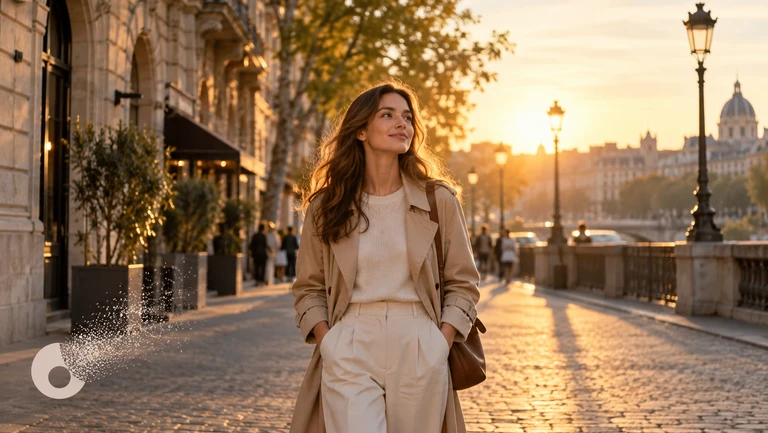
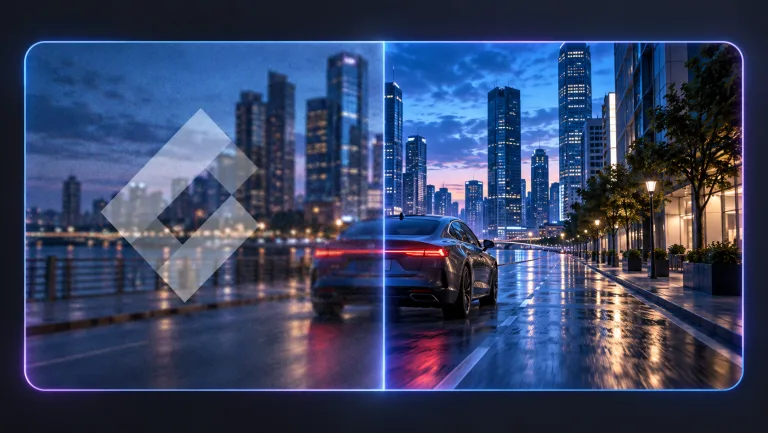
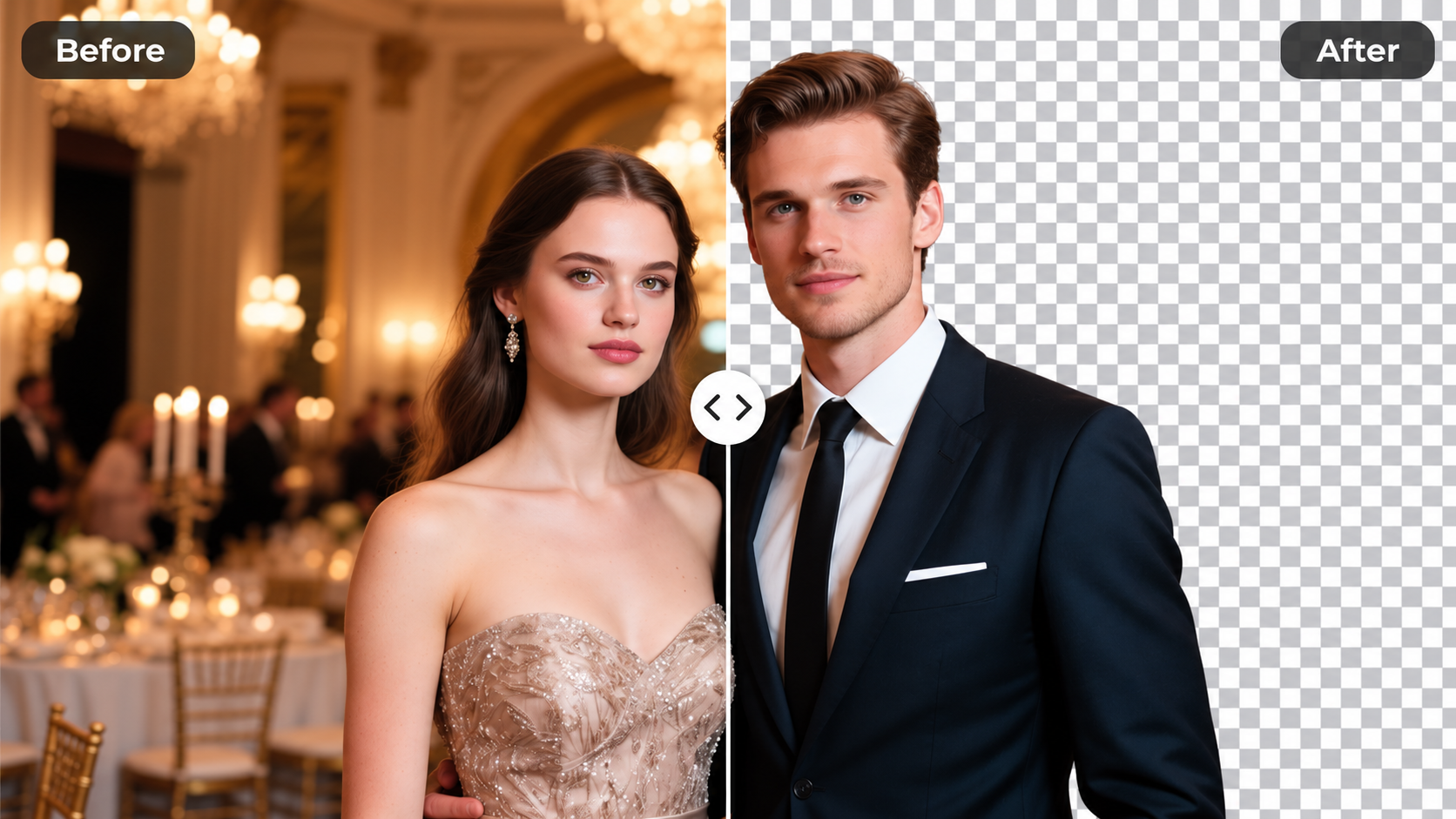
Power up your creative workflow with our AI-driven tools. Generate stunning videos, create images, and apply custom adjustments - our AI Video Generator and AI Image Generator offer a complete solution for all your creative needs.
Strictly Prohibits Adult/NSFW Content
Pricing
Choose the credit package that works best for you.
No hidden fees • Cancel anytime • Unused credits roll over
Starter
Perfect for trying out AI creation.
Credits
200 credits / month
- Up to 20 videos per month
- Up to 100 images per month
$6.99/ month$9.9930% OFF
Billed monthly
First-time subscribers get 30% off their first month, then standard price
What's included
- Credits never expire
- Standard models
- HD, Watermark-Free Downloads
- Private Generation
- Faster Generation Speed
- Ad-free experience
Basic
Perfect for light creators.
Credits
500 credits / month
- Up to 50 videos per month
- Up to 250 images per month
$13.99/ month$19.9930% OFF
Billed monthly
First-time subscribers get 30% off their first month, then standard price
What's included
- Credits never expire
- Standard models
- HD, Watermark-Free Downloads
- Private Generation
- Faster Generation Speed
- Ad-free experience
Pro
PopularBest value for creators
Credits
1,200 credits / month
- Up to 120 videos per month
- Up to 600 images per month
$39.99/ month
Billed monthly
What's included
- Credits never expire
- All models + Early access to new models
- HD, Watermark-Free Downloads
- Private Generation
- Faster Generation Speed
- Ultra HD resolution
- Ad-free experience
Ultra
For video creators and power users.
Credits
5,000 credits / month
- Up to 500 videos per month
- Up to 2,500 images per month
$99.99/ month
Billed monthly
What's included
- Credits never expire
- All models + Early access to new models
- HD, Watermark-Free Downloads
- Private Generation
- Faster Generation Speed
- Ultra HD resolution
- Ad-free experience
Free
Standard models only — upgrade to unlock premium models.
Credits
10 free credits on signup
Questions? Contact us at support@domer.io
Turn your source image into a profile-ready version
Open Image to Image, upload an image you can edit, and review the result before you decide to use it.