
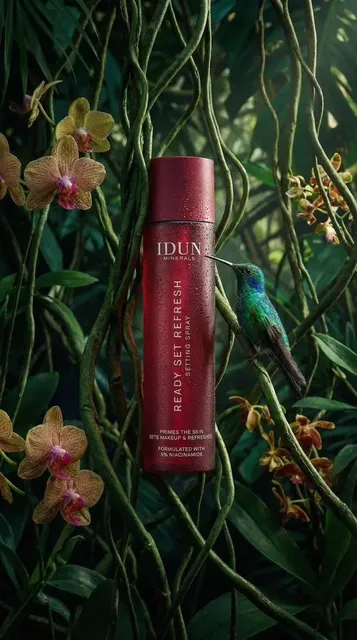
AI Photo Editor YouTube Thumbnail
Use ai photo editor youtube thumbnail to upload an image, describe thumbnail edits like crop and color, review the result, and download the version that works.
AI Image Generator
0/20000 characters
0 / 16
or select from
or select from(Optional)
or select from(Optional)
or select from(Optional)
or select from(Optional)
or select from(Optional)
or select from(Optional)
or select from(Optional)
or select from(Optional)
Supports PNG, JPG, WebP
My images
Loading...
How do I edit a photo for a YouTube thumbnail?
Upload a source image you have permission to edit, describe the changes you want for thumbnail framing and style, then review the generated version before downloading it.
AI Photo Editor YouTube Thumbnail
Sharper subject focus
Input
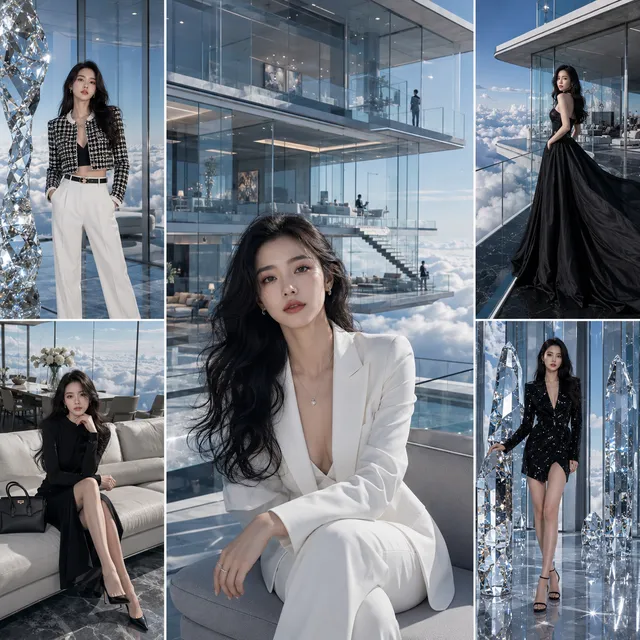
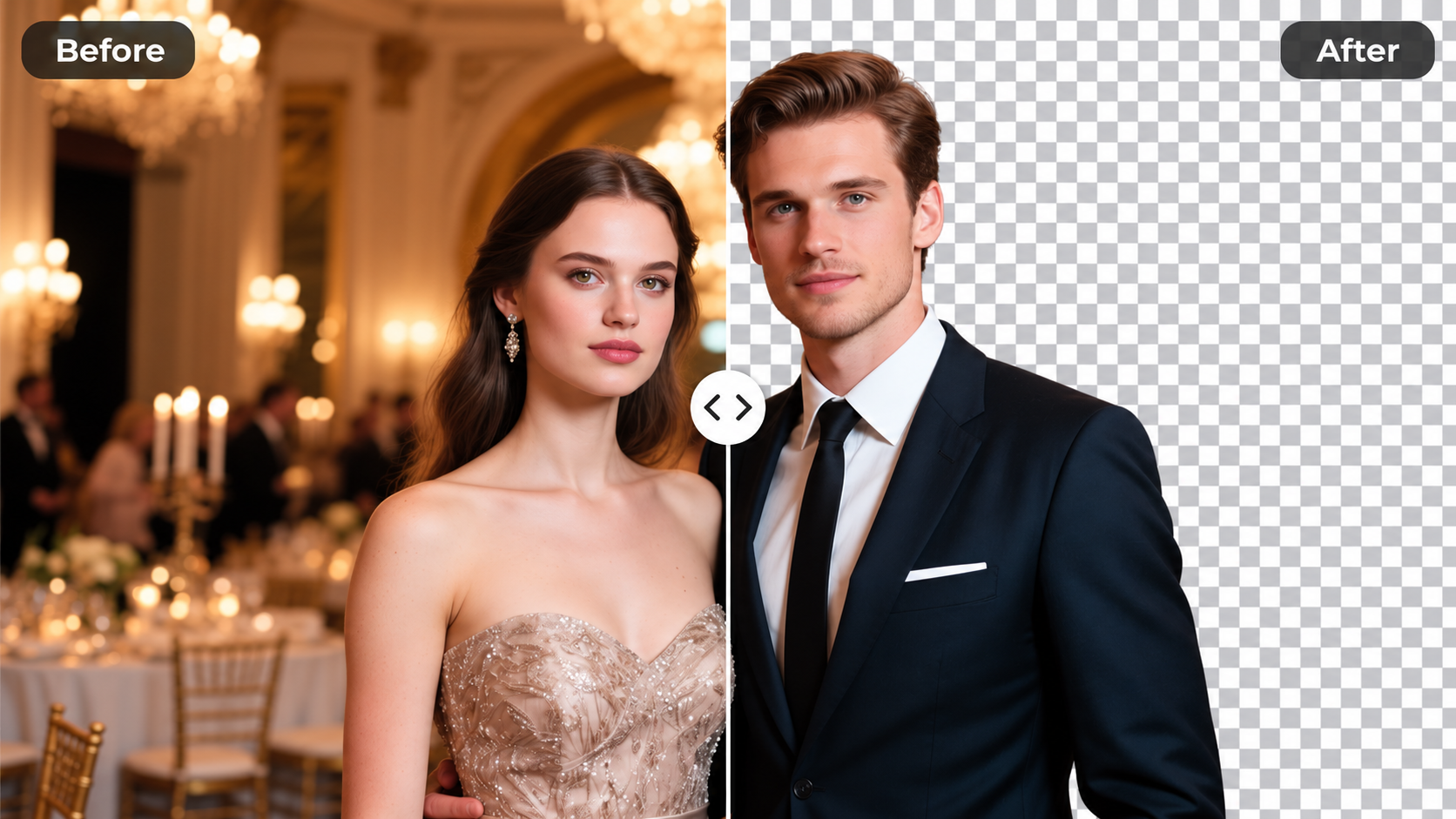
Upload a portrait photo and request a tight crop on the face with a simplified background for thumbnail clarity.
Expected output
A thumbnail-ready frame where the subject reads clearly at small sizes and the background is less distracting.
Bolder colors for visibility
Input
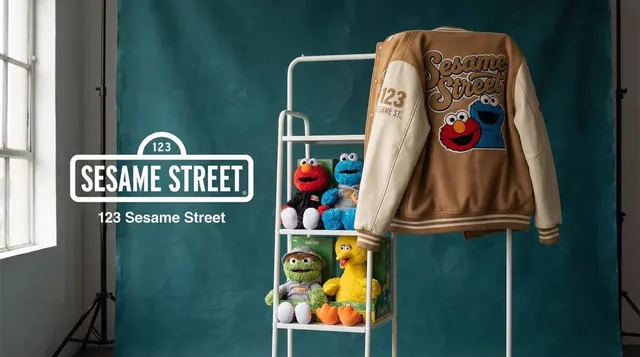
Upload a product photo and ask for increased contrast and richer colors to stand out in a thumbnail grid.
Expected output
A version with brighter, more saturated colors that catch the eye while keeping the original composition.
Cleaner layout for small screens
Input
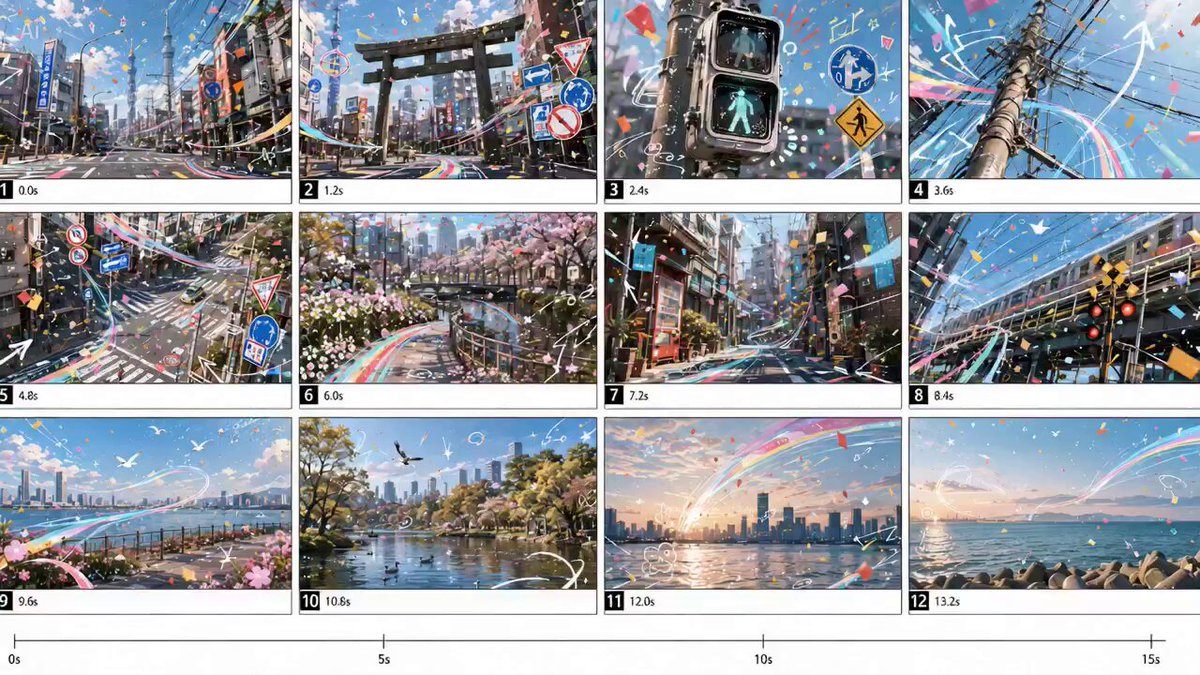
Upload a busy scene and request removal of background clutter, leaving only the main subject visible.
Expected output
A tidier frame with fewer distractions, making the main subject easier to identify in a small thumbnail.
Refine an existing image into a thumbnail that reads clearly at small sizes while keeping the final choice in your hands.
Start with your own photo
Work from an existing image instead of recreating the scene from scratch with text prompts.
Control the edits
Describe specific changes like crop, color, or background, then compare the result with the original.
Review before publishing
Check the edited thumbnail for clarity and accuracy at small sizes before using it in your video.
How It Works
1
Upload the image you want to refine
Start with an image you have the right to edit.
2
Describe the profile-picture changes you want
Keep the requested edits specific so the intended profile look is clear.
3
Generate, compare, and download
Review the output for likeness, accuracy, and the final profile crop before using it.
Making thumbnail edits that stay clear
A clear source image and focused edit request make it easier to judge the result.
Input Constraints
- Only upload images you have permission to edit and use.
- Keep the requested changes focused on thumbnail readability at small sizes.
- Review the final image for clarity and context before publishing it.
Practical Tips
- Use a source image with a visible subject and enough detail to survive cropping.
- Ask for one or two concrete changes, such as tighter framing or bolder contrast.
- Compare the result with the original at thumbnail size before deciding to use it.
Privacy
- Do not upload personal or sensitive material unless you have permission to use it.
Usage Rights
- Confirm that you have the rights needed for the inputs and intended use of the result.
Prompt recipes
Copy a structure, then adjust the subject, lighting, camera, and output details for your own result.
Gaming channel thumbnail with intense expression
Upload a gaming screenshot or portrait. Request a tight crop on the player's face with dramatic lighting, high contrast, and a dark vignette around the edges. Keep the eyes sharp and visible.
Gaming thumbnails compete in a saturated grid; intense expressions and high contrast help the face stand out at small sizes.
Tech review thumbnail with product focus
Upload a photo of the product on a desk. Request removal of background clutter, a centered product placement, and a subtle color grade that matches your channel's look. Add a slight shadow under the product for depth.
Tech viewers scan for the product quickly; a clean, centered composition with consistent color grading builds brand recognition.
Cooking video thumbnail with vibrant food
Upload a close-up of the finished dish. Request increased saturation for the food colors, a blurred background, and warm lighting. Crop to show only the hero ingredient or plated dish.
Food thumbnails need appetite appeal; vibrant colors and tight crops make the dish the clear focus and drive clicks.
Tutorial thumbnail with clear subject isolation
Upload a photo of yourself or the tutorial subject. Request a plain solid-color background, centered framing, and even lighting on the face or object. Keep the composition simple.
Tutorial viewers look for clarity about what they'll learn; a simple, uncluttered thumbnail signals professionalism and focus.
Travel vlog thumbnail with landscape emphasis
Upload a scenic travel photo. Request a wide crop that keeps the horizon straight, boosted sky colors, and slightly desaturated foreground to make the landscape pop. Add a subtle glow to the brightest area.
Travel thumbnails compete with stunning visuals; emphasizing the landscape with color grading and balanced composition signals the video's destination.
Best use cases
Match the workflow to the input you have and the result you need before opening the generator.
Gaming or reaction video with face cam
Input: High-resolution portrait or screenshot with visible facial expression
Result: Tight crop on face, high contrast, dramatic lighting for emotional impact
Tool: Image to Image with dramatic lighting and contrast adjustments
Product review or unboxing video
Input: Clear product photo on a simple surface with decent lighting
Result: Centered product, clean background, consistent color grade matching channel brand
Tool: Image to Image with background simplification and color grading
Cooking or recipe demonstration
Input: Close-up of finished dish with natural or overhead lighting
Result: Vibrant food colors, blurred background, tight crop on hero ingredient
Tool: Image to Image with saturation boost and background blur
Educational or tutorial content
Input: Well-lit photo of instructor or tutorial subject against simple background
Result: Plain background, centered subject, even lighting for professional look
Tool: Image to Image with background replacement and lighting balance
Travel vlog or destination showcase
Input: Landscape photo with clear horizon and interesting sky or foreground
Result: Enhanced sky colors, straight horizon, balanced composition
Tool: Image to Image with color grading and composition adjustments
Limitations to know before generating
- The tool refines existing images but cannot add detail that is missing from the source photo.
- Thumbnail readability at small sizes depends on the clarity and composition of your original image.
- Generated results may not perfectly match your vision; always review and compare before publishing.
- The tool does not guarantee that your thumbnail will comply with YouTube's policies or perform well with your audience.
- You are responsible for confirming you have the rights to edit and publish the source image.
Creative Suite: AI Video Generator & AI Image Generator Tools
Power up your creative workflow with our AI-driven tools. Generate stunning videos, create images, and apply custom adjustments - our AI Video Generator and AI Image Generator offer a complete solution for all your creative needs.
Strictly Prohibits Adult/NSFW Content



Pricing
Choose the credit package that works best for you.
No hidden fees • Cancel anytime • Unused credits roll over
Starter
Perfect for trying out AI creation.
Credits
200 credits / month
- Up to 20 videos per month
- Up to 100 images per month
$6.99/ month$9.9930% OFF
Billed monthly
First-time subscribers get 30% off their first month, then standard price
What's included
- Credits never expire
- Standard models
- HD, Watermark-Free Downloads
- Private Generation
- Faster Generation Speed
- Ad-free experience
Basic
Perfect for light creators.
Credits
500 credits / month
- Up to 50 videos per month
- Up to 250 images per month
$13.99/ month$19.9930% OFF
Billed monthly
First-time subscribers get 30% off their first month, then standard price
What's included
- Credits never expire
- Standard models
- HD, Watermark-Free Downloads
- Private Generation
- Faster Generation Speed
- Ad-free experience
Pro
PopularBest value for creators
Credits
1,200 credits / month
- Up to 120 videos per month
- Up to 600 images per month
$39.99/ month
Billed monthly
What's included
- Credits never expire
- All models + Early access to new models
- HD, Watermark-Free Downloads
- Private Generation
- Faster Generation Speed
- Ultra HD resolution
- Ad-free experience
Ultra
For video creators and power users.
Credits
5,000 credits / month
- Up to 500 videos per month
- Up to 2,500 images per month
$99.99/ month
Billed monthly
What's included
- Credits never expire
- All models + Early access to new models
- HD, Watermark-Free Downloads
- Private Generation
- Faster Generation Speed
- Ultra HD resolution
- Ad-free experience
Free
Standard models only — upgrade to unlock premium models.
Credits
10 free credits on signup
Questions? Contact us at support@domer.io
Turn your photo into a click-worthy thumbnail
Open Image to Image, upload an image you can edit, describe your thumbnail edits, and review the result before publishing.