
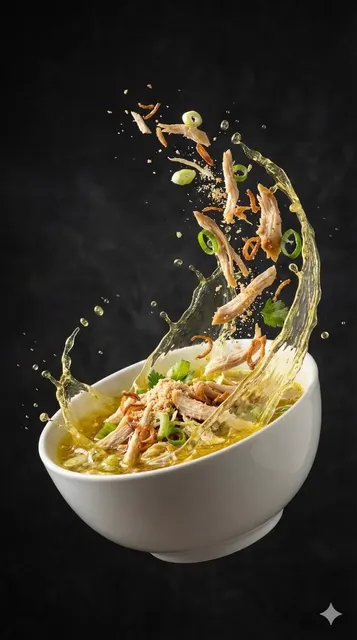
AI Photo to Photo Editor
Use ai photo to photo editor to upload a photo, describe how you want it changed, review the transformed version, and download the result that works for you.
AI Image Generator
0/20000 characters
0 / 16
or select from
or select from(Optional)
or select from(Optional)
or select from(Optional)
or select from(Optional)
or select from(Optional)
or select from(Optional)
or select from(Optional)
or select from(Optional)
Supports PNG, JPG, WebP
My images
Loading...
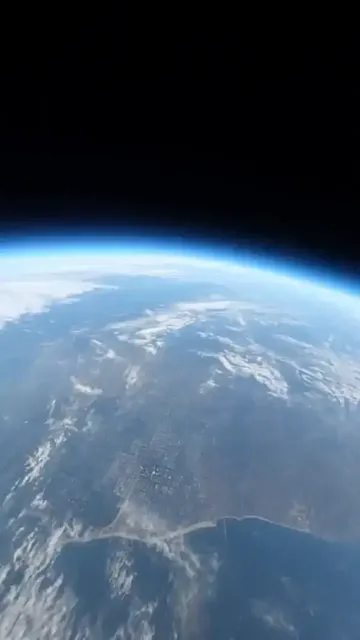
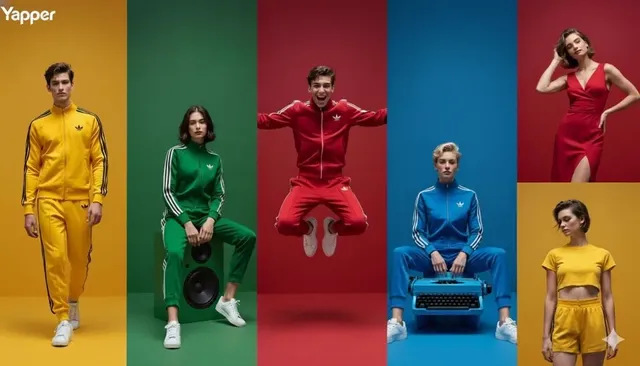
How do I transform a photo into a different version?
Upload your source photo, describe the transformation you want applied such as style changes or setting adjustments, then review the new version before deciding to use it.
AI Photo to Photo Editor
Restyle a travel photo
Input
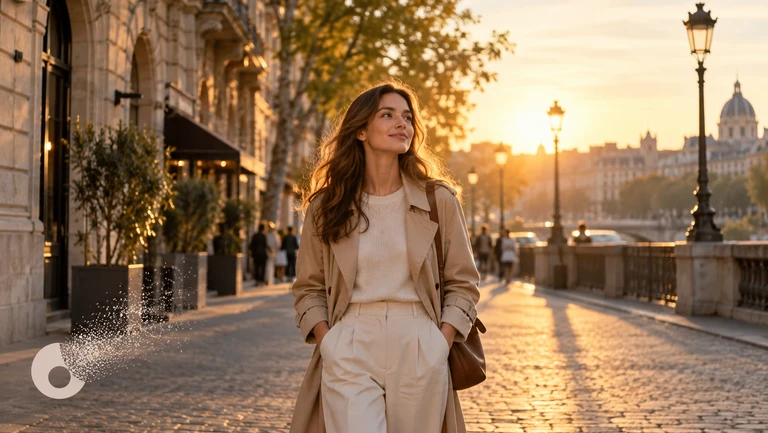
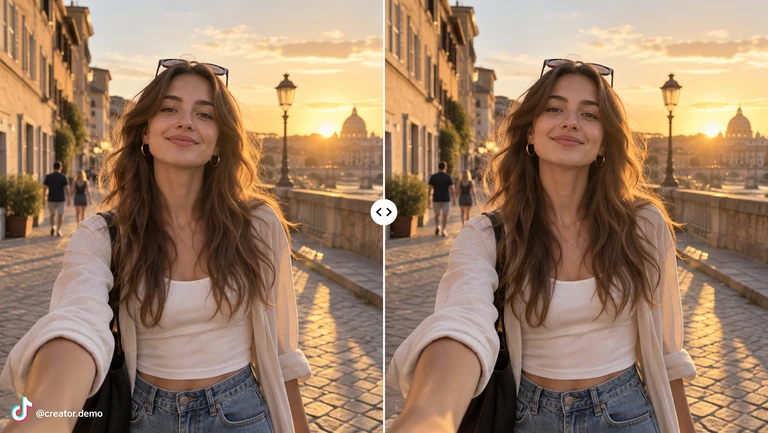
Upload a daytime travel photo and request that the same scene appears at sunset with warm orange and pink tones in the sky.
Expected output
A revised version of the photo showing the same scene at sunset with warm tones and golden light.
Change the setting of a portrait
Input
Upload an indoor portrait and request that the person appears in a park setting with trees and natural daylight.
Expected output
A new version of the portrait where the person appears in the park setting while keeping the same subject.
Adjust details in a product shot
Input
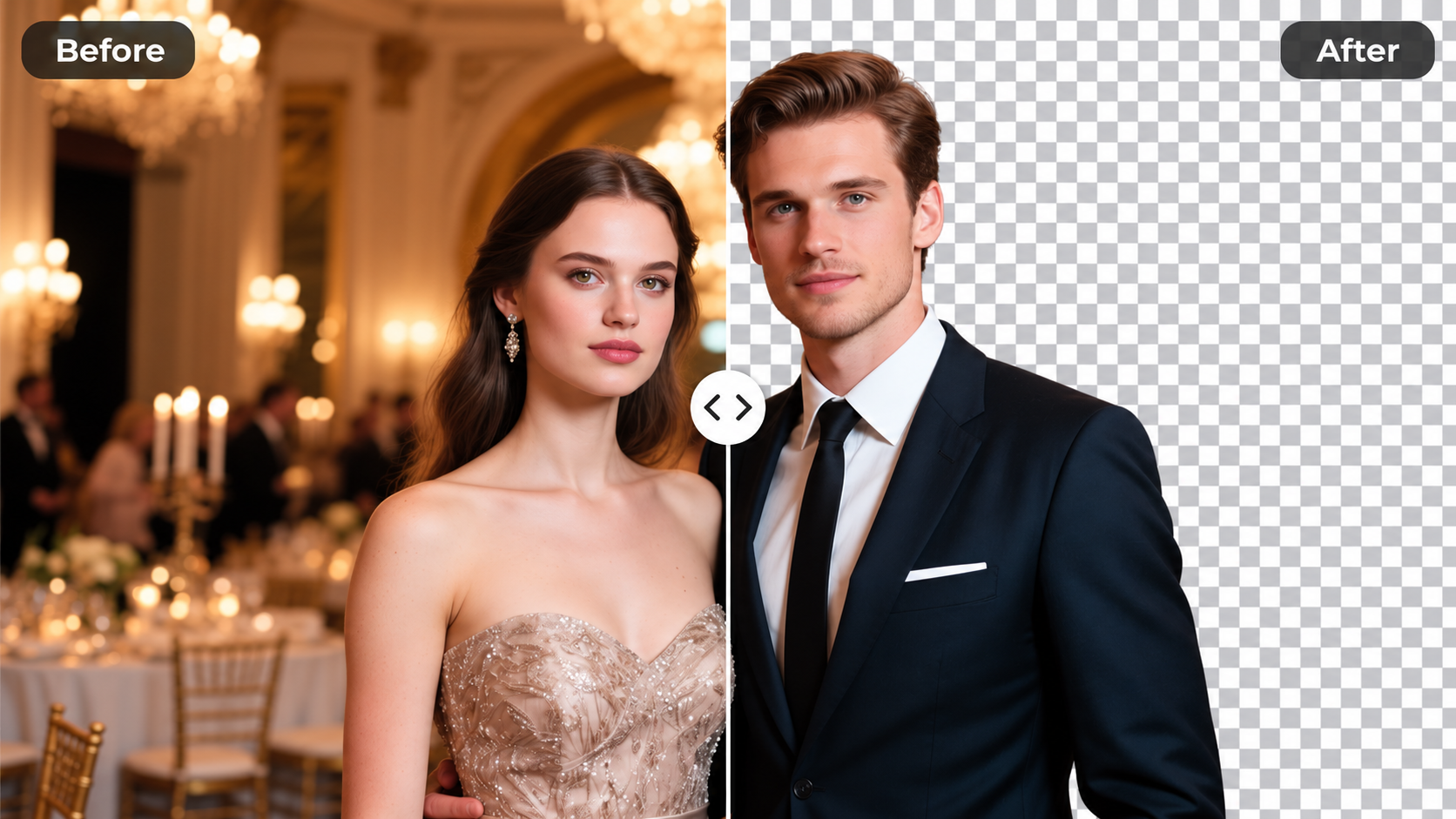
Upload a product photo on a cluttered surface and request a clean white background with even lighting.
Expected output
A version of the product photo with a clean white surface behind it and balanced lighting.
Transform one photo into another version by describing the changes you want while keeping the review and decision in your hands.
Start with your existing photo
Work from an image you already have instead of creating a new one from scratch.
Describe the transformation
State the changes you want applied, then compare the transformed photo with the original.
Review before committing
Check the new version for accuracy and quality before deciding to download or use it.
How It Works
1
Upload the image you want to refine
Start with an image you have the right to edit.
2
Describe the profile-picture changes you want
Keep the requested edits specific so the intended profile look is clear.
3
Generate, compare, and download
Review the output for likeness, accuracy, and the final profile crop before using it.
Getting clear photo transformations
A clear source photo and a focused transformation request make it easier to judge the result.
Input Constraints
- Only upload images you have permission to edit and use.
- Keep the requested changes focused on the transformation you need.
- Review the final image for accuracy and context before sharing it.
Practical Tips
- Use a high-resolution source photo where the subject is clearly visible.
- Be specific about the transformation: setting changes, style shifts, or lighting adjustments.
- Compare the transformed photo with the original before deciding to use it.
Privacy
- Do not upload personal or sensitive material unless you have permission to use it.
Usage Rights
- Confirm that you have the rights needed for the inputs and intended use of the result.
Prompt recipes
Copy a structure, then adjust the subject, lighting, camera, and output details for your own result.
Daytime photo to golden hour lighting
Upload a daytime outdoor photo. Request golden hour lighting with warm yellow-orange tones, longer shadows, and a soft glow on the horizon. Keep the composition unchanged.
Golden hour transformations are popular for landscapes and portraits; specific color and shadow direction help the tool deliver a convincing result.
Portrait background swap to studio setting
Upload a portrait taken anywhere. Request a professional studio background with a solid color or subtle gradient, keeping the person and lighting unchanged.
Studio backgrounds make portraits look more professional; specifying that only the background changes helps preserve the subject.
Product photo to lifestyle scene
Upload a product photo on a plain surface. Request the product placed in a realistic lifestyle setting like a kitchen counter or desk, with natural lighting and context.
Lifestyle scenes help buyers visualize product use; describing the setting and lighting gives the tool clear direction.
Summer landscape to autumn colors
Upload a summer landscape with green foliage. Request autumn colors with orange, red, and yellow leaves, warm lighting, and a slightly cooler sky.
Seasonal transformations are visually striking; targeting specific foliage colors and lighting helps the tool deliver a cohesive seasonal look.
Casual photo to formal portrait style
Upload a casual portrait or selfie. Request a formal portrait style with even lighting, neutral background, straight posture, and subdued colors.
Formal portrait transformations help repurpose casual photos for professional use; specifying lighting, background, and color tone sets clear expectations.
Indoor photo to outdoor setting
Upload an indoor photo of a person or object. Request an outdoor park or garden setting with natural daylight, visible sky, and greenery in the background.
Changing the setting entirely is a common transformation request; describing the new environment in detail helps the tool generate a realistic scene.
Best use cases
Match the workflow to the input you have and the result you need before opening the generator.
Landscape photo needing different time of day
Input: Clear outdoor photo with visible sky and landscape elements
Result: Same scene with golden hour, sunset, or nighttime lighting applied
Tool: Image to Image with time-of-day lighting description
Portrait needing professional background
Input: Portrait with clear subject but distracting or casual background
Result: Subject preserved with clean studio or neutral background
Tool: Image to Image with background replacement request
Product photo needing lifestyle context
Input: Product photo on plain surface with clear details
Result: Product placed in realistic lifestyle setting with natural lighting
Tool: Image to Image with lifestyle scene description
Seasonal transformation for creative project
Input: Landscape or outdoor scene with visible foliage or weather
Result: Same scene with different season's colors, lighting, and atmosphere
Tool: Image to Image with seasonal color and lighting request
Casual photo needing formal appearance
Input: Casual portrait or selfie with clear subject
Result: More formal portrait style with professional lighting and background
Tool: Image to Image with formal portrait description
Limitations to know before generating
- The tool transforms photos based on your description but cannot add detail or objects missing from the source.
- Complex transformations like complete setting changes may produce results that need review for realism and accuracy.
- The tool interprets your description and may not deliver exactly what you envisioned.
- You are responsible for reviewing the transformed photo for quality and suitability before using it.
- You must have the rights to edit and use the source photo.
Creative Suite: AI Video Generator & AI Image Generator Tools
Power up your creative workflow with our AI-driven tools. Generate stunning videos, create images, and apply custom adjustments - our AI Video Generator and AI Image Generator offer a complete solution for all your creative needs.
Strictly Prohibits Adult/NSFW Content


Pricing
Choose the credit package that works best for you.
No hidden fees • Cancel anytime • Unused credits roll over
Starter
Perfect for trying out AI creation.
Credits
200 credits / month
- Up to 20 videos per month
- Up to 100 images per month
$6.99/ month$9.9930% OFF
Billed monthly
First-time subscribers get 30% off their first month, then standard price
What's included
- Credits never expire
- Standard models
- HD, Watermark-Free Downloads
- Private Generation
- Faster Generation Speed
- Ad-free experience
Basic
Perfect for light creators.
Credits
500 credits / month
- Up to 50 videos per month
- Up to 250 images per month
$13.99/ month$19.9930% OFF
Billed monthly
First-time subscribers get 30% off their first month, then standard price
What's included
- Credits never expire
- Standard models
- HD, Watermark-Free Downloads
- Private Generation
- Faster Generation Speed
- Ad-free experience
Pro
PopularBest value for creators
Credits
1,200 credits / month
- Up to 120 videos per month
- Up to 600 images per month
$39.99/ month
Billed monthly
What's included
- Credits never expire
- All models + Early access to new models
- HD, Watermark-Free Downloads
- Private Generation
- Faster Generation Speed
- Ultra HD resolution
- Ad-free experience
Ultra
For video creators and power users.
Credits
5,000 credits / month
- Up to 500 videos per month
- Up to 2,500 images per month
$99.99/ month
Billed monthly
What's included
- Credits never expire
- All models + Early access to new models
- HD, Watermark-Free Downloads
- Private Generation
- Faster Generation Speed
- Ultra HD resolution
- Ad-free experience
Free
Standard models only — upgrade to unlock premium models.
Credits
10 free credits on signup
Questions? Contact us at support@domer.io
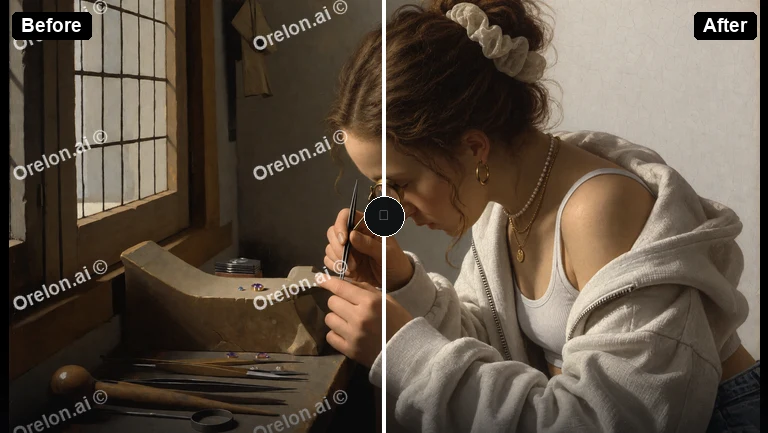
Transform your photo into a new version
Open Image to Image, upload your photo, describe the transformation, and review the result before downloading.