
Gradient AI Photo Editor for Styled Images
Use gradient ai photo editor to upload a photo, describe the gradient or color shift you want, and download a profile-ready version with smooth transitions.
AI Image Generator
0/20000 characters
0 / 16
or select from
or select from(Optional)
or select from(Optional)
or select from(Optional)
or select from(Optional)
or select from(Optional)
or select from(Optional)
or select from(Optional)
or select from(Optional)
Supports PNG, JPG, WebP
My images
Loading...
What is a gradient AI photo editor?
A gradient AI photo editor lets you upload a photo and describe gradient overlays or smooth color transitions. The tool applies the effect while keeping the subject recognizable, so you can review and download the result for profile pictures or social media.
Gradient AI Photo Editor for Styled Images
Sunset poster gradient
Input
Upload a portrait photo, then describe: 'Apply a soft orange-to-pink gradient overlay, keep the face clear.'
Expected output
A version of the photo with a warm gradient overlay behind the subject. The person stays recognizable while the background shifts smoothly from orange to pink.
Brand color flow
Input
Upload a headshot against a plain wall, then describe: 'Add a purple-to-blue gradient background, leave the person sharp.'
Expected output
The same headshot with a smooth purple-to-blue gradient replacing the plain wall. The subject remains in focus.
Duotone street scene
Input
Upload a street photo, then describe: 'Apply a teal-to-coral duotone gradient across the entire scene.'
Expected output
A duotone version of the street scene with a continuous teal-to-coral color transition. Details are preserved but colors shift smoothly.
Edit a source image to add gradient overlays or smooth color transitions for profile pictures and social media use.
Start with your own image
Use a photo you have permission to edit instead of starting from scratch with text alone.
Direct the gradient effect
State the color range, transition direction, and finish you want, then compare the result with the original.
Review before you use it
Check the edited image for likeness, color accuracy, and overall look before downloading or sharing.
How It Works
1
Upload the image you want to refine
Start with an image you have the right to edit.
2
Describe the profile-picture changes you want
Keep the requested edits specific so the intended profile look is clear.
3
Generate, compare, and download
Review the output for likeness, accuracy, and the final profile crop before using it.
Making a gradient edit that works
A clear source image and a focused gradient request make it easier to judge the result.
Input Constraints
- Only upload images you have permission to edit and use.
- Keep the requested gradient changes focused on the profile-picture outcome you need.
- Review the final image for color accuracy and context before sharing it.
Practical Tips
- Use a source image with a visible subject and enough detail around the main area.
- Describe the gradient direction and color stops clearly, such as 'top-to-bottom sunset tones' or 'left-to-right blue-to-purple.'
- Compare the result with the original image before choosing a version to use.
Privacy
- Do not upload personal or sensitive material unless you have permission to use it.
Usage Rights
- Confirm that you have the rights needed for the inputs and intended use of the result.
Prompt recipes
Copy a structure, then adjust the subject, lighting, camera, and output details for your own result.
Soft sunset overlay for portraits
Apply a soft orange-to-pink gradient overlay from top to bottom. Keep the subject's face clear and recognizable. The gradient should be gentle, not overpowering.
Specifies gradient direction, color range, and preservation of the subject, making the edit intention clear.
Brand color background swap
Replace the background with a smooth purple-to-blue gradient running left to right. Keep the person sharp and in focus. The gradient should fill the entire background.
Describes the exact color transition, direction, and separation between subject and background.
Duotone color shift for landscapes
Apply a teal-to-coral duotone gradient across the entire street scene. The colors should transition evenly from left to right while preserving details.
Defines the color mapping, transition axis, and detail preservation for a landscape-style edit.
Radial gradient for spotlight effect
Add a radial gradient starting bright yellow in the center and fading to deep blue at the edges. Center the gradient on the subject's face.
Uses radial direction and anchor point to create a focused spotlight effect around the main subject.
Diagonal color wash for product shots
Apply a diagonal gradient from top-left to bottom-right, shifting from mint green to lavender. Keep the product edges sharp and distinct.
Combines diagonal flow with product clarity, useful for clean commercial-style edits.
Best use cases
Match the workflow to the input you have and the result you need before opening the generator.
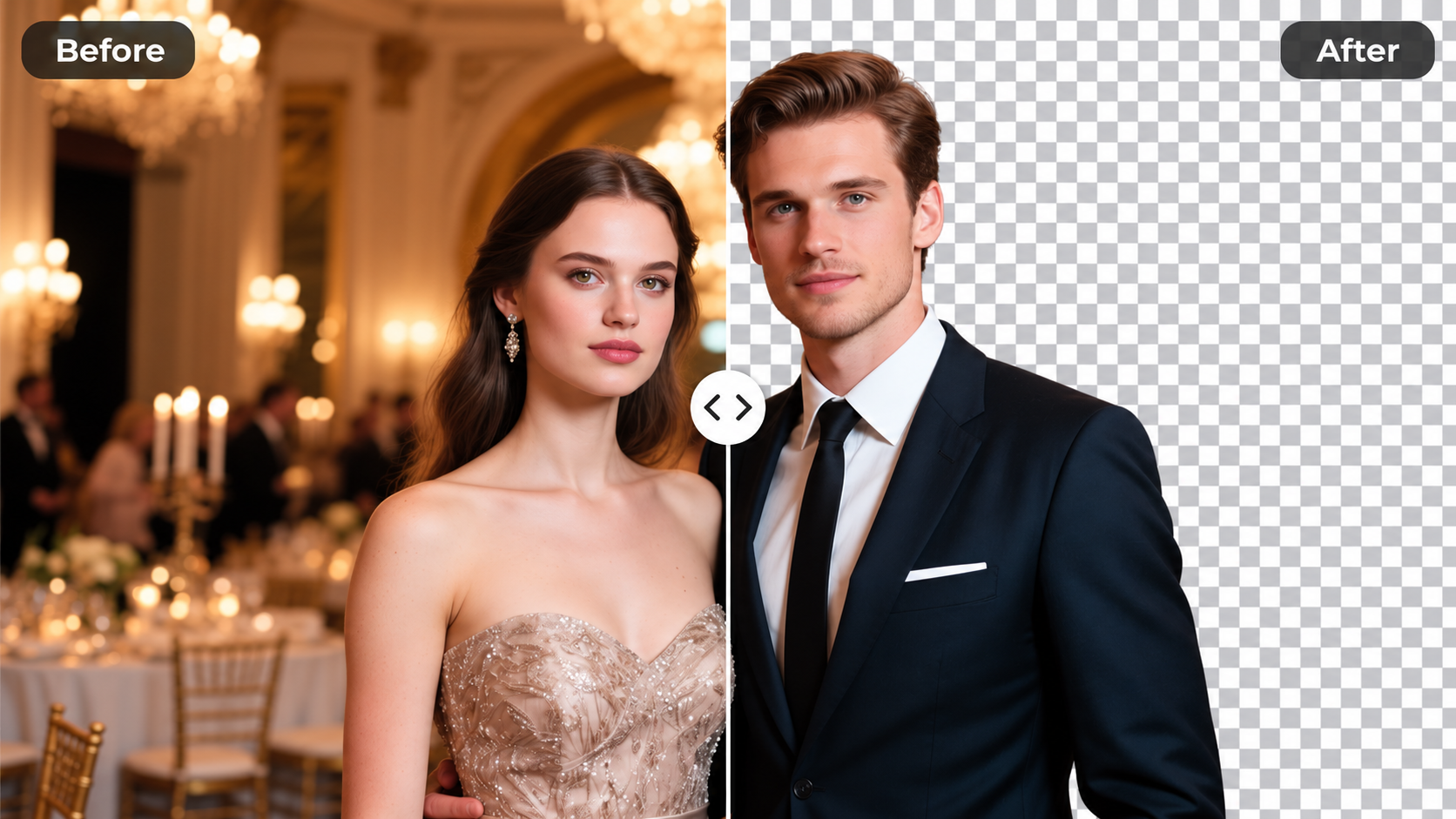
Social media profile picture with brand colors
Input: A clear headshot against a plain or neutral background
Result: The same headshot with a smooth brand-color gradient background, subject in focus
Tool: Image to Image with brand color gradient prompt
Festival or event poster background
Input: A group photo or event scene with visible subjects
Result: A vibrant gradient overlay that adds energy while keeping people recognizable
Tool: Image to Image with festive gradient overlay prompt
Product photo with modern aesthetic
Input: A product shot on a plain background
Result: A clean product image with a modern gradient background replacing the original backdrop
Tool: Image to Image with diagonal or linear gradient prompt
Artistic portrait with color mood
Input: A portrait with good lighting and composition
Result: The portrait enhanced with a color gradient that sets a specific mood, such as warm sunset or cool twilight
Tool: Image to Image with mood-specific gradient prompt
Limitations to know before generating
- Gradient placement and intensity depend on the source image composition and may require adjustment.
- Complex backgrounds or busy scenes may make gradient overlays less effective or harder to control.
- Color transitions work best on images with clear subject separation; cluttered images may need manual review.
- The tool applies gradients based on your description but does not guarantee exact color matching to brand guidelines.
- Results vary with lighting, resolution, and subject detail in the source image.
Creative Suite: AI Video Generator & AI Image Generator Tools
Power up your creative workflow with our AI-driven tools. Generate stunning videos, create images, and apply custom adjustments - our AI Video Generator and AI Image Generator offer a complete solution for all your creative needs.
Strictly Prohibits Adult/NSFW Content


Pricing
Choose the credit package that works best for you.
No hidden fees • Cancel anytime • Unused credits roll over
Starter
Perfect for trying out AI creation.
Credits
200 credits / month
- Up to 20 videos per month
- Up to 100 images per month
$6.99/ month$9.9930% OFF
Billed monthly
First-time subscribers get 30% off their first month, then standard price
What's included
- Credits never expire
- Standard models
- HD, Watermark-Free Downloads
- Private Generation
- Faster Generation Speed
- Ad-free experience
Basic
Perfect for light creators.
Credits
500 credits / month
- Up to 50 videos per month
- Up to 250 images per month
$13.99/ month$19.9930% OFF
Billed monthly
First-time subscribers get 30% off their first month, then standard price
What's included
- Credits never expire
- Standard models
- HD, Watermark-Free Downloads
- Private Generation
- Faster Generation Speed
- Ad-free experience
Pro
PopularBest value for creators
Credits
1,200 credits / month
- Up to 120 videos per month
- Up to 600 images per month
$39.99/ month
Billed monthly
What's included
- Credits never expire
- All models + Early access to new models
- HD, Watermark-Free Downloads
- Private Generation
- Faster Generation Speed
- Ultra HD resolution
- Ad-free experience
Ultra
For video creators and power users.
Credits
5,000 credits / month
- Up to 500 videos per month
- Up to 2,500 images per month
$99.99/ month
Billed monthly
What's included
- Credits never expire
- All models + Early access to new models
- HD, Watermark-Free Downloads
- Private Generation
- Faster Generation Speed
- Ultra HD resolution
- Ad-free experience
Free
Standard models only — upgrade to unlock premium models.
Credits
10 free credits on signup
Questions? Contact us at support@domer.io
Turn your source image into a gradient-styled version
Open Image to Image, upload an image you can edit, describe the gradient you want, and review the result before you decide to use it.