
AI Image Generator for Website Banner
Use ai image generator for website banner to create website banner visuals from text prompts. Describe the scene, colours, and layout to generate banners with.
AI Image Generator
0/20000 characters
My images
Loading...
How do I generate website banners with AI?
Describe the banner scene, specify your brand colours, indicate where text should appear (such as open space on the left or gradient fade on one side), and generate the image. Download the result and add your text in a design tool or CMS.
AI Image Generator for Website Banner
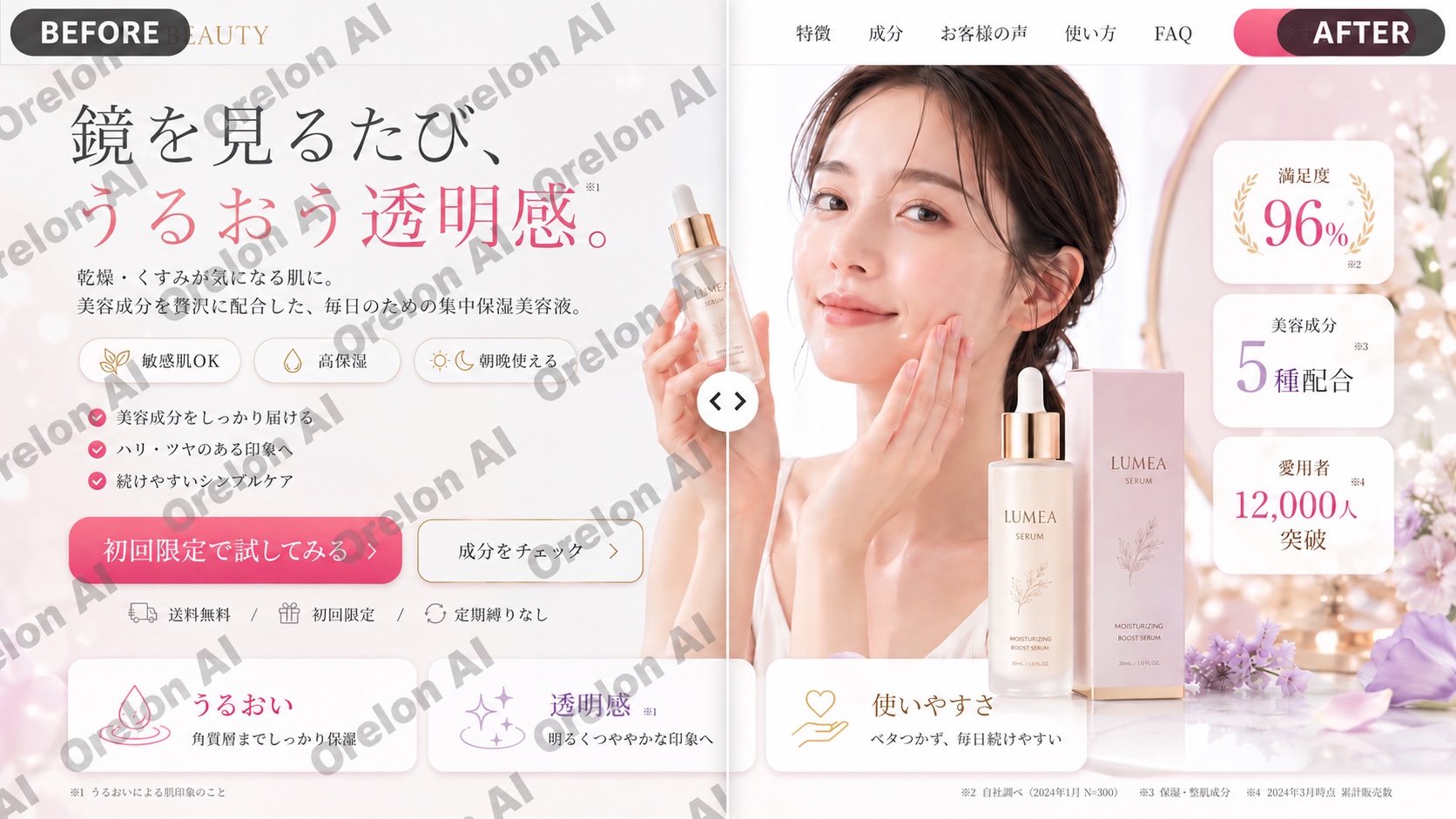
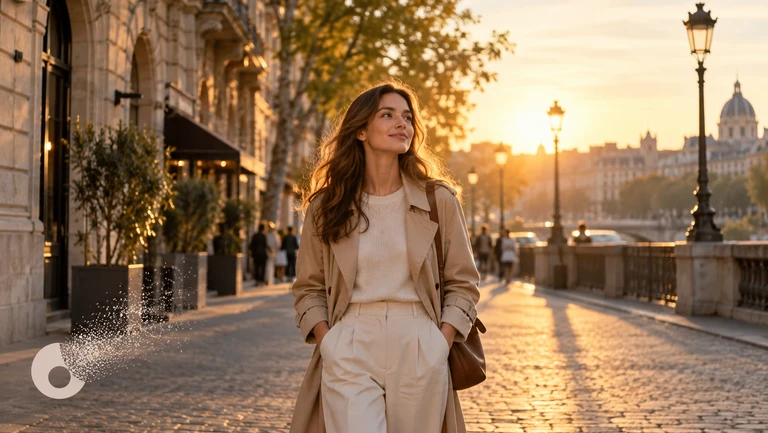
Hero Banner with Space for Text
Input
A wide landscape of rolling green hills under a clear blue sky with soft white clouds, the left side open with a gradient fade for text placement, warm natural lighting.
Expected output
A wide banner image showing the described landscape with an open area suitable for text overlay on the left side.
Brand-Colored Abstract Banner
Input
A fluid abstract composition in navy blue and teal tones with smooth flowing curves, subtle geometric accents, and a lighter gradient area on the right for text placement.
Expected output
An abstract banner image with the described color palette, flowing shapes, and a clear text-friendly area.
Product-Focused Banner
Input
A sleek wooden desk with a laptop, a coffee cup, and a small succulent plant, soft morning lighting from a window on the right, clean minimal composition with clear space at top.
Expected output
A banner image showing the described workspace scene with the specified lighting, minimal composition, and open area for text.
Generate custom website banner images by describing the scene, colour palette, and text-space layout in a text prompt.
Custom Banner Visuals for Any Site
Generate website banner images tailored to your brand colors, theme, and content needs without relying on stock photography.
Designed With Text Space in Mind
Describe scenes with open areas or gradient fades to create banner compositions that accommodate text overlays naturally.
Match Your Brand Identity
Specify colors, visual styles, and moods that align with your brand guidelines directly in the text prompt.
How It Works
1
Describe the Image
Describe the desired image.
2
Choose Settings
Choose the available generation settings.
3
Generate and Download
Generate, review, and download a suitable result.
Tips for Banner-Ready Compositions
Describing the layout and text placement areas in your prompt helps create banner images that work well with your content.
Input Constraints
- The tool generates images from text prompts and does not directly add text, logos, or branded elements to the output.
- Results reflect the descriptive wording and may not position text areas exactly as requested.
- Available generation settings influence proportions and composition but cannot guarantee a specific banner layout.
Practical Tips
- Mention 'open space on the left' or 'right side gradient for text' to indicate where text should be placed.
- Include your brand colors in the prompt to influence the color palette of the generated banner.
- Use words like 'wide format', 'banner', or 'horizontal' to suggest the appropriate aspect ratio.
- Describe the mood you want, such as 'professional', 'creative', 'warm', or 'modern' to set the visual tone.
Privacy
- Do not upload personal or sensitive material unless you have permission to use it.
Usage Rights
- Confirm that you have the rights needed for the inputs and intended use of the result.
Prompt recipes
Copy a structure, then adjust the subject, lighting, camera, and output details for your own result.
Hero banner with gradient text space
Wide scene or landscape with colour palette, lighting condition such as soft morning light, gradient fade on left or right for text overlay, style modern or minimal
Gradient fades create natural text-space areas without hard edges; specifying the side ensures the composition supports your headline placement.
Abstract brand-coloured banner
Abstract shape or pattern in brand colour A and brand colour B, texture smooth or geometric, open area at top, bottom, left, or right, clean composition
Abstract banners align with brand identity when you name specific colours; indicating an open area helps the design accommodate text overlays.
Product or workspace banner
Product or workspace scene with key objects, lighting direction like window light from the side, background colour, minimal composition with space for text at location
Product-focused banners show real-world context; describing lighting and composition ensures the banner feels professional and leaves room for text.
Nature or landscape banner
Natural scene like mountains, forest, or ocean at time of day, atmospheric condition such as mist or clear sky, colour tone warm or cool, open sky area for text
Nature scenes provide calming, professional backgrounds; mentioning the sky or open area ensures space for headlines and CTAs.
Tech or digital banner
Abstract tech element like network nodes or circuit patterns on dark or light background, colour scheme, clean and modern, text-friendly open area on side
Tech visuals convey innovation; naming the background tone and open area ensures the banner works with overlaid text and UI elements.
Best use cases
Match the workflow to the input you have and the result you need before opening the generator.
Creating a hero banner for a landing page
Input: Wide scene description with brand colours, gradient fade, and text-space indication
Result: Banner image with natural text-space area that supports headline and CTA overlay
Tool: Text to Image with wide-format and gradient-fade keywords
Designing a banner for a blog or article header
Input: Nature or abstract scene with open sky or gradient area, thematic colour palette
Result: Banner that sets the article tone and leaves room for title text
Tool: Text to Image with nature or abstract keywords and open-area indication
Building a product page banner with workspace context
Input: Workspace or product scene with side lighting, minimal background, and text-space location
Result: Professional banner showing product context with clear area for product name or tagline
Tool: Text to Image with product-scene and minimal-composition keywords
Generating a tech startup banner with modern feel
Input: Abstract tech element on dark background with brand colours and open-area specification
Result: Modern tech banner that supports text overlay and aligns with brand identity
Tool: Text to Image with tech-abstract and dark-background keywords
Limitations to know before generating
- The tool generates banner images from text descriptions but does not add text, logos, or typography to the output.
- Text-space placement may vary from the prompt description; review the result and adjust text positioning in your design tool.
- Exact aspect ratios and pixel dimensions depend on generation settings and may need cropping or resizing for your site.
- Complex scenes with many specific elements may not position each detail exactly as described.
- Generated banners are starting points; final banner design may require manual text overlay and layout adjustments.
Creative Suite: AI Video Generator & AI Image Generator Tools
Power up your creative workflow with our AI-driven tools. Generate stunning videos, create images, and apply custom adjustments - our AI Video Generator and AI Image Generator offer a complete solution for all your creative needs.
Strictly Prohibits Adult/NSFW Content
Pricing
Choose the credit package that works best for you.
No hidden fees • Cancel anytime • Unused credits roll over
Starter
Perfect for trying out AI creation.
Credits
200 credits / month
- Up to 20 videos per month
- Up to 100 images per month
$6.99/ month$9.9930% OFF
Billed monthly
First-time subscribers get 30% off their first month, then standard price
What's included
- Credits never expire
- Standard models
- HD, Watermark-Free Downloads
- Private Generation
- Faster Generation Speed
- Ad-free experience
Basic
Perfect for light creators.
Credits
500 credits / month
- Up to 50 videos per month
- Up to 250 images per month
$13.99/ month$19.9930% OFF
Billed monthly
First-time subscribers get 30% off their first month, then standard price
What's included
- Credits never expire
- Standard models
- HD, Watermark-Free Downloads
- Private Generation
- Faster Generation Speed
- Ad-free experience
Pro
PopularBest value for creators
Credits
1,200 credits / month
- Up to 120 videos per month
- Up to 600 images per month
$39.99/ month
Billed monthly
What's included
- Credits never expire
- All models + Early access to new models
- HD, Watermark-Free Downloads
- Private Generation
- Faster Generation Speed
- Ultra HD resolution
- Ad-free experience
Ultra
For video creators and power users.
Credits
5,000 credits / month
- Up to 500 videos per month
- Up to 2,500 images per month
$99.99/ month
Billed monthly
What's included
- Credits never expire
- All models + Early access to new models
- HD, Watermark-Free Downloads
- Private Generation
- Faster Generation Speed
- Ultra HD resolution
- Ad-free experience
Free
Standard models only — upgrade to unlock premium models.
Credits
10 free credits on signup
Questions? Contact us at support@domer.io
Create Your Website Banner
Open the text-to-image tool, describe the banner visual you need, and generate a custom image for your website.