
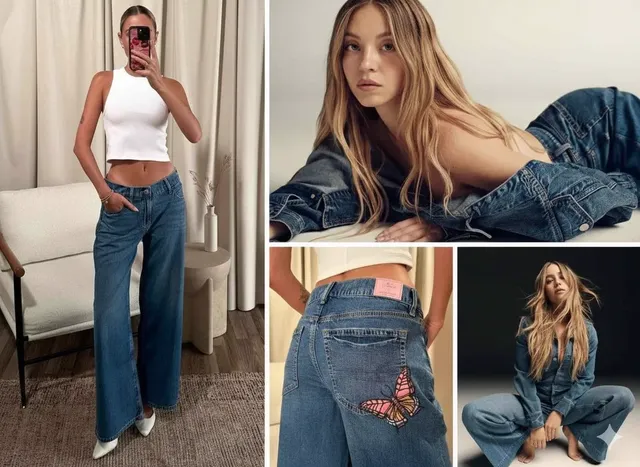
AI Photo Editor Add Person to a Scene
Use ai photo editor add person to upload an image, describe the person you want added to the scene, review the result, and download the version that fits your.
AI Image Generator
0/20000 characters
0 / 16
or select from
or select from(Optional)
or select from(Optional)
or select from(Optional)
or select from(Optional)
or select from(Optional)
or select from(Optional)
or select from(Optional)
or select from(Optional)
Supports PNG, JPG, WebP
My images
Loading...
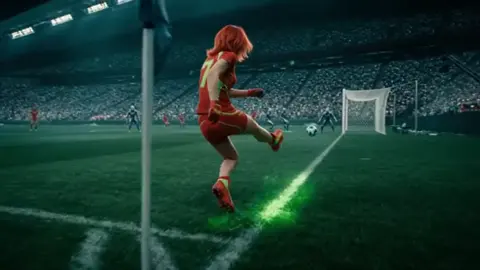
How do you add a person to a photo with AI?
Upload a source image, describe the person you want added and where they should appear, and generate a modified version. Review the result to confirm the person fits naturally into the scene before using it.
AI Photo Editor Add Person to a Scene
Empty Cafe Seat
Input
Upload a cafe interior photo with an empty chair, then describe: 'Add a person sitting in the chair on the left, wearing casual clothing, reading a book, with lighting that matches the cafe.'
Expected output
The same cafe scene with a seated figure added in a matching pose, light, and scale. Review the edited result to confirm the person looks natural.
Room Scale Reference
Input
Upload an empty interior room photo, then describe: 'Add a standing person near the center of the room, facing forward, to give a sense of the room's size and proportion.'
Expected output
The room render with a standing figure that gives a clearer sense of proportion. Review the edited result for scale accuracy.
Poster Focal Point
Input
Upload a landscape or background image, then describe: 'Add a person standing in the center foreground, facing the camera, dressed in modern casual clothing, to serve as the poster's focal point.'
Expected output
The backdrop image with a centered person who works as the poster's focal point. Review the edited result to confirm the composition.
Add a person to a source image by describing who should appear in the scene, then review the result before using it.
Start with your own image
Use an image you have permission to edit instead of recreating the subject from a text-only description.
Direct the changes
State the framing, background, and style you want, then compare the result with the original image.
Choose before you use it
Review the edited image for likeness, context, and crop before downloading or posting it.
How It Works
1
Upload the image you want to refine
Start with an image you have the right to edit.
2
Describe the profile-picture changes you want
Keep the requested edits specific so the intended profile look is clear.
3
Generate, compare, and download
Review the output for likeness, accuracy, and the final profile crop before using it.
Making a profile-picture edit that stays clear
A clear source image and a focused edit request make it easier to judge the result.
Input Constraints
- Only upload images you have permission to edit and use.
- Keep the requested changes focused on the profile-picture outcome you need.
- Review the final image for likeness and context before sharing it.
Practical Tips
- Use a source image with a visible face and enough detail around the subject.
- Ask for one or two concrete changes, such as a neutral background or a square crop.
- Compare the result with the original image before choosing a version to use.
Privacy
- Do not upload personal or sensitive material unless you have permission to use it.
Usage Rights
- Confirm that you have the rights needed for the inputs and intended use of the result.
Prompt recipes
Copy a structure, then adjust the subject, lighting, camera, and output details for your own result.
Add Person Sitting in Cafe
Upload a cafe interior photo with an empty chair, then describe: 'Add a person sitting in the chair by the window, wearing casual clothing, holding a coffee cup, with natural lighting from the window.'
Adding a person to an empty cafe scene creates a lived-in, relatable atmosphere for lifestyle content, stock photos, or marketing materials.
Add Standing Figure for Room Scale
Upload an empty interior room photo, then describe: 'Add a person standing near the center, facing forward, to provide a sense of the room's size and ceiling height.'
Adding a figure for scale helps viewers understand room dimensions, useful for real estate, interior design, or architectural visualization.
Add Person Walking in Park
Upload a park or outdoor path photo, then describe: 'Add a person walking along the path from left to right, wearing casual outdoor clothing, with natural daylight and soft shadows.'
Adding a person to a landscape creates human interest and context, making the photo more engaging for travel content, stock photography, or social media.
Add Shopper in Store Aisle
Upload a store or retail aisle photo, then describe: 'Add a person standing in the aisle looking at products on the shelf, dressed in everyday clothing, with natural store lighting.'
Adding a shopper creates a realistic retail context, useful for marketing materials, training content, or illustrating customer experience scenarios.
Add Person at Desk for Office Scene
Upload an empty office or desk photo, then describe: 'Add a person sitting at the desk, working on a laptop, wearing business casual clothing, with natural or office lighting.'
Adding a person to an office scene creates a workplace context, suitable for corporate content, productivity blogs, or remote work illustrations.
Add Figure in Landscape for Poster Design
Upload a landscape or scenic background, then describe: 'Add a person standing in the center foreground, facing the camera, wearing adventurous outdoor clothing, to serve as the poster's focal point.'
Adding a central figure transforms a landscape into a dynamic poster design, drawing the viewer's eye and creating visual hierarchy.
Best use cases
Match the workflow to the input you have and the result you need before opening the generator.
You want to add a person to an empty interior scene for context or atmosphere.
Input: A clear interior photo with visible furniture or empty space where a person can be placed.
Result: The same scene with a person added in a natural pose, with matching lighting and scale.
Tool: Image to Image
You need to show room scale or dimensions by adding a standing figure.
Input: An empty room or space photo with clear floor and ceiling visible.
Result: The room with a standing figure that provides a sense of proportion and scale.
Tool: Image to Image
You want to add human interest to a landscape or outdoor scene.
Input: A landscape or outdoor photo with paths, open space, or natural features.
Result: The scene with a person placed naturally in the environment, with appropriate scale and lighting.
Tool: Image to Image
You need to create a poster or marketing image with a central figure.
Input: A background or scenic photo where a central figure can serve as a focal point.
Result: The scene with a person positioned as the visual focal point, with appropriate composition.
Tool: Image to Image
Limitations to know before generating
- The added person is generated based on your description, not a photograph of a real individual.
- Realism, scale, and lighting consistency depend on the quality of your source image and the specificity of your description.
- Complex poses, specific facial features, or detailed clothing may not render perfectly and may require iteration.
- Generated results may include visual artifacts, incorrect proportions, or unexpected interpretations of your person description.
- You are responsible for confirming you have the rights to edit and use both the source image and the generated result.
Creative Suite: AI Video Generator & AI Image Generator Tools
Power up your creative workflow with our AI-driven tools. Generate stunning videos, create images, and apply custom adjustments - our AI Video Generator and AI Image Generator offer a complete solution for all your creative needs.
Strictly Prohibits Adult/NSFW Content
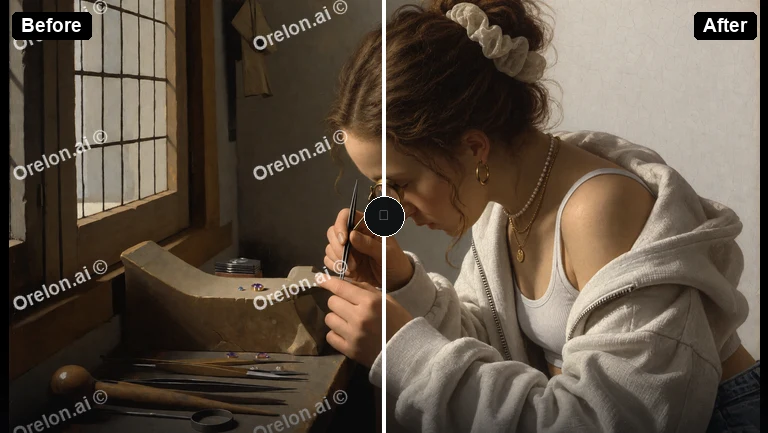
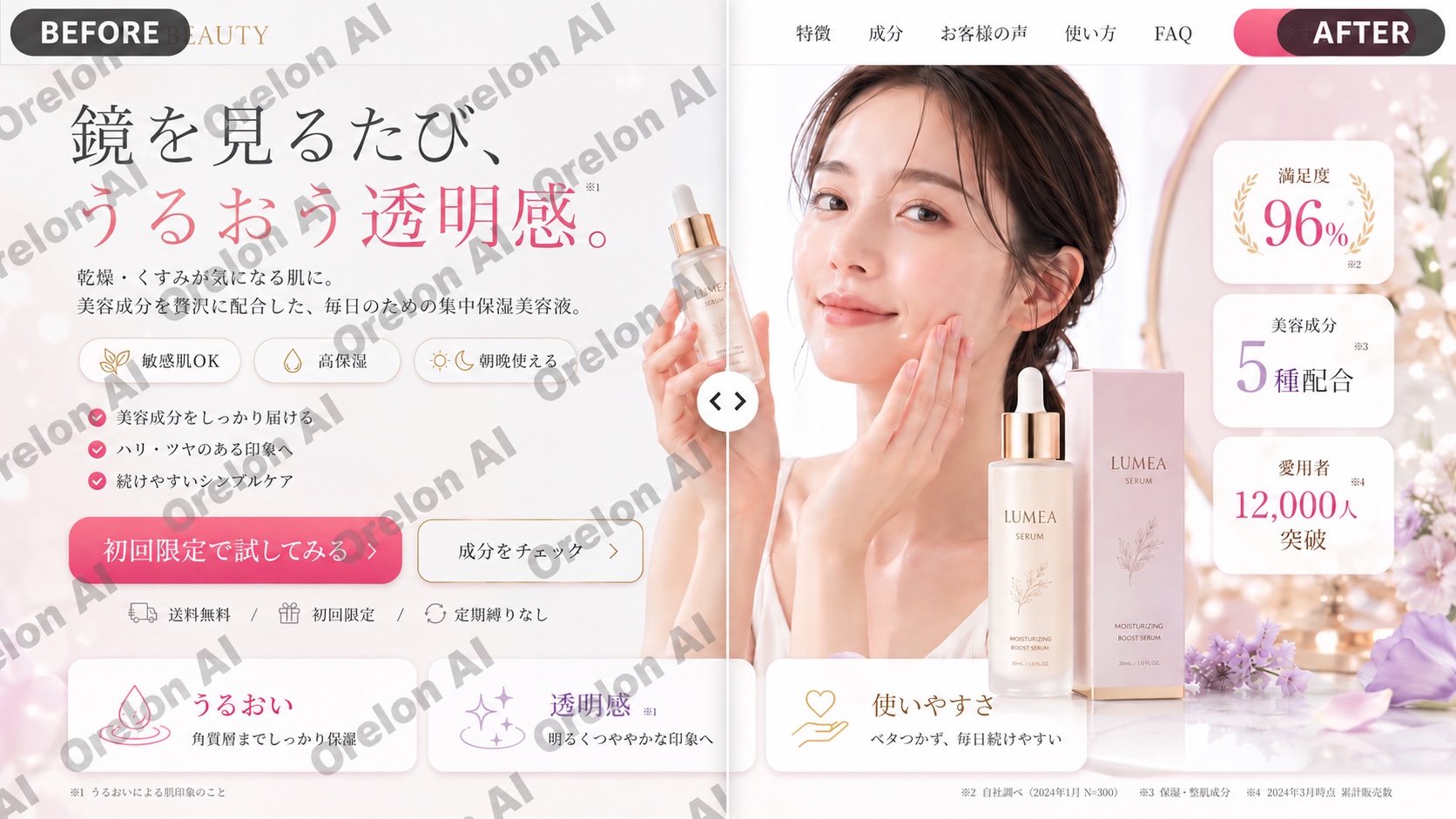
Pricing
Choose the credit package that works best for you.
No hidden fees • Cancel anytime • Unused credits roll over
Starter
Perfect for trying out AI creation.
Credits
200 credits / month
- Up to 20 videos per month
- Up to 100 images per month
$6.99/ month$9.9930% OFF
Billed monthly
First-time subscribers get 30% off their first month, then standard price
What's included
- Credits never expire
- Standard models
- HD, Watermark-Free Downloads
- Private Generation
- Faster Generation Speed
- Ad-free experience
Basic
Perfect for light creators.
Credits
500 credits / month
- Up to 50 videos per month
- Up to 250 images per month
$13.99/ month$19.9930% OFF
Billed monthly
First-time subscribers get 30% off their first month, then standard price
What's included
- Credits never expire
- Standard models
- HD, Watermark-Free Downloads
- Private Generation
- Faster Generation Speed
- Ad-free experience
Pro
PopularBest value for creators
Credits
1,200 credits / month
- Up to 120 videos per month
- Up to 600 images per month
$39.99/ month
Billed monthly
What's included
- Credits never expire
- All models + Early access to new models
- HD, Watermark-Free Downloads
- Private Generation
- Faster Generation Speed
- Ultra HD resolution
- Ad-free experience
Ultra
For video creators and power users.
Credits
5,000 credits / month
- Up to 500 videos per month
- Up to 2,500 images per month
$99.99/ month
Billed monthly
What's included
- Credits never expire
- All models + Early access to new models
- HD, Watermark-Free Downloads
- Private Generation
- Faster Generation Speed
- Ultra HD resolution
- Ad-free experience
Free
Standard models only — upgrade to unlock premium models.
Credits
10 free credits on signup
Questions? Contact us at support@domer.io
Turn your source image into a profile-ready version
Open Image to Image, upload an image you can edit, and review the result before you decide to use it.