
AI Photo Editor Add Text to Images
Use ai photo editor add text to upload an image, describe the text content and style you want added, review the result, and download the version that fits.
AI Image Generator
0/20000 characters
0 / 16
or select from
or select from(Optional)
or select from(Optional)
or select from(Optional)
or select from(Optional)
or select from(Optional)
or select from(Optional)
or select from(Optional)
or select from(Optional)
Supports PNG, JPG, WebP
My images
Loading...
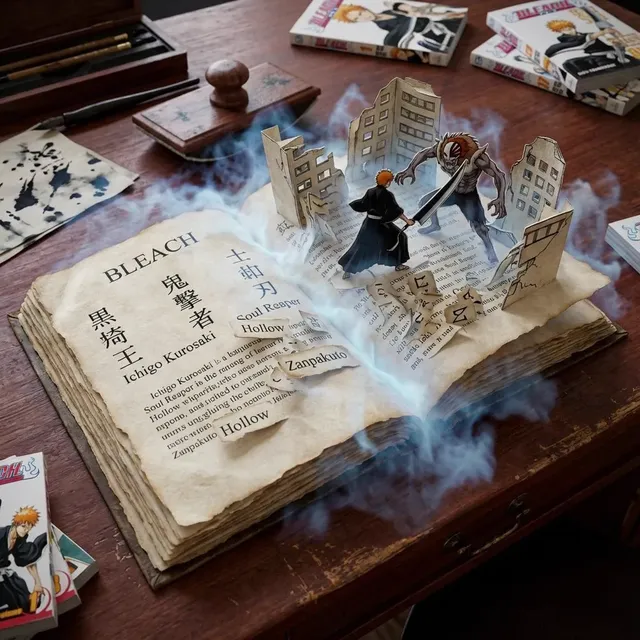
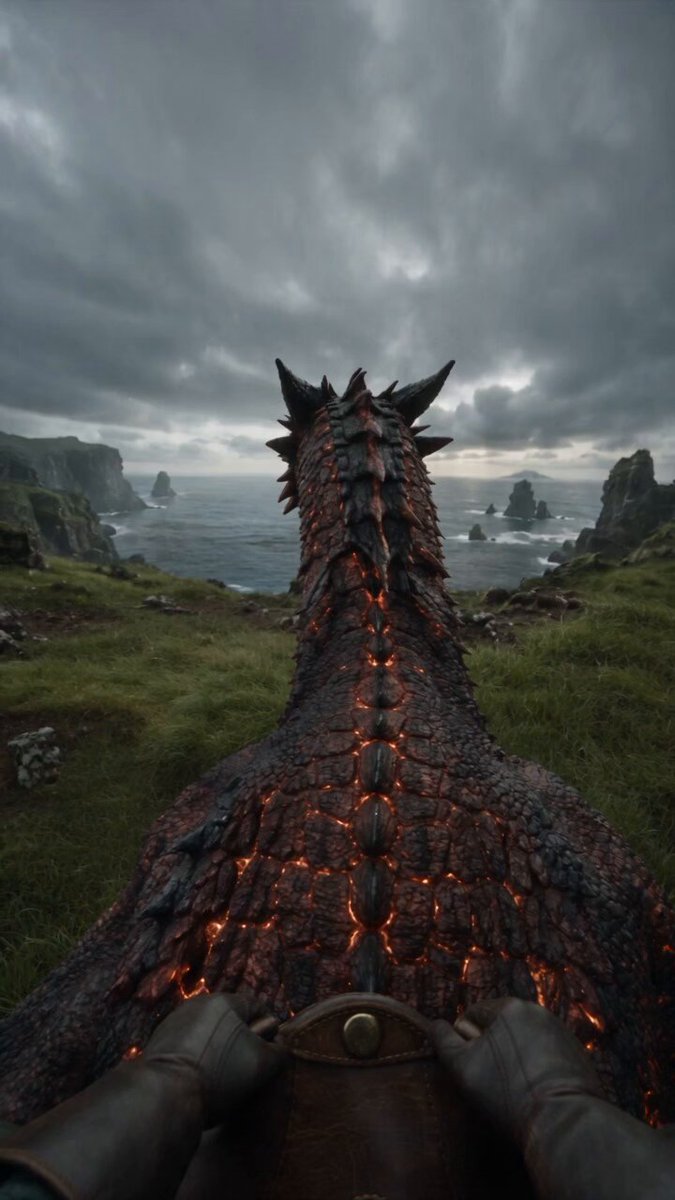
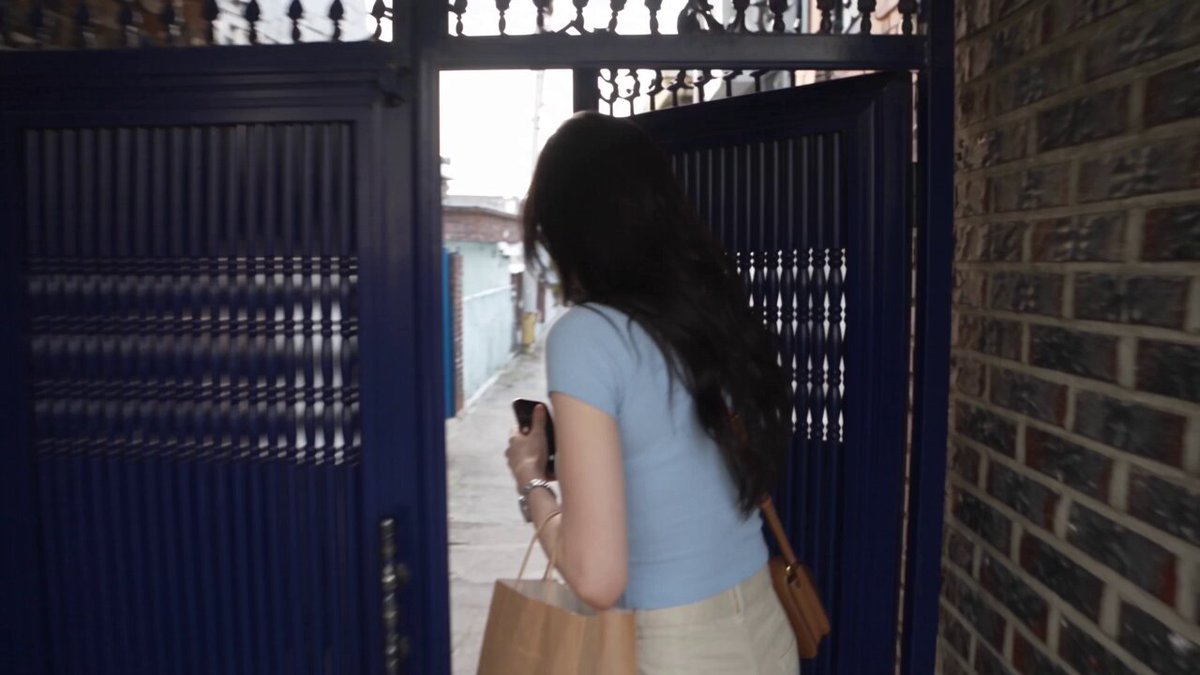
How do you add text to a photo with AI?
Upload a source image, describe the text you want added along with its style, position, and appearance, and generate a modified version. Review the result to confirm the text is readable and fits the design before using it.
AI Photo Editor Add Text to Images
Storefront Sign
Input
Upload a blank storefront sign photo, then describe: 'Add the text OPEN DAILY in bold sans-serif letters, centered on the board, in dark blue with a slight drop shadow.'
Expected output
The same board with readable lettering added in the requested style and position. Review the edited result to confirm the text is clear.
Recipe Caption
Input
Upload a food photo, then describe: 'Add the text Fresh Basil Pasta in handwritten script style, placed in the bottom right corner, in warm cream color without covering the food.'
Expected output
The photo with a handwritten caption layered into the bottom corner without covering the food. Review the edited result for readability.
Flyer Heading
Input
Upload a background image for a flyer, then describe: 'Add the text SUMMER SALE in bold uppercase letters near the top center, in bright yellow with a black outline for contrast.'
Expected output
The background with a bold heading placed near the top in the requested position. Review the edited result to confirm the heading stands out.
Add text to a source image by describing the wording, style, and placement you want, then review the result before using it.
Start with your own image
Use an image you have permission to edit instead of recreating the subject from a text-only description.
Direct the changes
State the framing, background, and style you want, then compare the result with the original image.
Choose before you use it
Review the edited image for likeness, context, and crop before downloading or posting it.
How It Works
1
Upload the image you want to refine
Start with an image you have the right to edit.
2
Describe the profile-picture changes you want
Keep the requested edits specific so the intended profile look is clear.
3
Generate, compare, and download
Review the output for likeness, accuracy, and the final profile crop before using it.
Making a profile-picture edit that stays clear
A clear source image and a focused edit request make it easier to judge the result.
Input Constraints
- Only upload images you have permission to edit and use.
- Keep the requested changes focused on the profile-picture outcome you need.
- Review the final image for likeness and context before sharing it.
Practical Tips
- Use a source image with a visible face and enough detail around the subject.
- Ask for one or two concrete changes, such as a neutral background or a square crop.
- Compare the result with the original image before choosing a version to use.
Privacy
- Do not upload personal or sensitive material unless you have permission to use it.
Usage Rights
- Confirm that you have the rights needed for the inputs and intended use of the result.
Prompt recipes
Copy a structure, then adjust the subject, lighting, camera, and output details for your own result.
Add Bold Heading to Poster Background
Upload a poster background image, then describe: 'Add the text SUMMER FESTIVAL in bold uppercase sans-serif, centered near the top, in bright yellow with a black outline for contrast.'
A bold, high-contrast heading grabs attention and communicates the main message clearly, essential for posters, flyers, and promotional materials.
Add Handwritten Caption to Food Photo
Upload a food photo, then describe: 'Add the text Homemade Sourdough in casual handwritten script, placed in the bottom left corner, in warm cream color without covering the food.'
A handwritten caption adds a personal, artisanal touch to food photos, making them more appealing for blogs, social media, or recipe sharing.
Add Quote to Landscape Photo
Upload a landscape or nature photo, then describe: 'Add the text Adventure Awaits in elegant serif font, centered in the middle, in white with a subtle shadow for readability.'
Adding a motivational quote to a scenic photo creates shareable content for social media, travel blogs, or inspirational posts.
Add Price Tag to Product Photo
Upload a product photo, then describe: 'Add the text $29.99 in bold sans-serif, placed in the top right corner, in red with a white background box for visibility.'
Adding a price tag directly to product images improves clarity for e-commerce, social media marketing, or promotional materials.
Add Event Details to Invitation Background
Upload an invitation background image, then describe: 'Add the text Join Us Saturday, 6 PM in elegant script font, centered near the bottom, in dark navy with soft spacing.'
Adding event details to an invitation background creates a complete design ready for digital sharing or printing.
Add Logo Text to Brand Image
Upload a brand or product image, then describe: 'Add the text EcoGoods in modern sans-serif, placed in the bottom right corner, in dark green with clean spacing.'
Adding brand text to product images reinforces brand identity and makes images suitable for marketing, social media, or packaging mockups.
Best use cases
Match the workflow to the input you have and the result you need before opening the generator.
You want to add a bold heading or title to a poster or promotional background.
Input: A background image with clear space where text can be placed without covering important elements.
Result: The same background with a bold, readable heading placed in the specified position and style.
Tool: Image to Image
You need to add a caption or label to a food or product photo.
Input: A clear product or food photo with space for text placement, preferably in a corner or edge.
Result: The photo with text added in the specified style and position without covering the main subject.
Tool: Image to Image
You want to add a quote or message to a landscape or scenic photo for social sharing.
Input: A landscape or scenic photo with a relatively simple background where text will be readable.
Result: The photo with text added in a readable style, centered or positioned as specified.
Tool: Image to Image
You need to add event details or information to an invitation or announcement background.
Input: An invitation or announcement background with clear space for text placement.
Result: The background with event details or information text added in the specified style and position.
Tool: Image to Image
Limitations to know before generating
- The added text is generated and styled based on your description, not typeset with precise font control.
- Readability and style accuracy depend on the clarity of your description and the complexity of your source image background.
- Complex fonts, exact color matching, or precise positioning may not render perfectly and may require iteration.
- Generated results may include text artifacts, spacing issues, or unexpected interpretations of your text description.
- You are responsible for confirming you have the rights to edit and use both the source image and the generated result.
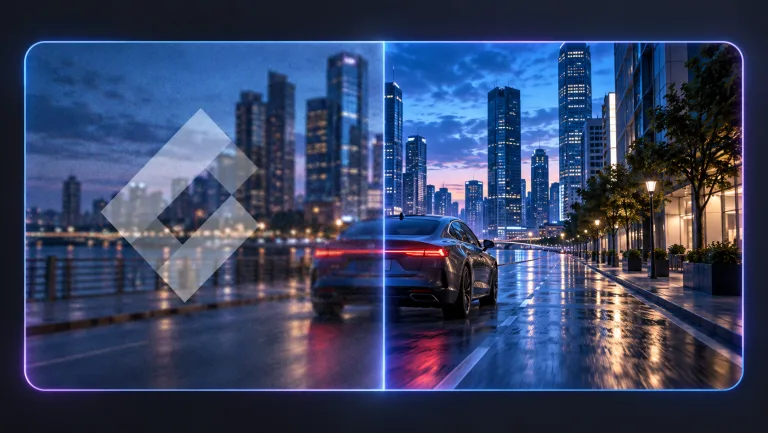
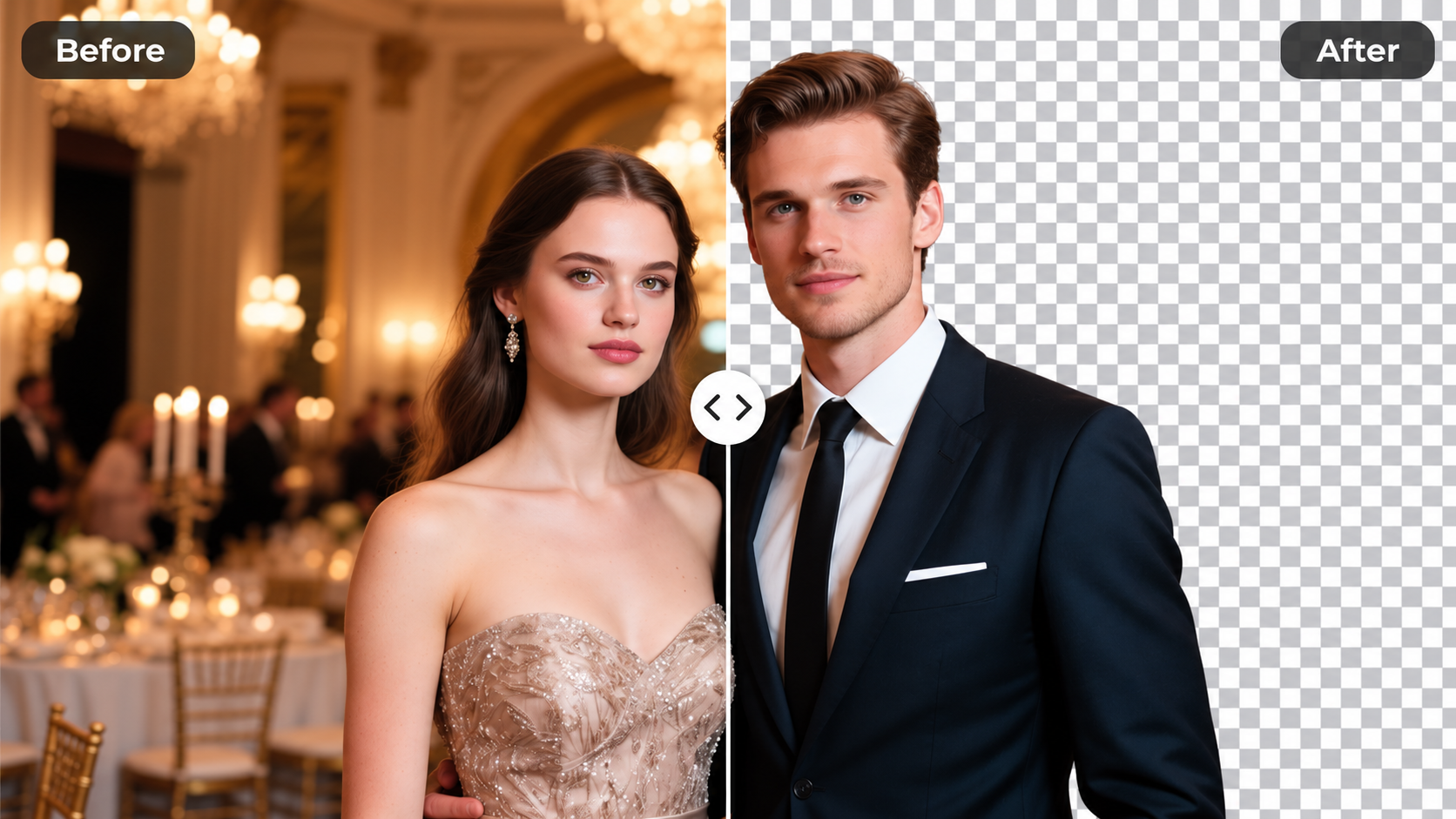
Creative Suite: AI Video Generator & AI Image Generator Tools
Power up your creative workflow with our AI-driven tools. Generate stunning videos, create images, and apply custom adjustments - our AI Video Generator and AI Image Generator offer a complete solution for all your creative needs.
Strictly Prohibits Adult/NSFW Content

Pricing
Choose the credit package that works best for you.
No hidden fees • Cancel anytime • Unused credits roll over
Starter
Perfect for trying out AI creation.
Credits
200 credits / month
- Up to 20 videos per month
- Up to 100 images per month
$6.99/ month$9.9930% OFF
Billed monthly
First-time subscribers get 30% off their first month, then standard price
What's included
- Credits never expire
- Standard models
- HD, Watermark-Free Downloads
- Private Generation
- Faster Generation Speed
- Ad-free experience
Basic
Perfect for light creators.
Credits
500 credits / month
- Up to 50 videos per month
- Up to 250 images per month
$13.99/ month$19.9930% OFF
Billed monthly
First-time subscribers get 30% off their first month, then standard price
What's included
- Credits never expire
- Standard models
- HD, Watermark-Free Downloads
- Private Generation
- Faster Generation Speed
- Ad-free experience
Pro
PopularBest value for creators
Credits
1,200 credits / month
- Up to 120 videos per month
- Up to 600 images per month
$39.99/ month
Billed monthly
What's included
- Credits never expire
- All models + Early access to new models
- HD, Watermark-Free Downloads
- Private Generation
- Faster Generation Speed
- Ultra HD resolution
- Ad-free experience
Ultra
For video creators and power users.
Credits
5,000 credits / month
- Up to 500 videos per month
- Up to 2,500 images per month
$99.99/ month
Billed monthly
What's included
- Credits never expire
- All models + Early access to new models
- HD, Watermark-Free Downloads
- Private Generation
- Faster Generation Speed
- Ultra HD resolution
- Ad-free experience
Free
Standard models only — upgrade to unlock premium models.
Credits
10 free credits on signup
Questions? Contact us at support@domer.io
Turn your source image into a profile-ready version
Open Image to Image, upload an image you can edit, and review the result before you decide to use it.