

AI Photo Editor Collage: Compose Multi-Image Layouts
Use ai photo editor collage to upload your images, describe the collage layout you want, and review the result before downloading the composed version.
AI Image Generator
0/20000 characters
0 / 16
or select from
or select from(Optional)
or select from(Optional)
or select from(Optional)
or select from(Optional)
or select from(Optional)
or select from(Optional)
or select from(Optional)
or select from(Optional)
Supports PNG, JPG, WebP
My images
Loading...


How do I create a photo collage with AI?
Upload one or more source images you have permission to edit, describe the layout or style you want, then generate and review the collage before saving it.
AI Photo Editor Collage: Compose Multi-Image Layouts
Create a clean 2x2 grid
Input
Upload a product photo, then ask to Describe a 2x2 grid repeating the same image with even white spacing between the panels.
Expected output
A collage with four identical copies of the product arranged in a 2x2 grid with clean white borders.
Build a framed portrait wall
Input
Upload a portrait, then ask to create a wall composition with the same photo repeated in a few framed panels.
Expected output
A collage showing the portrait repeated in several bordered frames, arranged as if hanging on a wall.
Design a mixed-size layout
Input
Upload a travel photo, then ask to create a collage with one large version in the center and two smaller copies on the sides.
Expected output
A collage with one dominant central image and two smaller versions beside it, creating a balanced layout.
Arrange one or more images into a collage layout and review the result before downloading the version you need.
Combine or repeat images in one layout
Create multi-image collages or repeat a single photo in different arrangements without manual layout tools.
Customize the collage style
Describe the grid size, spacing, borders, or mixed-size layout you want, then review the result.
Review before sharing
Check the collage for layout accuracy, spacing, and overall composition before downloading or posting it.
How It Works
1
Upload the image you want to refine
Start with an image you have the right to edit.
2
Describe the profile-picture changes you want
Keep the requested edits specific so the intended profile look is clear.
3
Generate, compare, and download
Review the output for likeness, accuracy, and the final profile crop before using it.
Getting a clean collage result
Clear source images and specific layout requests make it easier to judge the final collage composition.
Input Constraints
- Only upload images you have permission to edit and use.
- Keep the requested changes focused on the profile-picture outcome you need.
- Review the final image for likeness and context before sharing it.
Practical Tips
- Describe the collage layout clearly, such as 2x2 grid, three panels side by side, or one large with two small.
- Specify spacing, borders, or background color to control the final look.
- Compare the collage with your layout intent to check for alignment, spacing, or cropping issues.
Privacy
- Do not upload personal or sensitive material unless you have permission to use it.
Usage Rights
- Confirm that you have the rights needed for the inputs and intended use of the result.
Prompt recipes
Copy a structure, then adjust the subject, lighting, camera, and output details for your own result.
Create a clean 2x2 grid with white spacing
Arrange the same image into a 2x2 grid with equal-sized panels and clean white borders between them.
A symmetrical grid with consistent spacing creates a professional, organized look ideal for product showcases.
Build a three-panel horizontal strip
Place three copies of the image side by side in a horizontal strip with narrow black borders between the panels.
A horizontal strip is ideal for social media headers, wide displays, or storytelling across three moments.
Design a mixed-size hero layout
Place one large version of the image on the left and stack two smaller copies vertically on the right with even spacing.
Mixed-size layouts create visual hierarchy and draw attention to the main image while showing variations or details.
Create a framed gallery wall
Repeat the image four times in different frame sizes and arrange them as if hanging on a wall with uneven spacing.
A gallery-wall layout adds personality and a casual, curated feel to collages, ideal for personal or lifestyle content.
Arrange a vertical stack for mobile display
Stack four copies of the image vertically with thin white dividers between them, optimized for mobile screens.
Vertical stacks work well for mobile-first content like Instagram stories or Pinterest pins.
Build a polaroid-style collage
Arrange four copies of the image as polaroid-style squares with white borders and a slight rotation for a casual, scrapbook feel.
Polaroid-style collages add a nostalgic, personal touch and work well for memory or event photos.
Best use cases
Match the workflow to the input you have and the result you need before opening the generator.
Creating product showcases for e-commerce
Input: A single product photo that needs to be repeated in a clean, organized layout.
Result: A 2x2 or 3x3 grid with even spacing and consistent borders, ready for product pages or ads.
Tool: Image to Image with grid-layout and spacing prompts.
Designing social media headers or banners
Input: One or more photos that need to be arranged horizontally for a wide display.
Result: A horizontal strip or mixed-size layout optimized for social media headers or cover images.
Tool: Image to Image with horizontal-layout or banner-style prompts.
Building before-and-after comparison layouts
Input: Two versions of the same photo (before and after an edit) that need to be shown side by side.
Result: A two-panel collage with the before image on the left and the after image on the right.
Tool: Image to Image with side-by-side comparison prompts.
Creating memory or event collages for personal use
Input: Multiple photos from an event that need to be combined into a single layout.
Result: A mixed-size or gallery-wall layout with borders and spacing that feels personal and curated.
Tool: Image to Image with gallery-wall or scrapbook-style prompts.
Limitations to know before generating
- Collage layouts work best with one or a few source images; combining many different images may produce inconsistent results.
- Complex layouts with precise alignment or custom spacing may be harder to control with text prompts alone.
- The tool may interpret layout descriptions differently than your mental image; review the result and refine your prompt if needed.
- Very different image aspect ratios may cause cropping or distortion in grid layouts; use similar aspect ratios for best results.
- The tool does not guarantee perfect accuracy or commercial suitability; always review the result before publishing.
Creative Suite: AI Video Generator & AI Image Generator Tools
Power up your creative workflow with our AI-driven tools. Generate stunning videos, create images, and apply custom adjustments - our AI Video Generator and AI Image Generator offer a complete solution for all your creative needs.
Strictly Prohibits Adult/NSFW Content
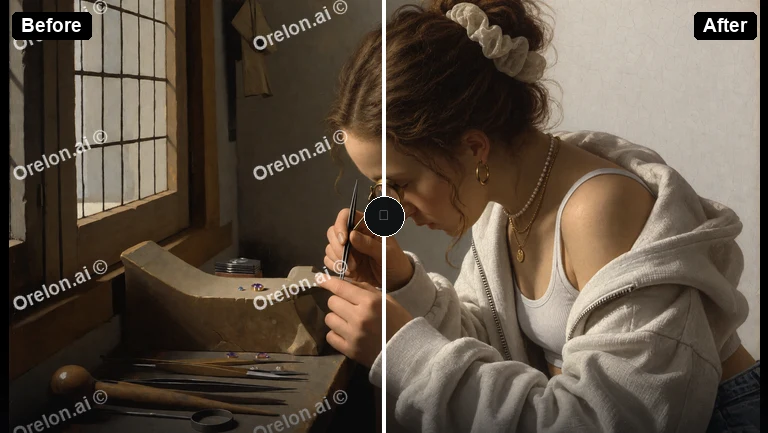

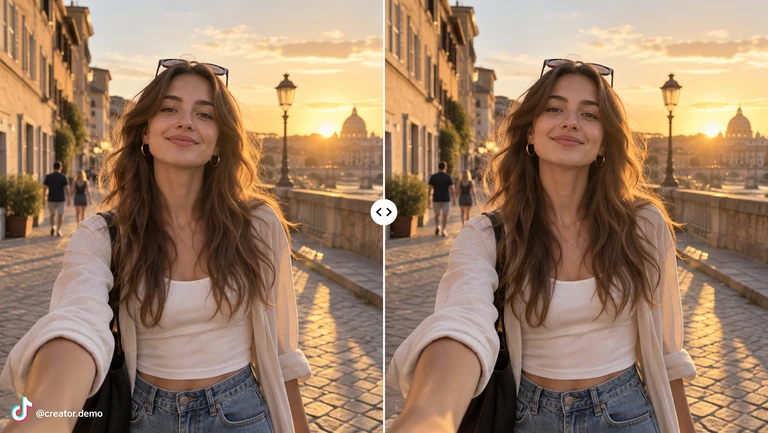
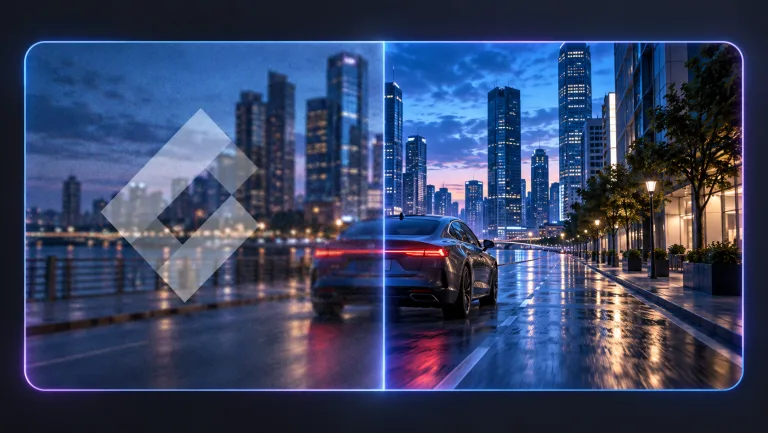


Pricing
Choose the credit package that works best for you.
No hidden fees • Cancel anytime • Unused credits roll over
Starter
Perfect for trying out AI creation.
Credits
200 credits / month
- Up to 20 videos per month
- Up to 100 images per month
$6.99/ month$9.9930% OFF
Billed monthly
First-time subscribers get 30% off their first month, then standard price
What's included
- Credits never expire
- Standard models
- HD, Watermark-Free Downloads
- Private Generation
- Faster Generation Speed
- Ad-free experience
Basic
Perfect for light creators.
Credits
500 credits / month
- Up to 50 videos per month
- Up to 250 images per month
$13.99/ month$19.9930% OFF
Billed monthly
First-time subscribers get 30% off their first month, then standard price
What's included
- Credits never expire
- Standard models
- HD, Watermark-Free Downloads
- Private Generation
- Faster Generation Speed
- Ad-free experience
Pro
PopularBest value for creators
Credits
1,200 credits / month
- Up to 120 videos per month
- Up to 600 images per month
$39.99/ month
Billed monthly
What's included
- Credits never expire
- All models + Early access to new models
- HD, Watermark-Free Downloads
- Private Generation
- Faster Generation Speed
- Ultra HD resolution
- Ad-free experience
Ultra
For video creators and power users.
Credits
5,000 credits / month
- Up to 500 videos per month
- Up to 2,500 images per month
$99.99/ month
Billed monthly
What's included
- Credits never expire
- All models + Early access to new models
- HD, Watermark-Free Downloads
- Private Generation
- Faster Generation Speed
- Ultra HD resolution
- Ad-free experience
Free
Standard models only — upgrade to unlock premium models.
Credits
10 free credits on signup
Questions? Contact us at support@domer.io
Compose your collage and review the result
Open Image to Image, upload your images, describe the layout you want, and compare the result before you download.