
Create
AI Photo Editor iPhone 16 Pro
Use ai photo editor iphone 16 pro to upload iPhone 16 Pro shots, describe lighting or color edits, and preview the result before deciding which version to keep.
AI Image Generator
0/20000 characters
0 / 16
or select from
or select from(Optional)
or select from(Optional)
or select from(Optional)
or select from(Optional)
or select from(Optional)
or select from(Optional)
or select from(Optional)
or select from(Optional)
Supports PNG, JPG, WebP
My images
Loading...

How does an AI photo editor work with iPhone 16 Pro images?
An AI photo editor for iPhone 16 Pro lets you upload photos from your device, describe edits like exposure fixes or color grading, and generate a preview. You review the result and download the version that matches your intent.
AI Photo Editor iPhone 16 Pro
Golden hour fix
Input
Upload a sunset photo from iPhone 16 Pro and ask for warmer, more even tones while preserving the original sunset colors.
Expected output
A brighter version of the same photo with warmer, more even tones and preserved sunset colors.
Clutter removal
Input
Upload a busy scene and describe which background elements to simplify or remove so the subject reads more clearly.
Expected output
A cleaned-up version of the scene where the subject reads clearly and the background looks calmer.
Style shift
Input
Upload a portrait and ask for softer contrast, gentle grain, and a film-like color feel.
Expected output
A version of the portrait with softer contrast, gentle grain, and a film-like color feel.
Edit photos taken on iPhone 16 Pro by describing lighting, color, or framing changes, then review the result before saving or sharing.
Start with your iPhone shots
Upload photos directly from your device instead of switching apps or recreating the scene from scratch.
Describe the edit in plain language
State the lighting, color, or composition change you want without learning slider controls or technical terms.
Compare before you commit
Review the edited image next to the original and decide which version to keep or share.
How It Works
1
Upload the image you want to refine
Start with an image you have the right to edit.
2
Describe the profile-picture changes you want
Keep the requested edits specific so the intended profile look is clear.
3
Generate, compare, and download
Review the output for likeness, accuracy, and the final profile crop before using it.
Getting clear edits from iPhone 16 Pro photos
A well-exposed source photo and a specific edit request make it easier to judge the result and decide whether it matches your intent.
Input Constraints
- Only upload images you have permission to edit and use.
- Keep the requested changes focused on the photo outcome you need.
- Review the final image for accuracy and realism before sharing it.
Practical Tips
- Use a photo where the main subject is visible and the lighting is relatively even.
- Ask for one or two concrete changes, such as warmer tones or a cleaner background.
- Compare the result with the original image before choosing a version to use.
Privacy
- Do not upload personal or sensitive material unless you have permission to use it.
Usage Rights
- Confirm that you have the rights needed for the inputs and intended use of the result.
Prompt recipes
Copy a structure, then adjust the subject, lighting, camera, and output details for your own result.
Lift a backlit portrait
Brighten the subject's face and reduce the harsh backlight from the window, keeping the background visible but softer.
Targets the exposure imbalance while preserving context, so the subject looks clear without losing the scene.
Even out indoor color casts
Correct the yellow tungsten cast on the walls and skin, shift the color temperature to neutral daylight, and keep the existing furniture tones.
Specifies the color cast to fix and the target temperature, so the result looks natural without over-correcting.
Add film-style grain and fade
Apply subtle grain, lift the blacks slightly for a faded look, and shift the colors toward muted greens and browns.
Combines texture, contrast, and color direction to create a cohesive analog feel.
Sharpen a low-light shot
Reduce noise in the shadows, sharpen the subject's edges, and brighten the midtones without blowing out the highlights.
Addresses the three common low-light issues in one pass, so the result looks cleaner and more usable.
Simplify a busy background
Blur the background behind the subject, keep the foreground sharp, and desaturate the background colors slightly to reduce distraction.
Uses depth, sharpness, and color saturation together to direct attention to the subject.
Restore overexposed skies
Recover detail in the blown-out sky, bring back the cloud gradient, and keep the foreground exposure unchanged.
Targets the highlight recovery without darkening the rest of the image, so the edit stays balanced.
Best use cases
Match the workflow to the input you have and the result you need before opening the generator.
Social media post
Input: A well-framed iPhone 16 Pro photo with visible subject and decent lighting.
Result: A polished version with adjusted color, contrast, or crop, ready to post.
Tool: Image to Image
Exposure recovery
Input: A backlit or underexposed photo where the subject is too dark or the sky is blown out.
Result: A version with lifted shadows or recovered highlights, making the subject and background more balanced.
Tool: Image to Image
Style consistency
Input: Multiple iPhone 16 Pro photos from the same event or shoot.
Result: A set of images with matching color grading, contrast, and mood.
Tool: Image to Image
Print preparation
Input: A high-resolution iPhone 16 Pro photo with good composition but uneven lighting or color.
Result: A color-corrected, sharpened version suitable for printing or framing.
Tool: Image to Image
Limitations to know before generating
- The tool generates a visual edit based on your description, not a precise technical adjustment. Complex edits may require iteration.
- Lighting and color shifts depend on the clarity of your prompt. Vague requests may produce results that do not match your intent.
- Noise reduction and sharpening are approximations. Heavily compressed or low-light iPhone photos may show artifacts after editing.
- The tool does not guarantee that edited images will match the exact color profile or quality standards required for professional print or publication.
- Generated images should be reviewed for realism, color accuracy, and detail before using them in professional or high-stakes contexts.
Creative Suite: AI Video Generator & AI Image Generator Tools
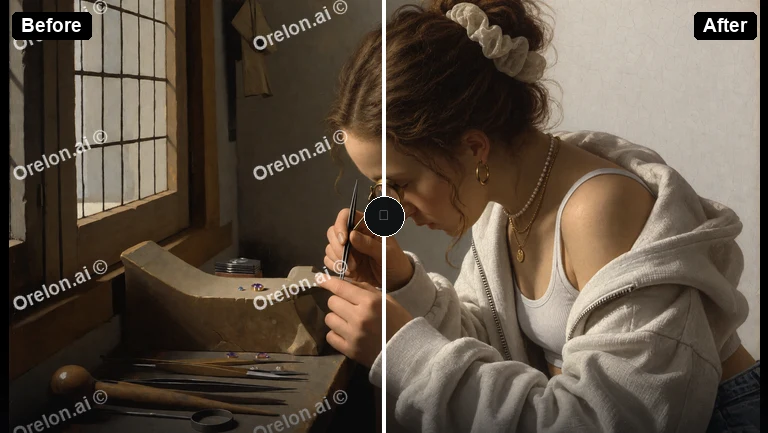
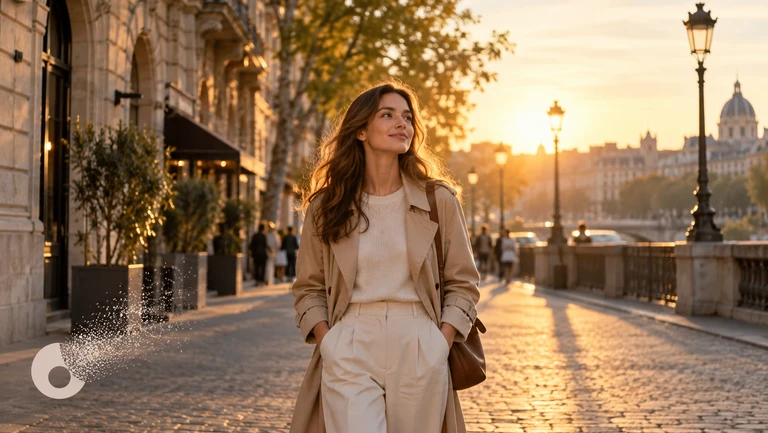
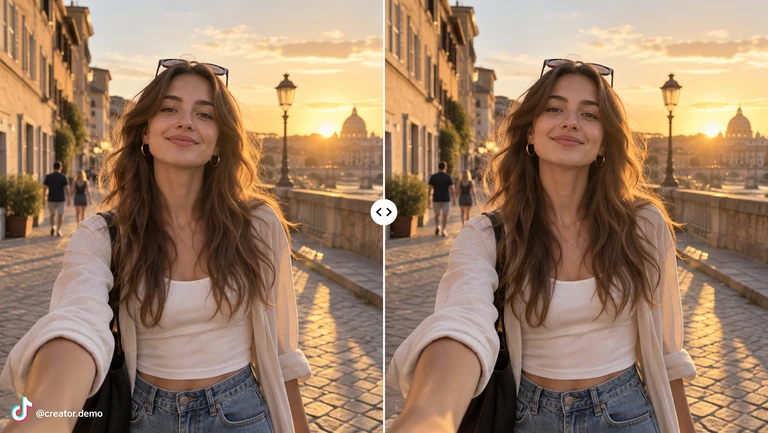
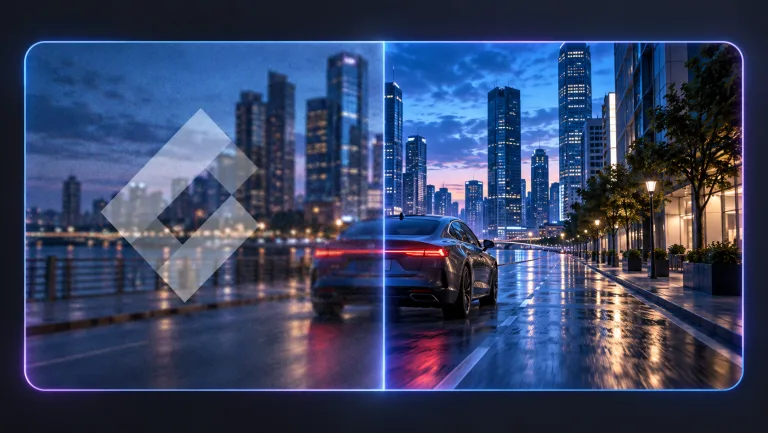
Power up your creative workflow with our AI-driven tools. Generate stunning videos, create images, and apply custom adjustments - our AI Video Generator and AI Image Generator offer a complete solution for all your creative needs.
Strictly Prohibits Adult/NSFW Content



Pricing
Choose the credit package that works best for you.
No hidden fees • Cancel anytime • Unused credits roll over
Starter
Perfect for trying out AI creation.
Credits
200 credits / month
- Up to 20 videos per month
- Up to 100 images per month
$6.99/ month$9.9930% OFF
Billed monthly
First-time subscribers get 30% off their first month, then standard price
What's included
- Credits never expire
- Standard models
- HD, Watermark-Free Downloads
- Private Generation
- Faster Generation Speed
- Ad-free experience
Basic
Perfect for light creators.
Credits
500 credits / month
- Up to 50 videos per month
- Up to 250 images per month
$13.99/ month$19.9930% OFF
Billed monthly
First-time subscribers get 30% off their first month, then standard price
What's included
- Credits never expire
- Standard models
- HD, Watermark-Free Downloads
- Private Generation
- Faster Generation Speed
- Ad-free experience
Pro
PopularBest value for creators
Credits
1,200 credits / month
- Up to 120 videos per month
- Up to 600 images per month
$39.99/ month
Billed monthly
What's included
- Credits never expire
- All models + Early access to new models
- HD, Watermark-Free Downloads
- Private Generation
- Faster Generation Speed
- Ultra HD resolution
- Ad-free experience
Ultra
For video creators and power users.
Credits
5,000 credits / month
- Up to 500 videos per month
- Up to 2,500 images per month
$99.99/ month
Billed monthly
What's included
- Credits never expire
- All models + Early access to new models
- HD, Watermark-Free Downloads
- Private Generation
- Faster Generation Speed
- Ultra HD resolution
- Ad-free experience
Free
Standard models only — upgrade to unlock premium models.
Credits
10 free credits on signup
Questions? Contact us at support@domer.io
Edit your iPhone 16 Pro photos
Open Image to Image, upload a photo, and describe the lighting or color changes you want to preview.