
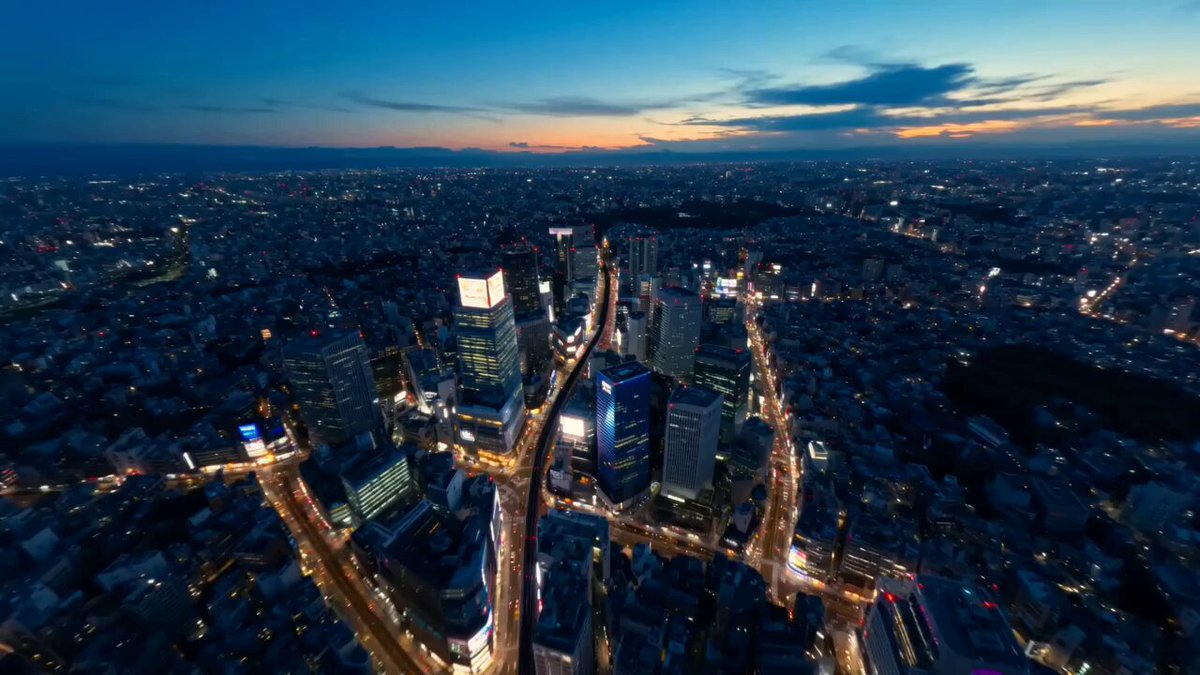
AI Video Generator Description
Learn how the text-to-video tool works: describe a scene in words, choose settings, and generate a short motion clip you can review.
AI Video Generator
0/20000 characters
Cost:10
My videos
Loading...
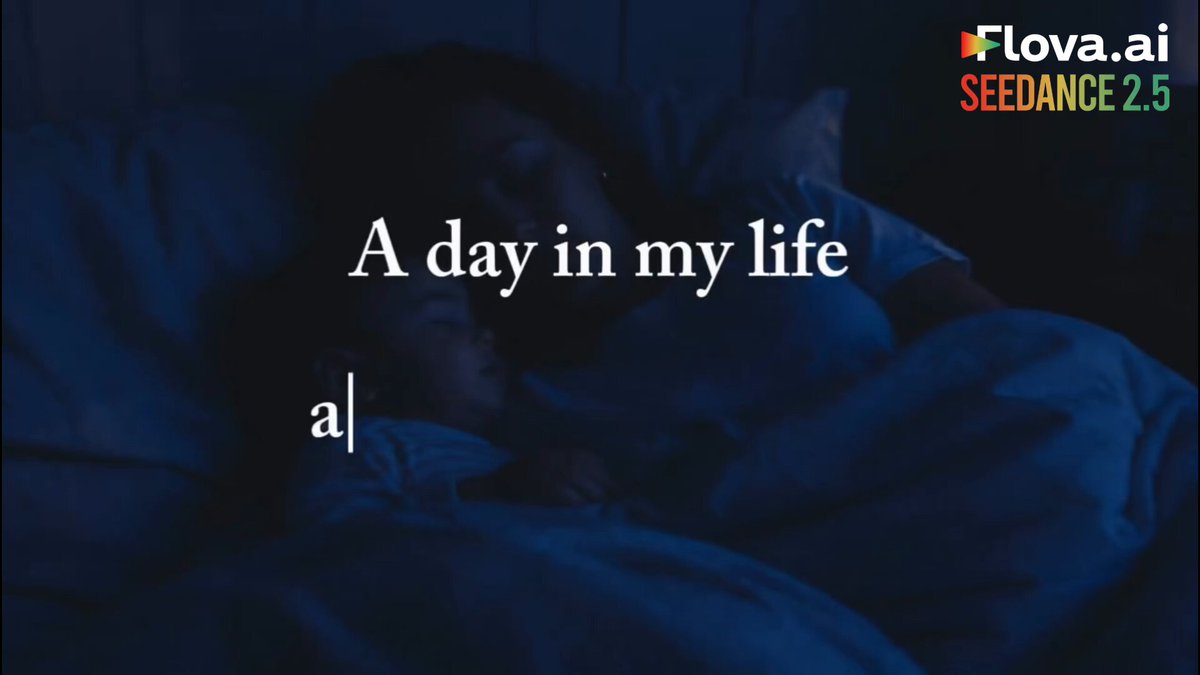

How an AI video generator works
An AI video generator converts a text description of a scene into a short video clip. You write what you want to see—subjects, settings, lighting, and motion—then choose generation settings. The tool produces a visual result you can review and download. The entire process happens in three steps: describe, choose settings, generate.
AI Video Generator Description
See the workflow in action
Input
A simple three-panel visual: a text prompt on the left, a settings panel in the middle, and a generated video playing on the right.
Expected output
A short animated diagram showing text input flowing into a settings interface and then a video clip appearing on the output panel.
Demonstrate input and output
Input
A screen recording style clip of a cursor typing into a text box: 'A red balloon floating over a city at sunset' and then a video appearing with that scene.
Expected output
A generated clip showing a cursor typing into a text field, followed by the described scene appearing as a generated video.
Explain the technology simply
Input
A visual metaphor: an artist's paint palette transforming into a video editing timeline, representing the conversion of creative description into motion.
Expected output
A short clip of a painter's palette with colours swirling together and forming into a video playback timeline bar.
Read a clear description of how an AI video generator works
Understand before you use
Get a clear picture of the text-to-video workflow so you know exactly what to expect before you start your first generation.
Explain the tool to others
Use the description to help colleagues, clients, or team members understand how AI video generation works.
Know what inputs to prepare
Understand the three-step process so you can prepare your scene descriptions and know what settings are available.
How It Works
1
Describe the desired scene and motion.
Describe the desired scene and motion.
2
Choose the available generation settings.
Choose the available generation settings.
3
Generate, review, and download a suitable result.
Generate, review, and download a suitable result.
Understanding the text-to-video workflow
The process has three clear steps from idea to downloadable video.
Input Constraints
- The tool works with text prompts only, not uploaded images or video files.
- Generated results should be reviewed before use in any project.
- The generator produces short clips, not feature-length video.
Practical Tips
- Write your scene as a clear visual description that anyone could picture.
- Think about motion: what moves, in what direction, and at what speed.
- Start simple with one subject and one action before adding complexity.
Privacy
- Do not upload personal or sensitive material unless you have permission to use it.
Usage Rights
- Confirm that you have the rights needed for the inputs and intended use of the result.
Prompt recipes
Copy a structure, then adjust the subject, lighting, camera, and output details for your own result.
Workflow diagram for a presentation
A flowchart on a white background: a text box labeled 'Scene description' with an arrow to a gear icon labeled 'Settings' with an arrow to a play button labeled 'Generated video', clean and minimal style
Translates the three-step workflow into a visual diagram suitable for explaining the tool in a slide deck or document.
Screen capture style explanation
A computer screen showing a text input field with the words 'A sunset over mountains' being typed, then a loading spinner, then a video thumbnail appearing with the sunset scene
Mimics the user experience step-by-step, making it easy for someone to understand what they will see when they use the tool.
Animated explainer loop
A looping animation: words appearing on screen, transforming into colorful motion lines, then forming into a framed video clip, repeating smoothly
Uses abstract visual metaphor to represent the transformation from text to video, useful for social media or website backgrounds.
Side-by-side comparison
Split screen: on the left, a person typing a scene description on a laptop; on the right, a video clip of that exact scene playing, both views in sync
Shows input and output simultaneously, helping viewers understand the direct connection between description and result.
Concept art style explanation
A hand-drawn sketch of a scene slowly filling in with color and motion, as if the words are painting the video into existence, artistic and inspiring
Uses a creative metaphor to explain the generation process in a way that feels less technical and more approachable.
Best use cases
Match the workflow to the input you have and the result you need before opening the generator.
Learning the tool yourself
Input: Read the description, try a simple test prompt, review the result
Result: You understand what the tool can produce and how to write effective prompts
Tool: Start with one of the provided examples and follow the three steps
Teaching a teammate
Input: Share this page and walk through the workflow diagram
Result: Your teammate can use the tool independently after one explanation
Tool: Point them to the intentAnswer and examples sections, then have them try it
Pitching the tool to a client
Input: Show the workflow and a sample output in a brief demo
Result: Client understands how fast and flexible the tool is
Tool: Use a live generation with a client-relevant prompt
Documenting your process
Input: Screenshot the three steps and add them to your internal wiki or playbook
Result: Anyone on your team can reference the workflow later
Tool: Capture the steps, guidance, and one example as a quick-start guide
Limitations to know before generating
- The description explains the workflow—it does not guarantee specific output quality or style for every prompt.
- Understanding the process does not replace hands-on testing; results vary based on prompt clarity and complexity.
- The tool generates video from text only—it does not edit, enhance, or merge existing video files.
- Some prompts may require iteration to match your expectations; the description helps you understand why.
- Generated clips are short; longer projects require multiple prompts and assembly in a video editor.
Creative Suite: AI Video Generator & AI Image Generator Tools
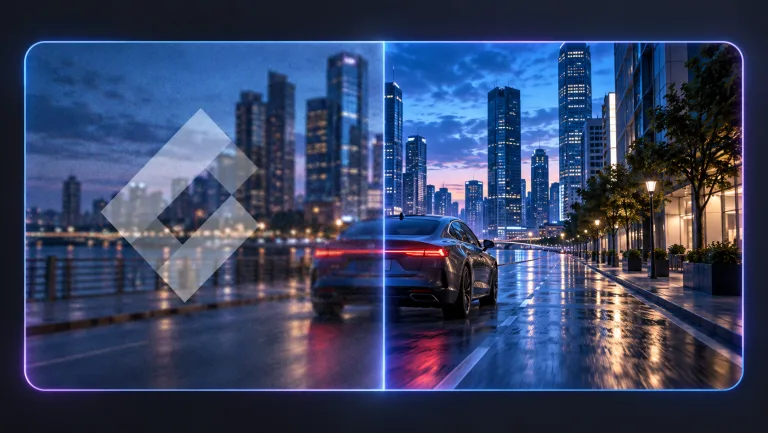
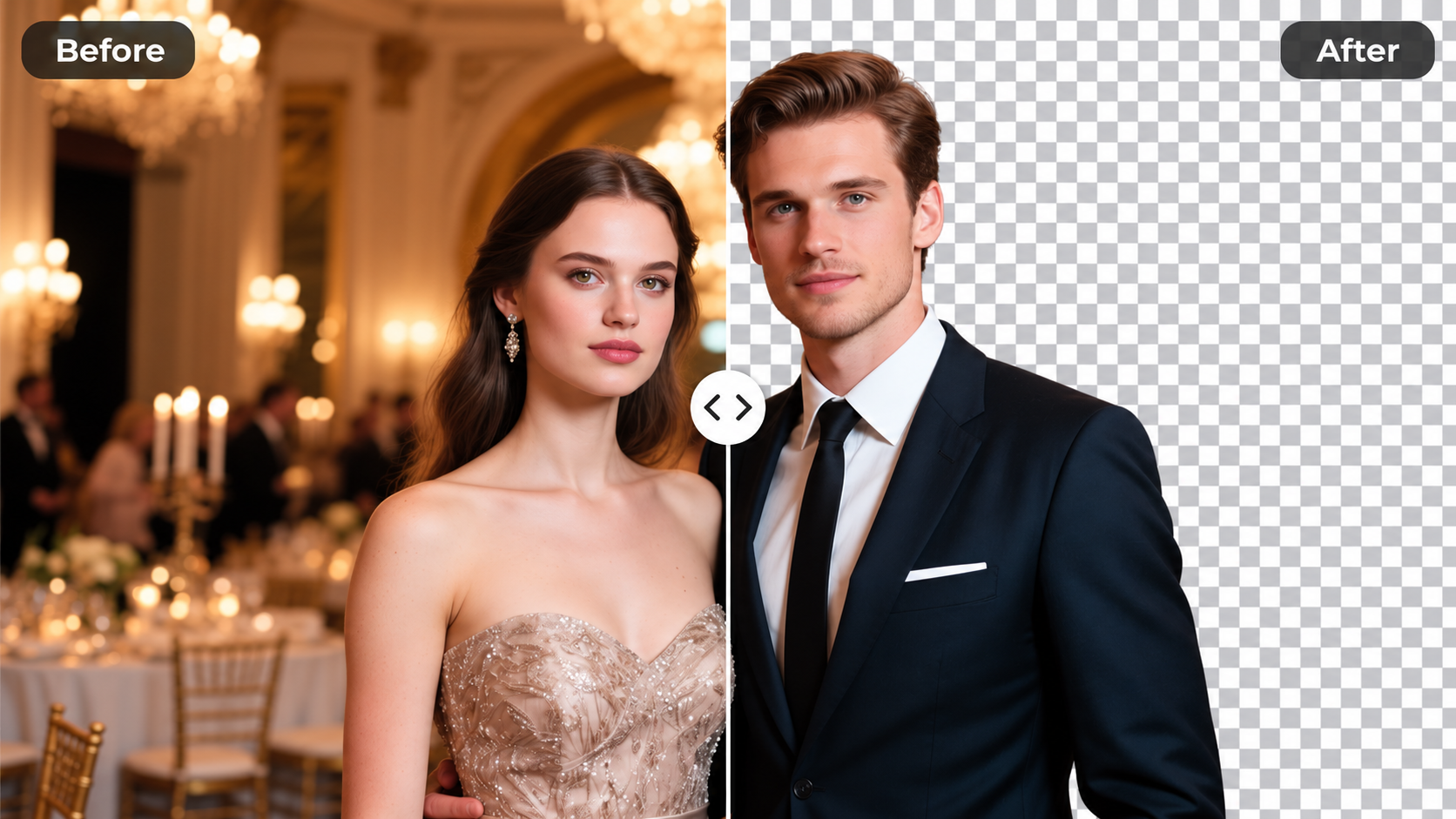
Power up your creative workflow with our AI-driven tools. Generate stunning videos, create images, and apply custom adjustments - our AI Video Generator and AI Image Generator offer a complete solution for all your creative needs.
Strictly Prohibits Adult/NSFW Content




Pricing
Choose the credit package that works best for you.
No hidden fees • Cancel anytime • Unused credits roll over
Starter
Perfect for trying out AI creation.
Credits
200 credits / month
- Up to 20 videos per month
- Up to 100 images per month
$6.99/ month$9.9930% OFF
Billed monthly
First-time subscribers get 30% off their first month, then standard price
What's included
- Credits never expire
- Standard models
- HD, Watermark-Free Downloads
- Private Generation
- Faster Generation Speed
- Ad-free experience
Basic
Perfect for light creators.
Credits
500 credits / month
- Up to 50 videos per month
- Up to 250 images per month
$13.99/ month$19.9930% OFF
Billed monthly
First-time subscribers get 30% off their first month, then standard price
What's included
- Credits never expire
- Standard models
- HD, Watermark-Free Downloads
- Private Generation
- Faster Generation Speed
- Ad-free experience
Pro
PopularBest value for creators
Credits
1,200 credits / month
- Up to 120 videos per month
- Up to 600 images per month
$39.99/ month
Billed monthly
What's included
- Credits never expire
- All models + Early access to new models
- HD, Watermark-Free Downloads
- Private Generation
- Faster Generation Speed
- Ultra HD resolution
- Ad-free experience
Ultra
For video creators and power users.
Credits
5,000 credits / month
- Up to 500 videos per month
- Up to 2,500 images per month
$99.99/ month
Billed monthly
What's included
- Credits never expire
- All models + Early access to new models
- HD, Watermark-Free Downloads
- Private Generation
- Faster Generation Speed
- Ultra HD resolution
- Ad-free experience
Free
Standard models only — upgrade to unlock premium models.
Credits
10 free credits on signup
Questions? Contact us at support@domer.io
Experience it yourself
The best way to understand an AI video generator is to use it. Open the text-to-video tool and generate your first clip from a simple description.