
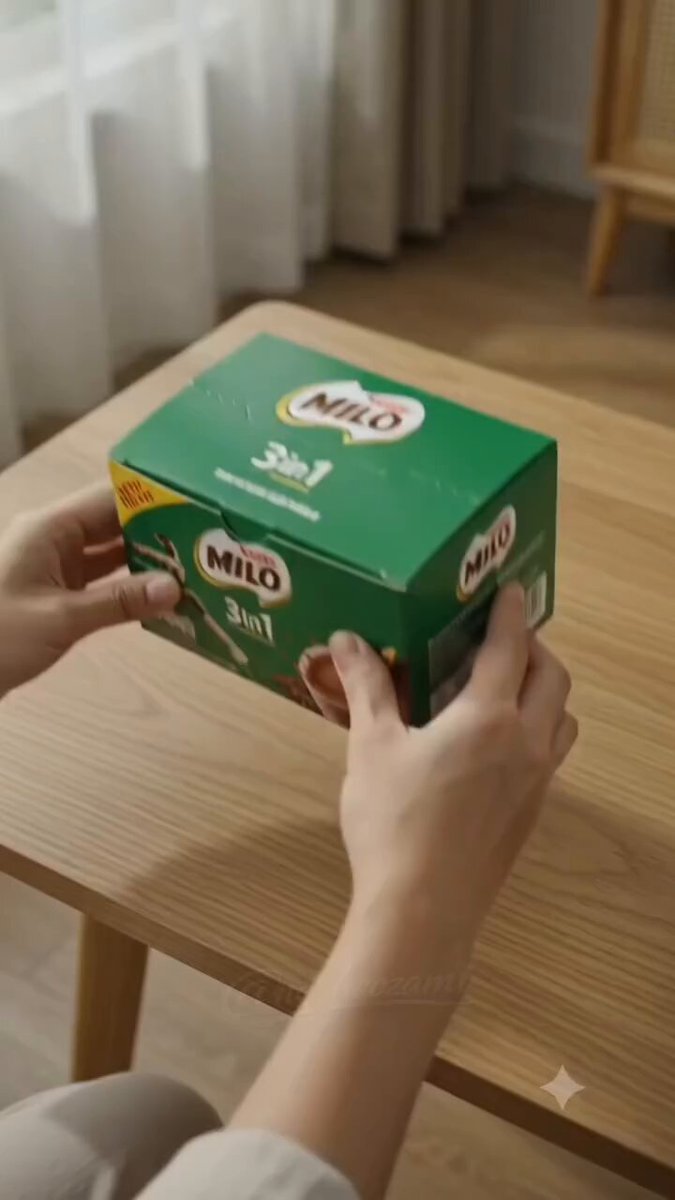
ai video generator premiere pro guide
Use ai video generator premiere pro to generate source clips for Premiere Pro from text. Describe the scene and motion, choose settings, then download and.
AI Video Generator
0/20000 characters
Cost:10
My videos
Loading...
How do I use an AI video generator to create Premiere Pro clips?
An AI video generator creates source clips you can import into Premiere Pro. You describe the scene, motion, and visual style in a text prompt, choose available resolution and duration settings, generate the clip, then download and import the file into your editing timeline. Common uses include B-roll, transitions, backgrounds, and overlay footage.
ai video generator premiere pro guide
B-Roll City Scene
Input
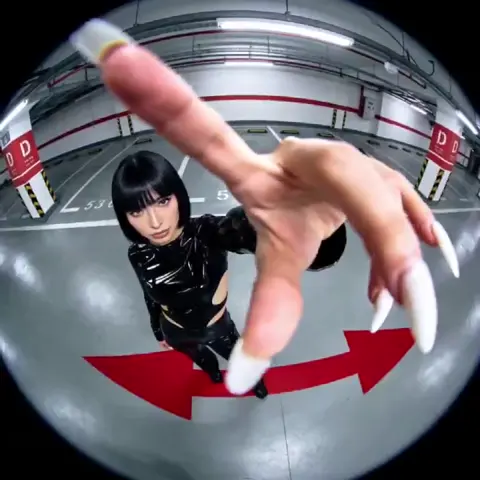
Traffic flowing on a highway at golden hour, warm reflections on car roofs, motion blur, steady shot for editing overlay
Expected output
A B-roll style video of highway traffic at golden hour with warm reflections and motion blur
Transition Background
Input
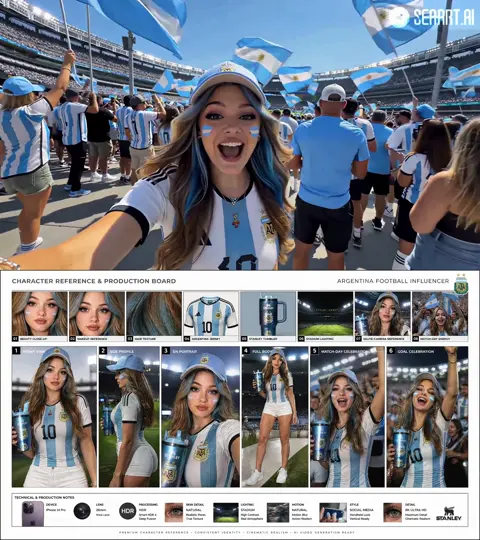
A smooth gradient from dark blue to purple with soft light particles drifting upward, clean loopable motion for transitions
Expected output
A smooth gradient video background with light particles for editing transitions
Lower Third Background
Input
A subtle dark textured background with gentle floating geometric shapes, cool blue tones, non-distracting motion for text overlays
Expected output
A subtle background video with geometric shapes in cool blue for text overlay use
Generate source video clips from text descriptions for use in video editing software
Generate Source Material
Describe the scene you need for your project — the tool generates a short video clip from your text description.
Export for Editing
Download the generated clip and import it into your editing software as a layer or element.
Match Your Timeline
Select available resolution and duration settings to match the format requirements of your editing project.
How It Works
1
Describe the Scene
Describe the desired scene and motion.
2
Choose Settings
Choose the available generation settings.
3
Generate and Download
Generate, review, and download a suitable result.
Tips for Better Results
Follow these guidelines to get the most out of the video generator.
Input Constraints
- Write clear, specific scene descriptions for better results.
- Include lighting, mood, and motion details in your prompt.
- Review the generated video before using it in your project.
Practical Tips
- Be specific about colors and lighting in your scene description.
- Describe camera movement if you want motion in the clip.
- Try different prompts to explore variations of the same scene.
Privacy
- Do not upload personal or sensitive material unless you have permission to use it.
Usage Rights
- Confirm that you have the rights needed for the inputs and intended use of the result.
Prompt recipes
Copy a structure, then adjust the subject, lighting, camera, and output details for your own result.
Golden hour highway B-roll
A wide shot of a multi-lane highway at golden hour. Cars flow steadily in both directions. Warm sunlight reflects off car roofs and windshields. Slight motion blur. Steady camera for overlay use.
Warm lighting and motion blur create cinematic B-roll that layers well over timelines in Premiere Pro.
Gradient particle transition
A smooth gradient background transitioning from dark blue at the bottom to purple at the top. Soft glowing light particles drift upward slowly. Clean, loopable motion. No hard edges or abrupt stops.
Loopable gradients with subtle motion make seamless transition overlays for cuts and scene changes.
Dark lower third background
A dark textured background with subtle grain. Floating geometric shapes — circles, hexagons, lines — move gently. Cool blue and teal tones. Low contrast. Non-distracting motion for text overlays.
Low-contrast backgrounds with gentle motion keep attention on text overlays without competing for focus.
Time-lapse cloud overlay
A wide sky with white and gray clouds moving quickly across the frame. Time-lapse effect. Bright daylight. No ground or horizon visible. Loopable if possible.
Cloud time-lapses add dynamic natural motion as overlay layers in composite shots.
Abstract light leak overlay
Bright light leaks sweep across a dark frame from left to right. Orange and yellow tones. Lens flare effect. Slow, cinematic motion. Transparent-looking edges for blending.
Light leaks add vintage cinematic feel and blend well with footage using screen or add blend modes.
Rain on window close-up
Close-up of raindrops sliding down a glass window. Blurred city lights glow softly in the background. Cool tones. Slow, natural raindrop motion. Loopable.
Rain overlays add mood and texture, perfect for atmospheric edits in Premiere Pro.
Best use cases
Match the workflow to the input you have and the result you need before opening the generator.
B-roll layer for narrative edit
Input: Cinematic scene with motion blur, natural lighting, and steady framing for overlay compositing
Result: A high-quality B-roll clip that layers seamlessly into your edit timeline
Tool: AI video generator with cinematic motion and high-resolution output
Transition element between scenes
Input: Abstract gradient or particle scene with loopable motion and no hard edges
Result: A smooth transition clip that bridges two scenes without jarring cuts
Tool: AI video generator with loopable abstract motion and gradient backgrounds
Lower third or text overlay background
Input: Subtle dark or textured background with low-contrast motion and non-distracting elements
Result: A background layer that supports text readability without competing for attention
Tool: AI video generator with subtle motion and low-contrast prompts
Overlay effect for composite shot
Input: Light leaks, rain, clouds, or other transparent-looking elements with natural motion
Result: An overlay clip that blends with footage using screen, add, or multiply blend modes
Tool: AI video generator with overlay-friendly elements and edge transparency
Limitations to know before generating
- The generator creates video files you download and import manually; it does not integrate directly into Premiere Pro or other editing software.
- Generated clips reflect your prompt quality; vague descriptions may produce less predictable or off-target results.
- You are responsible for confirming rights to any scenes, people, or branded elements you describe before using clips commercially.
- The tool does not automatically match your project frame rate or codec; transcode or adjust settings as needed in your editing software.
- Generated clips work as source material; you still need to edit, color grade, and composite them into your final project.
Creative Suite: AI Video Generator & AI Image Generator Tools
Power up your creative workflow with our AI-driven tools. Generate stunning videos, create images, and apply custom adjustments - our AI Video Generator and AI Image Generator offer a complete solution for all your creative needs.
Strictly Prohibits Adult/NSFW Content


Pricing
Choose the credit package that works best for you.
No hidden fees • Cancel anytime • Unused credits roll over
Starter
Perfect for trying out AI creation.
Credits
200 credits / month
- Up to 20 videos per month
- Up to 100 images per month
$6.99/ month$9.9930% OFF
Billed monthly
First-time subscribers get 30% off their first month, then standard price
What's included
- Credits never expire
- Standard models
- HD, Watermark-Free Downloads
- Private Generation
- Faster Generation Speed
- Ad-free experience
Basic
Perfect for light creators.
Credits
500 credits / month
- Up to 50 videos per month
- Up to 250 images per month
$13.99/ month$19.9930% OFF
Billed monthly
First-time subscribers get 30% off their first month, then standard price
What's included
- Credits never expire
- Standard models
- HD, Watermark-Free Downloads
- Private Generation
- Faster Generation Speed
- Ad-free experience
Pro
PopularBest value for creators
Credits
1,200 credits / month
- Up to 120 videos per month
- Up to 600 images per month
$39.99/ month
Billed monthly
What's included
- Credits never expire
- All models + Early access to new models
- HD, Watermark-Free Downloads
- Private Generation
- Faster Generation Speed
- Ultra HD resolution
- Ad-free experience
Ultra
For video creators and power users.
Credits
5,000 credits / month
- Up to 500 videos per month
- Up to 2,500 images per month
$99.99/ month
Billed monthly
What's included
- Credits never expire
- All models + Early access to new models
- HD, Watermark-Free Downloads
- Private Generation
- Faster Generation Speed
- Ultra HD resolution
- Ad-free experience
Free
Standard models only — upgrade to unlock premium models.
Credits
10 free credits on signup
Questions? Contact us at support@domer.io
Generate Your Editing Clip
Open the text-to-video tool, describe the source footage you need, choose your settings, and generate a clip for your editing project.