
Change a portrait background
Input
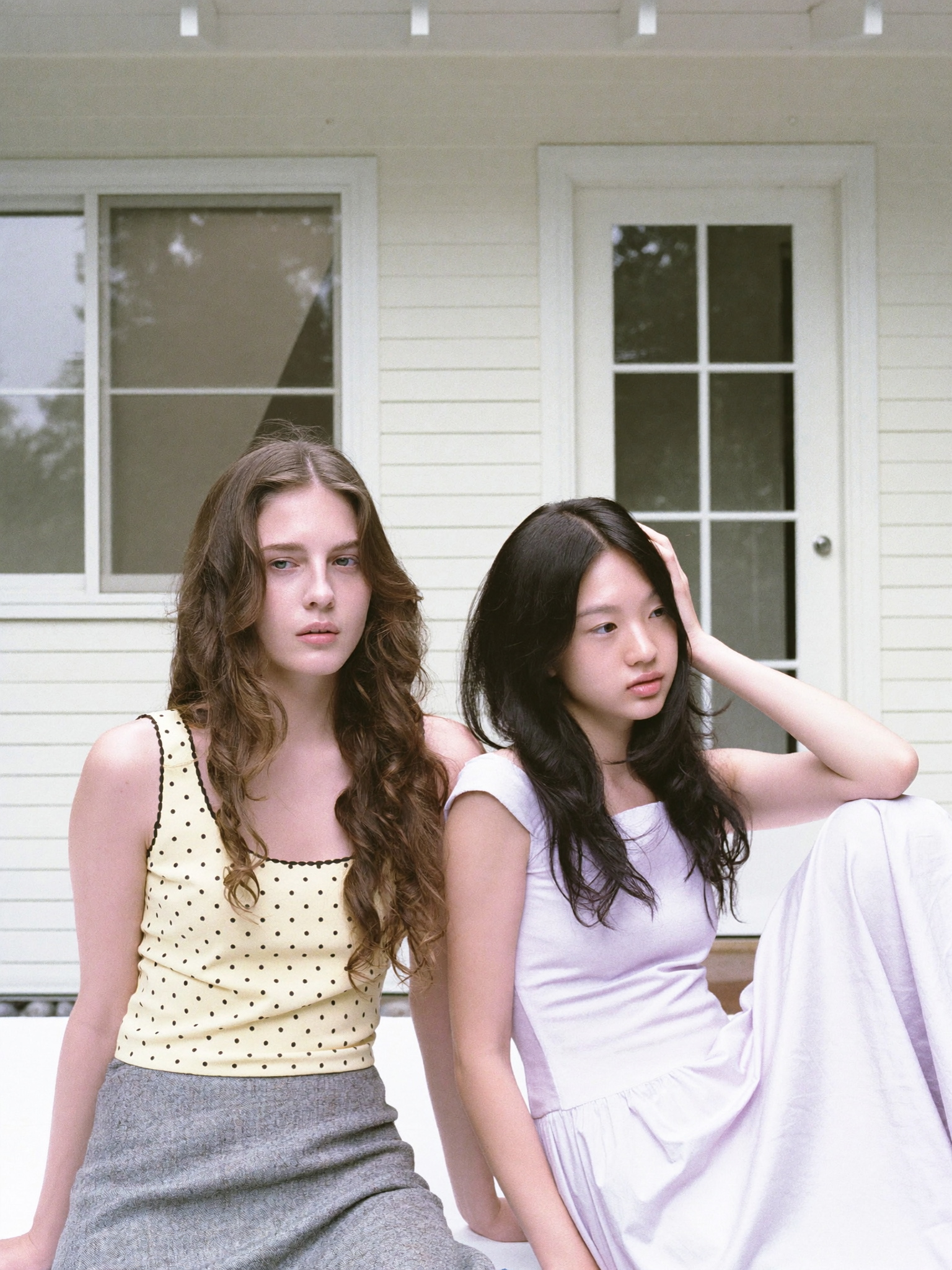
Upload a portrait and request a bright studio background to replace the current setting.
Expected output
A portrait where the person appears in a bright studio background.
Use ai human photo editor to upload a portrait, describe the background, lighting, or clothing changes you want, and review the edited result before using it.
Loading...
Upload a photo of a person you have permission to edit, describe the background, lighting, or clothing changes you want, then review the generated version to see if it matches your intended result before using it.
Input
Upload a portrait and request a bright studio background to replace the current setting.
Expected output
A portrait where the person appears in a bright studio background.
Input
Upload a portrait and ask for gentler, more diffused lighting on the face to reduce harsh shadows.
Expected output
A version of the photo with gentler lighting on the face.
Input
Upload a portrait and request that the jacket appears navy while keeping the rest similar.
Expected output
A photo where the jacket appears navy while the rest stays similar.
Use a photo of a person you have permission to edit instead of generating from a text description alone.
Describe the background, lighting, or clothing adjustments, then compare the result with the original photo.
Check the edited portrait for likeness, natural appearance, and context before deciding to use it.
Start with an image you have the right to edit.
Keep the requested edits specific so the intended profile look is clear.
Review the output for likeness, accuracy, and the final profile crop before using it.
A clear portrait photo and focused edit instructions make it easier to judge the result.
Copy a structure, then adjust the subject, lighting, camera, and output details for your own result.
Upload a portrait photo and request a solid light gray background, remove any distracting objects, keep the subject's face sharp and well-lit, maintain natural skin tones, and ensure the lighting direction stays consistent for a professional headshot.
A clean background and consistent lighting create a polished, professional look that works for LinkedIn, resumes, and business profiles.
Upload an outdoor portrait and ask to soften harsh sunlight on the face, reduce deep shadows under the eyes and nose, add a gentle fill light effect, keep the background unchanged, and preserve natural skin texture for a more flattering result.
Softening harsh lighting makes the portrait more flattering and natural while maintaining the outdoor setting and authenticity.
Upload a portrait and request that the shirt or jacket be changed to navy blue, keep the fit and style unchanged, maintain realistic fabric texture, adjust shadows and highlights on the clothing, and leave the face and background untouched.
Changing clothing color helps create visual consistency across a photo set or match a specific branding palette without reshooting.
Upload a portrait and ask for a dark charcoal background, add dramatic side lighting with strong shadows on one side of the face, keep the eyes sharp and visible, maintain natural skin tones, and create a moody, editorial studio look.
Dramatic lighting and a dark background add visual interest and help the portrait stand out in creative portfolios or social profiles.
Upload an outdoor portrait and request a softly blurred background, keep the subject's face and shoulders sharp, maintain natural outdoor lighting, preserve the original colors, and create a shallow depth-of-field effect for a professional look.
A blurred background draws attention to the subject and mimics the shallow depth-of-field effect from professional cameras.
Match the workflow to the input you have and the result you need before opening the generator.
Input: A clear portrait photo with the subject facing forward
Result: A polished portrait with a clean background and professional lighting
Tool: Image to Image with instructions for background removal and lighting adjustments
Input: A casual portrait photo where the lighting is harsh or uneven
Result: A version with softer, more flattering lighting on the face
Tool: Image to Image with instructions to soften lighting and reduce shadows
Input: A portrait where you want to apply a specific background, mood, or dramatic lighting
Result: A stylized portrait with applied artistic treatment and background change
Tool: Image to Image with detailed style, background, and lighting instructions
Power up your creative workflow with our AI-driven tools. Generate stunning videos, create images, and apply custom adjustments - our AI Video Generator and AI Image Generator offer a complete solution for all your creative needs.
Choose the credit package that works best for you.
No hidden fees • Cancel anytime • Unused credits roll over
Perfect for trying out AI creation.
Credits
2,400 credits per year
$59.99/year billed yearly
You save $60 · the equivalent of 6 months free
What's included
Perfect for light creators.
Credits
6,000 credits per year
$119.99/year billed yearly
You save $120 · the equivalent of 6 months free
What's included
Best value for creators.
Credits
14,400 credits per year
$399.99/year billed yearly.
Save $80 compared to monthly
What's included
For video creators and power users.
Credits
60,000 credits per year
$999.99/year billed yearly.
Save $200 compared to monthly
What's included
Questions? Contact us at support@domer.io
Open Image to Image, upload a portrait you can edit, and review the result before you decide to use it.





