
Retro portrait
Input
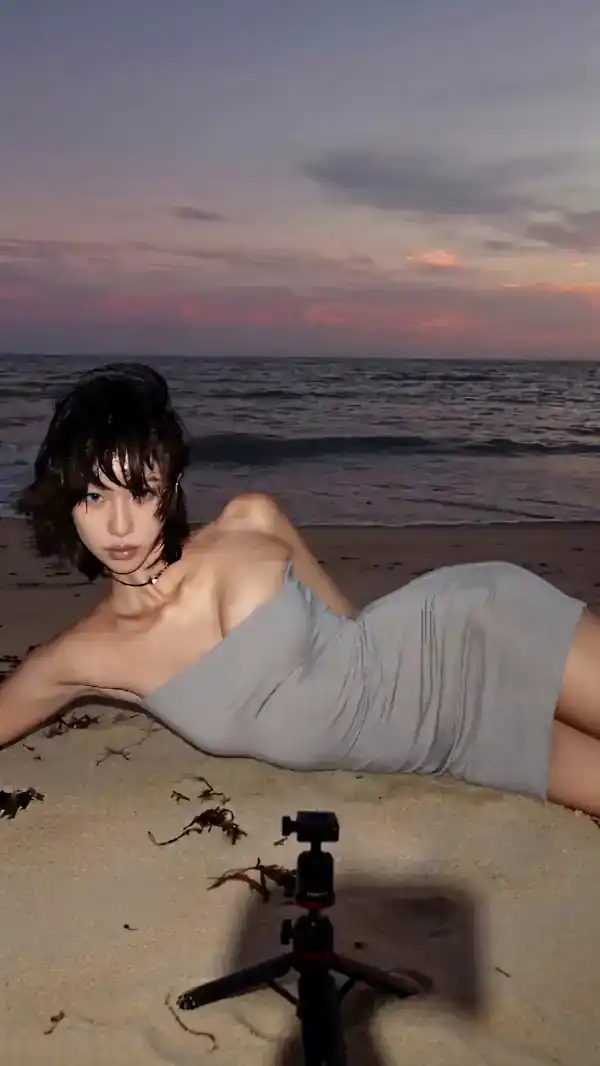
Upload a portrait photo, then ask for an 8-bit pixel-art style with bold outlines and a limited color palette.
Expected output
A pixel-art version of the portrait with blocky shapes, simplified features, and retro color tones.
Use ai image editor bit to upload a photo and describe the pixel-art style you want. Review the blocky, retro result before downloading.
Loading...
A bit-style AI image editor transforms a photo into pixel art by reducing detail to blocky shapes and limited color palettes, creating a retro or game-inspired look. You control the source, the style description, and the final choice.
Input
Upload a portrait photo, then ask for an 8-bit pixel-art style with bold outlines and a limited color palette.
Expected output
A pixel-art version of the portrait with blocky shapes, simplified features, and retro color tones.
Input
Upload a landscape photo, then request a 16-bit pixel scene with layered mountains and a gradient sky.
Expected output
A pixel-art landscape with tile-like mountain layers and a dithered sky gradient reminiscent of classic games.
Input
Upload a product or object photo, then ask for a compact pixel-art icon on a clean background.
Expected output
A small, recognizable pixel-art icon of the object with simplified shapes and high contrast.
Use an existing image instead of drawing pixel art from scratch or describing every detail.
Specify the bit depth, color count, and overall aesthetic you want, then see how the tool interprets it.
Check the pixel-art result for recognizability and style fit before downloading or sharing.
Start with an image you have the right to edit.
Keep the requested edits specific so the intended profile look is clear.
Review the output for likeness, accuracy, and the final profile crop before using it.
A clear source image and a focused style request make it easier to judge the result.
Copy a structure, then adjust the subject, lighting, camera, and output details for your own result.
Convert this portrait to 8-bit pixel art with thick black outlines, a 16-color palette, and blocky facial features.
Mimics early console aesthetics by reducing detail and using high-contrast outlines for clarity.
Turn this landscape into a 16-bit pixel scene with layered mountain sprites, a dithered sky, and muted greens and blues.
Recreates the look of side-scrolling game backgrounds with depth through sprite layers and gradient dithering.
Convert this object photo to a Game Boy-style icon using only four shades of green and a compact square format.
Captures the nostalgic monochrome look of early handheld games with strict color and size limits.
Turn this photo into pixel art with smooth shading, a bright saturated palette, and rounded edges on the shapes.
Blends retro pixel structure with modern color and shading techniques for a contemporary pixel-art look.
Convert this portrait to black-and-white pixel art using dithering for tone variation and no outlines.
Uses dithering patterns to create grayscale tones within pixel constraints, evoking early print and bitmap aesthetics.
Match the workflow to the input you have and the result you need before opening the generator.
Input: A clear portrait photo with the face centered and minimal background clutter
Result: A recognizable pixel-art avatar with simplified features and a retro color palette
Tool: Image to Image with an 8-bit or 16-bit style request
Input: A landscape or scene photo with clear layers and strong shapes
Result: A layered pixel-art scene with dithered gradients and tile-like structures
Tool: Image to Image with a layered sprite or game-background style request
Input: A product or object photo with simple shapes and good contrast
Result: A compact, recognizable icon in pixel art with high contrast and minimal detail
Tool: Image to Image with a compact icon style and limited color palette request
Power up your creative workflow with our AI-driven tools. Generate stunning videos, create images, and apply custom adjustments - our AI Video Generator and AI Image Generator offer a complete solution for all your creative needs.
Choose the credit package that works best for you.
No hidden fees • Cancel anytime • Unused credits roll over
Perfect for trying out AI creation.
Credits
2,400 credits per year
$59.99/year billed yearly
You save $60 · the equivalent of 6 months free
What's included
Perfect for light creators.
Credits
6,000 credits per year
$119.99/year billed yearly
You save $120 · the equivalent of 6 months free
What's included
Best value for creators.
Credits
14,400 credits per year
$399.99/year billed yearly.
Save $80 compared to monthly
What's included
For video creators and power users.
Credits
60,000 credits per year
$999.99/year billed yearly.
Save $200 compared to monthly
What's included
Questions? Contact us at support@domer.io
Open Image to Image, upload an image you can edit, and review the pixel-art result before you use it.





