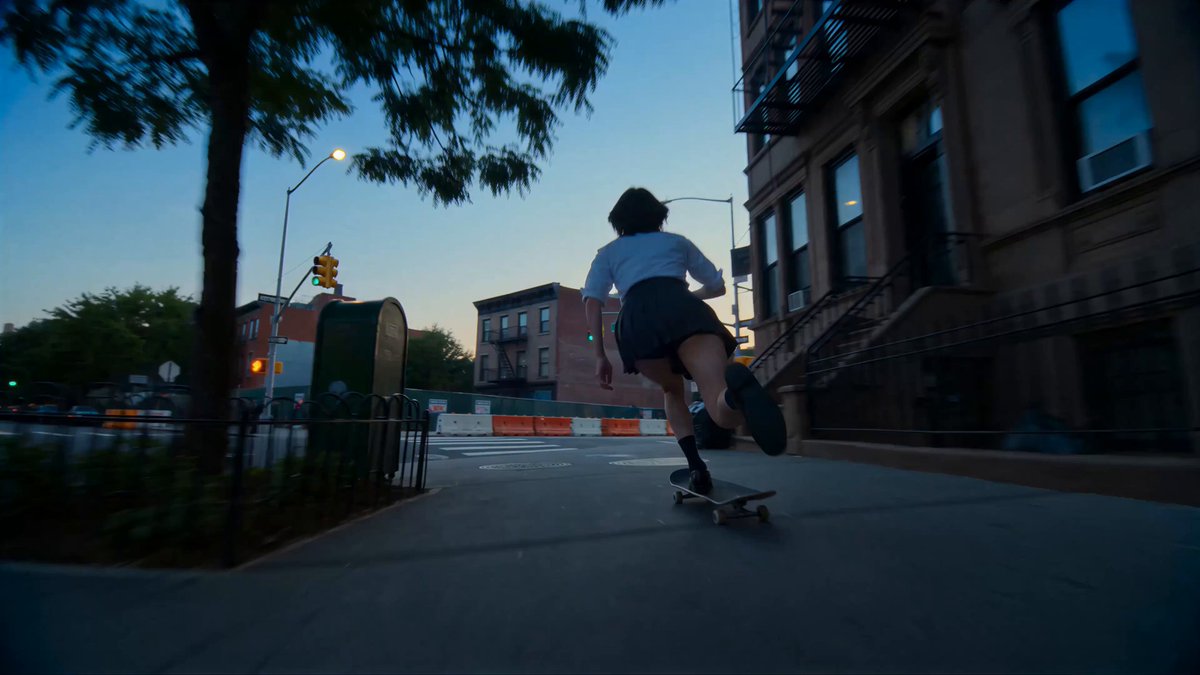
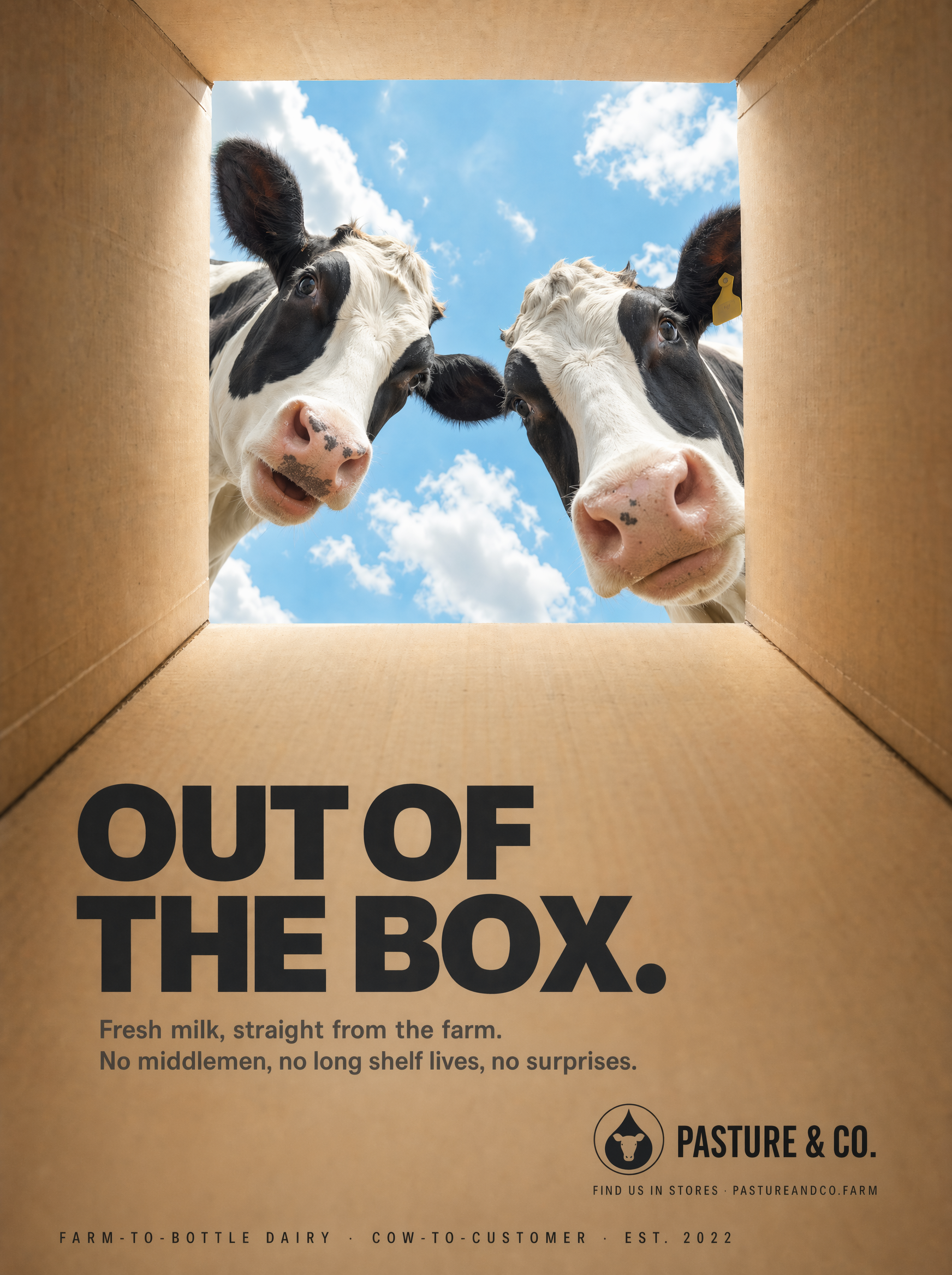
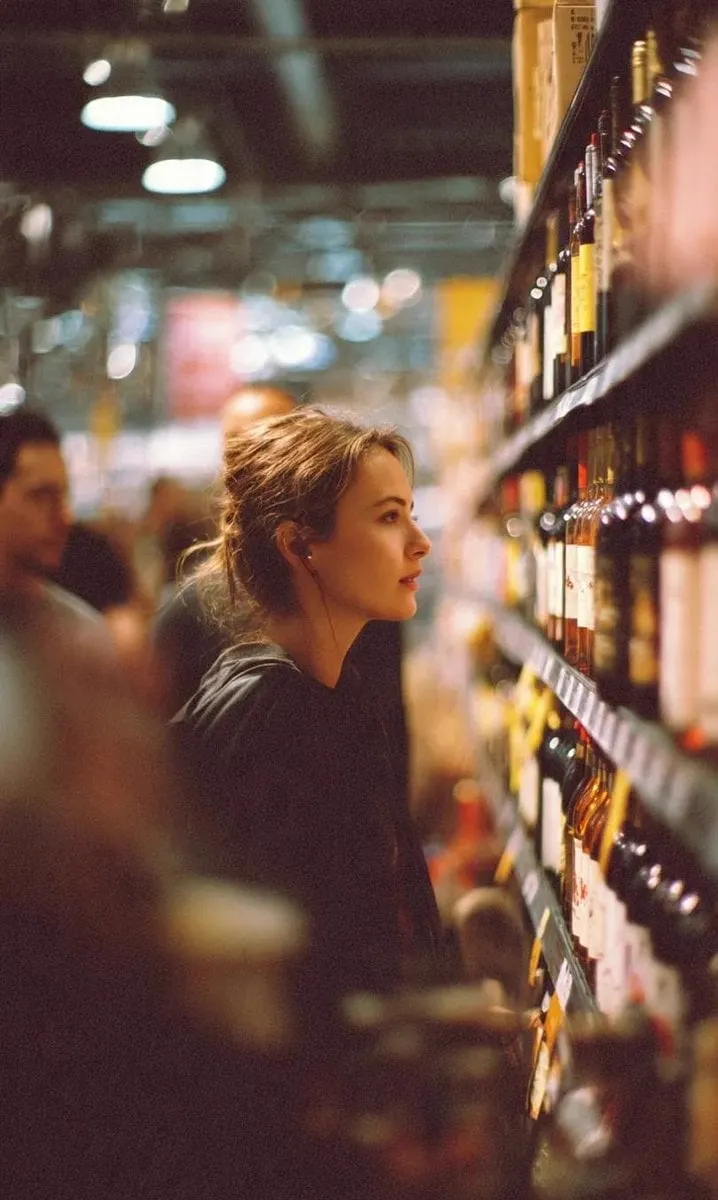
An AI image editor can merge two photos by interpreting your description of how they should fit together. You upload both images, describe the desired composition, and review the combined result before using it.
AI Image Editor Combine Two Images
Place a portrait in a scenic background
Input
Upload a portrait and a beach sunset photo, then write 'place the person into the beach scene with consistent lighting.'
Expected output
The portrait subject composited into the beach sunset with matched lighting and natural shadows.
Overlay a product with a logo
Input
Upload a product photo and a logo image, then write 'place the logo as a watermark in the bottom right corner.'
Expected output
The product photo with the logo overlaid as a semi-transparent watermark in the specified position.
Blend two landscapes into one scene
Input
Upload a mountain photo and a lake photo, then write 'place the mountains above the lake so it looks like one continuous landscape.'
Expected output
A single composite landscape with mountains positioned above the lake reflection and blended edges.
Merge two photos into one composite image by describing how they should fit together and reviewing the result.
Start with two real photos
Use existing images instead of recreating the entire scene from scratch or shooting in the desired location.
Describe the composition
State how the images should fit together—foreground and background, side by side, or overlaid—then see the result.
Review before you use it
Check the composite for lighting consistency, realistic blending, and overall composition before downloading.
How It Works
1
Upload the image you want to refine
Start with an image you have the right to edit.
2
Describe the profile-picture changes you want
Keep the requested edits specific so the intended profile look is clear.
3
Generate, compare, and download
Review the output for likeness, accuracy, and the final profile crop before using it.
Combining images so the result looks cohesive
A clear source image and a focused edit request make it easier to judge the result.
Input Constraints
Only upload images you have permission to edit and use.
Keep the requested changes focused on the outcome you need.
Review the final image for accuracy and context before sharing it.
Practical Tips
Use source images with similar lighting conditions for more realistic blending.
Describe the spatial relationship clearly—foreground/background, side by side, or overlaid.
Compare the result with both originals to check for lighting consistency and natural blending.
Privacy
Do not upload personal or sensitive material unless you have permission to use it.
Usage Rights
Confirm that you have the rights needed for the inputs and intended use of the result.
Prompt recipes
Copy a structure, then adjust the subject, lighting, camera, and output details for your own result.
Composite a portrait into a scenic background
Place the person from the first photo into the mountain landscape from the second photo, matching the lighting and adding natural shadows.
Targets a common compositing task by specifying spatial placement and the need for lighting consistency.
Add a logo watermark to a product photo
Place the logo from the second image in the bottom right corner of the product photo as a semi-transparent watermark.
Overlays branding onto an existing photo without obscuring the main subject.
Blend two landscapes into one panoramic scene
Place the forest from the first photo on the left side and the lake from the second photo on the right, blending the edges smoothly.
Creates a wider scene by joining two images side by side with natural transitions.
Combine a subject and a texture overlay
Layer the texture from the second photo over the portrait from the first photo as a subtle overlay blend.
Adds visual interest by blending textures or patterns onto an existing subject.
Merge sky and ground from different photos
Replace the sky in the first landscape photo with the dramatic sky from the second photo, blending the horizon naturally.
Improves the overall impact by swapping in a more compelling sky while keeping the ground composition intact.
Best use cases
Match the workflow to the input you have and the result you need before opening the generator.
Use case
Best input
Expected result
Tool
Compositing a portrait into a different background
A clear portrait with the subject separated from the background and a scenic photo with similar lighting
A composite where the portrait subject appears naturally placed in the new background with matched lighting
Image to Image with a foreground-background compositing request
Adding branding or watermarks to existing photos
A product or content photo and a logo or watermark image with transparency
The product photo with the logo overlaid as a semi-transparent watermark in the desired position
Image to Image with a logo overlay request
Creating a wider or panoramic scene from multiple photos
Two landscape photos with similar lighting and overlapping or adjacent framing
A single wide or panoramic image with the two photos blended side by side
Image to Image with a side-by-side blending request
Compositing a portrait into a different background
Input: A clear portrait with the subject separated from the background and a scenic photo with similar lighting
Result: A composite where the portrait subject appears naturally placed in the new background with matched lighting
Tool: Image to Image with a foreground-background compositing request
Adding branding or watermarks to existing photos
Input: A product or content photo and a logo or watermark image with transparency
Result: The product photo with the logo overlaid as a semi-transparent watermark in the desired position
Tool: Image to Image with a logo overlay request
Creating a wider or panoramic scene from multiple photos
Input: Two landscape photos with similar lighting and overlapping or adjacent framing
Result: A single wide or panoramic image with the two photos blended side by side
Tool: Image to Image with a side-by-side blending request
Limitations to know before generating
Compositing depends on the lighting, perspective, and resolution of both source images; mismatches can produce unrealistic results.
The tool interprets your description but may not achieve perfect blending, shadows, or perspective on the first attempt.
Complex multi-object scenes or precise alignment may require manual retouching after generation.
Faces, recognizable subjects, and fine details can shift during compositing; always review for accuracy.
You are responsible for confirming that you have the rights to edit and use both source images and the result.
Creative Suite: AI Video Generator & AI Image Generator Tools
Power up your creative workflow with our AI-driven tools. Generate stunning videos, create images, and apply custom adjustments - our AI Video Generator and AI Image Generator offer a complete solution for all your creative needs.