Limited Time Offer: Get 50% OFF Starter & Basic Yearly Plans 🎉
AI Photo Editor Cinematic: Film-Like Grading for Your Photos
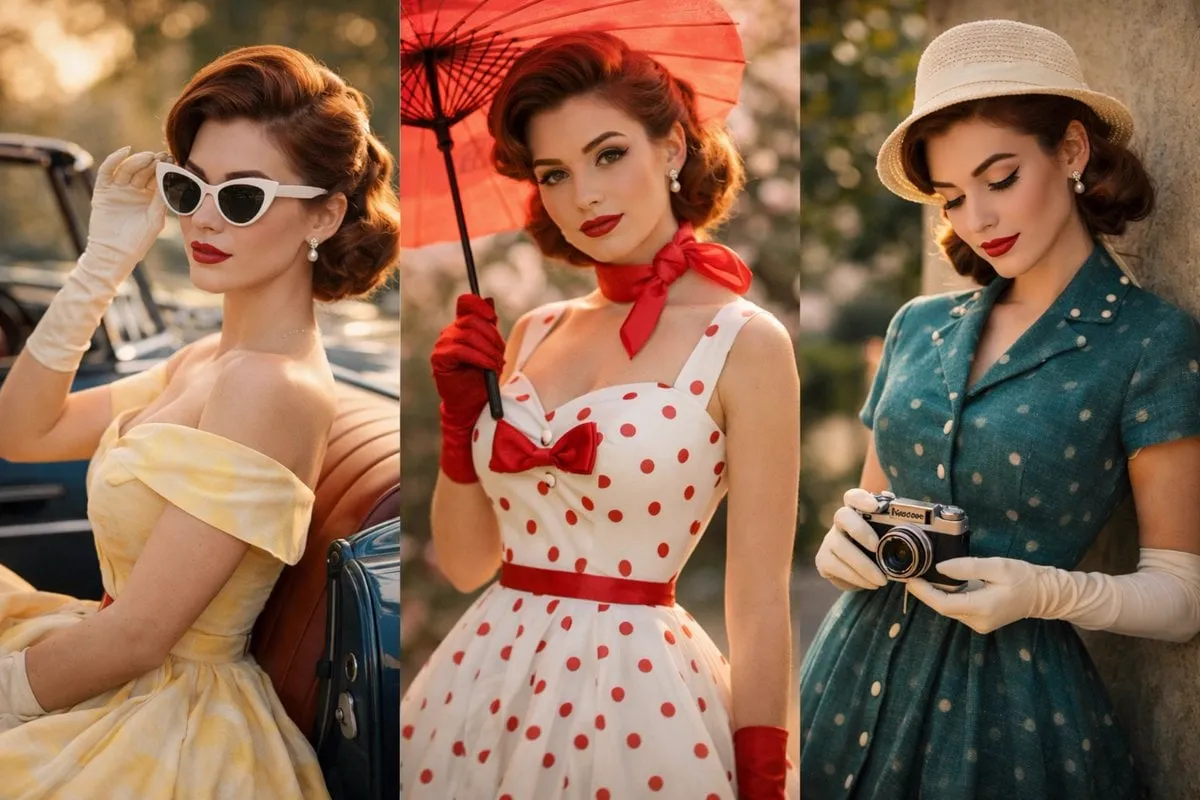
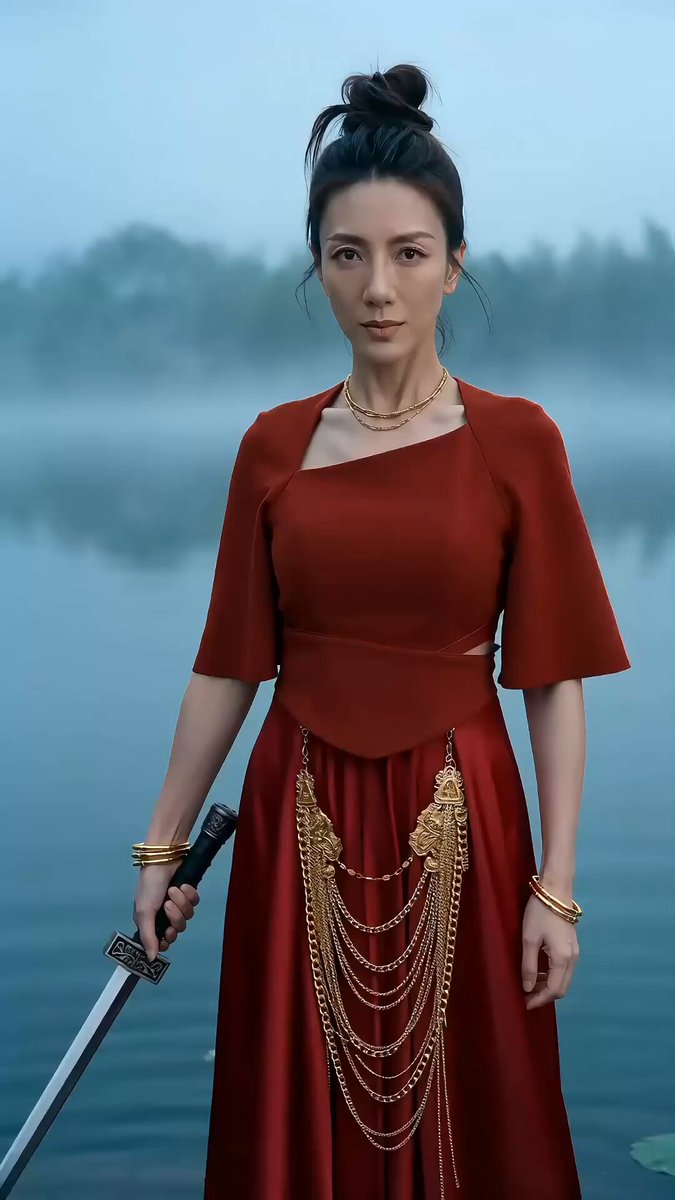
Use ai photo editor cinematic to upload your image, describe the cinematic look you want, and review the result before downloading the film-styled version.
How do I apply cinematic grading to a photo with AI?
Upload a source image you have permission to edit, describe the film-like color grading or lighting mood you want, then generate and review the result before saving it.
AI Photo Editor Cinematic: Film-Like Grading for Your Photos
Transform a night street into a moody scene
Input
Upload a night street photo, then ask for deeper contrast, shifted colors, and a film-like haze for a cinematic mood.
Expected output
A night scene with richer contrast, atmospheric haze, and a film-like color palette.
Turn a portrait into a film still
Input
Upload a portrait, then ask for softer background focus, warmer skin tones, and stronger directional light like a movie scene.
Expected output
A portrait with shallow depth of field, warmer highlights, and cinematic lighting.
Give a landscape a wide-screen film frame
Input
Upload a landscape photo, then ask for richer atmospheric tones, softer highlights, and a composed film-like palette.
Expected output
A landscape with enhanced depth, softer highlights, and a cinematic color grade.
Apply film-like color grading and lighting to a photo and review the result before downloading the version you need.
Turn everyday photos into film-like images
Use a photo you already have and apply cinematic color grading instead of learning complex editing tools.
Control the cinematic mood
Describe the specific film look you want, from moody noir to warm golden-hour tones.
Review before sharing
Check the cinematic result for accuracy and style before downloading or posting it.
How It Works
1
Upload the image you want to refine
Start with an image you have the right to edit.
2
Describe the profile-picture changes you want
Keep the requested edits specific so the intended profile look is clear.
3
Generate, compare, and download
Review the output for likeness, accuracy, and the final profile crop before using it.
Getting a convincing cinematic result
A clear source image and specific film-style requests make it easier to judge the final cinematic look.
Input Constraints
Only upload images you have permission to edit and use.
Keep the requested changes focused on the profile-picture outcome you need.
Review the final image for likeness and context before sharing it.
Practical Tips
Describe the cinematic mood you want, such as moody noir, warm golden hour, or desaturated dystopian.
Reference film genres or specific looks like thriller night scene or romantic comedy warmth for clearer results.
Compare the cinematic result with the original to check for over-processing or unnatural color shifts.
Privacy
Do not upload personal or sensitive material unless you have permission to use it.
Usage Rights
Confirm that you have the rights needed for the inputs and intended use of the result.
Prompt recipes
Copy a structure, then adjust the subject, lighting, camera, and output details for your own result.
Create a moody noir night scene
Shift the colors to cooler tones, deepen the shadows, add contrast, and layer a subtle film grain for a noir atmosphere.
Cooler tones and deep shadows create tension and drama, while film grain adds a classic cinematic texture.
Add warm golden-hour glow
Shift the color temperature to warm golden tones, soften the highlights, and add a subtle haze for a late-afternoon film look.
Golden-hour lighting is universally flattering and creates a warm, nostalgic mood that feels cinematic and intentional.
Transform a portrait into a film still
Soften the background focus, enhance skin-tone warmth, add directional light from one side, and deepen the contrast slightly.
Shallow depth of field and directional lighting mimic professional cinematography and elevate a casual portrait.
Apply a desaturated dystopian look
Reduce saturation across the scene, shift colors to cooler or muted tones, and add a slight teal-orange color grade.
Desaturation and teal-orange grading create a stark, futuristic feel commonly seen in sci-fi and dystopian films.
Add a soft romantic haze
Layer a light haze over the image, warm the color temperature slightly, and reduce contrast for a soft, dreamy romantic look.
Haze and reduced contrast create a gentle, ethereal atmosphere that works well for romantic or nostalgic scenes.
Create a high-contrast thriller look
Deepen the blacks, brighten the highlights, add a slight blue cast to shadows, and sharpen the midtones for a tense thriller feel.
High contrast and selective color shifts create visual tension and focus attention, ideal for suspenseful or intense scenes.
Best use cases
Match the workflow to the input you have and the result you need before opening the generator.
Use case
Best input
Expected result
Tool
Turning casual portraits into cinematic character shots
A portrait with decent lighting and a visible subject.
A portrait with film-like color grading, shallow depth of field, and directional lighting.
Image to Image with cinematic portrait or film-still prompts.
Creating moody atmosphere for storytelling or social media
An outdoor or urban photo with strong light and shadow.
A color-graded scene with enhanced contrast, atmospheric haze, and a specific cinematic mood.
Image to Image with noir, thriller, or atmospheric grading prompts.
Enhancing travel photos with a golden-hour film look
A daytime travel or landscape photo with neutral lighting.
A scene with warm golden tones, softened highlights, and a late-afternoon film aesthetic.
Image to Image with golden-hour or warm film-look prompts.
Applying sci-fi or dystopian color grading for creative projects
A modern urban or industrial photo with clean lines and neutral colors.
A desaturated, teal-orange graded scene with a futuristic or dystopian feel.
Image to Image with sci-fi or dystopian color-grading prompts.
Turning casual portraits into cinematic character shots
Input: A portrait with decent lighting and a visible subject.
Result: A portrait with film-like color grading, shallow depth of field, and directional lighting.
Tool: Image to Image with cinematic portrait or film-still prompts.
Creating moody atmosphere for storytelling or social media
Input: An outdoor or urban photo with strong light and shadow.
Result: A color-graded scene with enhanced contrast, atmospheric haze, and a specific cinematic mood.
Tool: Image to Image with noir, thriller, or atmospheric grading prompts.
Enhancing travel photos with a golden-hour film look
Input: A daytime travel or landscape photo with neutral lighting.
Result: A scene with warm golden tones, softened highlights, and a late-afternoon film aesthetic.
Tool: Image to Image with golden-hour or warm film-look prompts.
Applying sci-fi or dystopian color grading for creative projects
Input: A modern urban or industrial photo with clean lines and neutral colors.
Result: A desaturated, teal-orange graded scene with a futuristic or dystopian feel.
Tool: Image to Image with sci-fi or dystopian color-grading prompts.
Limitations to know before generating
Cinematic grading works best on well-lit photos; very dark or overexposed images may not respond well to color shifts.
Complex grading requests may introduce color banding or artifacts, especially in gradients like skies or shadows.
Film-like looks rely on the model's interpretation of cinematic styles, which may differ from specific film references.
The tool does not guarantee perfect accuracy or commercial suitability; always review the result before publishing.
Heavily graded images may look artificial if the original lighting or composition does not support the requested cinematic mood.
Creative Suite: AI Video Generator & AI Image Generator Tools
Power up your creative workflow with our AI-driven tools. Generate stunning videos, create images, and apply custom adjustments - our AI Video Generator and AI Image Generator offer a complete solution for all your creative needs.