
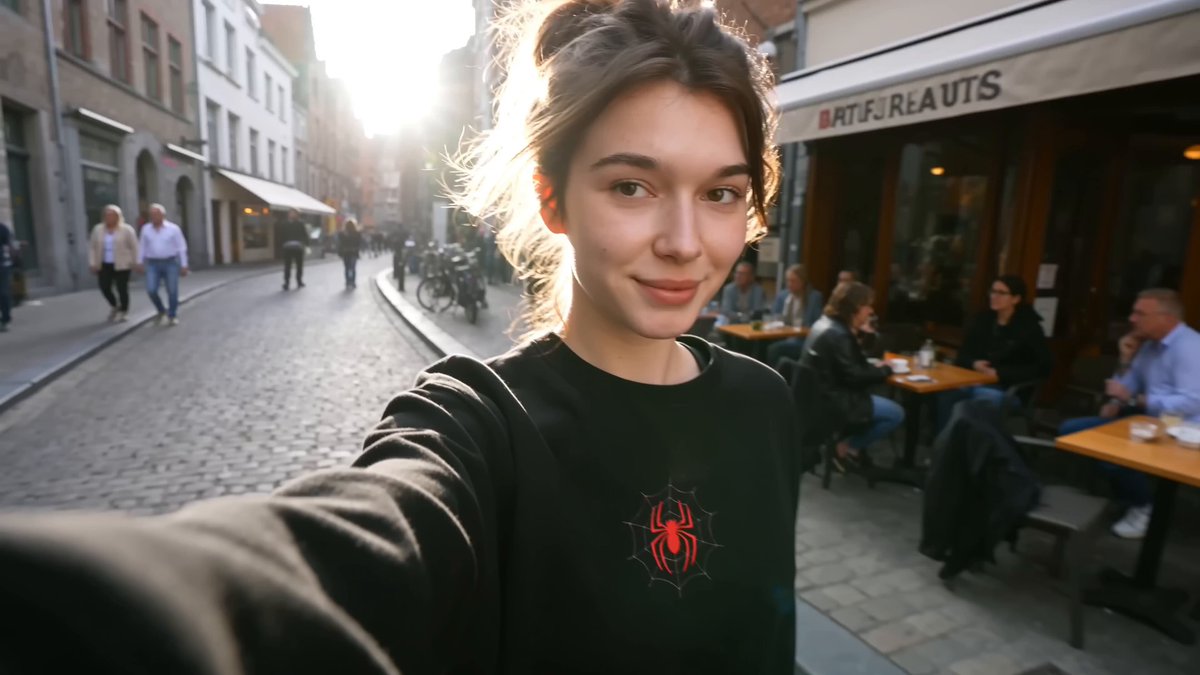
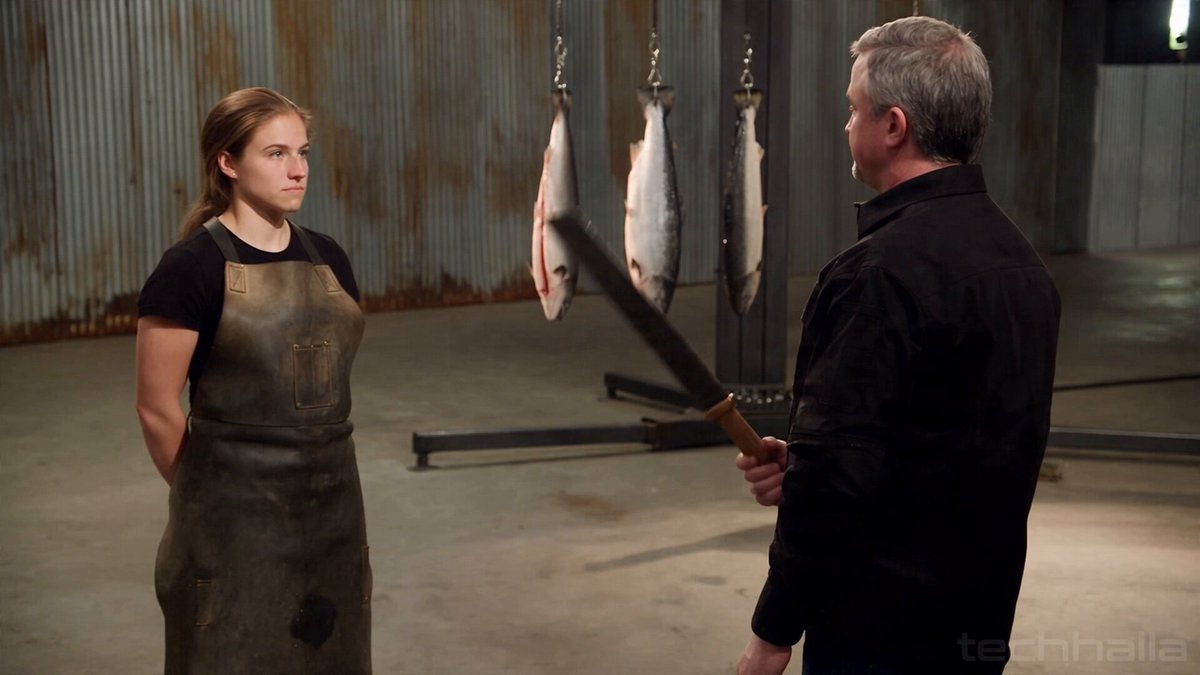
Watercolor portrait
Input
Upload a portrait and describe: 'Apply soft watercolor brush effects while keeping the face recognizable.'
Expected output
The portrait rendered with watercolor textures, blended colors, and painterly details.
Use ai photo editor description to learn what an AI photo editor does: upload a photo, describe the edit you want, and review the transformed result before.
Loading...
An AI photo editor is a tool that transforms photos based on text descriptions. You upload an image, describe the changes you want—such as background replacement, style effects, lighting adjustments, or object removal—and the tool generates an edited version. You review the result before deciding to download or share it.
Input
Upload a portrait and describe: 'Apply soft watercolor brush effects while keeping the face recognizable.'
Expected output
The portrait rendered with watercolor textures, blended colors, and painterly details.
Input
Upload a product photo and describe: 'Place the product in a clean, brightly lit studio setting with a white background.'
Expected output
The product shown on a professional white studio background with even lighting and soft shadows.
Input
Upload a landscape and describe: 'Add a heavier, more dramatic cloud formation with darker tones.'
Expected output
The landscape with a more intense sky featuring storm clouds and deeper color contrast.
Start with an image you already have instead of creating the edit manually or from scratch.
Type what you want changed—background, lighting, style, or objects—and the tool applies it.
Compare the edited version with the original before deciding whether it works for your purpose.
Start with an image you have the right to edit.
Keep the requested edits specific so the intended profile look is clear.
Review the output for likeness, accuracy, and the final profile crop before using it.
A clear photo and a specific description of what you want changed make it easier to produce a useful edited result.
Copy a structure, then adjust the subject, lighting, camera, and output details for your own result.
Remove the current background and replace it with a solid light gray, keeping the subject sharp and in focus.
Specifies the edit type, new background color, and subject preservation to guide a clean product-style transformation.
Brighten the face evenly and reduce shadows under the eyes without changing the background or clothing.
Names the subject area, describes the lighting change, and excludes other elements to focus the edit.
Apply a warm vintage film look with soft grain and faded colors across the entire image.
Describes the style, color treatment, and texture to guide a consistent artistic transformation.
Remove the trash bin from the lower-right corner and fill the area with the surrounding sidewalk texture.
Identifies the unwanted object, location, and fill instruction so the tool can target the removal accurately.
Add overcast sky, wet pavement reflections, and diffused light to create a rainy day atmosphere.
Describes multiple coordinated weather effects that work together to produce a believable mood shift.
Match the workflow to the input you have and the result you need before opening the generator.
Input: High-resolution product photo with any background
Result: Product on a clean white or studio background with professional lighting
Tool: Image to Image with background replacement prompt
Input: Portrait with clear face but uneven lighting
Result: Face with balanced lighting, reduced shadows, and natural skin tones
Tool: Image to Image with lighting adjustment prompt
Input: Any clear photo where the composition works
Result: Image with artistic style like watercolor, vintage, or noir applied
Tool: Image to Image with style effect prompt
Input: Photo with unwanted small objects or distractions
Result: Same photo with the object removed and background filled naturally
Tool: Image to Image with object removal prompt
Input: Landscape or scene photo
Result: Scene with weather, lighting, or color mood changed for storytelling
Tool: Image to Image with mood or weather prompt
Power up your creative workflow with our AI-driven tools. Generate stunning videos, create images, and apply custom adjustments - our AI Video Generator and AI Image Generator offer a complete solution for all your creative needs.
Choose the credit package that works best for you.
No hidden fees • Cancel anytime • Unused credits roll over
Perfect for trying out AI creation.
Credits
2,400 credits per year
$59.99/year billed yearly
You save $60 · the equivalent of 6 months free
What's included
Perfect for light creators.
Credits
6,000 credits per year
$119.99/year billed yearly
You save $120 · the equivalent of 6 months free
What's included
Best value for creators.
Credits
14,400 credits per year
$399.99/year billed yearly.
Save $80 compared to monthly
What's included
For video creators and power users.
Credits
60,000 credits per year
$999.99/year billed yearly.
Save $200 compared to monthly
What's included
Questions? Contact us at support@domer.io
Open Image to Image, upload your photo, describe the edit you want, and review the result before you use it.





