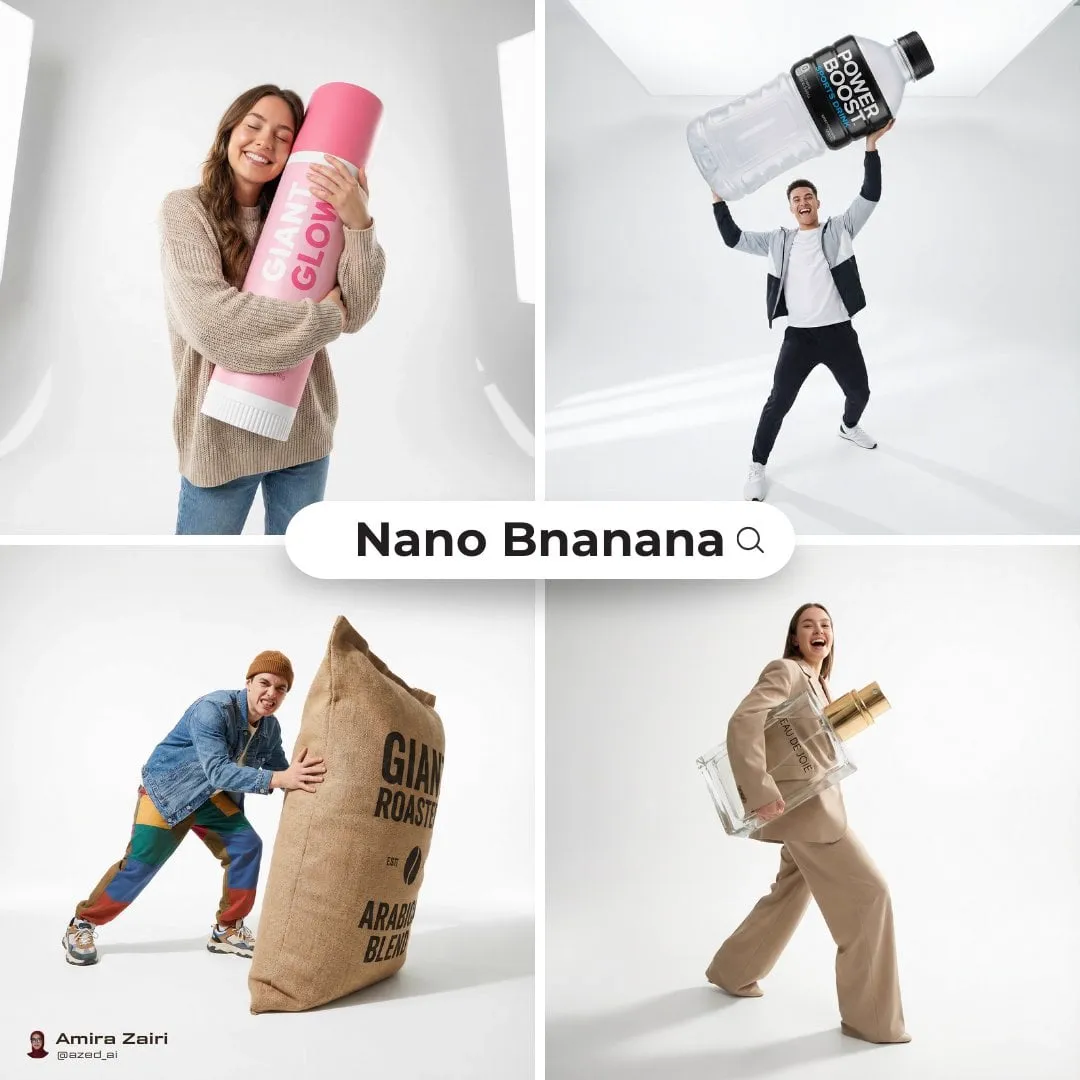
Limited Time Offer: Get 50% OFF Starter & Basic Yearly Plans 🎉
ai photo editor dress change for outfit previews
Use ai photo editor dress change to upload a photo and describe the outfit you want to preview. Review how different garments look before making a wardrobe or.
An AI photo editor for dress change lets you upload a photo and describe a different outfit. The tool generates a version of the photo with the new garment while keeping the pose, background, and lighting similar. You review the result to explore styling options.
ai photo editor dress change for outfit previews
New outfit preview
Input
Upload a portrait or full-body photo, then describe the new outfit: a light blue denim jacket over a white t-shirt and dark jeans.
Expected output
The same person wearing the described outfit, with the original pose and background kept. The fit and drape may vary based on the source photo.
Garment on a model
Input
Upload a model photo in a studio setting, then describe the garment: a light linen shirt with rolled sleeves.
Expected output
The model wearing the light linen shirt while the studio setting and pose stay the same. The garment fit reflects the source pose.
Style direction test
Input
Upload a casual portrait, then describe the styling change: a black blazer over a gray turtleneck, with the same lighting and background.
Expected output
A version of the portrait where the clothing matches the casual-formal look described. The face and setting remain consistent.
Preview different outfits on a source photo to explore styling options before a real photo shoot or wardrobe choice.
Start with your own photo
Use an existing photo as the foundation instead of describing the person from scratch. The pose, face, and background stay intact.
Explore styling options
Describe different outfits and compare the results before committing to a real wardrobe change or photo shoot.
Review before using
Check whether the garment fit, color, and style match your intended direction before making a decision.
How It Works
1
Upload the photo you want to restyle
Start with an image you have the right to edit.
2
Describe the outfit you want to preview
Keep the requested edits specific so the intended profile look is clear.
3
Generate, compare, and review
Review the output for likeness, accuracy, and the final profile crop before using it.
Getting a clear outfit preview
A photo with visible clothing boundaries and simple lighting makes it easier to judge the outfit change.
Input Constraints
Only upload images you have permission to edit and use.
Keep the outfit description focused on garment type, color, and style.
Review the final image for fit, drape, and suitability before making a wardrobe decision.
Practical Tips
Use a source photo with clear clothing boundaries and good lighting.
Describe the garment type, color, and any specific details like sleeves or neckline.
Compare the result with the original photo to confirm the styling direction works.
Privacy
Do not upload personal or sensitive material unless you have permission to use it.
Usage Rights
Confirm that you have the rights needed for the inputs and intended use of the result.
Prompt recipes
Copy a structure, then adjust the subject, lighting, camera, and output details for your own result.
Casual outfit swap
Change the outfit to a light gray hoodie and dark blue jeans, keeping the same pose, lighting, and background.
Focuses on the garment change while preserving the rest of the photo, making it easy to judge the casual styling direction.
Formal styling preview
Swap the clothing to a black blazer over a white collared shirt, with the same studio background and lighting.
Provides a clear formal styling option while keeping the setting consistent, useful for headshot or profile photo planning.
Seasonal wardrobe test
Change the outfit to a beige trench coat over a cream sweater, with the same outdoor background and natural lighting.
Explores a seasonal look while maintaining the original setting, helping visualize fall or spring wardrobe choices.
Product garment visualization
Place the model in a light linen shirt with rolled sleeves, keeping the studio background and pose identical.
Isolates the garment change for product visualization, making it easier to compare different items on the same model.
Color variant comparison
Change the dress color to burgundy while keeping the same style, fit, and background, so I can compare color options.
Tests a color variant without altering the garment style, useful for e-commerce or wardrobe planning.
Best use cases
Match the workflow to the input you have and the result you need before opening the generator.
Use case
Best input
Expected result
Tool
Wardrobe planning
Full-body or upper-body photo with clear clothing boundaries
Preview of different outfits on the same person and setting
Image to Image with outfit description
E-commerce product visualization
Model photo in a studio setting with simple background
Same model wearing different garments for product comparison
Image to Image with garment-specific prompt
Styling direction exploration
Portrait or headshot with visible upper body
Preview of formal, casual, or seasonal styling options
Image to Image with styling description
Photo shoot planning
Existing photo from a previous shoot
Preview of alternative outfits before scheduling a new shoot
Image to Image with outfit swap prompt
Wardrobe planning
Input: Full-body or upper-body photo with clear clothing boundaries
Result: Preview of different outfits on the same person and setting
Tool: Image to Image with outfit description
E-commerce product visualization
Input: Model photo in a studio setting with simple background
Result: Same model wearing different garments for product comparison
Tool: Image to Image with garment-specific prompt
Styling direction exploration
Input: Portrait or headshot with visible upper body
Result: Preview of formal, casual, or seasonal styling options
Tool: Image to Image with styling description
Photo shoot planning
Input: Existing photo from a previous shoot
Result: Preview of alternative outfits before scheduling a new shoot
Tool: Image to Image with outfit swap prompt
Limitations to know before generating
The outfit preview is an AI-generated interpretation. Garment fit, drape, and texture may not match the real-world result.
Complex garments with intricate details, patterns, or layering may not render accurately. Always review the result before making a wardrobe decision.
The tool does not guarantee accurate sizing, fit, or fabric behavior. The preview is a styling direction, not a measurement or fit guarantee.
If the source photo has poor lighting or unclear clothing boundaries, the outfit change may look inconsistent or unrealistic.
Creative Suite: AI Video Generator & AI Image Generator Tools
Power up your creative workflow with our AI-driven tools. Generate stunning videos, create images, and apply custom adjustments - our AI Video Generator and AI Image Generator offer a complete solution for all your creative needs.