
Soften a harsh midday shadow
Input
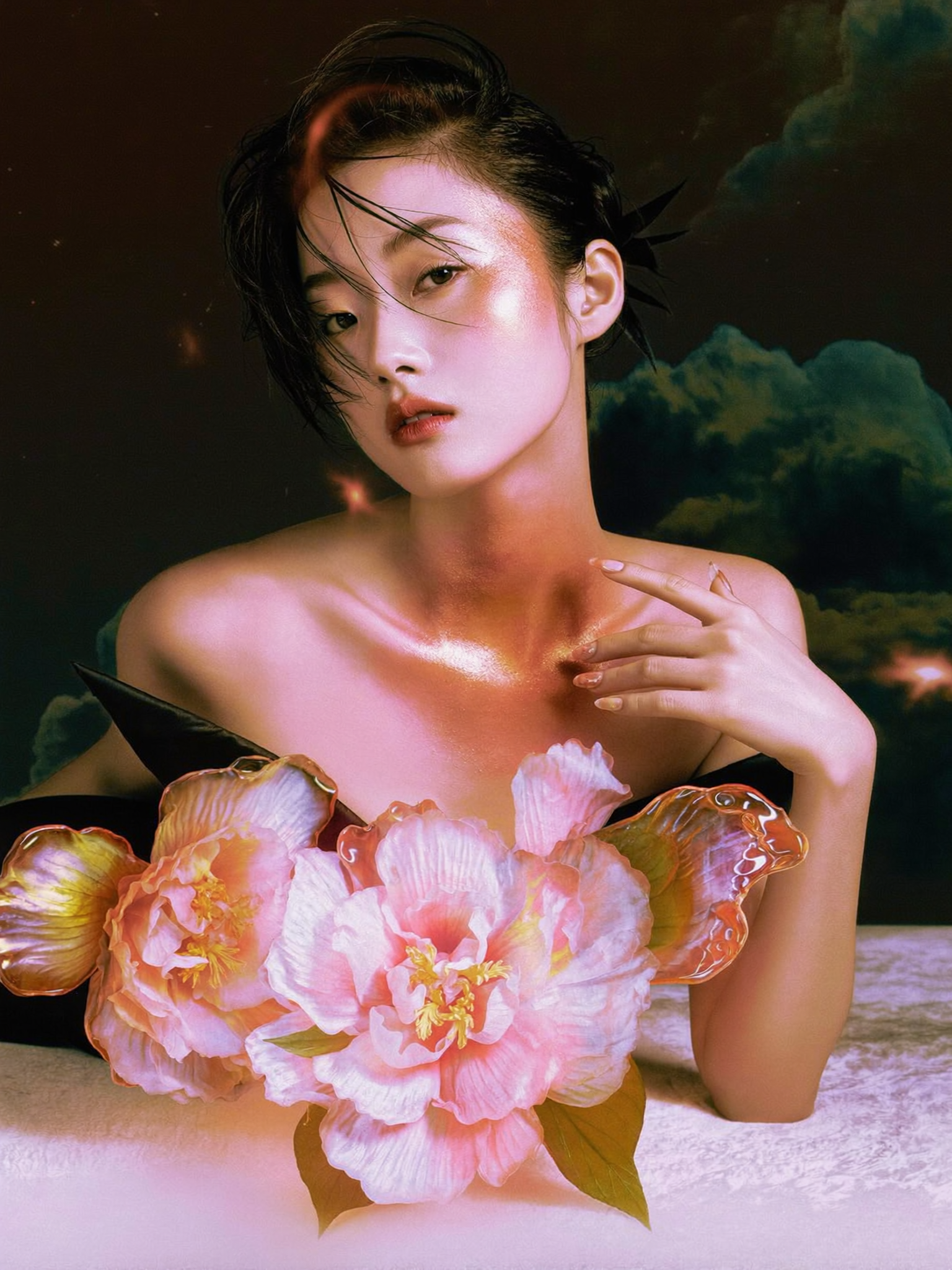
A portrait photo with the instruction: soften the hard shadow on the face and make the lighting more even
Expected output
A portrait with gentler, more even face lighting and no hard-edged shadow band.
Use ai photo editor shadow to upload a photo, describe how you want the shadows adjusted, and review the result before saving or sharing it.
Loading...
An AI photo editor for shadows lets you upload a photo, describe how you want the shadows changed—such as softening harsh shadows or adding depth—and generate a new version. You review the result to decide if it works.
Input
A portrait photo with the instruction: soften the hard shadow on the face and make the lighting more even
Expected output
A portrait with gentler, more even face lighting and no hard-edged shadow band.
Input
A product photo with the instruction: add a subtle ground shadow to anchor the item in the scene
Expected output
A product image with a subtle ground shadow that makes the item feel anchored in the scene.
Input
An interior photo with the instruction: remove the distracting tree shadow on the wall
Expected output
A cleaner room image with a uniformly lit wall and no distracting tree shadow.
Soften or remove shadows that make a photo look unbalanced or less appealing.
Request subtle shadows to give flat images more dimension and realism.
Check the adjusted result against the original before deciding whether to use it.
Start with an image you have the right to edit.
Keep the requested edits specific so the intended profile look is clear.
Review the output for likeness, accuracy, and the final profile crop before using it.
Clear descriptions of the shadow issue and the desired result help you get a usable edit.
Copy a structure, then adjust the subject, lighting, camera, and output details for your own result.
Soften the hard shadow on the right side of the face in this portrait, making the lighting more even and gentle
Targets the specific shadow issue while preserving the rest of the composition, making the change feel natural.
Add a subtle, soft ground shadow under this product to anchor it in the scene, keeping the product unchanged
Clearly defines the shadow to add and the elements to preserve, making the edit easier to evaluate.
Remove the tree shadow on the wall in this interior photo, showing a clean, evenly lit wall instead
Identifies the problem shadow and the desired result, making the request actionable.
Reduce the harsh shadows in this outdoor photo, making the lighting softer and more even across the scene
Provides a clear goal and scope, helping the tool balance shadow reduction with overall realism.
Add a soft, natural body shadow behind the person in this portrait to give the image more depth
Specifies the type of shadow and its purpose, making it easier to judge whether the result works.
Match the workflow to the input you have and the result you need before opening the generator.
Input: A portrait with visible detail but harsh or distracting face shadows
Result: A version with softer, more even lighting and no hard-edged shadows
Tool: Image to Image
Input: A product photo with a clear subject that looks flat or unanchored
Result: A version with a subtle ground shadow that adds depth and realism
Tool: Image to Image
Input: An interior photo with a clear shadow you want to remove
Result: A cleaner version with the shadow removed and the wall evenly lit
Tool: Image to Image
Input: An outdoor photo with harsh midday shadows
Result: A version with softer, more even lighting across the scene
Tool: Image to Image
Power up your creative workflow with our AI-driven tools. Generate stunning videos, create images, and apply custom adjustments - our AI Video Generator and AI Image Generator offer a complete solution for all your creative needs.
Choose the credit package that works best for you.
No hidden fees • Cancel anytime • Unused credits roll over
Perfect for trying out AI creation.
Credits
2,400 credits per year
$59.99/year billed yearly
You save $60 · the equivalent of 6 months free
What's included
Perfect for light creators.
Credits
6,000 credits per year
$119.99/year billed yearly
You save $120 · the equivalent of 6 months free
What's included
Best value for creators.
Credits
14,400 credits per year
$399.99/year billed yearly.
Save $80 compared to monthly
What's included
For video creators and power users.
Credits
60,000 credits per year
$999.99/year billed yearly.
Save $200 compared to monthly
What's included
Questions? Contact us at support@domer.io
Open Image to Image, upload a photo you can edit, describe the shadow adjustment, and review the result.





