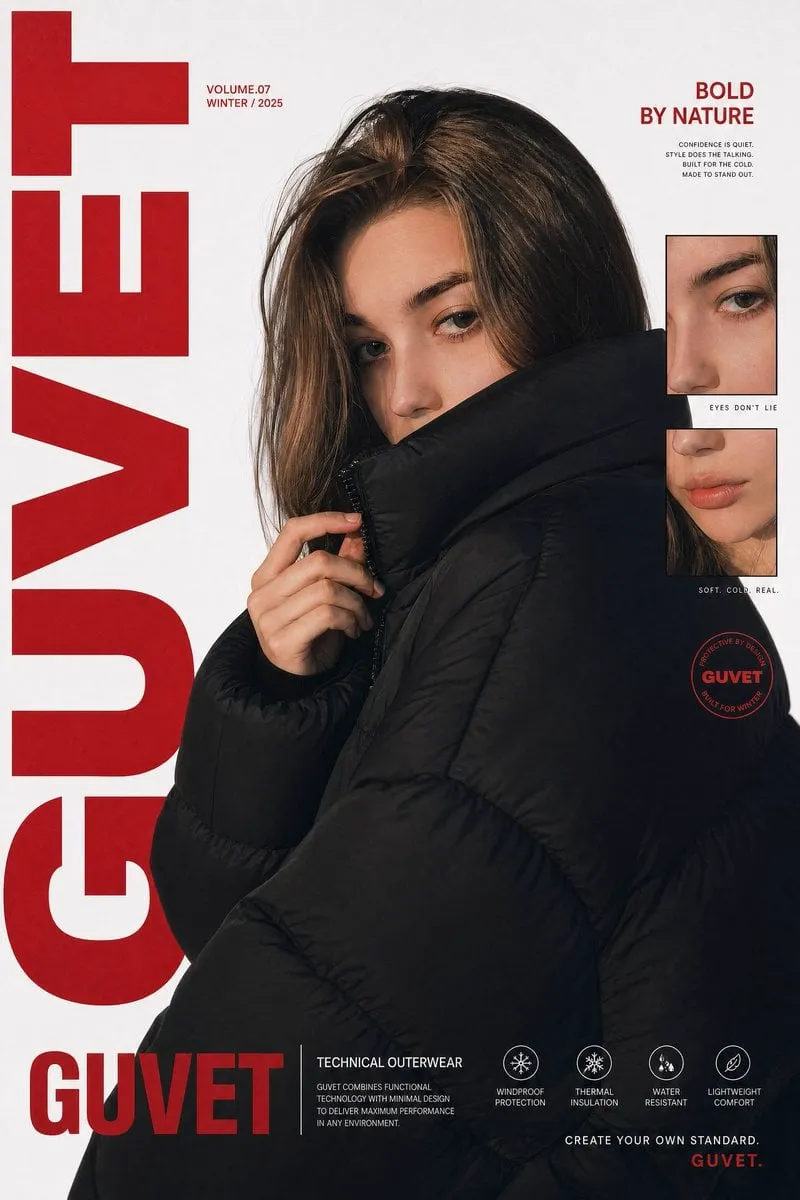
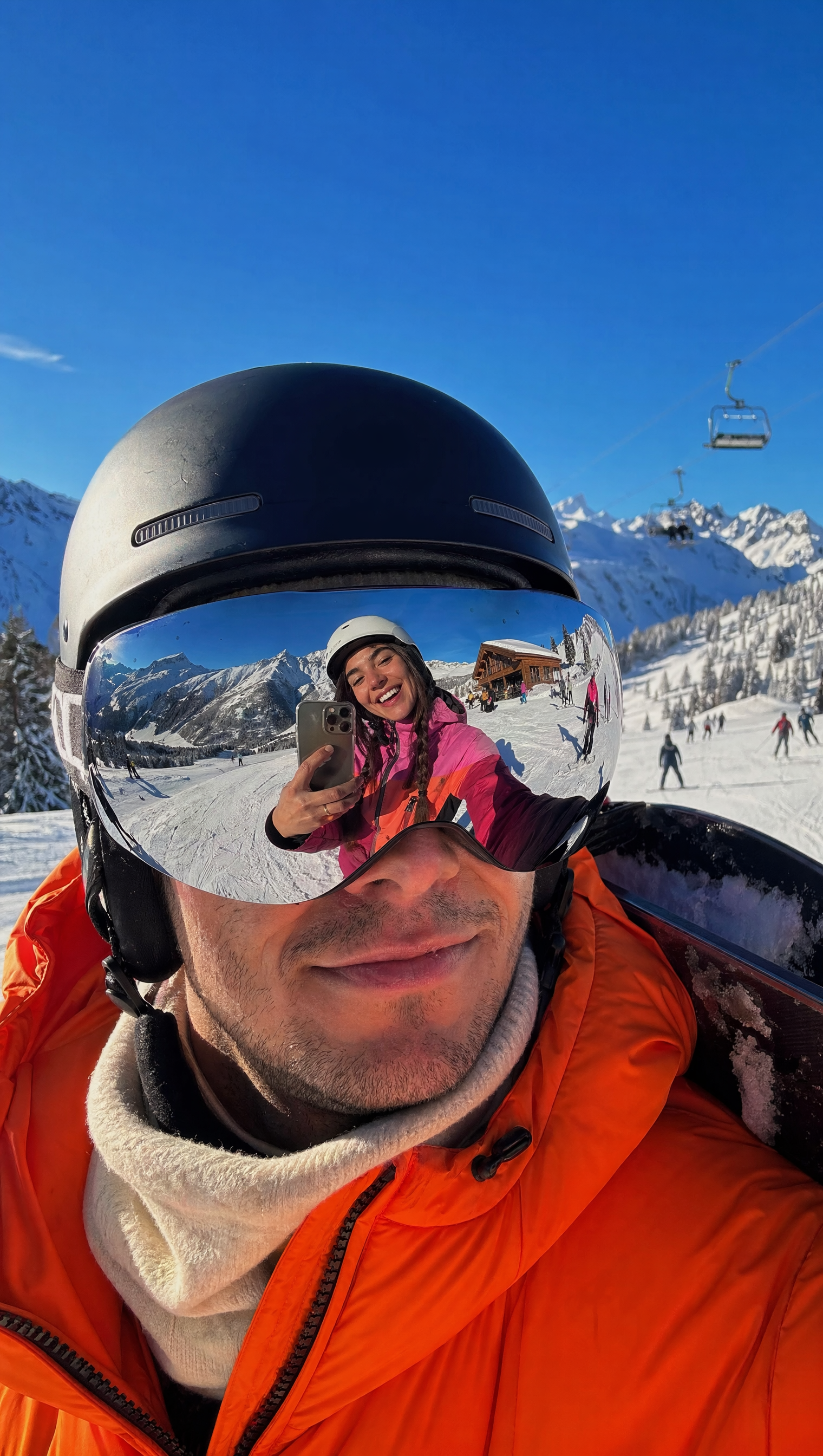
Upload a portrait you have permission to edit, describe the skin tone or color balance you want—warmer, cooler, or more even—then review the result for natural appearance before using it.
AI Photo Editor Skin Tone Adjustments
Warm portrait lighting
Input
Upload a portrait, then ask for warmer, natural-looking skin tones with softer lighting and reduced shadows.
Expected output
A portrait with warmer, natural-looking skin tones and softer lighting. Review the edited result before deciding whether it represents the person accurately.
Balanced daylight tone
Input
Upload an indoor portrait, then request more even, daylight-balanced tones with neutral color temperature.
Expected output
A version with more even, daylight-balanced tones. Review the edited result before deciding whether it represents the person accurately.
Cool artistic grade
Input
Upload a portrait, then ask for cooler, muted color grading across the image with gentler contrast.
Expected output
A portrait with cooler, muted color grading across the image. Review the edited result before deciding whether it represents the person accurately.
Adjust skin tone and color balance in a portrait by uploading the source image, describing the tone or lighting you want, and reviewing the result before you use it.
Start with your own portrait
Use a portrait you have permission to edit instead of starting from scratch with a text-only description.
Direct the tone and balance
State the skin tone, lighting, or color balance you want, then compare the result with the original image.
Choose before you use it
Review the edited portrait for natural appearance and likeness before downloading or posting it.
How It Works
1
Upload the image you want to refine
Start with an image you have the right to edit.
2
Describe the profile-picture changes you want
Keep the requested edits specific so the intended profile look is clear.
3
Generate, compare, and download
Review the output for likeness, accuracy, and the final profile crop before using it.
Making a profile-picture edit that stays clear
A clear source image and a focused edit request make it easier to judge the result.
Input Constraints
Only upload images you have permission to edit and use.
Keep the requested changes focused on the profile-picture outcome you need.
Review the final image for likeness and context before sharing it.
Practical Tips
Use a portrait with a visible face and enough detail around the subject.
Ask for one or two concrete changes, such as warmer tones or more even lighting.
Compare the result with the original image before choosing a version to use.
Privacy
Do not upload personal or sensitive material unless you have permission to use it.
Usage Rights
Confirm that you have the rights needed for the inputs and intended use of the result.
Prompt recipes
Copy a structure, then adjust the subject, lighting, camera, and output details for your own result.
Natural warm glow for headshots
Upload a headshot, then ask for warmer skin tones, softened shadows under the eyes, and a subtle golden-hour glow.
Combines specific tone direction with lighting cues so the result feels polished but natural.
Even studio lighting
Upload a portrait taken indoors, then request neutral skin tones with even lighting across the face and reduced color cast.
Targets common indoor lighting issues and gives the tool clear correction goals.
Cool editorial grade
Upload a portrait, then ask for cooler skin tones with muted colors, gentler contrast, and a matte finish.
Defines a clear editorial style with tone, contrast, and finish cues for a cohesive look.
Balanced outdoor portrait
Upload an outdoor portrait with harsh sunlight, then request more even skin tones and reduced highlights on the forehead and cheeks.
Addresses a specific lighting problem and gives the tool a concrete correction target.
Consistent group photo tones
Upload a group photo, then ask for balanced skin tones across all faces with neutral color temperature and even exposure.
Ensures all subjects receive consistent treatment, which is important for group shots.
Best use cases
Match the workflow to the input you have and the result you need before opening the generator.
Use case
Best input
Expected result
Tool
Professional headshot for LinkedIn
A portrait with visible face and decent lighting, but needing tone correction
A polished portrait with natural, even skin tones and balanced lighting
Image to Image with a neutral or warm tone prompt
Social media profile picture
A selfie or casual portrait with uneven lighting or color cast
A more balanced, flattering portrait with corrected skin tones
Image to Image with a warm glow or even-lighting prompt
Family photo color correction
A group photo with mixed lighting or color temperature issues
A version with consistent skin tones and color balance across all subjects
Image to Image with a balanced, neutral tone prompt
Editorial or artistic portrait
A portrait where you want a specific mood or color grade
A portrait with your chosen color tone and mood, ready for portfolio or publication
Image to Image with a cool, warm, or muted color-grade prompt
Professional headshot for LinkedIn
Input: A portrait with visible face and decent lighting, but needing tone correction
Result: A polished portrait with natural, even skin tones and balanced lighting
Tool: Image to Image with a neutral or warm tone prompt
Social media profile picture
Input: A selfie or casual portrait with uneven lighting or color cast
Result: A more balanced, flattering portrait with corrected skin tones
Tool: Image to Image with a warm glow or even-lighting prompt
Family photo color correction
Input: A group photo with mixed lighting or color temperature issues
Result: A version with consistent skin tones and color balance across all subjects
Tool: Image to Image with a balanced, neutral tone prompt
Editorial or artistic portrait
Input: A portrait where you want a specific mood or color grade
Result: A portrait with your chosen color tone and mood, ready for portfolio or publication
Tool: Image to Image with a cool, warm, or muted color-grade prompt
Limitations to know before generating
The result depends on the quality of your source portrait. Low-resolution or poorly lit images may not improve as much as you expect.
Skin tone adjustments are interpretations of your prompt and may not match your exact vision. Always review for natural appearance.
Extreme corrections—such as changing lighting entirely—may introduce artifacts or unnatural-looking areas.
Likeness should always be reviewed. The tool adjusts tones but does not guarantee the person looks the same in every lighting scenario.
Rights and permissions for the original portrait and the edited result are your responsibility to confirm.
Creative Suite: AI Video Generator & AI Image Generator Tools
Power up your creative workflow with our AI-driven tools. Generate stunning videos, create images, and apply custom adjustments - our AI Video Generator and AI Image Generator offer a complete solution for all your creative needs.