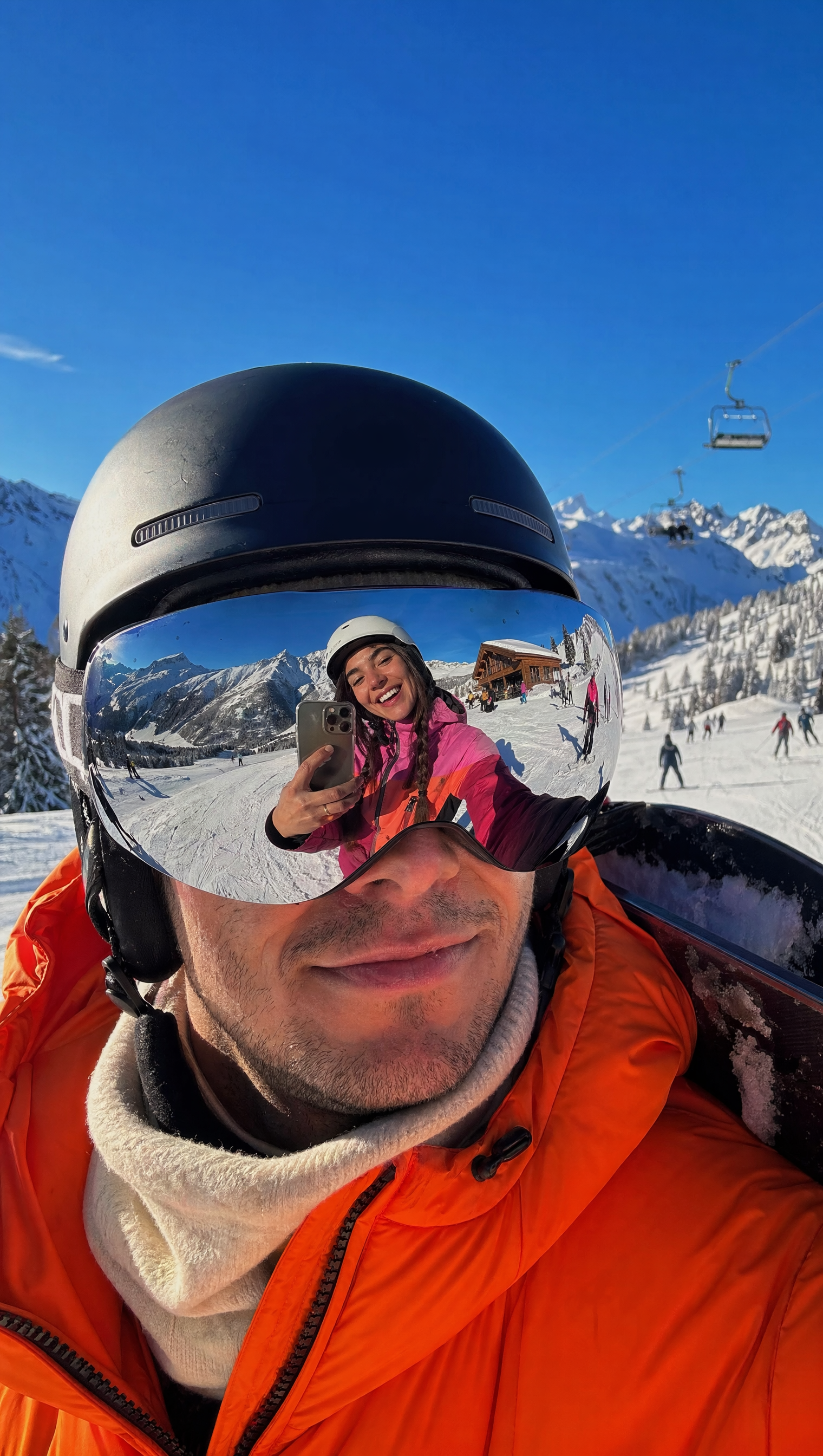
Upload a photo you have permission to edit, describe the object you want to add—such as furniture, accessories, or decorative items—and where it should be placed, then review the result for natural fit before using it.
AI Photo Editor to Add Objects
Add a reading lamp to a room
Input
Upload a living room photo, then ask for a floor lamp added beside the sofa, keeping the existing furniture and lighting the same.
Expected output
The same living room with a floor lamp beside the sofa, keeping the existing furniture and light. Review the edited result before deciding whether it represents the subject accurately.
Place a mug on a desk
Input
Upload a desk scene photo, then request a ceramic coffee mug added to the left of the keyboard.
Expected output
The desk scene with a ceramic coffee mug added to the left of the keyboard. Review the edited result before deciding whether it represents the subject accurately.
Include balloons in a party scene
Input
Upload a party scene photo, then ask for a cluster of balloons added in the corner near the ceiling.
Expected output
The party scene with a cluster of balloons in the corner near the ceiling. Review the edited result before deciding whether it represents the subject accurately.
Add objects to a photo by uploading the source image, describing what you want to add and where, and reviewing the result for natural placement before you use it.
Start with your own photo
Use a photo you have permission to edit instead of starting from scratch with a text-only description.
Direct the object and placement
State what you want to add and where, then compare the result with the original photo for natural fit.
Choose before you use it
Review the added object for size, placement, and natural appearance before downloading or posting it.
How It Works
1
Upload the image you want to refine
Start with an image you have the right to edit.
2
Describe the profile-picture changes you want
Keep the requested edits specific so the intended profile look is clear.
3
Generate, compare, and download
Review the output for likeness, accuracy, and the final profile crop before using it.
Making a profile-picture edit that stays clear
A clear source image and a focused edit request make it easier to judge the result.
Input Constraints
Only upload images you have permission to edit and use.
Keep the requested changes focused on the profile-picture outcome you need.
Review the final image for likeness and context before sharing it.
Practical Tips
Use a photo with a clear scene and enough space for the new object.
Ask for one object at a time with a specific placement for easier review.
Compare the result with the original photo and check the object's size, lighting, and shadows before using it.
Privacy
Do not upload personal or sensitive material unless you have permission to use it.
Usage Rights
Confirm that you have the rights needed for the inputs and intended use of the result.
Prompt recipes
Copy a structure, then adjust the subject, lighting, camera, and output details for your own result.
Add a plant to a room corner
Upload a room photo, then ask for a large potted plant added in the empty corner with natural lighting and shadows.
Specifies the object, placement, and lighting so the result looks intentional and natural.
Place a laptop on a table
Upload a table photo, then request a laptop added in the center with the screen showing a work dashboard.
Defines the object, placement, and screen detail so the result fits the scene context.
Add a decorative pillow to a sofa
Upload a living room photo, then ask for a decorative pillow with a geometric pattern added to the left side of the sofa.
Combines object description with placement and style details for a cohesive result.
Include a vase on a windowsill
Upload a window photo, then request a ceramic vase with fresh flowers added to the windowsill with soft natural light.
Adds atmospheric detail and lighting cues so the object feels like part of the scene.
Add a dog to a park scene
Upload a park photo, then ask for a golden retriever added in the foreground on the grass with matching lighting.
Specifies the subject, placement, and lighting so the dog looks naturally integrated into the scene.
Best use cases
Match the workflow to the input you have and the result you need before opening the generator.
Use case
Best input
Expected result
Tool
Interior design visualization
A room photo where you want to see how a new piece of furniture or decor would look
A version with the new object placed naturally in the room
Image to Image with an object-addition prompt
Product or lifestyle photography
A scene photo where you want to add a product or accessory
A styled photo with the object integrated into the scene
Image to Image with a product-placement prompt
Event or party planning
A venue photo where you want to preview decorations or props
A version with the decorations or props added for visualization
Image to Image with a decoration-addition prompt
Real estate or staging
An empty room photo where you want to show potential with furniture
A staged version with furniture added to help buyers visualize the space
Image to Image with a furniture-addition prompt
Interior design visualization
Input: A room photo where you want to see how a new piece of furniture or decor would look
Result: A version with the new object placed naturally in the room
Tool: Image to Image with an object-addition prompt
Product or lifestyle photography
Input: A scene photo where you want to add a product or accessory
Result: A styled photo with the object integrated into the scene
Tool: Image to Image with a product-placement prompt
Event or party planning
Input: A venue photo where you want to preview decorations or props
Result: A version with the decorations or props added for visualization
Tool: Image to Image with a decoration-addition prompt
Real estate or staging
Input: An empty room photo where you want to show potential with furniture
Result: A staged version with furniture added to help buyers visualize the space
Tool: Image to Image with a furniture-addition prompt
Limitations to know before generating
The result depends on the quality of your source photo and the available space for the new object. Cluttered scenes may not add objects cleanly.
Object additions are interpretations of your prompt and may not match your exact vision. Always review for size, placement, and natural fit.
Complex objects with intricate details may not replicate perfectly.
Lighting, shadows, and perspective should always be reviewed. The tool interprets your request but does not guarantee perfect integration.
Rights and permissions for the original photo and the edited result are your responsibility to confirm.
Creative Suite: AI Video Generator & AI Image Generator Tools
Power up your creative workflow with our AI-driven tools. Generate stunning videos, create images, and apply custom adjustments - our AI Video Generator and AI Image Generator offer a complete solution for all your creative needs.