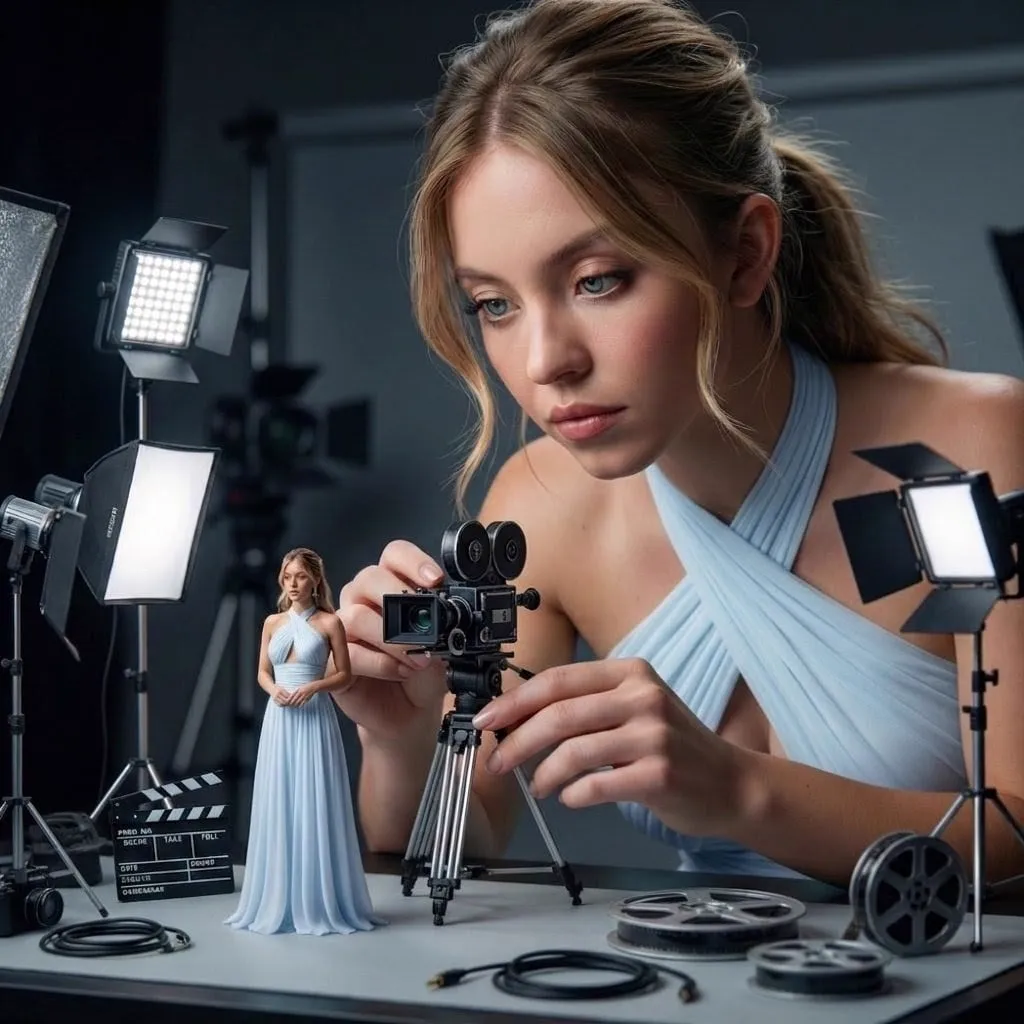
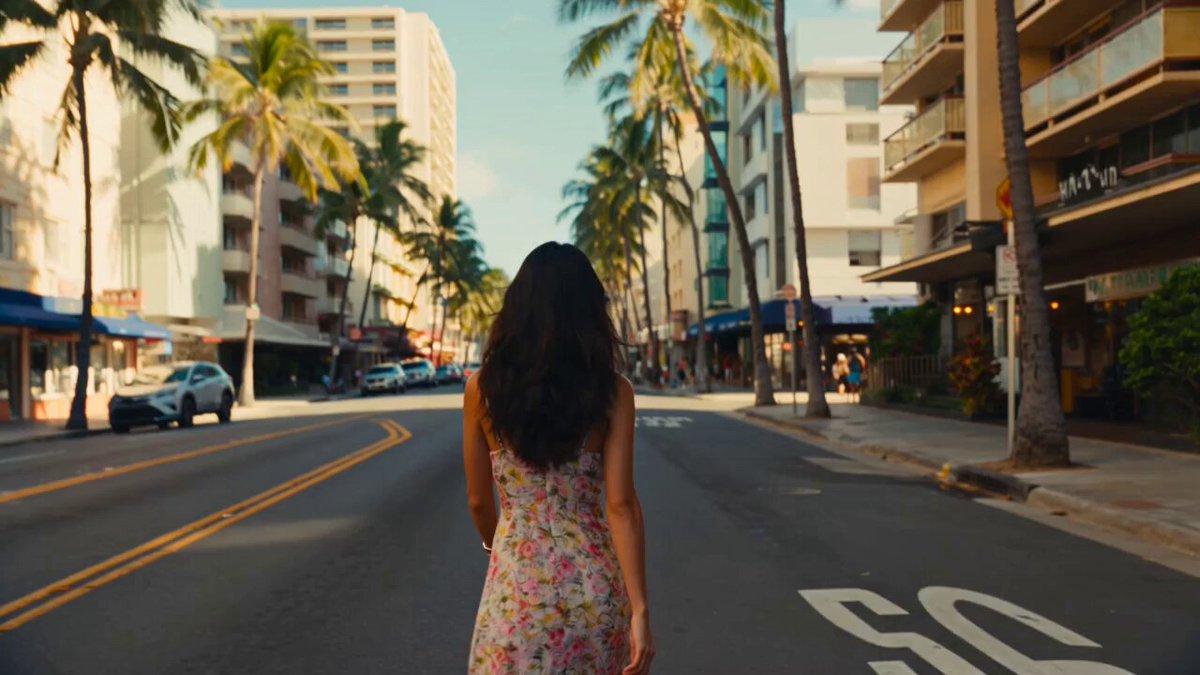
You upload an image and write detailed text instructions describing the changes—such as background style, lighting adjustments, or color shifts—and the editor generates a new version based on your guidance.
ai photo editor with instructions for precise edits
Landscape with autumn tones
Input
Upload a landscape photo and write: 'Change the season to autumn with warm orange and red leaf tones, softer light, and a golden afternoon mood.'
Expected output
An autumn version with warm leaf tones. Review the seasonal transformation and color accuracy.
Food shot with dark wood surface
Input
Upload a food photo and write: 'Place the plate on a dark wooden surface with natural side lighting and a minimalist composition.'
Expected output
The same plate on a dark wooden surface. Confirm the styling and lighting match your intent.
Portrait with golden-hour mood
Input
Upload a portrait and write: 'Add soft golden-hour lighting with warm tones, a slight glow around the subject, and a blurred natural background.'
Expected output
A portrait with softer golden-hour lighting. Verify likeness and confirm rights before sharing.
Edit photos by uploading an image and writing detailed instructions for the changes you want, then reviewing the result.
Start with your own image
Use an image you have permission to edit instead of recreating the subject from a text-only description.
Direct the changes
State the framing, background, and style you want, then compare the result with the original image.
Choose before you use it
Review the edited image for likeness, context, and crop before downloading or posting it.
How It Works
1
Upload the image you want to refine
Start with an image you have the right to edit.
2
Describe the profile-picture changes you want
Keep the requested edits specific so the intended profile look is clear.
3
Generate, compare, and download
Review the output for likeness, accuracy, and the final profile crop before using it.
Making a profile-picture edit that stays clear
A clear source image and a focused edit request make it easier to judge the result.
Input Constraints
Only upload images you have permission to edit and use.
Keep the requested changes focused on the profile-picture outcome you need.
Review the final image for likeness and context before sharing it.
Practical Tips
Use a source image with a visible face and enough detail around the subject.
Ask for one or two concrete changes, such as a neutral background or a square crop.
Compare the result with the original image before choosing a version to use.
Privacy
Do not upload personal or sensitive material unless you have permission to use it.
Usage Rights
Confirm that you have the rights needed for the inputs and intended use of the result.
Prompt recipes
Copy a structure, then adjust the subject, lighting, camera, and output details for your own result.
Professional portrait with studio lighting
Upload a portrait. Write: 'Professional studio lighting with soft shadows, a neutral gray background, and a square crop centered on the face.'
Detailed lighting and composition instructions create a polished, professional result suitable for business profiles.
Product on marble with natural light
Upload a product photo. Write: 'Place the product on a white marble surface with natural light from the left, soft shadows, and a clean minimalist look.'
Specifying surface material and lighting direction produces a realistic, high-quality product shot.
Outdoor scene with morning fog
Upload an outdoor photo. Write: 'Add morning fog with soft diffused light, muted blue-gray tones, and a calm, peaceful atmosphere.'
Describing atmospheric conditions and color palette creates a cohesive, evocative mood.
Vintage living room with warm tones
Upload a living room photo. Write: 'Transform into a 1970s vintage style with warm brown tones, wood paneling, retro furniture, and soft lamplight.'
Naming a specific era and detailing materials and lighting helps the editor match the intended aesthetic.
Pet portrait on soft blanket
Upload a pet photo. Write: 'Place the pet on a soft cream blanket with natural window light, a blurred background, and a warm, cozy mood.'
Combining setting, lighting, and mood in one instruction creates a natural, appealing pet portrait.
Best use cases
Match the workflow to the input you have and the result you need before opening the generator.
Use case
Best input
Expected result
Tool
Professional headshot or profile
A clear portrait with visible face and neutral expression
Polished studio lighting, clean background, and professional composition
Image to Image with detailed lighting and background instructions
Product photography styling
A product photo with decent lighting
Product placed on styled surface with natural lighting and clean composition
Image to Image with surface, lighting, and styling instructions
Landscape or travel mood change
An outdoor or travel photo
Scene transformed with specific seasonal, atmospheric, or mood adjustments
Image to Image with detailed mood and atmosphere instructions
Interior design visualization
A photo of a room or interior space
Room restyled with specific era, colors, materials, and lighting
Image to Image with detailed style and material instructions
Professional headshot or profile
Input: A clear portrait with visible face and neutral expression
Result: Polished studio lighting, clean background, and professional composition
Tool: Image to Image with detailed lighting and background instructions
Product photography styling
Input: A product photo with decent lighting
Result: Product placed on styled surface with natural lighting and clean composition
Tool: Image to Image with surface, lighting, and styling instructions
Landscape or travel mood change
Input: An outdoor or travel photo
Result: Scene transformed with specific seasonal, atmospheric, or mood adjustments
Tool: Image to Image with detailed mood and atmosphere instructions
Interior design visualization
Input: A photo of a room or interior space
Result: Room restyled with specific era, colors, materials, and lighting
Tool: Image to Image with detailed style and material instructions
Limitations to know before generating
Complex or vague instructions may produce unexpected results. Be specific about colors, materials, lighting, and composition.
Results depend on source image quality. Low-resolution images may not support detailed edits.
The editor interprets instructions based on typical visual patterns; highly unusual requests may not work as intended.
Likeness and accuracy are not guaranteed. Always review the output before using it publicly or commercially.
The tool does not grant rights to images you do not own or have permission to edit.
Creative Suite: AI Video Generator & AI Image Generator Tools
Power up your creative workflow with our AI-driven tools. Generate stunning videos, create images, and apply custom adjustments - our AI Video Generator and AI Image Generator offer a complete solution for all your creative needs.