AI photo editor/generator tools let you upload a photo and describe changes using text, then generate edited versions without manual tool work. These tools apply your instructions to lighting, color, background, or style and produce results you can review and download.
AI Photo Editor/Generator Tools for Quick Edits
Portrait polish
Input
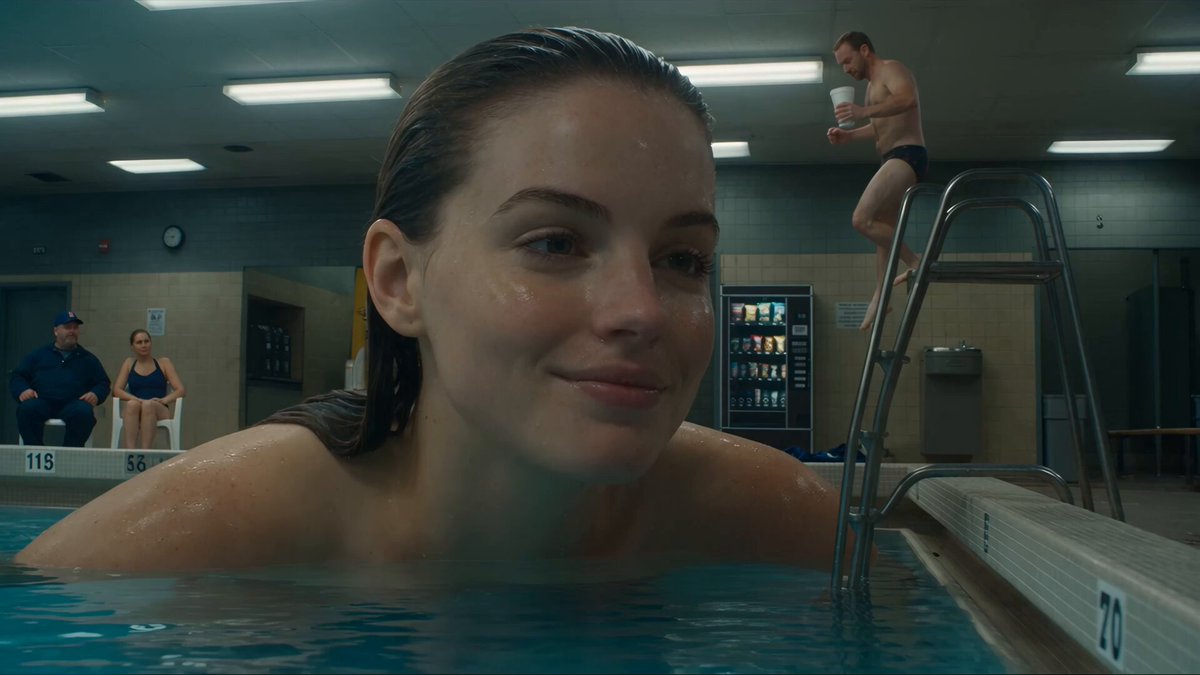
Upload a portrait and request even lighting, a tidier background, and a natural finish without heavy filters.
Expected output
A polished portrait with balanced lighting and clean background. Review the face and overall tone before using it.
Mood shift
Input
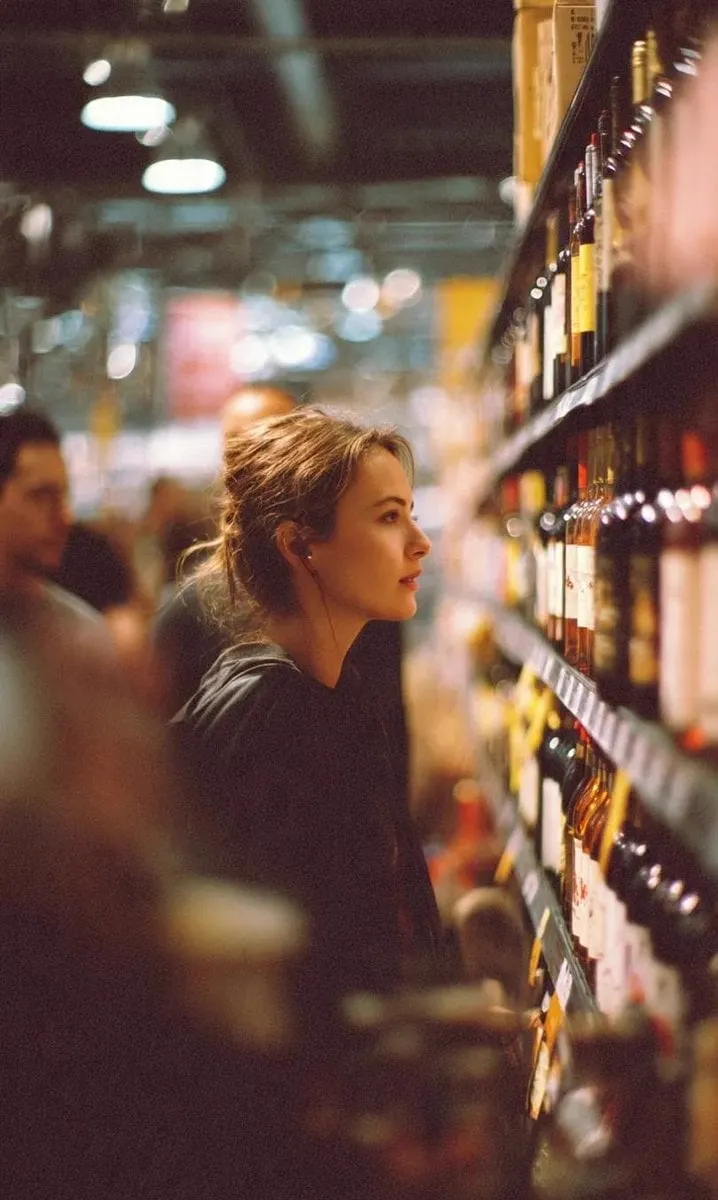
Upload a garden photo and ask for warm sunset light with long shadows and golden highlights.
Expected output
The garden bathed in sunset warmth. Compare the mood with your original daylight shot.
Art direction
Input
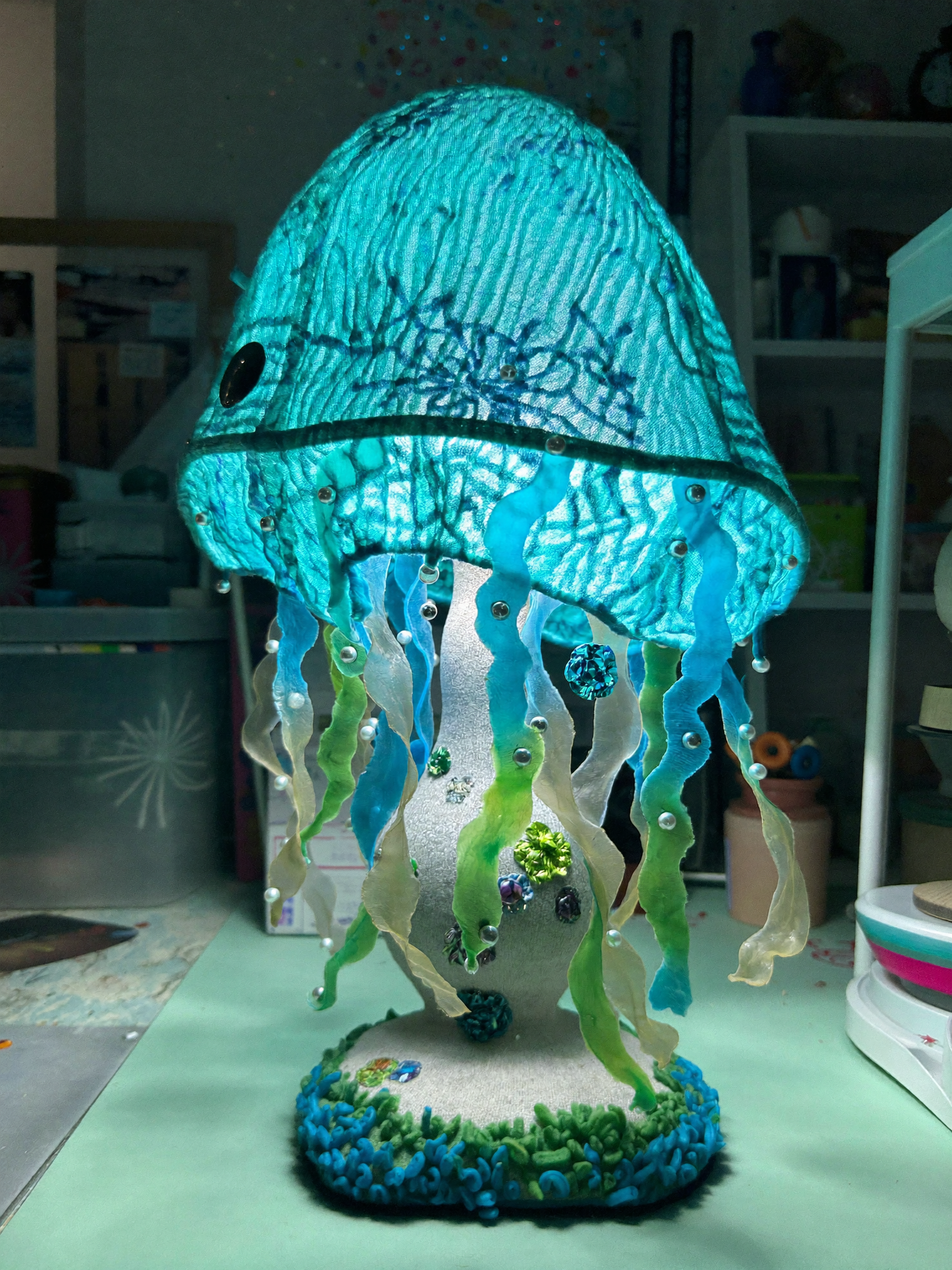
Upload a logo sketch and request a crisp digital version with smooth lines and flat color.
Expected output
A clean digital logo. Check the lines and color accuracy before finalizing.
Edit and generate photo variations by uploading a source image and describing the changes you want
Fast edits without manual tools
Describe what you want instead of using layers, masks, or selection tools.
Generate variations quickly
Try different styles, lighting, or backgrounds on the same photo without starting over.
Review before committing
Compare generated results with the original and choose the version that works.
How It Works
1
Upload the image you want to refine
Start with an image you have the right to edit.
2
Describe the profile-picture changes you want
Keep the requested edits specific so the intended profile look is clear.
3
Generate, compare, and download
Review the output for likeness, accuracy, and the final profile crop before using it.
Using AI editor/generator tools effectively
Clear source photos and focused text instructions help you generate usable results without manual editing work.
Input Constraints
Only upload images you have permission to edit and use.
Keep the requested changes focused on the profile-picture outcome you need.
Review the final image for likeness and context before sharing it.
Practical Tips
Use high-quality source photos where the subject is clearly visible.
Describe one or two specific changes per generation for clearer results.
Compare multiple generated versions to find the one that matches your intent.
Privacy
Do not upload personal or sensitive material unless you have permission to use it.
Usage Rights
Confirm that you have the rights needed for the inputs and intended use of the result.
Prompt recipes
Copy a structure, then adjust the subject, lighting, camera, and output details for your own result.
Portrait natural polish
Upload the portrait. Add even lighting across the face, reduce harsh shadows under eyes, tidy the background by softening clutter, and keep skin tones natural.
Targeting lighting and background separately maintains a natural look while improving overall presentation.
Sunset mood garden
Upload the garden photo. Add warm golden sunset light from the left, create long soft shadows, increase warmth in highlights, and deepen green tones in foliage.
Directional warm lighting with color adjustments creates a cohesive time-of-day atmosphere.
Logo sketch to digital
Upload the logo sketch. Convert it to a crisp digital version with smooth vector-style lines, flat solid colors, and a clean white background.
Vector style cues and background specification produce a professional digital logo look.
Product photo studio lighting
Upload the product shot. Add bright even studio lighting from above and in front, change the background to pure white, increase sharpness, and soften shadows.
Studio lighting cues and background control create a clean product presentation.
Landscape dramatic contrast
Upload the landscape. Increase contrast between foreground and sky, deepen blues in the sky, brighten highlights in clouds, and sharpen foreground details.
Targeted contrast and color adjustments enhance visual impact without flattening detail.
Urban photo cinematic grade
Upload the city street photo. Add a cinematic color grade with teal shadows and warm highlights, increase contrast, and add a subtle vignette.
Cinematic color split and vignette create a cohesive film-style look.
Best use cases
Match the workflow to the input you have and the result you need before opening the generator.
Use case
Best input
Expected result
Tool
Polish a portrait quickly
Portrait photo that needs lighting balance and background cleanup
Polished portrait with even lighting and clean background
Image to Image with lighting and background instructions
Generate mood variations
Photo that should show different times of day or atmospheres
Multiple versions with different lighting and color moods
Image to Image with mood and lighting requests
Convert sketch to digital
Hand-drawn sketch that needs digital refinement
Clean digital version with smooth lines and flat color
Image to Image with vector and digital style instructions
Enhance product photos
Product shot that needs studio lighting and clean background
Professional product image with even lighting
Image to Image with studio lighting and background requests
Polish a portrait quickly
Input: Portrait photo that needs lighting balance and background cleanup
Result: Polished portrait with even lighting and clean background
Tool: Image to Image with lighting and background instructions
Generate mood variations
Input: Photo that should show different times of day or atmospheres
Result: Multiple versions with different lighting and color moods
Tool: Image to Image with mood and lighting requests
Convert sketch to digital
Input: Hand-drawn sketch that needs digital refinement
Result: Clean digital version with smooth lines and flat color
Tool: Image to Image with vector and digital style instructions
Enhance product photos
Input: Product shot that needs studio lighting and clean background
Result: Professional product image with even lighting
Tool: Image to Image with studio lighting and background requests
Limitations to know before generating
Output quality depends on source resolution; low-res or blurry photos may not improve cleanly.
The tool interprets text instructions; achieving a specific look may require multiple generations.
Complex edits like adding detailed objects or precise color matching need clear, detailed descriptions.
Heavy style changes can alter subject details or facial likeness; compare results with originals.
Generated variations may differ slightly even with the same instructions due to model interpretation.
Creative Suite: AI Video Generator & AI Image Generator Tools
Power up your creative workflow with our AI-driven tools. Generate stunning videos, create images, and apply custom adjustments - our AI Video Generator and AI Image Generator offer a complete solution for all your creative needs.