

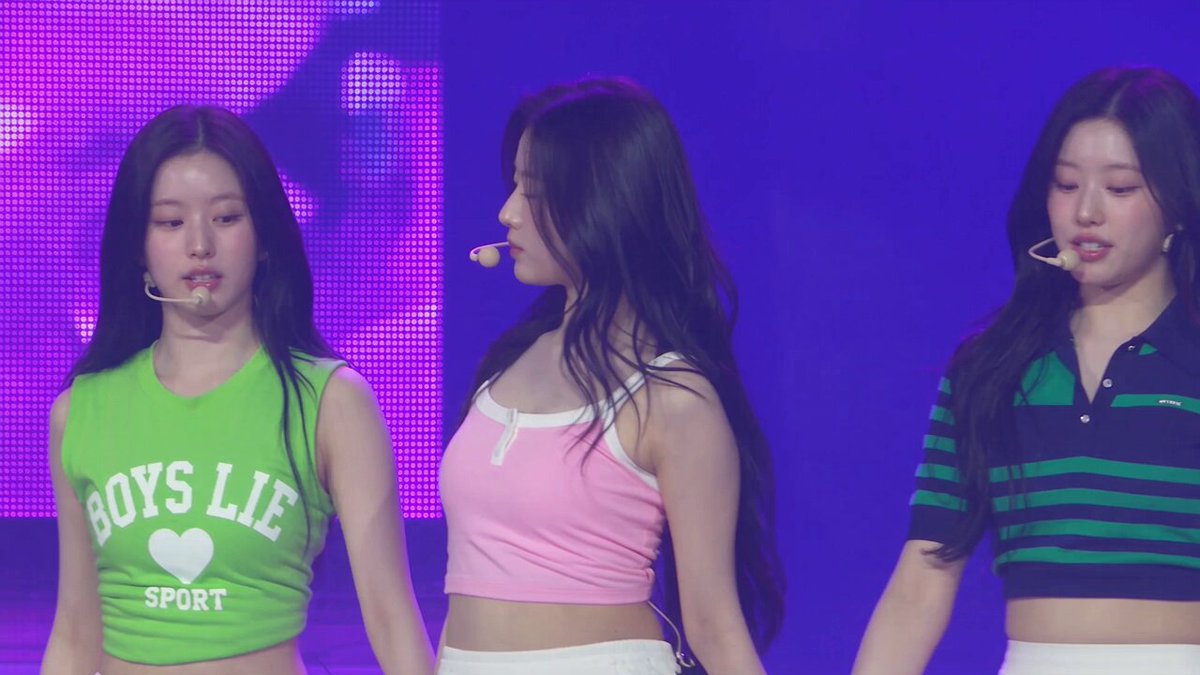
Blur a busy background
Input
Upload a portrait and ask for a soft, out-of-focus background that keeps the subject sharp.
Expected output
A portrait with blurred background and sharp subject. Review the focus transition and detail.
Use blur photo editor ai to upload a source image, describe which areas to blur—background, details, or motion—and review the result before downloading.
Loading...
A blur photo editor AI selectively blurs parts of your photo. You upload a source image, describe which areas to blur—such as the background, sensitive details, or to add motion—and review the result before deciding to use it.
Input
Upload a portrait and ask for a soft, out-of-focus background that keeps the subject sharp.
Expected output
A portrait with blurred background and sharp subject. Review the focus transition and detail.
Input
Upload a document photo and ask for the address line to be blurred while the rest stays readable.
Expected output
A document where the address is blurred and other text is clear. Check the coverage and legibility.
Input
Upload a car photo and ask for the wheels to look softly blurred, suggesting movement.
Expected output
A car image with motion-blurred wheels and sharp body. Review the balance and realism.
Use a photo you have permission to edit instead of generating a new scene from text alone.
Describe the framing, background, and style you want, then compare the result with the original.
Review the edited image for accuracy, likeness, and context before downloading or sharing.
Start with an image you have the right to edit.
Keep the requested edits specific so the intended profile look is clear.
Review the output for likeness, accuracy, and the final profile crop before using it.
A clear source image and a focused edit request make it easier to judge the result.
Copy a structure, then adjust the subject, lighting, camera, and output details for your own result.
Blur the background completely, keeping the subject's face sharp. Mimic a wide aperture lens effect.
A blurred background isolates the subject and creates a professional, portrait-studio look.
Blur everything behind the product. Keep the product edges sharp and the background gently out of focus.
A soft background removes distractions and puts full attention on the product.
Blur specific text or details such as names, addresses, or account numbers. Keep the rest of the screen readable.
Selective blur lets you share screenshots while protecting sensitive information.
Add motion blur to the wheels and lower body of a moving vehicle. Keep the upper body sharp.
Motion blur adds a sense of speed and energy to static action photos.
Blur the foreground slightly to add depth. Keep the main subject in the middle ground sharp.
Foreground blur mimics real lens depth and guides the viewer's eye to the main subject.
Match the workflow to the input you have and the result you need before opening the generator.
Input: A portrait with a busy or distracting background
Result: A version with blurred background and sharp subject
Tool: Image to Image
Input: A document or screenshot with sensitive details
Result: A version where specific areas are blurred for privacy
Tool: Image to Image
Input: A photo of a moving subject that looks static
Result: A version with motion blur to suggest speed
Tool: Image to Image
Power up your creative workflow with our AI-driven tools. Generate stunning videos, create images, and apply custom adjustments - our AI Video Generator and AI Image Generator offer a complete solution for all your creative needs.
Choose the credit package that works best for you.
No hidden fees • Cancel anytime • Unused credits roll over
Perfect for trying out AI creation.
Credits
2,400 credits per year
$59.99/year billed yearly
You save $60 · the equivalent of 6 months free
What's included
Perfect for light creators.
Credits
6,000 credits per year
$119.99/year billed yearly
You save $120 · the equivalent of 6 months free
What's included
Best value for creators.
Credits
14,400 credits per year
$399.99/year billed yearly.
Save $80 compared to monthly
What's included
For video creators and power users.
Credits
60,000 credits per year
$999.99/year billed yearly.
Save $200 compared to monthly
What's included
Questions? Contact us at support@domer.io
Open Image to Image, upload an image you can edit, and review the result before you decide to use it.





