How do you get a cinematic look with an AI photo editor?
Upload a source image you can edit, describe the color grade and lighting style you want, such as moody film tones or neon-lit night scenes, then review the result.
Cinematic AI Photo Editor Look
Moody portrait with film grade
Input
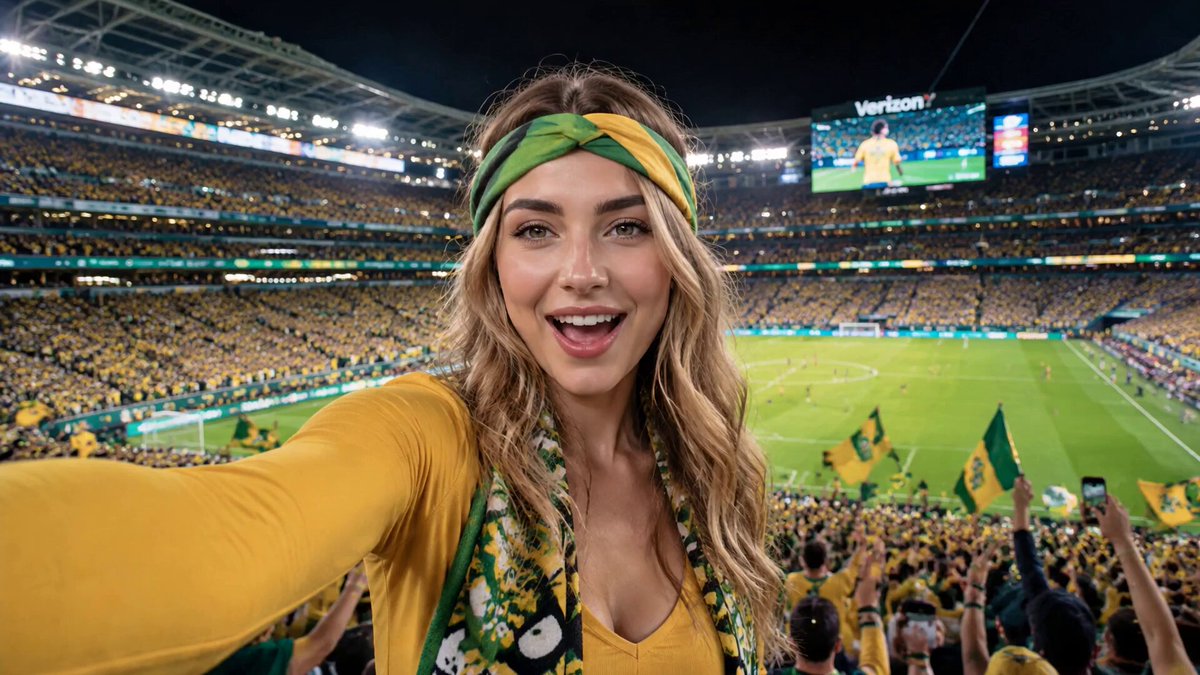
Upload a portrait, then request a moody color grade with deep shadows, warm highlights, and a film-like feel.
Expected output
A portrait with richer contrast, muted tones, and dramatic lighting that evokes a cinematic mood.
Night scene with neon reflections
Input
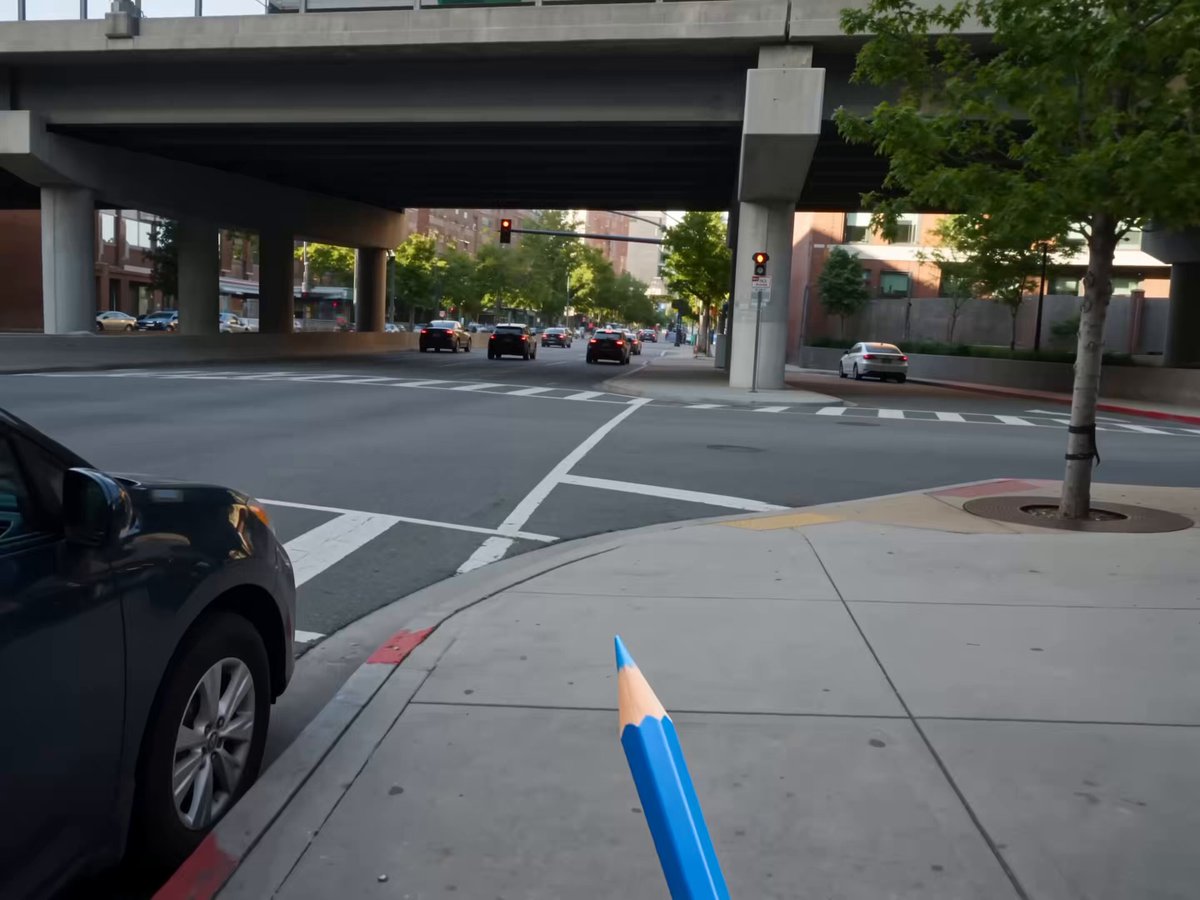
Upload a street photo, then request darker tones, neon-style reflections, and a late-night cinematic atmosphere.
Expected output
A night scene with glowing accents, cooler shadows, and a visual style reminiscent of film noir or cyberpunk.
Landscape with film grain
Input
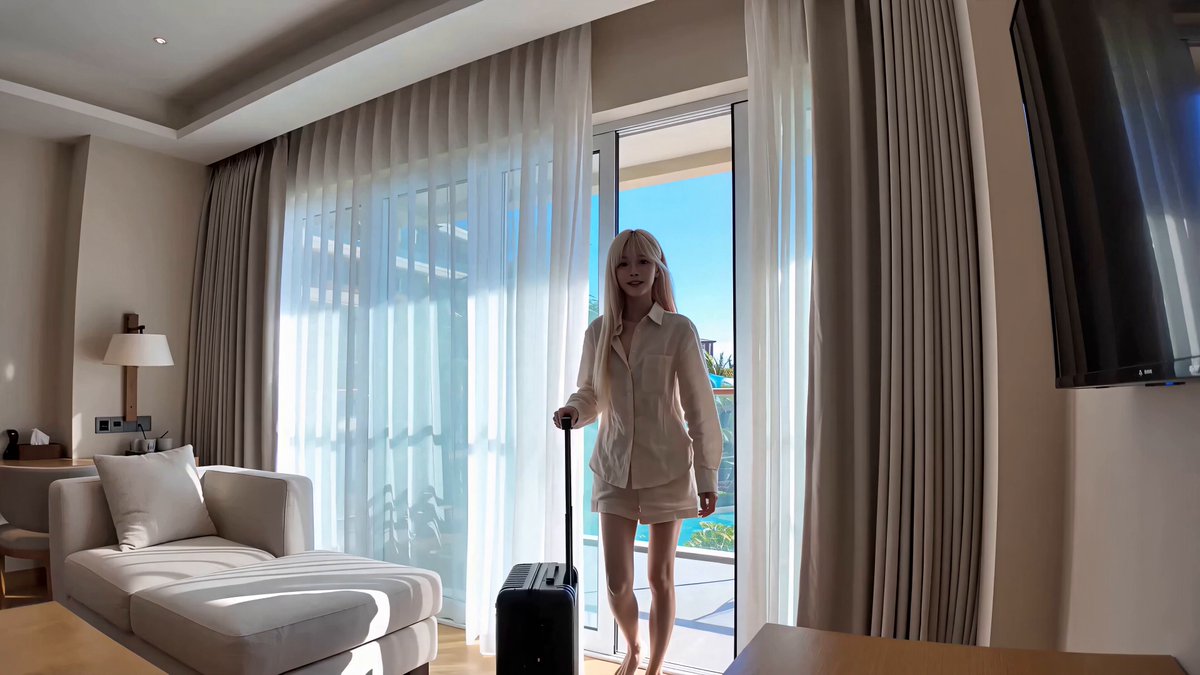
Upload a landscape, then request a muted, desaturated palette with subtle film grain and soft contrast.
Expected output
A landscape that looks like it was shot on analog film, with organic texture and a timeless feel.
Apply film-like color grades and moody lighting to an existing image for a cinematic look.
Work from your existing image
Start with a photo you already have, then apply cinematic color and lighting without reshooting.
Control the mood
Describe the specific film style you want, from warm and nostalgic to cool and moody, and compare the result.
Review before finalizing
Check the color grade, lighting, and overall feel before deciding whether the result fits your vision.
How It Works
1
Upload the image you want to refine
Start with an image you have the right to edit.
2
Describe the profile-picture changes you want
Keep the requested edits specific so the intended profile look is clear.
3
Generate, compare, and download
Review the output for likeness, accuracy, and the final profile crop before using it.
Getting a film-like look from a photo
A clear source image and a focused description of the mood make it easier to judge whether the cinematic style fits.
Input Constraints
Only upload images you have permission to edit and use.
Keep the requested changes focused on the profile-picture outcome you need.
Review the final image for likeness and context before sharing it.
Practical Tips
Use a source image with a visible face and enough detail around the subject.
Ask for one or two concrete changes, such as a neutral background or a square crop.
Compare the result with the original image before choosing a version to use.
Privacy
Do not upload personal or sensitive material unless you have permission to use it.
Usage Rights
Confirm that you have the rights needed for the inputs and intended use of the result.
Prompt recipes
Copy a structure, then adjust the subject, lighting, camera, and output details for your own result.
Warm golden-hour portrait
Apply a warm, golden-hour color grade with soft highlights, gentle shadows, and a sun-kissed cinematic feel.
Evokes the warm, romantic lighting of late-afternoon film scenes, ideal for portraits and outdoor shots.
Cool blue night cityscape
Add a cool blue color grade with deeper shadows, neon highlights, and a late-night urban cinematic atmosphere.
Creates a moody, nocturnal look with high contrast and color shifts typical of thriller or noir films.
Desaturated vintage film
Apply a desaturated, slightly faded color palette with subtle film grain and soft contrast for a vintage cinematic look.
Mimics the organic texture and muted tones of analog film, giving modern photos a timeless, nostalgic quality.
High-contrast dramatic portrait
Increase contrast, deepen shadows, and add warm highlights for a dramatic, high-impact cinematic portrait.
Emphasizes facial structure and mood with bold tonal separation, common in character-driven film scenes.
Soft pastel dream sequence
Apply soft pastel tones, low contrast, and a hazy glow for a dreamy, ethereal cinematic look.
Creates a surreal, gentle atmosphere often used in flashback or fantasy sequences in film.
Best use cases
Match the workflow to the input you have and the result you need before opening the generator.
Use case
Best input
Expected result
Tool
Stylizing a portrait for social media
A well-lit portrait with clear facial features
A moody, film-like version with richer color and lighting ready for posting
Image to Image
Giving a landscape photo a cinematic feel
A landscape with visible sky, horizon, and foreground elements
A version with muted tones, film grain, and a timeless aesthetic
Image to Image
Creating a night scene with neon mood
A street or urban photo with lighting and reflections
A darker, more dramatic version with neon highlights and cool tones
Image to Image
Stylizing a portrait for social media
Input: A well-lit portrait with clear facial features
Result: A moody, film-like version with richer color and lighting ready for posting
Tool: Image to Image
Giving a landscape photo a cinematic feel
Input: A landscape with visible sky, horizon, and foreground elements
Result: A version with muted tones, film grain, and a timeless aesthetic
Tool: Image to Image
Creating a night scene with neon mood
Input: A street or urban photo with lighting and reflections
Result: A darker, more dramatic version with neon highlights and cool tones
Tool: Image to Image
Limitations to know before generating
Cinematic looks work best on images with visible lighting and contrast, not flat or overexposed shots.
The result depends on the source image quality and may not match professional color grading done frame by frame.
Film grain, color shifts, and mood changes are interpretive and may not match a specific film reference exactly.
Review the result for whether it still represents the subject accurately, especially in portraits.
Creative Suite: AI Video Generator & AI Image Generator Tools
Power up your creative workflow with our AI-driven tools. Generate stunning videos, create images, and apply custom adjustments - our AI Video Generator and AI Image Generator offer a complete solution for all your creative needs.