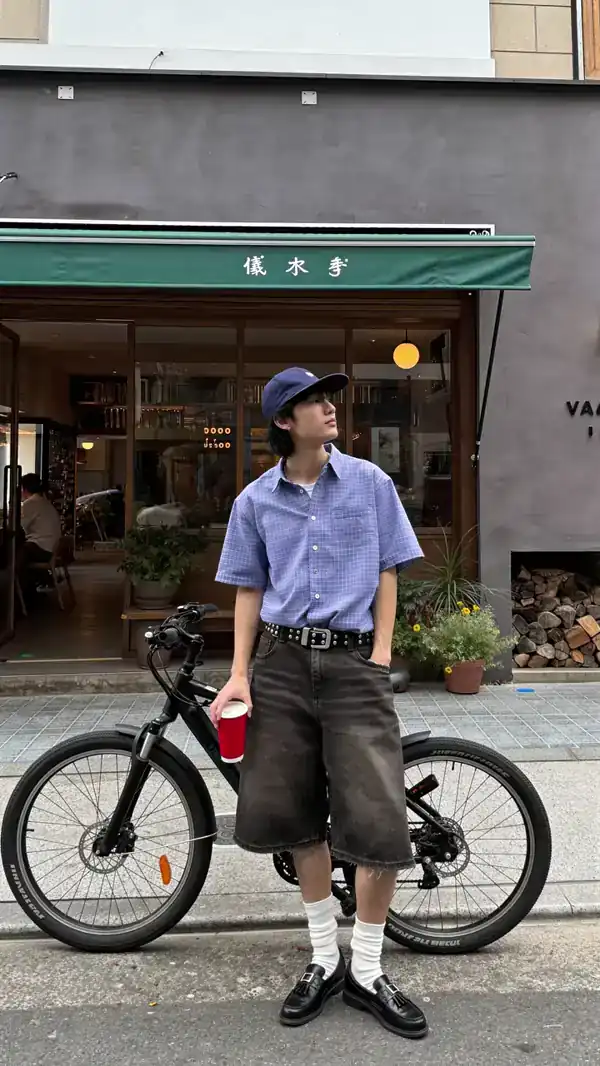
An AI expand image generator extends existing visual compositions by generating new content around the edges. You describe what should appear in the expanded areas—matching background, continued scenery, or complementary elements—and the tool produces a wider version that maintains the original style and lighting.
AI Expand Image Generator for Wider Layouts
Banner extension from a product shot
Input
A single product photo of a running shoe on a clean background, extend the scene to a wide banner format with abstract sporty shapes and gradient colours on the sides
Expected output
A wide banner composition with the shoe centred and extended abstract sport-themed background on both sides
Aspect ratio adaptation
Input
A central portrait-oriented garden scene with flowers and a bench, generate a landscape version that extends the garden horizontally with matching flowers and trees
Expected output
A wide landscape garden scene that maintains the same floral style, grass texture, and natural lighting as the original
Panorama creation
Input
A narrow city street view between two buildings, extend outward on both sides to create a wide panorama showing more buildings, sky, and street activity in the same style
Expected output
A panoramic city view with extended buildings and street details matching the original architectural style
Extend image compositions to wider aspect ratios or additional canvas space for layout work
Flexible layout adaptation
Adapt existing visual concepts to different aspect ratios and dimensions without cropping important content.
Consistent visual extension
Generate extended areas that match the original style, lighting, and colour palette of your starting concept.
Faster design workflow
Produce expanded compositions in seconds instead of manually cloning and blending in photo editing software.
How It Works
1
Describe the desired image.
Describe the desired image.
2
Choose the available generation settings.
Choose the available generation settings.
3
Generate, review, and download a suitable result.
Generate, review, and download a suitable result.
Tips for image expansion prompts
Get cohesive extended visuals by describing both what exists and what should be added.
Input Constraints
Describe the existing scene's style, colours, and lighting in the prompt for consistency
Specify the desired final composition shape and content of the expanded areas
Check that extended elements match the original visual style before using the result
Practical Tips
Include the original image's colour palette terms like 'warm tones' or 'cool greys' for consistent blending
Describe what should appear in the newly generated areas explicitly, not just 'extend this'
Use directional language like 'extend left with more forest' or 'add sky above' for targeted expansion
Privacy
Do not upload personal or sensitive material unless you have permission to use it.
Usage Rights
Confirm that you have the rights needed for the inputs and intended use of the result.
Prompt recipes
Copy a structure, then adjust the subject, lighting, camera, and output details for your own result.
Product banner with gradient sides
Central product shot of item on clean white background, extend horizontally to 2:1 banner with soft gradient from brand color to white on both sides, maintain studio lighting
Keeps the product sharp and centered while adding branded color expansion that works for web headers and social banners.
Portrait to landscape nature scene
Original scene description, extend left and right with matching terrain type, same golden hour lighting, keep horizon line consistent, add natural elements in the new areas
Maintains lighting continuity and natural scene logic by explicitly calling out terrain, time of day, and horizon alignment.
Vertical photo to wide display
Expand original vertical composition to 16:9 format, add context elements on sides, match specific lighting condition, preserve subject scale and framing
Specifies target aspect ratio and keeps the original subject intact while adding contextually appropriate surroundings.
Panoramic city extension
Initial street or building view, extend to panoramic width showing architectural style buildings continuing on both sides, same time of day lighting, add urban elements for depth
Architectural consistency and lighting cues help the extension feel like one continuous urban scene rather than patched sections.
Top and bottom canvas expansion
Central composition, extend upward to show sky or ceiling detail, extend downward to show ground or floor detail, maintain perspective and lighting direction
Vertical expansion requires explicit perspective and lighting direction to avoid visual breaks at the seams.
Best use cases
Match the workflow to the input you have and the result you need before opening the generator.
Use case
Best input
Expected result
Tool
Product photo to social banner
Clean product shot on solid background
Wide banner with product centered and branded gradient or abstract shapes on sides
Text to Image with directional expansion prompt
Portrait photo to landscape display
Vertical scenic or portrait photo with clear subject
Landscape composition with extended scenery maintaining original style and lighting
Text to Image with aspect ratio and terrain extension guidance
Narrow scene to panoramic view
Street, landscape, or architectural shot with defined style
Wide panoramic image with continuous architecture or scenery on both sides
Text to Image with architectural style and lighting continuity keywords
Square image to ultrawide header
Square composition with central subject
Ultrawide header with subject maintained and contextual background extended horizontally
Text to Image with target format specification and background extension details
Product photo to social banner
Input: Clean product shot on solid background
Result: Wide banner with product centered and branded gradient or abstract shapes on sides
Tool: Text to Image with directional expansion prompt
Portrait photo to landscape display
Input: Vertical scenic or portrait photo with clear subject
Result: Landscape composition with extended scenery maintaining original style and lighting
Tool: Text to Image with aspect ratio and terrain extension guidance
Narrow scene to panoramic view
Input: Street, landscape, or architectural shot with defined style
Result: Wide panoramic image with continuous architecture or scenery on both sides
Tool: Text to Image with architectural style and lighting continuity keywords
Square image to ultrawide header
Input: Square composition with central subject
Result: Ultrawide header with subject maintained and contextual background extended horizontally
Tool: Text to Image with target format specification and background extension details
Limitations to know before generating
Generated extensions may not perfectly match original image details; review seams and transitions carefully
Complex subjects like faces or intricate patterns may show inconsistencies in extended areas
Lighting continuity depends on clear prompt description; vague lighting terms produce uneven results
Perspective accuracy requires explicit guidance; the tool may flatten or distort depth without perspective cues
Multiple expansion iterations can compound small inconsistencies; plan the final composition in one step when possible
Creative Suite: AI Video Generator & AI Image Generator Tools
Power up your creative workflow with our AI-driven tools. Generate stunning videos, create images, and apply custom adjustments - our AI Video Generator and AI Image Generator offer a complete solution for all your creative needs.