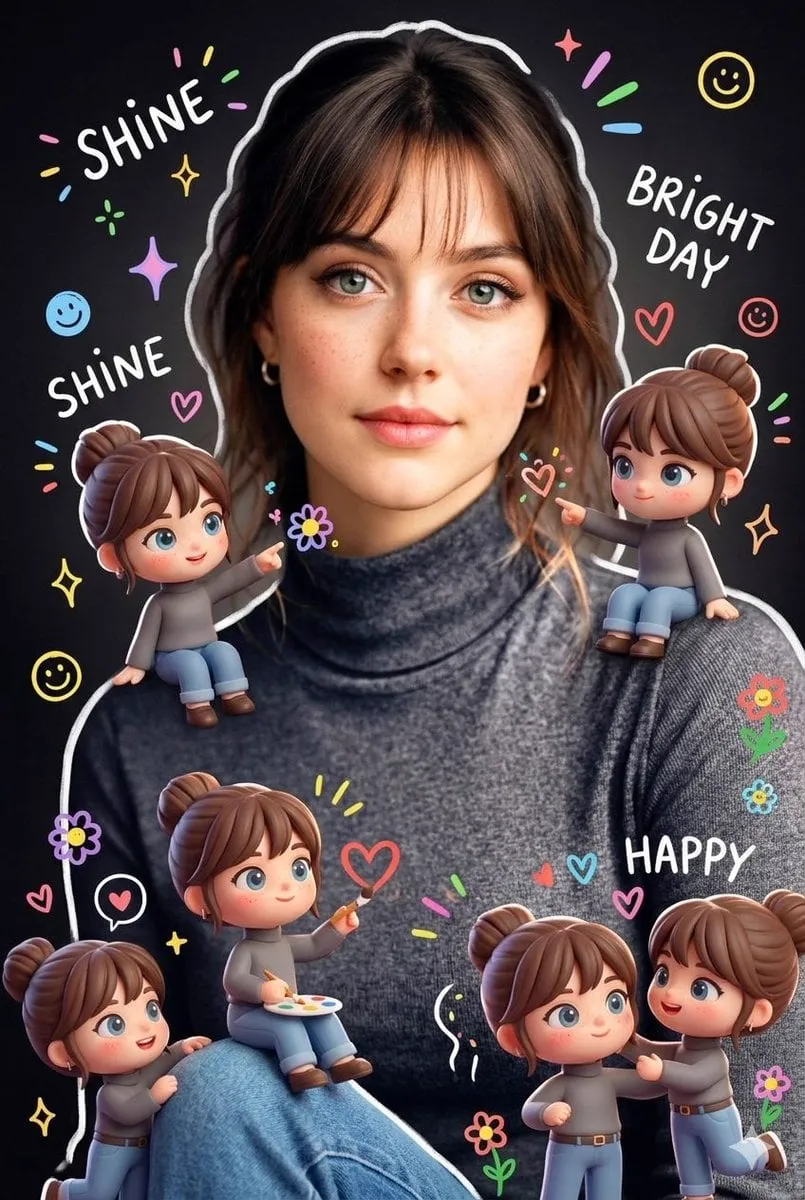
You write a text description of the image you want—subject, setting, style, mood, lighting—then choose available generation settings. The tool processes your prompt and generates a visual result. You review the output, adjust your prompt if needed, and regenerate until you have an image that fits.
AI Image Generator Explained
Prompt to Image Process
Input
"A serene mountain lake at sunrise with mist rising from the water" becomes a generated landscape through three steps: describing, choosing settings, and generating
Expected output
A sunrise mountain lake scene with mist, generated from a text description using the tool's workflow from prompt to final image
Effect of Different Settings
Input
The same prompt "a glass of lemonade on a wooden table" with different style or quality settings produces variations from photorealistic to watercolor
Expected output
Multiple variations of the same lemonade prompt showing how different settings change the output style and quality
From General to Specific
Input
Starting with "a cat sitting on a windowsill" and adding details like breed, lighting, and background produces a more specific and useful image
Expected output
A more detailed cat-on-windowsill image showing how adding specifics to the prompt improves the result
Understand how AI image generators turn text descriptions into visual results.
Clear Understanding of the Workflow
Learn the straightforward process of describing an image, choosing options, and generating results.
Know What Affects Output
Understand how prompt detail, style choices, and settings influence the final generated image.
Get Better Results Faster
Apply prompt techniques and setting choices to produce images that match what you envision.
How It Works
1
Describe the image
Describe the desired image.
2
Choose settings
Choose the available generation settings.
3
Generate and review
Generate, review, and download a suitable result.
Getting Started With AI Image Generation
Start with simple prompts and add details as you learn.
Input Constraints
Avoid requesting images of real, identifiable people without permission.
Do not upload personal or sensitive material unless you have permission.
Results vary based on prompt quality and settings.
Practical Tips
Start with a clear subject and setting in your first prompt.
Add descriptive words for mood, lighting, and style in later attempts.
Review each result and adjust your prompt based on what changed.
Privacy
Do not upload personal or sensitive material unless you have permission to use it.
Usage Rights
Confirm that you have the rights needed for the inputs and intended use of the result.
Prompt recipes
Copy a structure, then adjust the subject, lighting, camera, and output details for your own result.
Basic Three-Part Prompt Structure
A lighthouse on a rocky coast, stormy weather with dark clouds, dramatic lighting from the setting sun
Follows the recommended structure: subject (lighthouse), setting (rocky coast + stormy weather), and lighting (dramatic sunset), making it easy to replicate for other subjects.
Adding Style Keywords
A vintage bicycle leaning against a brick wall, soft afternoon light, watercolor illustration style
Shows how adding a style keyword (watercolor illustration) at the end shifts the output from photographic to artistic, demonstrating the impact of style cues.
Layering Detail Progressively
A steaming cup of coffee on a wooden table, scattered coffee beans, morning sunlight through a window, shallow depth of field, cozy cafe atmosphere
Demonstrates progressive detail layering: start with the main subject, add nearby objects, specify lighting, then mood and composition, teaching iterative prompt building.
Comparing General vs. Specific Prompts
A dog in a park vs. A golden retriever puppy running through a green park with autumn leaves, warm afternoon light, joyful expression
Directly contrasts a vague prompt with a specific one, illustrating how concrete details (breed, action, setting, mood, lighting) produce more useful results.
Using Mood and Atmosphere Keywords
A medieval castle on a hilltop, foggy morning, mysterious and quiet atmosphere, cinematic composition
Shows how mood (mysterious, quiet) and framing (cinematic) keywords guide the generator toward a particular emotional tone and visual treatment.
Best use cases
Match the workflow to the input you have and the result you need before opening the generator.
Use case
Best input
Expected result
Tool
Learning how AI image generation works before your first use
Read the workflow explanation and study prompt structure examples
A clear mental model of the three-step process and what makes a good prompt
Text to Image with beginner-focused learning
Experimenting with prompt structure to see what changes
Start with a simple prompt, add one element at a time (style, lighting, mood) and regenerate
A series of outputs showing how each prompt element affects the final image
Text to Image with iterative prompt testing
Understanding how settings affect output style and quality
Same prompt with different style or quality settings selected
Multiple variations showing how settings change the result independently of the prompt
Text to Image with setting experimentation
Building confidence to create your own images from scratch
Follow example prompts, adapt them to your own ideas, and generate original images
A personal library of working prompts and the confidence to write new ones
Text to Image with guided practice
Learning how AI image generation works before your first use
Input: Read the workflow explanation and study prompt structure examples
Result: A clear mental model of the three-step process and what makes a good prompt
Tool: Text to Image with beginner-focused learning
Experimenting with prompt structure to see what changes
Input: Start with a simple prompt, add one element at a time (style, lighting, mood) and regenerate
Result: A series of outputs showing how each prompt element affects the final image
Tool: Text to Image with iterative prompt testing
Understanding how settings affect output style and quality
Input: Same prompt with different style or quality settings selected
Result: Multiple variations showing how settings change the result independently of the prompt
Tool: Text to Image with setting experimentation
Building confidence to create your own images from scratch
Input: Follow example prompts, adapt them to your own ideas, and generate original images
Result: A personal library of working prompts and the confidence to write new ones
Tool: Text to Image with guided practice
Limitations to know before generating
Understanding the workflow does not guarantee perfect results; practice and iteration are still required.
Different AI image generators may use different underlying systems, so techniques that work on one may not transfer exactly.
Text-to-image tools interpret prompts, so the same description can produce different results across generators or even across attempts.
Knowing how the tool works helps but does not replace learning through hands-on experimentation and refinement.
Complex or abstract concepts may still be difficult to generate even with a clear understanding of the process.
Creative Suite: AI Video Generator & AI Image Generator Tools
Power up your creative workflow with our AI-driven tools. Generate stunning videos, create images, and apply custom adjustments - our AI Video Generator and AI Image Generator offer a complete solution for all your creative needs.