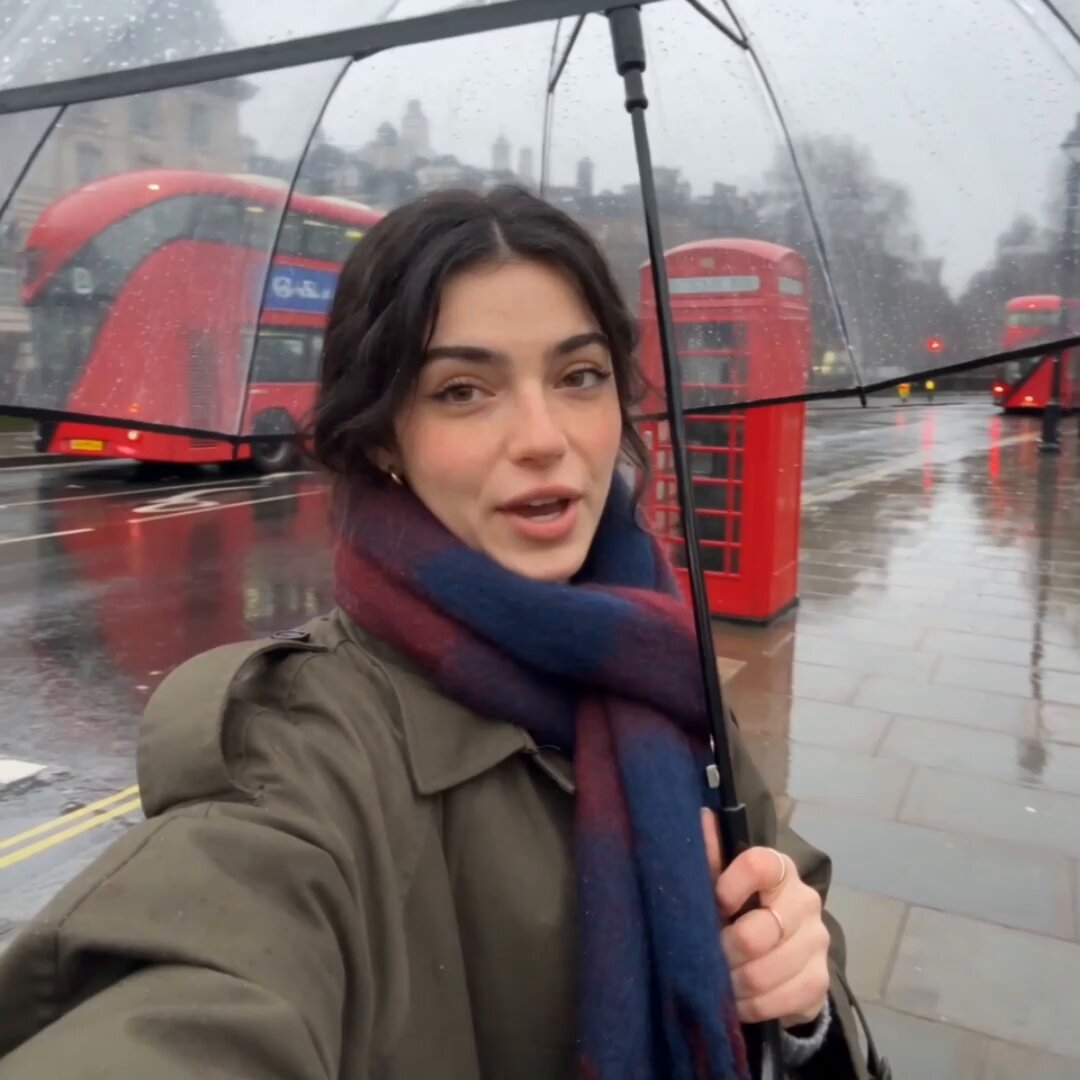
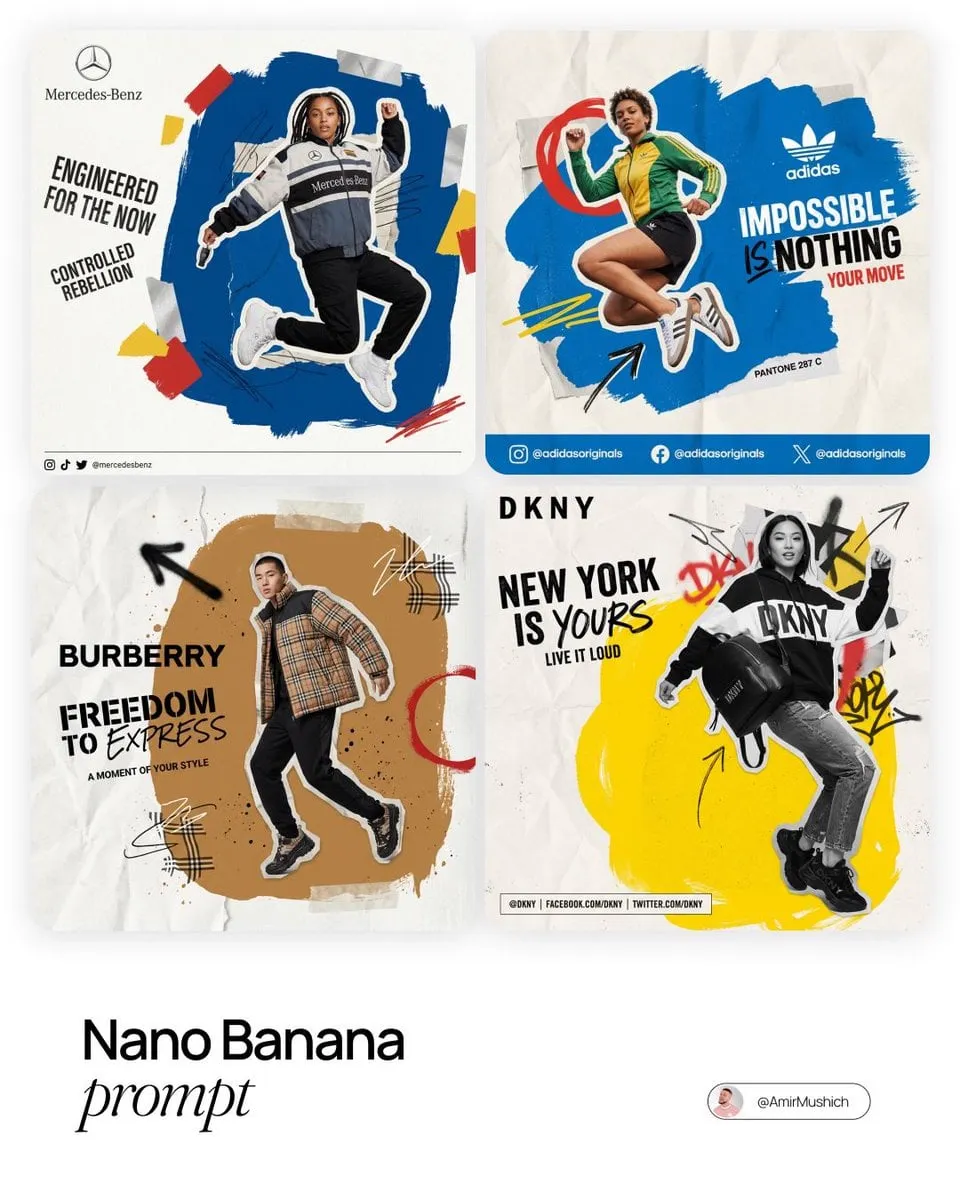
Running an AI image generator means executing a text-to-image generation session. You write a text prompt describing the image you want, select available generation settings, and run the generation to produce a visual result. You can run multiple prompts in sequence to compare ideas, iterate on a concept by adjusting the description, or generate a batch of related images for a project.
AI Image Generator Run
Generate concept thumbnails
Input
A series of four different fantasy sword designs floating vertically, clean white background, detailed metal textures, concept art style
Expected output
Multiple sword concepts shown in a clean layout with distinct designs, metallic finishes, and consistent presentation
Prompt variation comparison
Input
A cozy cabin in the woods at night with warm window light, realistic style, snowy setting
Expected output
A nighttime cabin scene with glowing windows, snow-covered surroundings, and warm interior light spilling out
Iterative refinement run
Input
A close-up of a purple orchid with detailed petals, water droplets, soft natural light, dark background for contrast
Expected output
A detailed botanical close-up with petal texture, water bead refraction, and dramatic dark background isolation
Run AI image generation sessions from text prompts to create, refine, and iterate on visual concepts.
Session-based workflow
Run generation sessions where you describe images, adjust settings, and get results in a single continuous process.
Iterative refinement
Run the same subject with prompt adjustments to progressively refine the visual output toward your target.
Batch concept generation
Generate multiple image concepts in sequence by writing new prompts for each visual idea you want to explore.
How It Works
1
Describe the desired image.
Describe the desired image.
2
Choose the available generation settings.
Choose the available generation settings.
3
Generate, review, and download a suitable result.
Generate, review, and download a suitable result.
Running effective sessions
Plan your prompts before starting a session.
Input Constraints
Avoid generating images of real people without permission.
Review each generated image before using or sharing it.
Do not run prompts that may violate content policies.
Practical Tips
Have a clear idea of what you want before writing your prompt.
Prepare multiple prompt variations to try in sequence.
Adjust one variable at a time to understand its effect on the output.
Save prompts that work well for future sessions.
Privacy
Do not upload personal or sensitive material unless you have permission to use it.
Usage Rights
Confirm that you have the rights needed for the inputs and intended use of the result.
Prompt recipes
Copy a structure, then adjust the subject, lighting, camera, and output details for your own result.
Iterative color refinement
A minimalist mountain landscape at dawn, start with soft pastel pinks and purples, then run again with deeper magentas and blues, then run with orange and gold sunrise tones to compare mood shifts
Describes a base concept with planned color variations for iterative comparison, teaching how to isolate one variable across runs.
Batch character concept exploration
Run four variations of a fantasy warrior character: first with heavy armor and sword, second with light leather and bow, third with robes and staff, fourth with cloak and daggers, same character face each time
Plans a batch run with consistent base element (character) and variable equipment to explore class or role options.
Progressive detail increase
Start with 'a simple tree on a hill', then run 'a detailed oak tree with visible bark texture on a grassy hill', then run 'a gnarled ancient oak with moss and twisted branches on a wildflower-covered hill at golden hour'
Shows how to progressively layer detail across runs to understand which elements add the most value.
Style comparison series
Generate the same coffee shop interior scene five times: first in photorealistic style, then watercolor, then line art, then cyberpunk neon, then vintage sepia photograph
Holds subject constant while running through style variations to find the best visual direction for a project.
Composition testing workflow
Run a portrait three times with different compositions: first centered symmetrical, second rule of thirds with subject on left, third close-up with dramatic crop, same lighting and subject each time
Isolates composition as the variable to teach framing choices and their impact on visual interest.
Best use cases
Match the workflow to the input you have and the result you need before opening the generator.
Use case
Best input
Expected result
Tool
Concept art exploration for project
Multiple prompts with varied approaches to the same theme
Collection of concepts to compare and choose from
Text to Image
Iterative refinement of single idea
Base prompt with progressive detail or style adjustments
Series showing evolution toward target visual
Text to Image
A/B testing visual directions
Two prompts with one key difference (color, style, composition)
Direct comparison of isolated variable effect
Text to Image
Batch asset generation for project
Series of related prompts for consistent project elements
Cohesive set of visuals with unified style
Text to Image
Concept art exploration for project
Input: Multiple prompts with varied approaches to the same theme
Result: Collection of concepts to compare and choose from
Tool: Text to Image
Iterative refinement of single idea
Input: Base prompt with progressive detail or style adjustments
Result: Series showing evolution toward target visual
Tool: Text to Image
A/B testing visual directions
Input: Two prompts with one key difference (color, style, composition)
Result: Direct comparison of isolated variable effect
Tool: Text to Image
Batch asset generation for project
Input: Series of related prompts for consistent project elements
Result: Cohesive set of visuals with unified style
Tool: Text to Image
Limitations to know before generating
Generation results vary even with identical prompts; exact repeatability is not guaranteed.
Complex multi-step iterative workflows may drift from the original concept unpredictably.
Batch generation does not automatically ensure visual consistency across separate runs.
Running many variations can produce decision fatigue; plan your test variables in advance.
Each run is independent; the tool does not remember or build on previous generations in a session.
Creative Suite: AI Video Generator & AI Image Generator Tools
Power up your creative workflow with our AI-driven tools. Generate stunning videos, create images, and apply custom adjustments - our AI Video Generator and AI Image Generator offer a complete solution for all your creative needs.