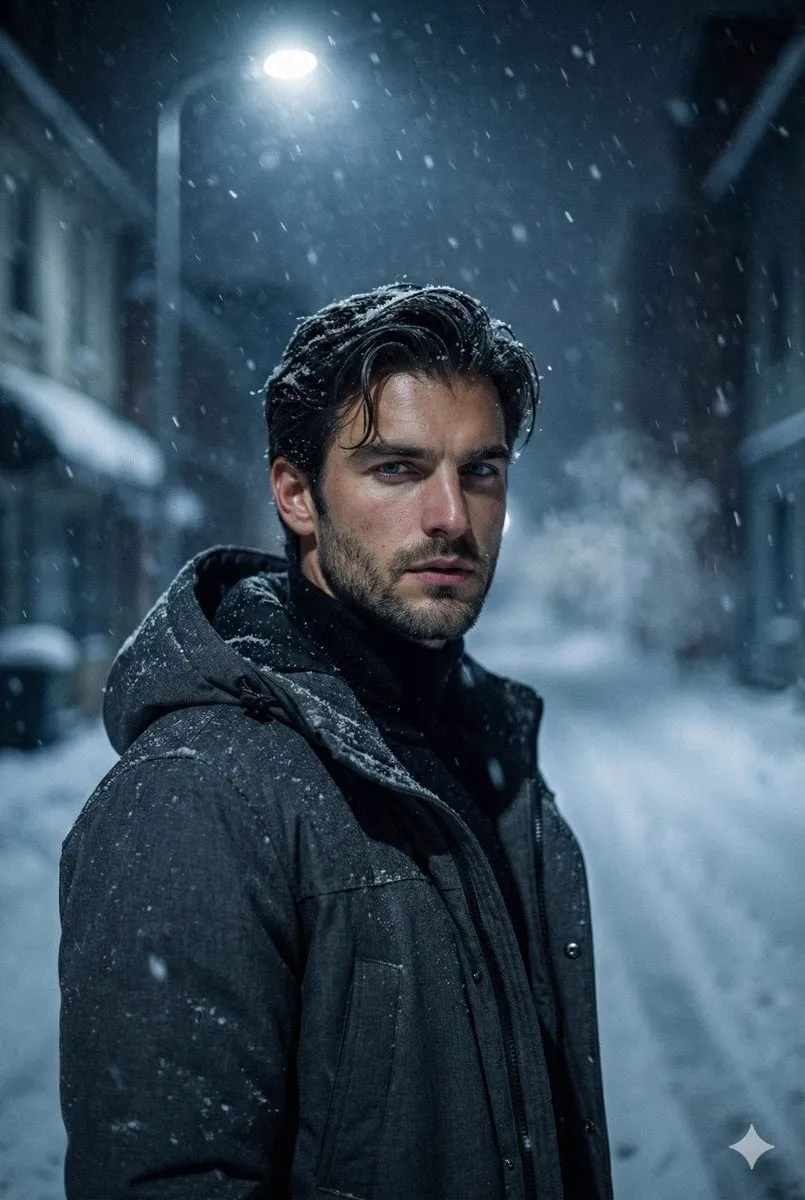
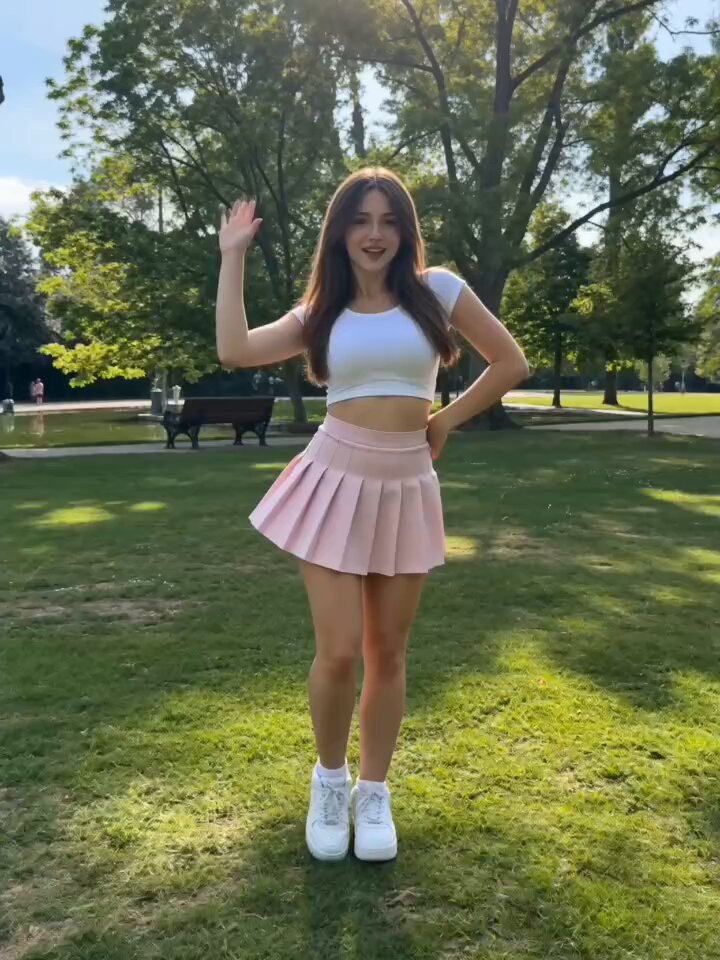
An ai thumbnail generator from image lets you start with an existing photo and refine it into a profile-ready thumbnail. You upload a source image you have permission to edit, describe the framing, background, or style changes you want, choose generation settings, then review and download the edited result. This workflow helps you create profile pictures or video thumbnails from your own photos without manual editing software.
AI Thumbnail Generator from Image: Edit Your Photo
Travel vlog cover
Input
Upload a source image you have permission to edit, then describe the framing, style, background, and finish you want for the profile picture.
Expected output
A vibrant travel-style cover with strong color and a distinct focal point for the title area. Review the edited result before deciding whether it represents the person or subject accurately.
Product review card
Input
Upload a source image you have permission to edit, then describe the framing, style, background, and finish you want for the profile picture.
Expected output
A product-focused image with the headphones sharp in the center and minimal visual noise. Review the edited result before deciding whether it represents the person or subject accurately.
Fitness post visual
Input
Upload a source image you have permission to edit, then describe the framing, style, background, and finish you want for the profile picture.
Expected output
An energetic fitness-style image with the athlete as the clear subject and a bright morning mood. Review the edited result before deciding whether it represents the person or subject accurately.
Turn a source image into a profile-ready thumbnail by describing edits and reviewing the result
Start with your own image
Use an image you have permission to edit instead of recreating the subject from a text-only description.
Direct the changes
State the framing, background, and style you want, then compare the result with the original image.
Choose before you use it
Review the edited image for likeness, context, and crop before downloading or posting it.
How It Works
1
Upload the image you want to refine
Start with an image you have the right to edit.
2
Describe the profile-picture changes you want
Keep the requested edits specific so the intended profile look is clear.
3
Generate, compare, and download
Review the output for likeness, accuracy, and the final profile crop before using it.
Making a profile-picture edit that stays clear
A clear source image and a focused edit request make it easier to judge the result.
Input Constraints
Only upload images you have permission to edit and use.
Keep the requested changes focused on the profile-picture outcome you need.
Review the final image for likeness and context before sharing it.
Practical Tips
Use a source image with a visible face and enough detail around the subject.
Ask for one or two concrete changes, such as a neutral background or a square crop.
Compare the result with the original image before choosing a version to use.
Privacy
Do not upload personal or sensitive material unless you have permission to use it.
Usage Rights
Confirm that you have the rights needed for the inputs and intended use of the result.
Prompt recipes
Copy a structure, then adjust the subject, lighting, camera, and output details for your own result.
Clean profile headshot from casual photo
Remove the busy background, replace with a solid neutral gray, crop to a square centered on the face, keep natural lighting and skin tones
Requesting one clear background change, specific crop, and color preservation produces a professional profile picture without over-editing.
Video thumbnail from action shot
Increase contrast and saturation for thumbnail visibility, crop to horizontal 16:9 with the subject on the left, leave space on the right for title text
Targeting visibility adjustments, specific aspect ratio, and text space creates a functional video thumbnail layout.
Consistent brand thumbnail from product photo
Place the product on a clean white studio background, center the subject, add subtle shadow for depth, keep brand colors accurate
Specifying background, centering, shadow, and color fidelity helps maintain brand consistency across product thumbnails.
Social media profile from group photo
Crop tightly around the person on the left, remove other people from the frame, keep the original lighting and facial expression
Clear crop instruction, subject isolation, and preservation of original mood produce a usable profile picture from a group shot.
Thumbnail upgrade from screenshot
Sharpen the image, boost color vibrancy, crop to 4:3 aspect ratio with the main element centered, clean up any UI clutter
Sharpening, color boost, aspect control, and clutter removal turn a raw screenshot into a polished thumbnail.
Professional avatar from outdoor selfie
Replace the outdoor background with a soft gradient from white to light blue, crop to a square, keep the friendly expression and natural light
Background swap, square crop, and expression preservation balance professionalism with approachability.
Best use cases
Match the workflow to the input you have and the result you need before opening the generator.
Use case
Best input
Expected result
Tool
Creating a professional profile picture from a casual photo
Source image with clear face, description of background change and crop, lighting preferences
A polished profile picture with neutral background and professional framing
Image to Image
Generating video thumbnails from stills or screenshots
Source frame, visibility adjustments like contrast or saturation, aspect ratio, text space reservation
A thumbnail-ready image with the subject clear and room for title overlay
Image to Image
Extracting individual profile pictures from group photos
Group photo, crop instruction targeting one person, background handling preference
An isolated profile image with the selected person as the focal point
Image to Image
Maintaining consistent product thumbnails across listings
Product photo, background style like white or gradient, centering and shadow preferences, brand color notes
A set of product thumbnails with unified style and accurate brand representation
Image to Image
Creating a professional profile picture from a casual photo
Input: Source image with clear face, description of background change and crop, lighting preferences
Result: A polished profile picture with neutral background and professional framing
Tool: Image to Image
Generating video thumbnails from stills or screenshots
Input: Source frame, visibility adjustments like contrast or saturation, aspect ratio, text space reservation
Result: A thumbnail-ready image with the subject clear and room for title overlay
Tool: Image to Image
Extracting individual profile pictures from group photos
Input: Group photo, crop instruction targeting one person, background handling preference
Result: An isolated profile image with the selected person as the focal point
Tool: Image to Image
Maintaining consistent product thumbnails across listings
Input: Product photo, background style like white or gradient, centering and shadow preferences, brand color notes
Result: A set of product thumbnails with unified style and accurate brand representation
Tool: Image to Image
Limitations to know before generating
Complex background removal or object isolation may produce edge artifacts or unnatural blending.
Facial feature edits risk changing likeness or creating unrealistic results; review carefully before use.
The tool cannot add detail that was not present in the source image; low-resolution inputs produce low-quality outputs.
Extensive edits or conflicting instructions may produce results that diverge significantly from the original.
Results depend on source image quality and edit complexity; simple changes like background swap work better than multi-step transformations.
Creative Suite: AI Video Generator & AI Image Generator Tools
Power up your creative workflow with our AI-driven tools. Generate stunning videos, create images, and apply custom adjustments - our AI Video Generator and AI Image Generator offer a complete solution for all your creative needs.