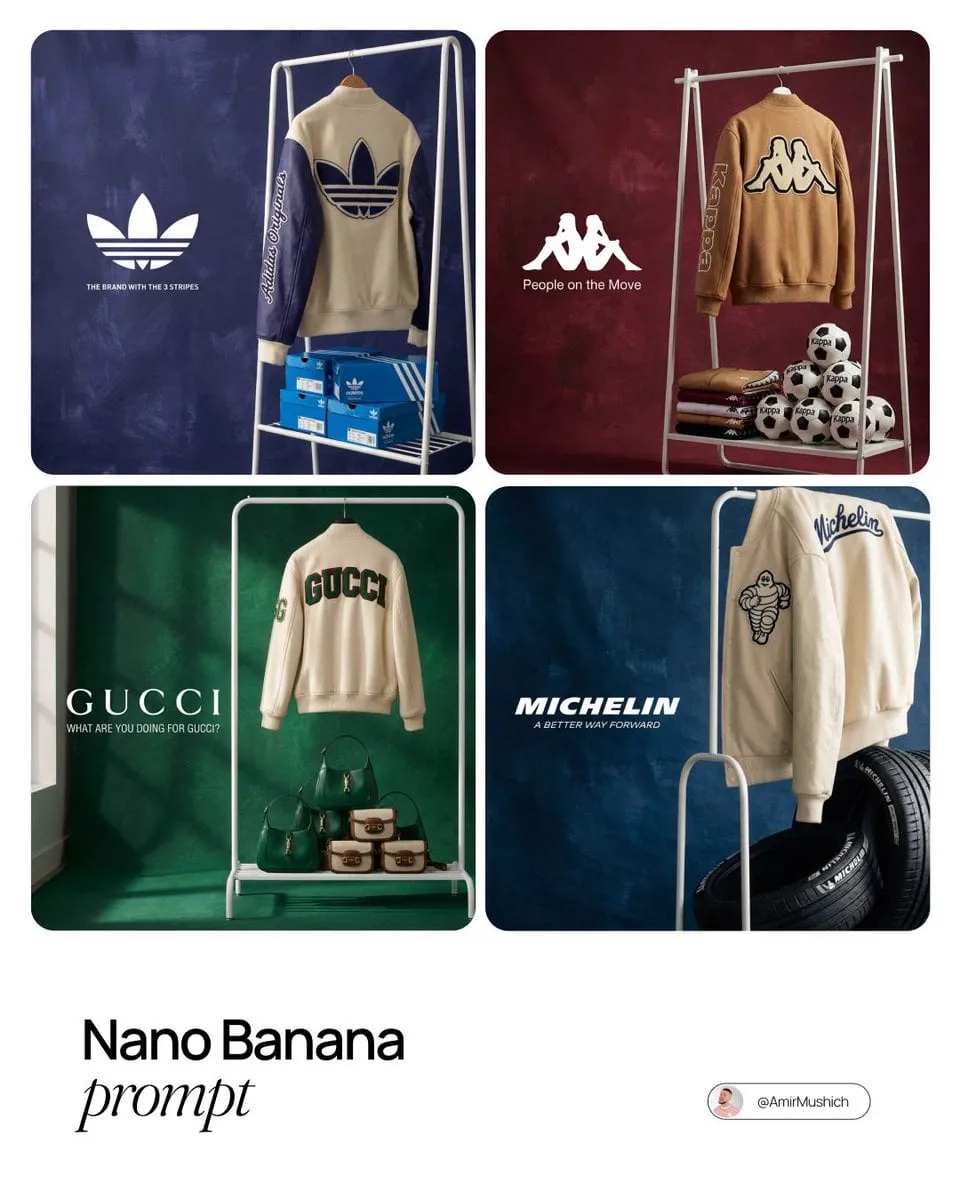
A Whatnot thumbnail generator creates thumbnail images for live selling shows from text descriptions. You describe the featured item, background, and lighting, choose generation settings, and review the result before using it as a show thumbnail. It is not connected to the Whatnot platform.
Whatnot Thumbnail Generator
Live show hero
Input
A pair of sneakers on a bright display pedestal, bold colored backdrop, spotlight from above, clean ecommerce live show style
Expected output
A product-focused image with strong contrast and the sneakers as the clear center of attention.
Auction card frame
Input
A vintage watch in an open case, dark velvet background, dramatic side lighting, collectible auction mood
Expected output
A dramatic close-up of the watch with rich shadows and a premium feel.
Category banner
Input
A stack of trading cards and a mystery box on a pastel studio background, soft light, playful unboxing energy
Expected output
A bright, playful image with the cards and box arranged as the main visual.
Create thumbnail images for live selling shows or listings by describing the scene
Fast visual draft
Describe the thumbnail you need and get an image draft to review before your show goes live.
Consistent look
Reuse a prompt style across items to keep your show thumbnails visually consistent.
No design setup
Skip layout tools; a clear written prompt is enough to start.
How It Works
1
Describe the image
Describe the desired image.
2
Choose settings
Choose the available generation settings.
3
Generate and review
Generate, review, and download a suitable result.
Prompt guidance
Focus the prompt on one item or scene so the thumbnail stays clear.
Input Constraints
Describe the main item you want viewers to notice.
Keep the background simple enough to stay readable at thumbnail size.
Add lighting or mood words to set the tone.
Review the result for the item and layout before use.
Practical Tips
Name the item first, then the setting and backdrop.
Use words like 'spotlight', 'pastel', or 'dramatic' to steer the look.
If the item looks wrong, adjust its description and generate again.
Privacy
Do not upload personal or sensitive material unless you have permission to use it.
Usage Rights
Confirm that you have the rights needed for the inputs and intended use of the result.
Prompt recipes
Copy a structure, then adjust the subject, lighting, camera, and output details for your own result.
Collectible card spotlight
A rare Pokemon card standing upright in a clear display case, dark gradient background from deep blue to black, dramatic spotlight from above, premium collectible presentation
Centers the card as the focal point with high-contrast lighting to emphasize rarity and value.
Fashion accessory flat lay
A designer handbag and matching sunglasses arranged on a marble surface, soft overhead lighting, clean luxury fashion aesthetic, pastel pink and white tones
Uses flat lay composition with luxury materials and soft colors to create an aspirational fashion thumbnail.
Toy unboxing scene
A sealed action figure box next to an open box with colorful packing paper spilling out, bright studio background, energetic and playful mood, side angle view
Combines sealed and open packaging to create anticipation and showcase the unboxing experience.
Vintage electronics hero
A retro portable cassette player on a wooden workbench with scattered audio tapes, warm golden hour lighting, nostalgic tech collector mood
Uses warm lighting and nostalgic props to create context and appeal for vintage electronics collectors.
Mystery box teaser
A sealed cardboard mystery box with question mark symbol, colorful confetti scattered around, bright playful background, anticipation and surprise feeling
Creates visual curiosity with the sealed box and playful elements to encourage viewers to click and watch.
Best use cases
Match the workflow to the input you have and the result you need before opening the generator.
Use case
Best input
Expected result
Tool
Live show thumbnail
Featured product with bold lighting and clean background
A clear product-focused image that reads well at small sizes
Text to Image with product name and lighting keywords
Auction listing image
Item close-up with premium lighting and texture details
A dramatic product shot that conveys quality and value
Text to Image with mood and material keywords
Category banner
Multiple related items arranged in a scene with consistent style
A cohesive category image suitable for collection or theme pages
Text to Image with arrangement and style keywords
Live show thumbnail
Input: Featured product with bold lighting and clean background
Result: A clear product-focused image that reads well at small sizes
Tool: Text to Image with product name and lighting keywords
Auction listing image
Input: Item close-up with premium lighting and texture details
Result: A dramatic product shot that conveys quality and value
Tool: Text to Image with mood and material keywords
Category banner
Input: Multiple related items arranged in a scene with consistent style
Result: A cohesive category image suitable for collection or theme pages
Tool: Text to Image with arrangement and style keywords
Limitations to know before generating
This tool is not connected to Whatnot; you generate the image and upload it separately.
Thumbnail clarity depends on prompt focus; complex scenes may not read well at small sizes.
Product details and branding require explicit description; the tool does not infer specifics.
Generated images may need cropping or editing to fit Whatnot thumbnail dimensions.
Confirm you have rights for any branded items or logos before using the thumbnail publicly.
Creative Suite: AI Video Generator & AI Image Generator Tools
Power up your creative workflow with our AI-driven tools. Generate stunning videos, create images, and apply custom adjustments - our AI Video Generator and AI Image Generator offer a complete solution for all your creative needs.