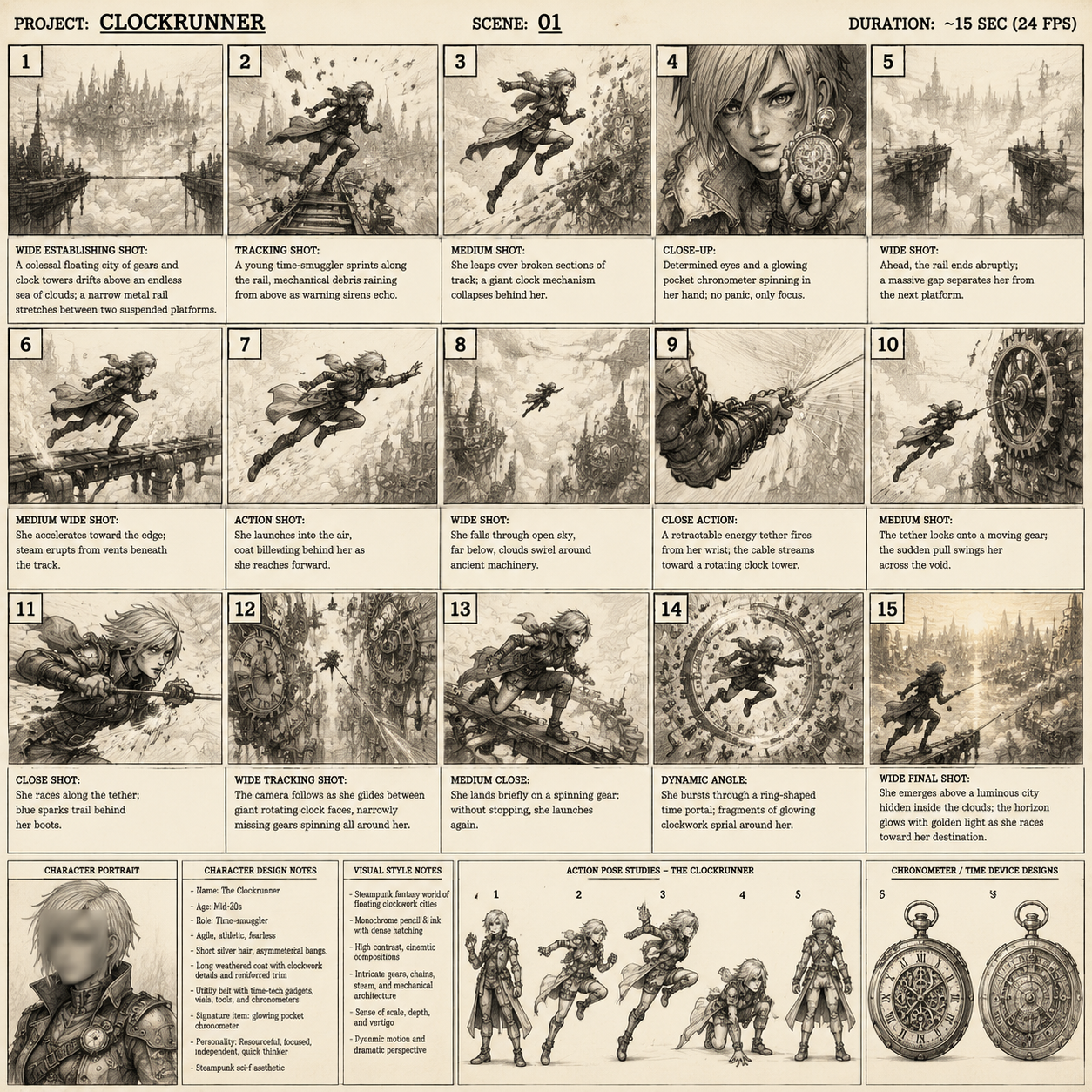
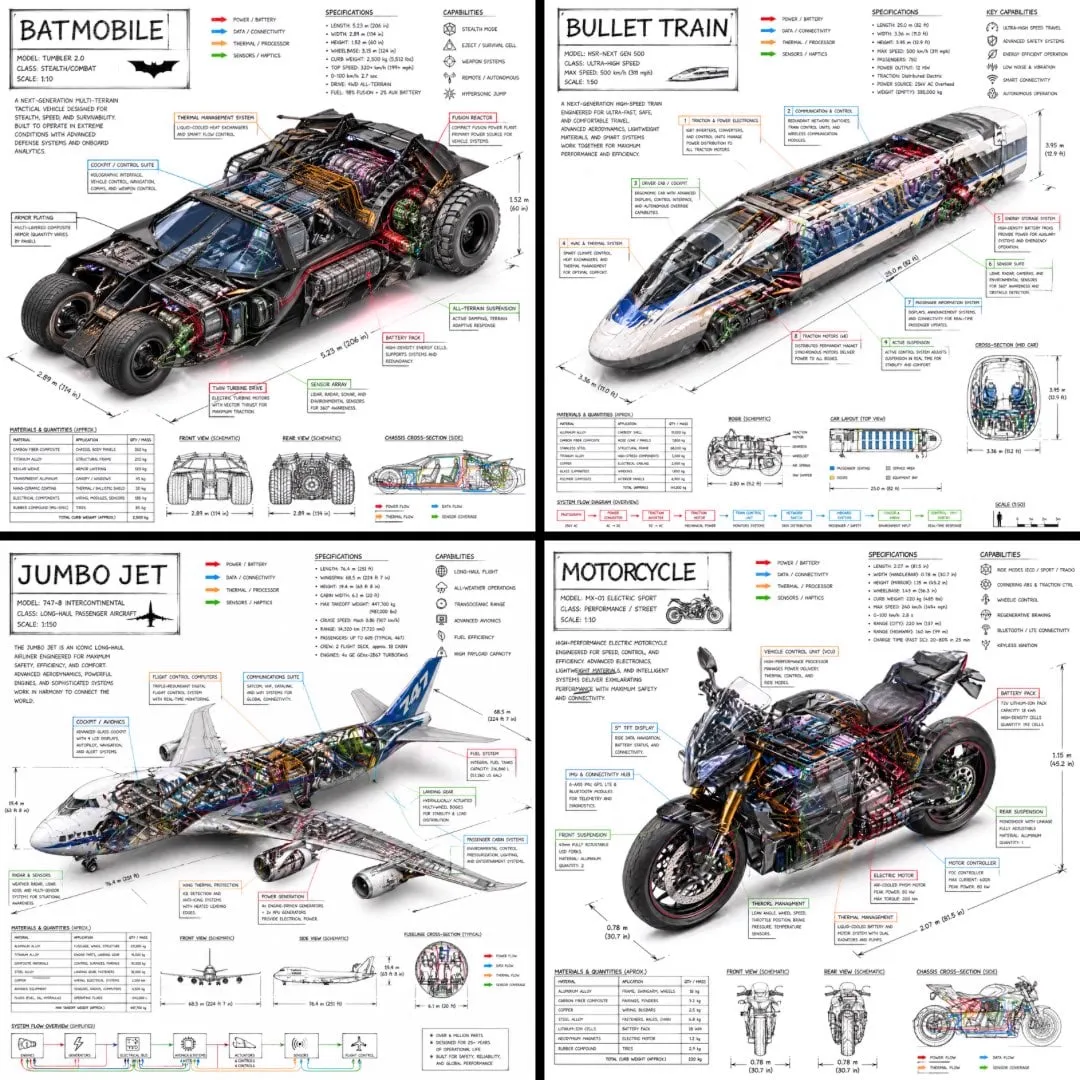
What is an AI script to animation video generator?
An AI script to animation video generator turns written scene descriptions into short animated clips. Describe the setting, characters, and action for each scene, then review the draft. Use it to preview animation concepts, test scene pacing, or build visual references.
AI Script to Animation Video Generator
Two-scene product story
Input
Scene one: a person opens a laptop on a kitchen table. Scene two: the screen shows a simple chart while the person nods.
Expected output
Two linked clips where the setup reads clearly and the chart moment is easy to follow.
Character arrival scene
Input
A short scene where a messenger arrives at a castle gate, hands over a scroll, and the gate slowly opens.
Expected output
A clip with the messenger walking up, the scroll exchange, and the gate opening in sequence.
Sunrise garden moment
Input
A quiet scene where a gardener waters plants at sunrise while birds land on a fence.
Expected output
A clip showing the watering motion, the birds arriving, and soft morning light throughout.
Turn a short script or scene outline into an animated video draft you can review scene by scene
Write once, see it move
Use your script text as the basis for a prompt and get a visual draft instead of a static outline.
Handle scenes one at a time
Describe a single scene per attempt to keep each clip focused and easy to review.
Review before you reuse
Check each generated scene for clarity and rights before including it in your project.
How It Works
1
Describe the scene
Describe the desired scene and motion.
2
Choose your settings
Choose the available generation settings.
3
Generate and review
Generate, review, and download a suitable result.
Turning a script into prompts
Scene-by-scene prompts are easier to review than one long description.
Input Constraints
Break the script into scenes and describe one scene per attempt
Include who or what appears and what moves in the scene
Keep action lines short and visual rather than dialogue-heavy
Use only material you are allowed to adapt and reuse
Practical Tips
Start each prompt with the setting, then add the action
Cut narration that does not change what is visible on screen
Generate a test clip for the hardest scene first
Match the tone of the scene, such as calm or energetic, in the prompt
Privacy
Do not upload personal or sensitive material unless you have permission to use it.
Usage Rights
Confirm that you have the rights needed for the inputs and intended use of the result.
Prompt recipes
Copy a structure, then adjust the subject, lighting, camera, and output details for your own result.
Explainer video opening
A friendly character waves at the camera in front of a colorful background, speech bubble appears with a question mark, character points to the side
Establishes the explainer format quickly with clear character action and visual cues that guide viewer attention.
Product demo sequence
Close-up of a phone screen showing an app interface, finger taps a button, interface transitions smoothly to a new screen with a success checkmark
Demonstrates product functionality through clear visual steps that mirror the user experience.
Story-driven brand video
A small plant growing in time-lapse from a seed, sunlight streaming in, plant reaches full bloom, camera pulls back to reveal a gardener smiling
Uses symbolic visual storytelling to convey brand values like growth and care without heavy narration.
Educational concept scene
Abstract shapes floating in space, one red cube and three blue spheres, the cube moves toward the spheres and they connect, forming a simple molecule structure
Simplifies a complex concept into clear visual metaphor ideal for educational animation.
Character emotional arc
A character sitting alone on a bench looking sad, a friend approaches and sits down, character's expression shifts to a small smile, warm sunset lighting
Conveys emotional progression through character blocking and facial expression changes that read clearly in animation.
Best use cases
Match the workflow to the input you have and the result you need before opening the generator.
Use case
Best input
Expected result
Tool
Explainer video draft
Scene-by-scene description of the explainer flow with character actions and visual cues
A rough animated draft showing the explainer structure and pacing for client review
Text to Video
Product demo animation
Step-by-step product workflow described with screen interactions and transitions
A short animated sequence showing how the product works visually
Text to Video
Story-driven brand video
Key narrative beats with character actions and symbolic visual elements
An animated brand story draft that communicates values and tone
Text to Video
Explainer video draft
Input: Scene-by-scene description of the explainer flow with character actions and visual cues
Result: A rough animated draft showing the explainer structure and pacing for client review
Tool: Text to Video
Product demo animation
Input: Step-by-step product workflow described with screen interactions and transitions
Result: A short animated sequence showing how the product works visually
Tool: Text to Video
Story-driven brand video
Input: Key narrative beats with character actions and symbolic visual elements
Result: An animated brand story draft that communicates values and tone
Tool: Text to Video
Limitations to know before generating
The tool generates short clips from individual scene descriptions, not full scripts for comparison
Output quality depends on how clearly you describe the setting, characters, and action for each scene
You may need several attempts per scene to match your vision exactly
Review each scene to confirm it matches your script and you have the rights to the material before reuse
Creative Suite: AI Video Generator & AI Image Generator Tools
Power up your creative workflow with our AI-driven tools. Generate stunning videos, create images, and apply custom adjustments - our AI Video Generator and AI Image Generator offer a complete solution for all your creative needs.