
The Shift from Timeline to Intelligent Synthesis
The craft of video editing has long been defined by the timeline—a horizontal canvas where clips are trimmed, layered, and woven together through painstaking manual effort. For decades, editors have relied on keyframes, bezier curves, and countless hours of scrubbing to achieve a polished result. But a fundamental shift is underway. AI-driven synthesis and manipulation are rapidly replacing the linear, mechanical approach with something far more fluid and intuitive.
Instead of dragging transition handles and tweaking opacity ramps, editors can now describe the desired effect in natural language or select a visual reference, and the system generates a seamless result. This is not about automating the boring parts—it is about unlocking creative possibilities that were previously too time-consuming or technically demanding for most creators. The AI video editing revolution is not a distant future; it is already reshaping how professional and amateur editors alike approach their craft.
In this article, we will explore the core technologies behind this transformation, focusing on two pillars: effortless cinematic transitions and robust style transfer. We will also examine how intelligent direction systems are beginning to assist with composition and pacing. Whether you are a solo content creator or part of a production team, understanding these tools will give you a significant advantage.
How AI Understands Motion and Continuity
Traditional editing software treats each clip as an isolated segment. Transitions are applied as effects layered on top, often resulting in jarring cuts or artificial-looking blends. AI changes this by analyzing the content of adjacent clips and building a temporal model that understands motion, depth, and object continuity.
Temporal Coherence Models
At the heart of seamless scene blending is a temporal coherence model. This type of neural network examines frames before and after a cut point, tracking the movement of pixels and objects over time. It can predict how a camera pan should continue across a shot boundary, or how a character's motion should flow from one scene to the next.
For example, imagine a scene where an actor throws a ball toward the camera. The next shot shows the ball entering frame from the opposite side. A temporal coherence model can generate intermediate frames that make the ball's trajectory appear continuous, even if the original footage was not planned that way. This goes far beyond a simple cross-fade; it is a reconstruction of spatial and temporal logic.
Practical Applications
Editors can leverage these models for:
- Match cuts: AI can identify visually similar shapes or movements across scenes and suggest cut points that feel invisible.
- Whip pans: When a fast camera movement ends abruptly, the model can synthesize motion blur and directional flow to connect to the next shot.
- Dissolves: Instead of a uniform fade, the AI can dissolve only certain objects or regions while keeping the background stable.
The result is a level of polish that used to require hours of manual rotoscoping and frame-by-frame adjustment.
Stylized Transitions: Morphs and Cross-Fades
Not all transitions need to be invisible. Sometimes the goal is to create a stylistic bridge that calls attention to itself—a morph that transforms one scene into another, or a cross-fade that blends textures and colors in an artistic way.
Morph Transitions
A morph transition gradually transforms the shape and appearance of one image into another. AI makes this possible with unprecedented smoothness. By using semantic segmentation, the system can identify corresponding parts—a face to a face, a tree to a tree—and generate a fluid metamorphosis. This is especially powerful in music videos, fantasy sequences, or any context where you want to show a transformation.
Workflow example:
- Select two clips: one ending with a close-up of a character's eye, the next starting with a wide shot of a landscape.
- Choose a morph transition and specify a focal point (the eye).
- The AI will generate frames that stretch and blend the eye into the landscape, using color matching and motion vectors to maintain a dreamlike continuity.
Stylized Cross-Fades
A standard cross-fade simply lowers the opacity of one clip while raising another. An AI-powered stylized cross-fade can do much more. It can transfer color palettes, add particle effects, or even simulate light leaks and film burns that match the mood of the footage. For instance, a transition between a warm indoor scene and a cool outdoor scene could include an organic light flare that bridges the color temperature difference.
Editors can control the intensity and duration with simple sliders or by typing a description like "slow, warm dissolve with a hint of lens flare." The AI interprets this and applies the effect consistently across the entire transition.
Automated Camera Movement Integration
One of the most challenging aspects of editing is integrating footage shot with different camera movements. A handheld shot followed by a tripod shot can feel disorienting. AI can help by synthesizing virtual camera moves that smooth out the differences.
Virtual Camera Repositioning
Using depth estimation and 3D scene reconstruction, AI can simulate a camera push, pull, or pan that was not present in the original footage. This allows editors to create a continuous move across a cut. For example, if a scene ends with a static wide shot and the next begins with a static close-up, the AI can generate a virtual dolly-in on the first clip that matches the framing of the second.
This technique is particularly useful for interviews and documentaries where multiple cameras are used. It can also rescue footage that was shot without a planned transition in mind.
Stabilization and Motion Matching
AI can also stabilize shaky footage and then match its motion characteristics to the next clip. If you want a consistent handheld feel, the AI can apply a similar shake pattern to a previously stable shot. This level of motion matching used to require motion tracking and manual animation.
Tools to explore: Many modern editing suites now include AI stabilization and motion matching. Look for features like "motion smoothing" or "camera solve" in your software, or consider dedicated AI video tools that offer these capabilities as standalone services.
Style Transfer for Visual Consistency
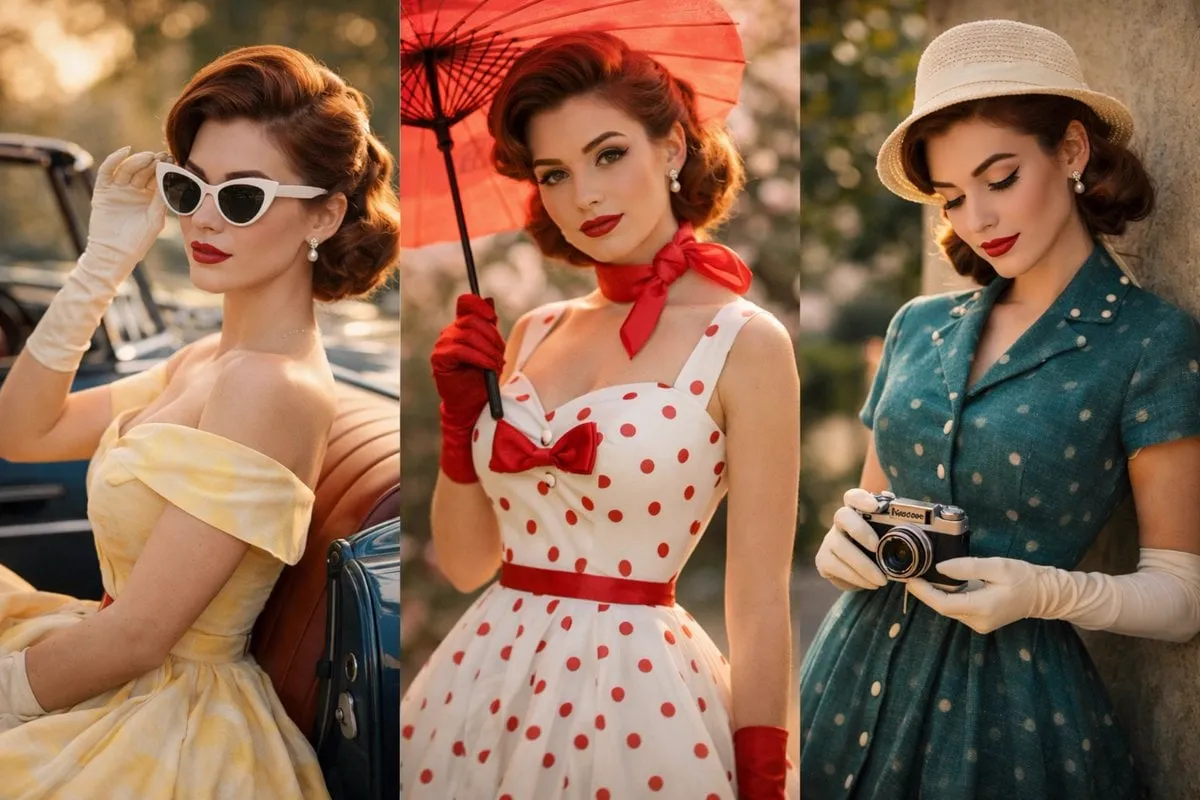
Style transfer is the process of applying the visual look of one image or video to another. In the context of video editing, it is used to maintain a consistent aesthetic across shots that may have been filmed under different lighting conditions or with different cameras.
Multi-Model Architecture
Effective style transfer relies on multiple models working together. One model might handle color grading, another texture synthesis, and a third temporal consistency. This multi-model approach allows for portability: you can extract a style from a reference image—a painting, a film still, a photograph—and apply it to your entire project.
For instance, if you want your footage to look like a vintage 1970s film, you can provide a reference frame. The AI will analyze its grain, color shifts, contrast, and even subtle lens distortions, then apply those characteristics to your clips while preserving the original motion and details.
Keyframe Locking and Character Anchoring
One of the biggest challenges in style transfer is maintaining consistency over time. Without safeguards, the style might flicker or drift between frames. AI solves this with keyframe locking: the editor selects a few representative frames and locks the style to them. The model then interpolates the style across the entire sequence, ensuring a stable look.
Character anchoring is a related technique. It ensures that a person's skin tones, facial features, and clothing colors remain consistent even as the background style changes. This is crucial for narrative content where viewers need to recognize characters from scene to scene.
Example workflow:
- Import your footage and a reference style image.
- Run an initial style transfer pass.
- Identify frames where the style drifts (e.g., a scene with unusual lighting).
- Use keyframe locking to pin the style on a well-lit frame.
- If a character's face becomes discolored, enable character anchoring to protect skin tones.
- Render the final sequence.
Real-Time Style Adjustment
For dynamic content like live streams or fast-turnaround social media videos, real-time style adjustment is invaluable. AI models can now apply style transfer at interactive frame rates, allowing editors to tweak the look on the fly. This means you can see how a change in style affects the entire video without waiting for a full render.
This capability also opens up new creative avenues: you could switch styles mid-video to reflect a change in mood or perspective. For example, a scene that starts in a realistic style could gradually shift to a stylized, painterly look as the character enters a dream sequence.
AI Director Intelligence: Composition and Pacing
Beyond transitions and style, AI is beginning to assist with the broader creative decisions that define cinematic storytelling. This includes suggesting camera angles, framing, and even pacing.
Automated Composition Suggestions
Using computer vision, AI can analyze your footage and propose alternative crops or reframings. It can identify the rule of thirds, leading lines, and balance of visual weight. If a shot feels static, it might suggest a slight push-in or a change in aspect ratio. These suggestions are not meant to replace the editor's judgment but to provide a starting point or a fresh perspective.
For example, in a dialogue scene, the AI might notice that the two actors are not symmetrically framed and suggest a subtle pan to improve the composition. Or it could recommend a cutaway to a reaction shot at a moment when the emotional intensity peaks.
Pacing and Rhythm Analysis
AI can also analyze the rhythm of your edit. By examining the duration of shots, the tempo of the music, and the intensity of the action, it can suggest where to trim or extend clips to improve the flow. This is particularly useful for action sequences or montages where pacing is critical.
Some tools even offer an "auto-edit" feature that generates a rough cut based on a music track. While the result may not be final, it can save hours of initial assembly and provide a creative spark.
Building an AI-Assisted Editing Workflow
Integrating AI into your editing process does not mean abandoning your creative control. Instead, think of AI as a collaborative assistant that handles repetitive or technically complex tasks, freeing you to focus on storytelling.
Step 1: Organize and Tag Footage
Use AI-powered media management tools to automatically tag clips based on content, location, and quality. This makes it easy to find the shots you need.
Step 2: Rough Cut with AI Suggestions
Let the AI generate a rough assembly based on your script or a music track. Review it and make manual adjustments. This gives you a solid foundation to build upon.
Step 3: Refine Transitions and Style
Apply AI-driven transitions where needed. Use style transfer to unify the look of your project. Experiment with different styles and intensities until you achieve the desired mood.
Step 4: Polish with Director Intelligence
Run the AI director analysis to get suggestions on composition and pacing. Implement the ones that resonate with your vision.
Step 5: Final Review and Render
Always do a manual pass to catch any AI errors or inconsistencies. Then render your final video.
Common Pitfalls and How to Avoid Them
AI video editing is powerful, but it is not magic. Here are some common issues and how to address them.
Over-Reliance on Automation
It is tempting to let the AI make all the decisions, but the result can feel generic. Always inject your own creative choices—a unique transition, a deliberate pacing change, a specific color grade.
Temporal Flicker in Style Transfer
If the style appears to flicker, try increasing the number of keyframes or using a model that explicitly supports temporal consistency. Some tools have a "stability" slider that can be adjusted.
Unnatural Transitions
AI-generated transitions can sometimes look artificial, especially if the source footage is very different in lighting or motion. In such cases, consider using a simpler transition or blending the AI effect with a traditional cross-fade.
Performance and Rendering Time
AI processing can be computationally intensive. For long projects, consider rendering in segments or using a cloud-based service. Also, check if your hardware supports GPU acceleration.
The Future of AI in Video Editing
We are still in the early stages of this revolution. As models become more efficient and intuitive, we can expect even more seamless integration of AI into the editing workflow. Future developments may include real-time collaboration with AI that understands your creative style, automatic generation of B-roll from text prompts, and advanced virtual production techniques.
One thing is clear: the barrier between imagination and execution is shrinking. Editors who embrace these tools will be able to produce higher-quality content in less time, and they will be able to experiment with ideas that were once impractical.
Frequently Asked Questions
Q: Do I need a powerful computer to use AI video editing tools?
A: Many AI features run in the cloud, so a mid-range computer with a good internet connection can suffice. However, for real-time style transfer or local processing, a dedicated GPU is recommended.
Q: Will AI replace human editors?
A: No, AI is a tool that augments human creativity. It automates tedious tasks and provides suggestions, but the artistic vision and storytelling instincts of a human editor remain essential.
Q: Can I use AI style transfer on any type of video?
A: Yes, but results vary. Footage with clear subjects and consistent lighting tends to work best. Highly chaotic or low-light footage may require more manual adjustments.
Q: How do I ensure my AI-generated transitions look natural?
A: Start with subtle effects and gradually increase intensity. Use reference footage to guide the AI, and always preview the transition in context with the surrounding clips.
Q: Are there free AI video editing tools available?
A: Yes, many free or freemium tools offer basic AI features like auto-cuts and simple transitions. For advanced style transfer and director intelligence, you may need a paid subscription.
Q: Can AI help with color grading?
A: Absolutely. AI can analyze a reference image and apply its color palette to your footage, or it can automatically correct exposure and white balance across multiple clips.
Conclusion
The AI video editing revolution is not just about faster rendering or automated cuts. It is about expanding the creative palette for every editor. With AI-powered transitions, style transfer, and director intelligence, you can achieve a level of polish and consistency that was once reserved for big-budget productions. By understanding these tools and integrating them thoughtfully into your workflow, you can elevate your storytelling and captivate your audience. The future of editing is here—and it is intelligent.
