
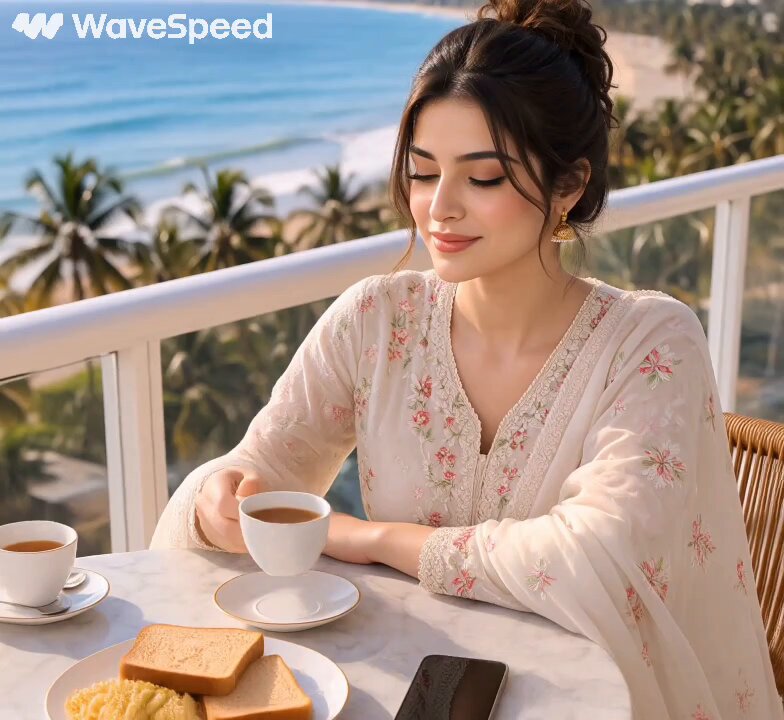
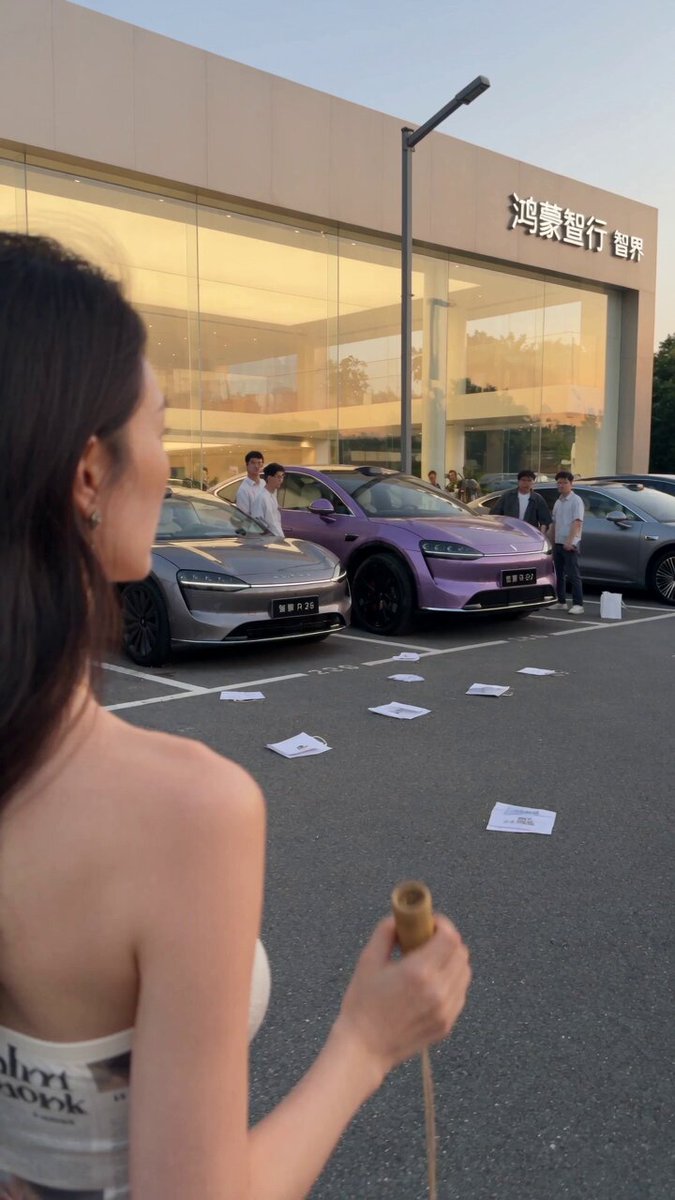
The landscape of AI video generation has changed dramatically. What once required a full production crew can now be produced by a solo creator with a laptop and a clear workflow. But for multilingual creators, the challenge is not just generating video; it is generating video that resonates across languages, cultures, and platforms. This guide outlines a practical, repeatable workflow for using AI video generators effectively, with a focus on multilingual content, character consistency, and professional delivery.
Why Multilingual AI Video Needs a Different Workflow
Most AI video models are trained primarily on English-language data. That does not mean they cannot handle other languages, but it does mean your results may vary when you prompt in Bengali, Spanish, Japanese, or any other language. Some models understand multilingual prompts reasonably well. Others perform better when you write the prompt in English and then localize the audio and text in post-production. The key is to test early and document what works for your target languages.
Cultural context matters just as much as language. A scene that feels natural to a Bengali audience may rely on specific clothing, gestures, festival details, or architectural cues. If your prompt is too generic, the model will default to a Western visual style. You need to be explicit about setting, props, and cultural markers. For example, instead of writing a woman walks through a market, write a young woman in a colorful cotton sari walks past stalls of fresh vegetables and clay pots in a bustling Kolkata market at golden hour. That level of detail helps the model produce something that feels authentic.
Another challenge is on-screen text. Many AI video generators struggle with rendering non-Latin scripts accurately. If your video includes Bengali, Arabic, or Chinese text, you may need to add it in post-production using a video editor rather than relying on the AI model. Plan for this in your workflow so you do not waste generations on unreadable text.
Core Capabilities to Evaluate in an AI Video Generator
Not all AI video tools are built for the same tasks. Before committing to a workflow, evaluate the following capabilities based on your project needs.
Text-to-Video and Image-to-Video
Text-to-video is the most common starting point. You write a prompt and the model generates a clip. Image-to-video takes a still image and animates it. For multilingual projects, image-to-video is often more reliable because you can create a culturally accurate keyframe first, then animate it. This reduces the chance of the model inventing inappropriate details.
Camera and Motion Controls
If your video needs specific camera movements, look for tools that offer pan, tilt, zoom, dolly, and tracking controls. Some models provide cinematic lens presets. Others allow motion brushes that let you direct where objects move in the frame. These controls are essential for action sequences, product showcases, and narrative storytelling.
Character Consistency
Character consistency is one of the hardest problems in AI video. A character may look different from one shot to the next. Look for features like reference images, character sheets, seed locking, and style references. Some platforms allow you to train a custom character model. If your project has a recurring protagonist, this capability is non-negotiable.
Duration, Resolution, and Aspect Ratio
Most AI video generators produce short clips, typically between four and ten seconds. For longer videos, you will need to generate multiple clips and edit them together. Check the maximum resolution and supported aspect ratios. Vertical video is essential for social media, while widescreen is better for YouTube and presentations.
Multilingual Prompt Understanding
Test the model with prompts in your target language. Some models handle multilingual prompts better than others. If the model struggles, use English prompts and localize later. Do not assume that a model trained on English will produce good results in Bengali just because the interface supports it.
API and Batch Processing
If you plan to produce videos at scale, an API is essential. It lets you automate generation, run batch jobs, and integrate AI video into your existing content pipeline. Without an API, you are limited to manual, one-off creations.
Prompting and Storyboarding for Global Audiences
A strong prompt is the foundation of a good AI video. For multilingual projects, structure your prompts carefully.
Use a Consistent Prompt Template
A useful template is: [Subject] + [Action] + [Setting] + [Camera Movement] + [Lighting] + [Style]. For example: A young man in a traditional kurta plays a flute + while sitting under a banyan tree + in a rural Bangladeshi village + camera slowly zooms in + warm sunset lighting + cinematic, realistic style. This template works across most models and makes it easier to swap languages and settings.
Write in English, Localize in Post
In most cases, English prompts produce more predictable results because the models were trained on English data. Write your prompt in English, generate the visual, and then add voiceover, subtitles, and on-screen text in your target language. This two-step approach gives you the best of both worlds: reliable generation and authentic localization.
Storyboard Before You Generate
Do not start generating clips without a shot list. Create a simple storyboard with columns for shot number, description, prompt, camera angle, duration, and notes. This keeps your project organized and ensures visual consistency. For multilingual content, mark which shots need translated text or voiceover so you can plan the post-production workflow.
Test Native Language Prompts
Even if English is your primary prompt language, test a few prompts in your native language. Some models have improved multilingual capabilities and may produce interesting stylistic variations. Document which prompts work best for each language so you can reuse them in future projects.
Achieving Character Consistency and Style Control
Character consistency is the difference between a professional-looking video and a disjointed experiment. Here are practical techniques.
Create a Character Sheet
Generate a set of reference images for your main character from multiple angles: front, side, back, close-up, and full body. Use these images as references for every shot. Some models accept multiple reference images, which improves consistency.
Lock the Seed
Many AI video generators allow you to set a random seed. If you use the same seed and a similar prompt, you are more likely to get consistent results. Note the seed for each character and reuse it across shots.
Use Image-to-Video for Consistency
Instead of generating each shot from text, generate a still keyframe for each shot using an image model that supports character references. Then animate that keyframe with image-to-video. This two-stage approach dramatically improves consistency because the character is already defined in the still image.
Keep Style Prompts Stable
Use the same style keywords across all shots: cinematic, 35mm film, soft lighting, muted color palette. Changing style keywords between shots will make the video feel inconsistent. If you want a style shift, plan it as a deliberate transition.
Common Pitfalls
Facial morphing, changing wardrobe, inconsistent lighting, and background shifts are common. To fix them, generate multiple candidates and select the best. Use inpainting tools to correct small errors. If a shot is beyond repair, regenerate it with a more detailed prompt.
Camera, Motion, and Choreography Controls
Camera work is what separates amateur clips from professional-looking scenes. Modern AI video tools offer a range of controls.
Camera Angles and Movements
Look for controls for static shot, pan left, pan right, tilt up, tilt down, zoom in, zoom out, dolly in, dolly out, tracking shot, and crane shot. Some tools offer cinematic lens presets like wide-angle, telephoto, and macro. Use these to match the emotional tone of the scene.
Motion Brushes and Object Direction
Some models let you paint a motion brush over a specific area to direct movement. This is useful for animating a specific object, like a flag waving or a character walking, while keeping the rest of the scene stable.
Choreography and Action
For action sequences, break the movement into beats. Instead of asking for a full fight scene in one prompt, generate separate clips for each beat: a punch, a dodge, a kick, a reaction. Then edit them together with quick cuts. This gives you more control and better results.
Timing and Pacing
AI video clips are short. You will need to generate several clips and edit them. Use speed ramping in your video editor to create smooth transitions and dynamic pacing. A three-second clip can be stretched or slowed to fit the rhythm of your scene.
Comparing Leading Models: PixVerse, Runway, Kling, and More
There is no single best AI video generator. Each model has strengths and weaknesses. Here is a neutral overview.
PixVerse
PixVerse is known for stylized animation, fast generation, and strong social media appeal. It offers a range of cinematic lens controls and works well for short, eye-catching clips. It is a good choice for creators who prioritize speed and visual flair.
Runway
Runway is a comprehensive platform with professional editing tools, strong camera controls, and robust image-to-video capabilities. It is well-suited for narrative projects and creators who need fine-grained control over the final output.
Kling
Kling produces high-fidelity motion and realistic scenes. It is particularly strong for human movement, dance, and action. If your project requires believable physical performance, Kling is a strong candidate.
MiniMax Hailuo
MiniMax Hailuo is often praised for its balance of quality and accessibility. It is a good option for experimentation and for creators who want to test multiple ideas quickly.
Open-Source Options
Tools like Stable Video Diffusion and AnimateDiff offer more control and can be run locally. They require more technical setup, but they are excellent for custom workflows and privacy-sensitive projects.
How to Choose
Choose based on your project requirements, not brand loyalty. If you need character consistency, test the reference features. If you need specific camera moves, test the camera controls. Use multiple models for different shots if that gives you the best result. The workflow matters more than the tool.
A Step-by-Step Multilingual Video Workflow
Here is a practical workflow you can follow for any multilingual AI video project.
Step 1: Script and Localization
Write your script in your native language. Then create an English version for prompting. Keep both versions side by side. Identify cultural references that need to be preserved or adapted.
Step 2: Shot List and Prompt Design
Create a shot list with a prompt for each shot. Use the prompt template. Note the camera angle, duration, and any text or voiceover needed. For multilingual projects, mark which shots need translated text.
Step 3: Generate Keyframes
Use an image generator to create keyframes for each shot. Use character references to keep the protagonist consistent. Generate multiple options and select the best. This is your visual foundation.
Step 4: Animate Shots
Use image-to-video to animate each keyframe. Add camera movement and motion prompts. Keep the style consistent. Generate a few variations for each shot and choose the best take.
Step 5: Assemble and Edit
Import your clips into a video editor. Arrange them according to your shot list. Add transitions, color correction, and speed adjustments. Keep the pacing tight.
Step 6: Add Voiceover, Music, and Subtitles
Record or generate voiceover in your target language. Add background music and sound effects. Create subtitles and on-screen text in a video editor, not in the AI generator. This ensures accuracy and readability.
Step 7: Quality Check and Export
Review the video on multiple devices. Check for artifacts, sync issues, and cultural appropriateness. Export in the correct aspect ratio and resolution for your platform. For social media, vertical 1080x1920 is standard. For YouTube, 1920x1080 is common.
Quality Control, Common Mistakes, and Fixes
Even with a good workflow, things can go wrong. Here are common mistakes and how to fix them.
Mistake 1: Overloading the Prompt
Too many details confuse the model. Focus on the most important elements. If you need complex action, break it into multiple shots.
Mistake 2: Ignoring Lighting Consistency
Lighting changes between shots make the video feel amateurish. Use the same lighting keywords across all prompts. If you need a lighting change, plan it as a scene transition.
Mistake 3: Relying on AI for Text
AI models are not reliable for rendering non-Latin scripts. Add text in post-production. This is especially important for Bengali, Arabic, Chinese, Japanese, and Korean.
Mistake 4: Using One Model for Everything
Different models excel at different tasks. Use a model that is strong in motion for action shots, and another that is strong in consistency for dialogue shots. Mixing models is a valid strategy.
Mistake 5: Forgetting Audio
Audio is half the experience. Poor audio can ruin a visually impressive video. Invest in good voiceover, music, and sound design. Use AI voice tools if you need multiple languages.
Mistake 6: Not Testing on Mobile
Most audiences watch on mobile. Check your video on a phone before publishing. Text should be readable, and the composition should work in a small screen.
Fixes and Best Practices
Generate multiple candidates. Use negative prompts to avoid unwanted elements. Upscale and color grade in post. Keep a library of prompts and seeds that work well. Review your video with a native speaker if possible.
Scaling Your Workflow with Automation and APIs
As your output increases, manual generation becomes impractical. Automation helps you maintain quality and speed.
Batch Generation with APIs
Use APIs to submit multiple prompts at once. This is useful for generating variations or producing content for multiple languages. Set up a queue and monitor progress.
Prompt Libraries and Templates
Create a shared document or database with proven prompts, seeds, and settings. This reduces trial and error and helps team members produce consistent results.
Version Control
Track changes to prompts, assets, and edits. Use a simple naming convention like project_shot_language_version. This makes it easy to revert to a previous version if something goes wrong.
Cloud Rendering and Collaboration
Cloud-based rendering allows you to work from anywhere and collaborate with editors, voice actors, and translators. Use shared folders and project management tools to keep everyone aligned.
FAQ
Do I need to speak English to use AI video generators?
No, but English prompts often produce more predictable results because most models are trained on English data. You can write in your native language, but test both approaches. For critical projects, use English prompts and localize the final video.
Can AI generate accurate Bengali text in video?
Most AI video generators struggle with non-Latin scripts. Bengali text may appear garbled or misspelled. The reliable approach is to add Bengali text in post-production using a video editor with proper font support.
How long does a typical AI video take to produce?
A short thirty-second video with multiple shots can take several hours to a full day, depending on the complexity. This includes scriptwriting, prompt design, generation, editing, and quality control. Longer videos take proportionally longer.
What resolution should I export?
For social media, 1080x1920 vertical is standard. For YouTube and presentations, 1920x1080 widescreen is common. Some models support higher resolutions, but upscaling in post can also improve quality.
Are there free options for AI video generation?
Yes, some models offer free tiers or open-source alternatives. Free tiers often have limitations on resolution, duration, or commercial use. Open-source tools require technical setup but offer more control.
How do I keep characters consistent across shots?
Use reference images, character sheets, seed locking, and image-to-video workflows. Generate a keyframe for each shot and animate it. Avoid changing models or style prompts mid-project.
Can I use AI video for commercial projects?
That depends on the model and your local laws. Check the terms of service for each tool. Some models allow commercial use, while others restrict it. Always review the license before publishing.
What is the best AI video generator for beginners?
Start with a tool that has a simple interface and good documentation. PixVerse and Runway are popular choices for beginners. As you grow, experiment with other models to find the best fit for your style.
Multilingual AI video creation is a craft. The tools will continue to evolve, but the principles remain the same: plan carefully, prompt clearly, localize thoughtfully, and edit rigorously. By building a repeatable workflow, you can produce high-quality videos in any language without a large production team. Start small, document what works, and scale as you go.
