
Why Still Images Are the Best Starting Point for AI Video
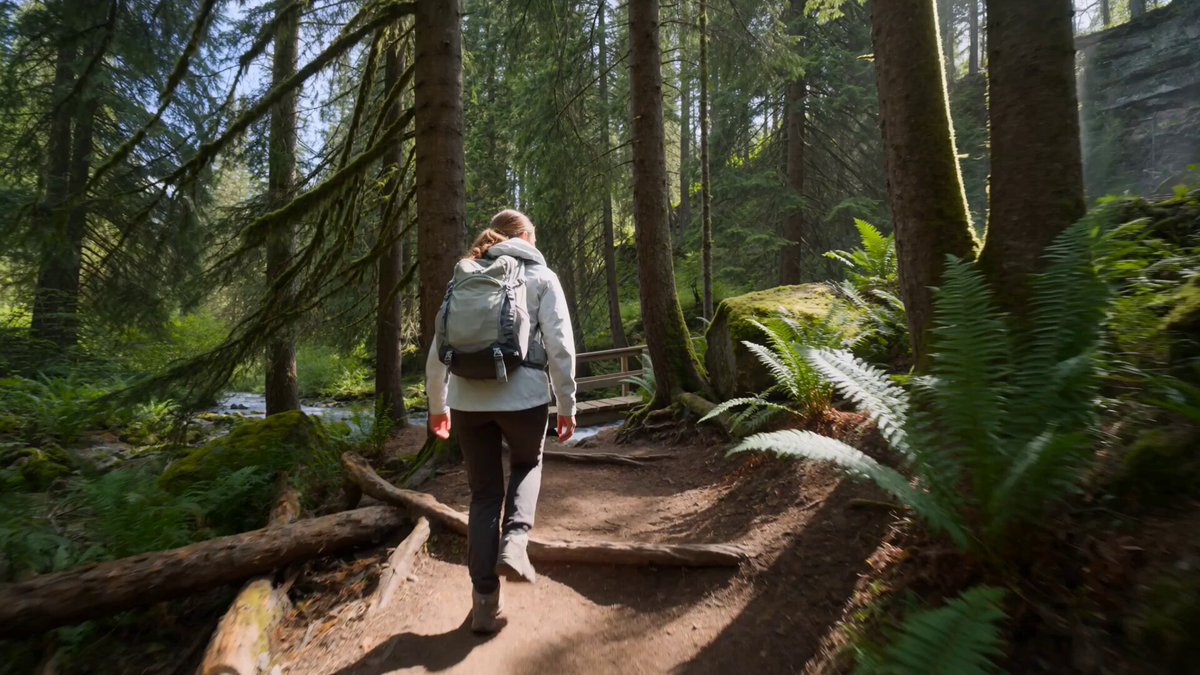
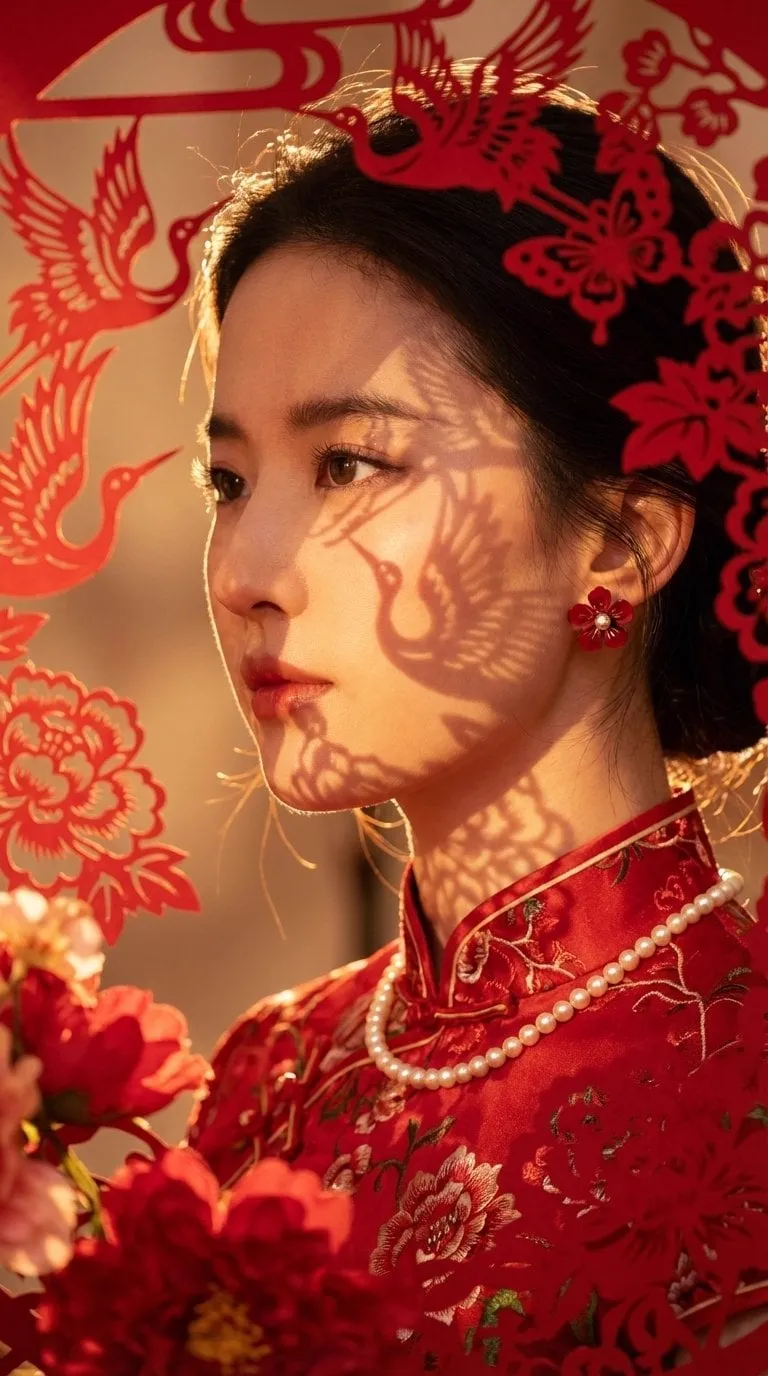
Most people who want to make video already own a hard drive full of stills: product photography, portrait sessions, location scouting shots, book covers, illustration boards, archive scans. Image-to-video generation starts from that existing asset instead of from a blank prompt, which changes the economics of the whole project. You are no longer asking a model to invent a scene, a subject, and a look. You are asking it to animate something you already approved.
That distinction matters more than it first appears. When you generate from text alone, every element is a variable: identity, wardrobe, lighting direction, lens character, background geometry. When you generate from an image, those variables are frozen. The model inherits the composition and the color grade, and the only thing left to negotiate is movement. For anyone producing a series — twelve product clips, six social variants, a title sequence for a documentary — that reduction in variables is the difference between a coherent set and a pile of unrelated footage.
It also shortens the approval loop. A client can sign off on a photograph in seconds, because photography is a familiar medium with familiar failure modes. Approving an animated version of that same photograph is a much smaller leap of trust than approving a fully synthetic scene. You are extending an approved asset, not replacing it.
Finally, stills are portable. A single frame can move between a photo editor, a compositing tool, and a video generator without being rebuilt. That portability is what makes a repeatable pipeline possible — and a repeatable pipeline is what turns an interesting experiment into a production habit.
What Actually Changes When a Frame Starts Moving
Animation is not just a still with the camera drifting. It introduces a second layer of problems: the model now has to keep its own previous output consistent with itself. Everything difficult about AI video lives in that sentence.
Temporal coherence in plain terms
Temporal coherence means that a face stays the same face from frame one to frame one hundred. When it fails, you see familiar symptoms: edges that crawl, textures that boil, a jawline that softens and then sharpens, a shirt pattern that rearranges itself. These are not aesthetic quibbles. They are the primary reason a shot gets rejected.
In practice, coherence degrades with three things: duration, motion magnitude, and subject complexity. A four-second shot of a coffee cup on a table with steam rising will usually hold. A ten-second shot of a crowd walking toward camera, with three faces in frame, usually will not. Plan your shot lengths around that reality rather than fighting it later.
Motion that reads as physically plausible
Real footage obeys inertia. Fabric settles. Hair swings and returns. Liquid finds its level. Models are good at large, obvious movement and worse at the small, secondary movement that makes a shot feel photographed rather than computed. The practical trick is to describe one primary action and one secondary reaction, then stop. "The model turns her head slowly, and the loose strands of hair settle a beat later" gives the system something to anchor to. Five simultaneous actions give it nothing.
Resolution, frame rate, and duration trade-offs
Every generation is a budget. Spend it on resolution and you have less headroom for motion; spend it on duration and coherence suffers. A useful default for most commercial work: generate at the highest resolution your final delivery needs, keep clips between three and six seconds, and cut them together rather than stretching a single generation. Editing is cheaper than regenerating.
Frame rate deserves a note too. Output at 24 or 25 frames per second reads as cinematic; 30 reads as broadcast or social; 60 reads as sports and gameplay. If your generator outputs a lower rate, interpolation in an editor can smooth it — but interpolation fixes judder, not flicker. Flicker is a generation problem and has to be solved upstream.
A Practical Workflow: From a Single Frame to a Finished Clip
This is the loop that works reliably across tools. It is deliberately boring, because boring loops are the ones that survive a deadline.
Prepare the source frame
Crop to the target aspect ratio before you generate, not after. A 16:9 image pushed into a 9:16 vertical frame will either letterbox or force the model to invent geometry it cannot see. Clean up artifacts, remove stray objects you do not want animated, and make sure the subject is not touching the frame edge — motion needs room to breathe. If text or a logo must appear, decide whether it lives in the source image or gets added in post. Adding it in post is almost always safer.
Write a motion-first prompt
The image already describes the scene, so your prompt should describe only what changes. One camera instruction, one subject action, one atmosphere cue. For example: "Slow push in, subject blinks and turns slightly toward the light, dust drifts through the beam." That is a complete prompt for a static-derived shot. Anything more is usually noise.
Lock the shot length
Decide the duration by asking what the shot has to accomplish. A reaction shot can be two seconds. A product reveal with a slow orbit wants five. If you need the shot to last longer than your generator handles comfortably, generate the long version, then cut it into two shots with a hard cut or a gentle dissolve. Viewers read cuts as intent; they read drift as error.
Review in motion, not in stills
Scrub through the clip at speed and watch for three things: identity drift, background wobble, and edge crawl around high-contrast details. Then watch it once at full speed with sound off. If it works silently, it will work with music. If it only works when you are looking for specific problems, it does not work.
Finish with sound and cuts
Sound sells motion far more than most people expect. A room tone bed, a subtle whoosh on a camera move, or a single foley accent can carry a clip that is technically imperfect. Bring clips into an editor, normalize color across shots, add a light grain pass if the generated footage looks too clean, and export at the platform's recommended bitrate.
Prompting for Motion: What to Describe and What to Leave Out
Prompting for image-to-video is a different skill from prompting for text-to-image. You are not building a world; you are choreographing one.
Camera language that models understand
Most systems respond well to a small vocabulary: push in, pull out, pan left, pan right, tilt up, orbit clockwise, crane up, handheld sway, locked-off tripod. Combine at most two. "Slow push in with a gentle handheld sway" is legible. "Push in while orbiting and craning and racking focus" is not — the model will average the instructions and produce mush.
Subject action verbs
Choose verbs with visible consequences. "Blinks," "breathes," "turns," "steps forward," "lifts," "pours," "unfolds" all map to motion the model can render. "Feels nostalgic" or "looks confident" do not, unless they are translated into a physical cue like a slow exhale or a lifted chin. Atmosphere cues — steam, dust, rain, smoke, drifting leaves — are cheap to render and add perceived production value, but one is enough.
What to leave out
Leave out scene description the image already contains. Leave out multiple camera moves. Leave out requests for cuts inside a single generation, which almost always produce a morph rather than an edit. And leave out negative instructions phrased as visuals ("no extra fingers") unless your tool has a dedicated negative field; embedded negations frequently summon the thing they forbid.
Keeping Characters and Products Consistent Across Shots
Consistency is where casual experimentation becomes production work. If a person appears in six shots, they must be the same person in all six.
The most reliable approach is to treat the source image as canon. Pick one strong frame per character or product, generate all shots from that frame, and reuse whatever seed or reference settings your tool exposes. Change one variable per generation — camera move or action, never both — so you always know what caused a change in output.
For products, physical photography beats synthesis almost every time. A real photograph carries accurate label text, true material response, and correct proportions. Generated product shots tend to drift on fine print and reflective surfaces. Generate motion from the real photograph, then composite brand text in post.
For characters, wardrobe lock helps more than face references alone. A distinctive jacket, a scarf, a specific hairstyle gives the model an anchor it can track across frames. Keep a simple continuity sheet — hair, wardrobe, accessories, which side the light comes from — and check each generated clip against it before moving on. Five minutes of bookkeeping saves an afternoon of regeneration.
Choosing the Right Tool for the Shot
There is no single best generator. There are tool classes, and each suits different shots.
| Tool class | Good for | Watch out for |
|---|---|---|
| General text-to-video models | Establishing shots, abstract sequences, scenes with no source asset | Weak identity control across shots |
| Image-to-video specialists | Product and portrait animation from approved stills | Shorter comfortable clip lengths |
| First-and-last-frame tools | Precise transitions, morphs, controlled reveals | Requires you to author the end state |
| Motion transfer and performance tools | Driving a still portrait with a recorded performance | Sensitive to source image quality |
| Local node-based pipelines | Repeatable batches, fine parameter control | Setup time and hardware demands |
Alongside generators, keep a finishing stack: an editor for cuts and color, an upscaler for delivery resolution, and a frame interpolation tool if your source output is below delivery frame rate. Familiar names in each category include Runway, Pika, Luma Dream Machine, Kling, Veo, Sora, Stable Video Diffusion, and ComfyUI-based pipelines for local work, with DaVinci Resolve, Premiere Pro, CapCut, and After Effects handling the edit.
When comparing options, score them on: supported input types, maximum comfortable clip length, resolution ceiling, strength of motion control, camera control vocabulary, licensing terms for commercial use, and how quickly you can produce a usable five seconds. That last metric matters most. A tool that renders in ninety seconds and needs two attempts beats a tool that renders in ten minutes and needs six.
Common Mistakes and How to Fix Them
Overloading the prompt. Six instructions produce an average of six instructions. Cut to two.
Using a low-resolution source. Garbage in, wobble out. Upscale or reshoot before generating.
Ignoring aspect ratio until the end. Crop first, generate second. Always.
Expecting accurate lip sync from an image. Most image-to-video systems animate faces, not dialogue. Record audio separately, or use a dedicated talking-head tool.
Generating ten seconds when four would do. Duration is the enemy of coherence. Cut, don't stretch.
Judging a clip at 25% zoom. Flicker and crawl are invisible in a still frame and obvious in playback.
Skipping continuity notes. If you cannot describe the character in one sentence, the model cannot either.
Forgetting rights and disclosure. Confirm you hold rights to the source image, be careful with real people's likenesses, and follow platform rules on synthetic media labels.
Quality Control Checklist Before You Publish
Run this before any clip leaves your timeline.
- Identity holds from first frame to last frame
- Background geometry does not breathe or shift
- No crawling edges around text, hair, or high-contrast lines
- Camera move is intentional and matches the adjacent shot's direction
- Color and contrast match the surrounding clips
- Audio carries the motion — tone bed plus at least one accent
- Aspect ratio and safe margins verified for each destination platform
- Source image rights, model release, and synthetic-media disclosure handled
- File exported at delivery resolution and platform-appropriate bitrate
Where This Fits in Real Production Pipelines
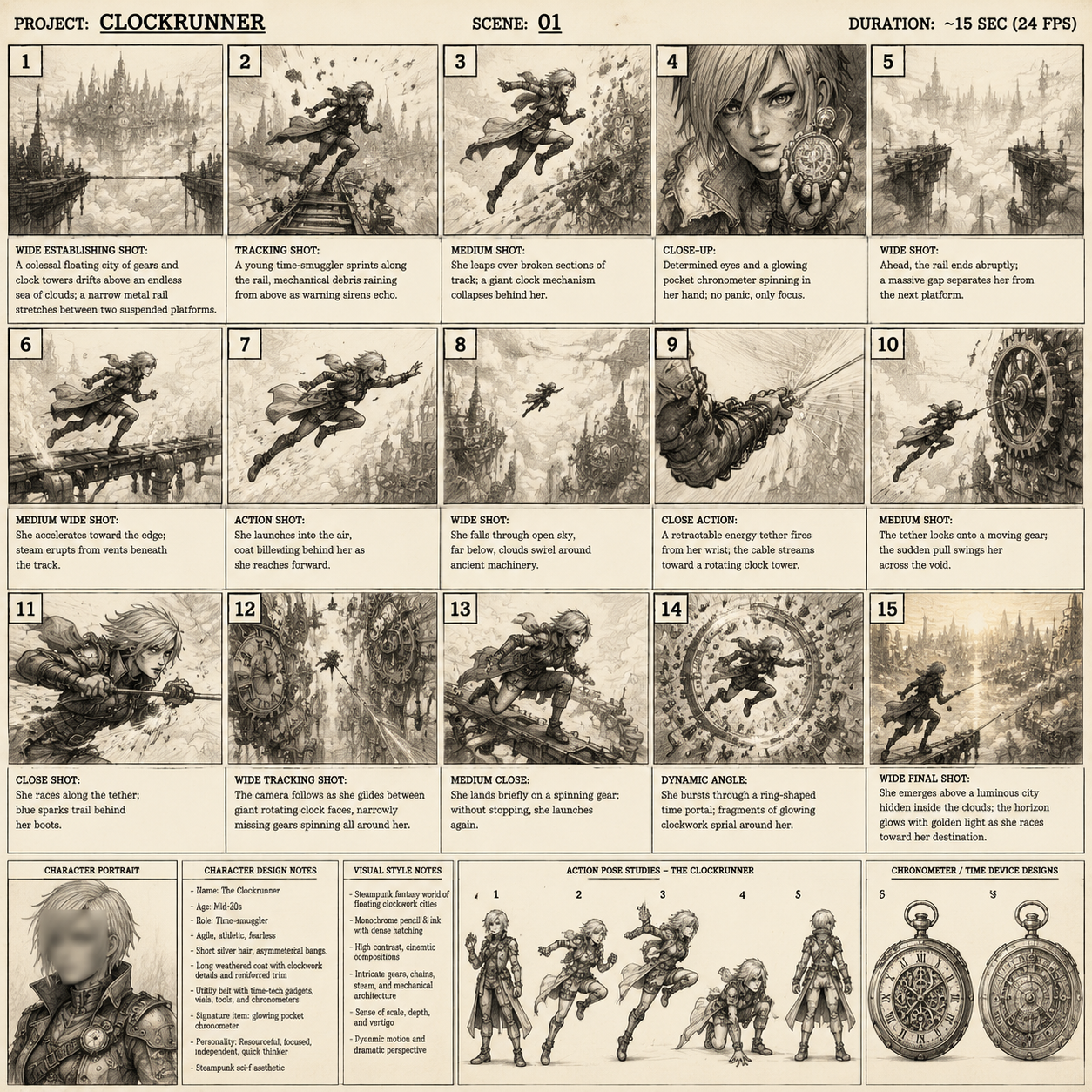
The most common production uses are unglamorous and effective. E-commerce teams animate catalog photography into short product loops with a consistent camera move. Real estate marketers add gentle parallax to interior stills. Publishers turn cover art into animated social teasers. Cultural institutions animate archival photographs for exhibitions, where a slow push in on a historic street scene does more emotional work than any caption. Independent filmmakers use image-to-video for previz and animatics, testing how a shot feels before committing a crew to it. Educators animate diagrams and scientific illustrations to hold attention in a lecture.
In every one of these cases, the still is the source of truth and the motion is a garnish. That framing keeps expectations calibrated. You are not replacing cinematography; you are adding a temporal layer to assets you already trust — and, over time, building a library of reusable motion presets: a house push in, a house orbit, a house handheld drift. Once those exist, producing a new clip becomes a matter of swapping the source image rather than reinventing the technique.
FAQ
How long should an AI-generated clip be?
Three to six seconds is the sweet spot for most image-to-video work. Longer clips are possible, but coherence usually degrades. Generate long, then cut.
Can I animate a single image into a full scene with camera movement?
Yes, with limits. Push, pan, tilt, and gentle orbit work reliably. Complex camera choreography inside one generation usually produces morphing rather than movement.
Why does my subject's face change during the clip?
Identity drift comes from long durations, fast motion, and low source resolution. Shorten the clip, reduce motion magnitude, and start from a sharper, larger source frame.
Do I need a specific tool to get consistent characters across shots?
You need a consistent reference frame and disciplined settings reuse more than you need a specific brand. Pick one strong frame per character and generate everything from it.
Should I add text in the generator or in post?
In post. Generated text drifts, warps, and misspells. Compositing text over a finished clip is faster and cleaner.
Is interpolating to a higher frame rate a fix for flicker?
No. Interpolation smooths judder; it does not repair frame-to-frame inconsistency. Fix flicker by regenerating with less motion or a shorter duration.
Can I use AI-animated stills commercially?
Often yes, but it depends on the tool's license terms and on whether you hold rights to the source image. Check licensing before you build a campaign on it, and disclose synthetic media where required.
What is the fastest way to improve output quality?
Better source images and shorter prompts. Most quality complaints trace back to a blurry start frame and an overloaded instruction.
How do I make a set of clips feel like one film?
Lock a look before you generate: same aspect ratio, same color treatment, same grain pass, one or two recurring camera moves, and a consistent audio bed across cuts. Consistency of treatment reads as authorship.
