Limited Time Offer: Get 50% OFF Starter & Basic Yearly Plans 🎉
AI Application Photo Editor
Use ai application photo editor to upload a photo and describe the application-ready changes you need—background, crop, lighting, or style—then download the.
An AI application photo editor lets you upload a source image, describe the changes you need for a specific application—such as a neutral background, square crop, or professional lighting—and generate a reworked version. You review the output for suitability and accuracy before choosing whether to download and use it.
AI Application Photo Editor
Restyle a product shot
Input
Upload a product photo and request a clean studio look with a soft white background and even lighting.
Expected output
A product photo with a professional studio appearance, clean background, and balanced lighting. Review for product accuracy and presentation.
Adjust colors on a landscape
Input
Upload a landscape and ask for deeper greens, richer blues, and increased vibrancy for a portfolio piece.
Expected output
A landscape with enhanced color saturation and improved visual impact. Review for natural balance and mood.
Create a vintage mood
Input
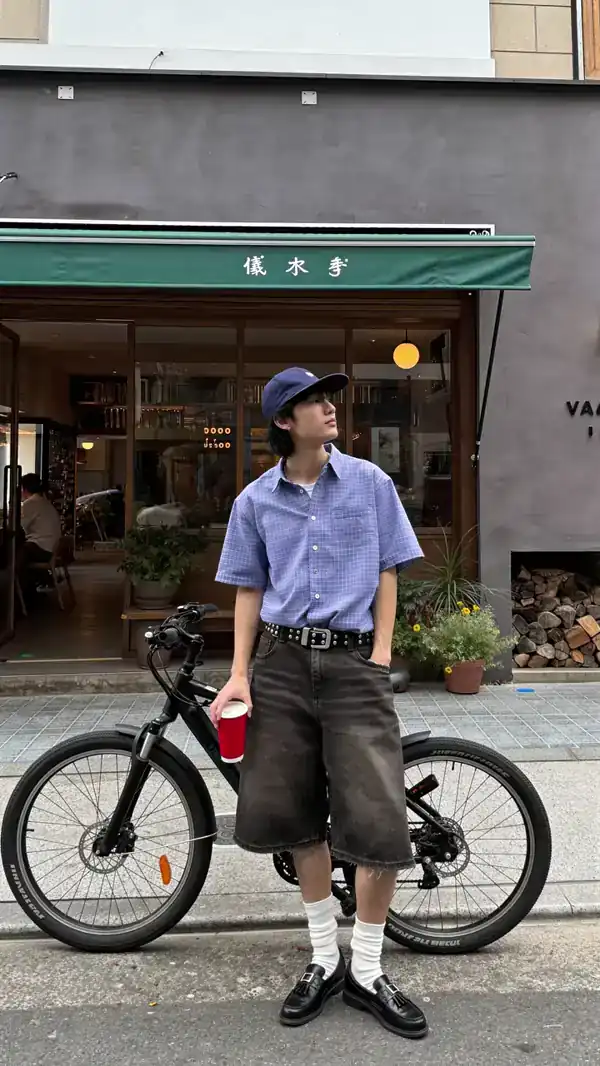
Upload a street photo and request faded colors, warm vintage highlights, and a film-like finish.
Expected output
A street photo with a nostalgic, analog appearance and warm color grading. Review for authenticity and style.
Edit a photo for a specific application—resume, portfolio, profile, or presentation—by describing the changes you need, then reviewing the result before you use it.
Start with your own image
Use a photo you have permission to edit instead of generating a subject from scratch with text alone.
Direct the changes
Describe the application-specific changes you need—background, crop, lighting—then compare the result with the original before deciding.
Review before you commit
Check the output for suitability, accuracy, and visual balance before downloading or using it in your application.
How It Works
1
Upload the image you want to refine
Start with an image you have the right to edit.
2
Describe the profile-picture changes you want
Keep the requested edits specific so the intended profile look is clear.
3
Generate, compare, and download
Review the output for likeness, accuracy, and the final profile crop before using it.
Making a profile-picture edit that stays clear
A clear source image and a focused edit request make it easier to judge the result.
Input Constraints
Only upload images you have permission to edit and use.
Keep the requested changes focused on the profile-picture outcome you need.
Review the final image for likeness and context before sharing it.
Practical Tips
Use a source image with a visible subject and enough detail around it.
Ask for one or two concrete application-specific changes, such as a neutral background or square crop.
Compare the result with the original image before choosing a version to use.
Privacy
Do not upload personal or sensitive material unless you have permission to use it.
Usage Rights
Confirm that you have the rights needed for the inputs and intended use of the result.
Prompt recipes
Copy a structure, then adjust the subject, lighting, camera, and output details for your own result.
Professional headshot with neutral background
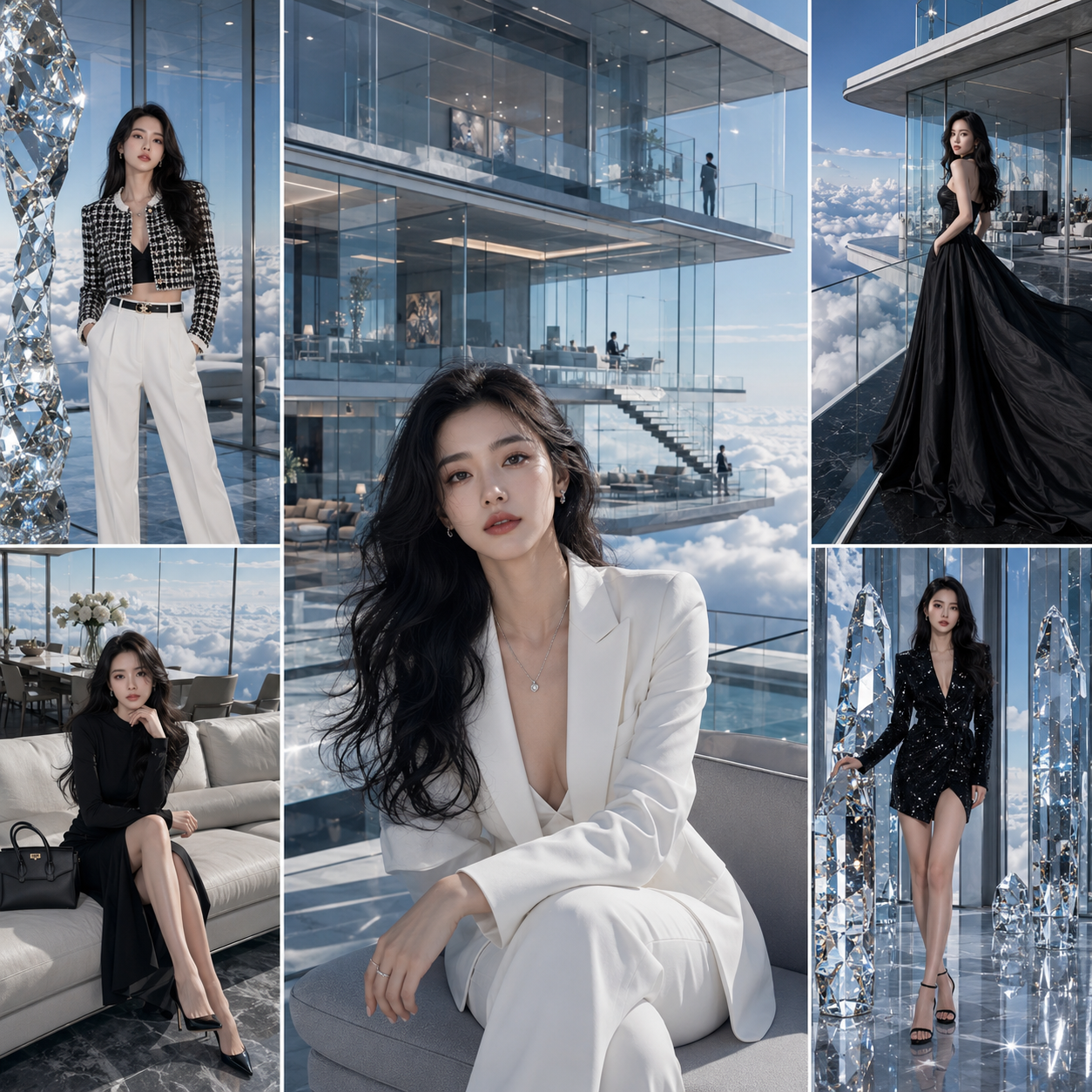
Upload a portrait. Request a neutral gray or white background, balanced lighting, and a clean crop suitable for resumes or LinkedIn.
Neutral backgrounds and even lighting meet professional standards and keep the focus on the subject.
Product photo with studio lighting
Upload a product shot. Ask for soft, even studio lighting, a clean white background, and subtle shadows for depth.
Studio lighting and a clean background create a professional, catalog-ready appearance.
Portfolio piece with enhanced colors
Upload a creative or travel photo. Request richer colors, increased contrast, and a polished finish for portfolio presentation.
Enhanced colors and contrast make portfolio images more visually impactful and memorable.
Social media post with square crop
Upload a landscape or portrait photo. Ask for a square crop centered on the main subject, with adjusted brightness for mobile screens.
Square crops and mobile-optimized brightness ensure the image looks good on Instagram, Facebook, and other social platforms.
Presentation slide with simplified background
Upload a photo intended for a slide deck. Request a blurred or simplified background and increased subject clarity for readability.
Simplified backgrounds reduce visual noise and help the subject stand out during presentations.
Best use cases
Match the workflow to the input you have and the result you need before opening the generator.
Use case
Best input
Expected result
Tool
Resume or LinkedIn headshot
A portrait with good lighting and a simple background
A professional headshot with a neutral background and balanced lighting
Image to Image
E-commerce product listing
A product photo with acceptable composition but inconsistent lighting or background
A clean, professional product image with studio-like lighting and a white background
Image to Image
Creative portfolio
A photo you want to enhance for visual impact
An image with enhanced colors, contrast, and a polished finish
Image to Image
Social media content
A photo you want to crop and optimize for mobile viewing
A square-cropped image with adjusted brightness and balanced composition
Image to Image
Resume or LinkedIn headshot
Input: A portrait with good lighting and a simple background
Result: A professional headshot with a neutral background and balanced lighting
Tool: Image to Image
E-commerce product listing
Input: A product photo with acceptable composition but inconsistent lighting or background
Result: A clean, professional product image with studio-like lighting and a white background
Tool: Image to Image
Creative portfolio
Input: A photo you want to enhance for visual impact
Result: An image with enhanced colors, contrast, and a polished finish
Tool: Image to Image
Social media content
Input: A photo you want to crop and optimize for mobile viewing
Result: A square-cropped image with adjusted brightness and balanced composition
Tool: Image to Image
Limitations to know before generating
The output depends on the clarity and composition of the source image; low-resolution or poorly lit photos may produce unclear results.
Application-specific edits are interpretive; the result may not match your exact vision on the first attempt.
Complex edits involving multiple subjects or busy backgrounds may produce unpredictable results.
You are responsible for confirming that the edited image accurately represents the subject and meets the requirements of your application before using it.
The tool does not guarantee that the result will meet specific professional or institutional standards; always review the output carefully.
Creative Suite: AI Video Generator & AI Image Generator Tools
Power up your creative workflow with our AI-driven tools. Generate stunning videos, create images, and apply custom adjustments - our AI Video Generator and AI Image Generator offer a complete solution for all your creative needs.
Open Image to Image, upload an image you can edit, describe the application-specific changes you need, and review the result before you decide to use it.